1. Overview
WooCommerce MultiSafepay Payment Gateway by PatSaTECH connects your WooCommerce store to MultiSafepay, the Dutch payment service provider. After placing the order the customer is sent to MultiSafepay’s secure payment page, which offers every method active on your MultiSafepay website: Visa, Mastercard, iDEAL | Wero, Bancontact, PayPal, Klarna, Apple Pay, Google Pay, bank transfer and more. Card details are typed on MultiSafepay’s page and never reach your server.
An order is marked paid only after the payment has been read back from the MultiSafepay API (status, amount and currency). This happens when the customer returns, when a signed notification arrives, and in a final check when the payment link expires. Nothing in a redirect or notification is trusted on its own. Full and partial refunds are made from the WooCommerce order screen.
This is an independent PatSaTECH plugin with its own gateway IDs (patsatech_multisafepay, …_ideal, …_bancontact, …_creditcard, …_paypal), classes and options, so it does not clash with MultiSafepay’s official plugin.
2. Features
- MultiSafepay payment page (redirect, API v1)
- All methods of your MultiSafepay website on one page
- Optional separate iDEAL | Wero, Bancontact, card and PayPal options
- Classic & Blocks checkout
- HPOS compatible
- API key checked on save, active methods listed
- Signed notifications (HMAC-SHA512
Authheader) or API lookup - Notification URL sent with every payment
- Every payment re-read from the API
- Amount & currency verification
- Per-order lock against double processing
- Full & partial refunds with the real refund status
- Reserved refunds followed up automatically
- Refunds made in MultiSafepay Control recorded
- Clear decline / cancel messages, retry on the same order
- Payment links expire, unpaid orders closed
- Uncleared and chargeback payments put On hold
- Payment page language (site language or fixed)
- Debug log (API keys never logged)
- Translation-ready (.pot)
3. Requirements
| Component | Minimum |
|---|---|
| WordPress | 6.0 (tested up to 7.1.3) |
| WooCommerce | 8.0 (tested up to 11.2.1) |
| PHP | 7.4 (tested on 8.1.34) |
| SSL / HTTPS | Required for live payments and notifications. |
| MultiSafepay | A test account (free) or a live account, and the website API key of the website you add for this store |
| Store currency | EUR for iDEAL | Wero and Bancontact; cards and other methods also take GBP, USD, CHF, SEK, DKK, NOK, PLN and more. See currencies. |
Tested on: WordPress 7.1.3, WooCommerce 11.2.1 (classic and Blocks checkout), PHP 8.1.34, MultiSafepay test environment (EUR). See Tested on.
4. Installation
- In WordPress admin go to Plugins → Add New → Upload Plugin.
- Choose
woomultisafepay-1.0.0.zipand click Install Now. - Activate WooCommerce MultiSafepay Payment Gateway (PatSaTECH). WooCommerce must be active.
FTP: upload the woomultisafepay folder to /wp-content/plugins/ and activate it.
5. Step-by-step setup with screenshots
- iDEAL | Wero payment: Processing, transaction ID set, confirmed by notification (order 6552)
- Visa on the Blocks checkout: Processing (order 6553); €10 refund completed by MultiSafepay at once
- iDEAL declined (Failure scenario), then paid with Bancontact on the same order (order 6554)
- Payment cancelled on the MultiSafepay page: the order stays Pending payment and the customer can try again (order 6555)
- iDEAL partial refunds Reserved, then accepted in MultiSafepay Control (orders 6552 and 6555); with this build order 6555 got exactly one “MultiSafepay refund … (2.00 EUR) is now completed.” note, no duplicate refund, and the order stayed Processing
- Over-refund blocked by WooCommerce; every status confirmed by a signed notification
Click any screenshot to open it full size. API keys are never shown (not even masked), and MultiSafepay order / transaction / refund IDs, email addresses, phone numbers and IP addresses are blurred or left out.
Part A: MultiSafepay
Create a test account and a website
Sign up at
testmerchant.multisafepay.com/signup, open Websites › Add website and enter your store’s name and URL. Copy the website’s API key with the copy button (the key is not shown in this guide). Details: Getting your API key.Activate payment methods
In MultiSafepay Control open Settings › Payment methods and switch on the methods you want (on a test account all of them can be switched on).
Part B: WordPress / WooCommerce
Upload and activate the plugin
Plugins → Add New → Upload Plugin, choose
woomultisafepay-1.0.0.zip, install and activate.
WooCommerce MultiSafepay Payment Gateway (PatSaTECH) 1.0.0 active. Set the store currency
WooCommerce → Settings → General: choose Euro (€) if you want iDEAL | Wero and Bancontact (they are EUR only). The test store uses EUR with 2 decimals.
Paste the API key
Go to WooCommerce → Settings → Payments → MultiSafepay, tick Enable, keep Test mode ticked, paste the Test API key and click Save changes. The plugin checks the key and lists your methods: “MultiSafepay Test API key verified. Active payment methods: …”. The notification URL is shown in the settings; it is sent with every payment, so nothing else needs to be set up.
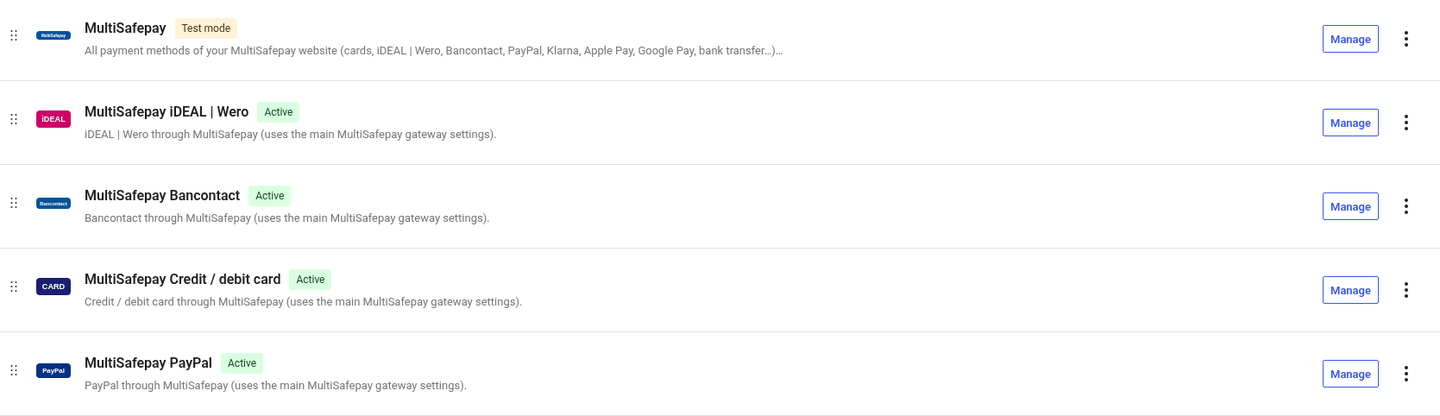
WooCommerce → Settings → Payments with MultiSafepay and the optional MultiSafepay iDEAL | Wero, Bancontact, Credit / debit card and PayPal options. 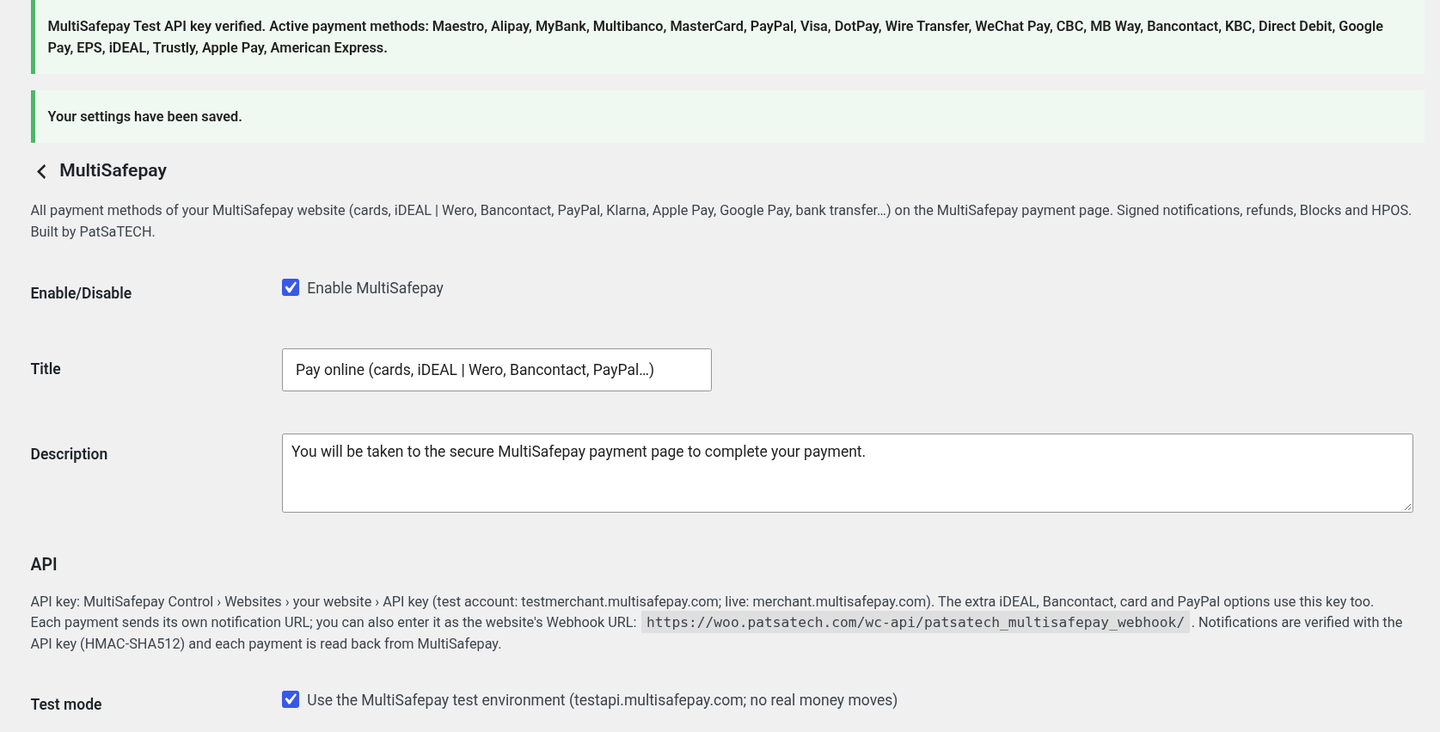
Top of the settings after Save: the green “API key verified” notice, Enable, Title, Description, the API key help with the notification URL, and Test mode (API key fields blurred). 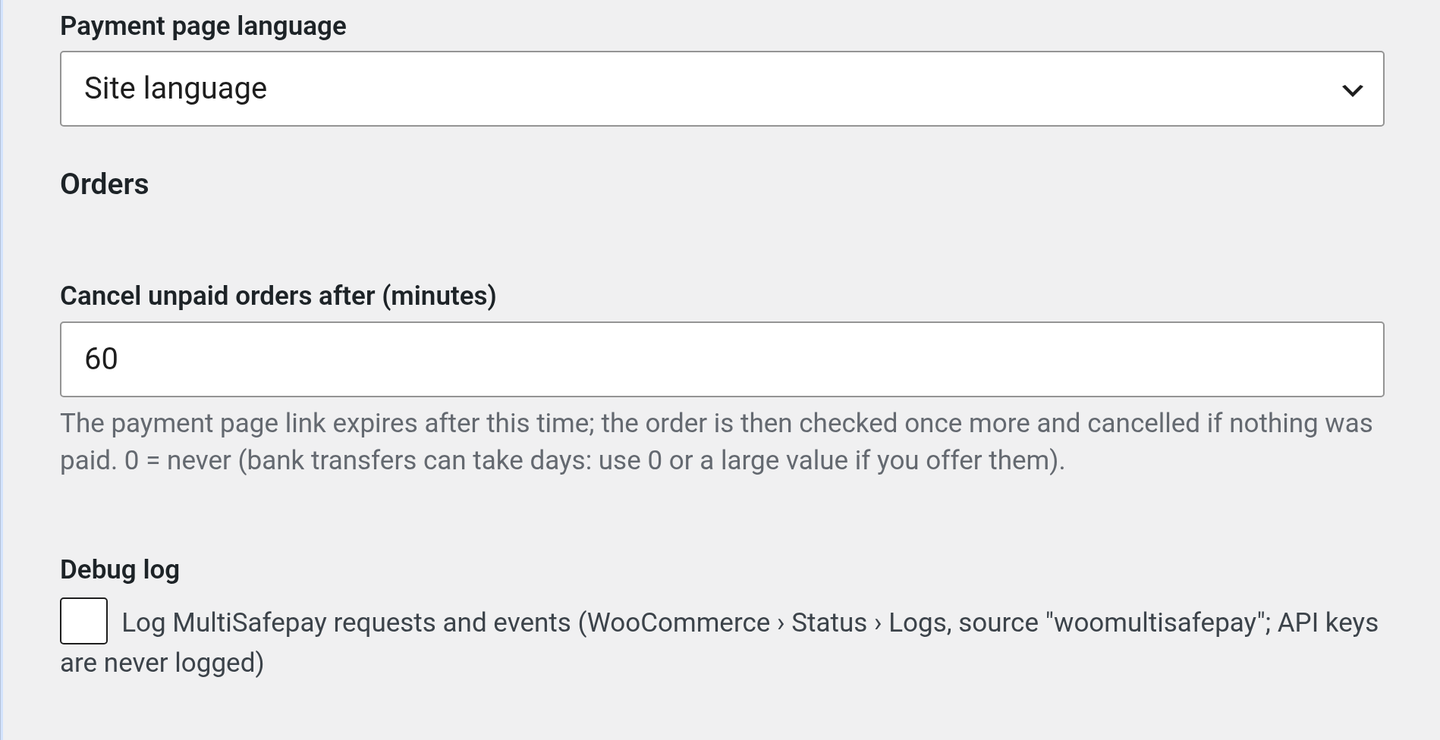
Payment page language, Cancel unpaid orders after (minutes) and Debug log. Optional: a method as its own option
Enable MultiSafepay iDEAL | Wero, Bancontact, Credit / debit card or PayPal to show it as its own checkout option. They use the main gateway’s API key. See separate options.
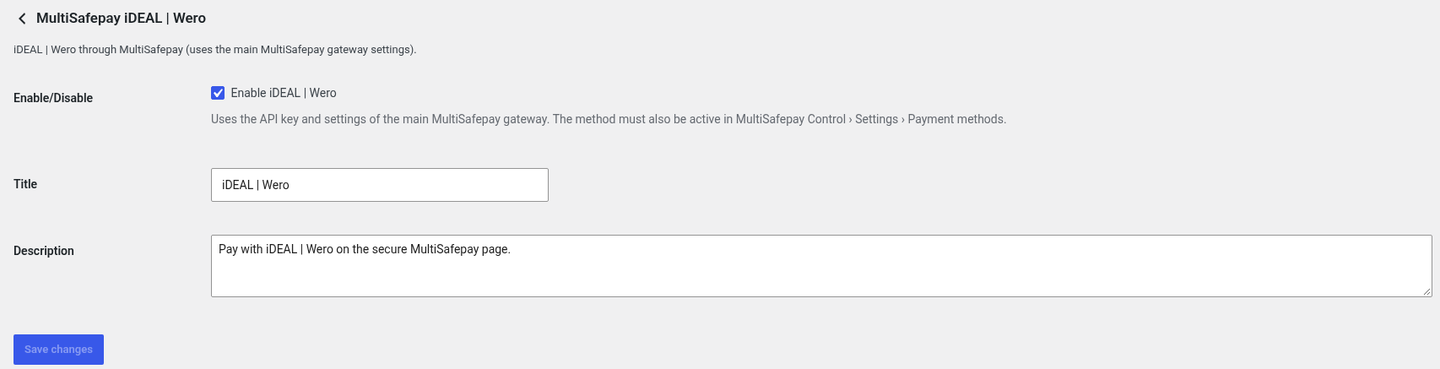
WooCommerce → Settings → Payments → MultiSafepay iDEAL | Wero: enable, title and description.
Part C: Test payment
Choose MultiSafepay at checkout
Add a product to the cart, choose Pay online (cards, iDEAL | Wero, Bancontact, PayPal…) (or one of the separate options) on the classic or Blocks checkout and click Place order.
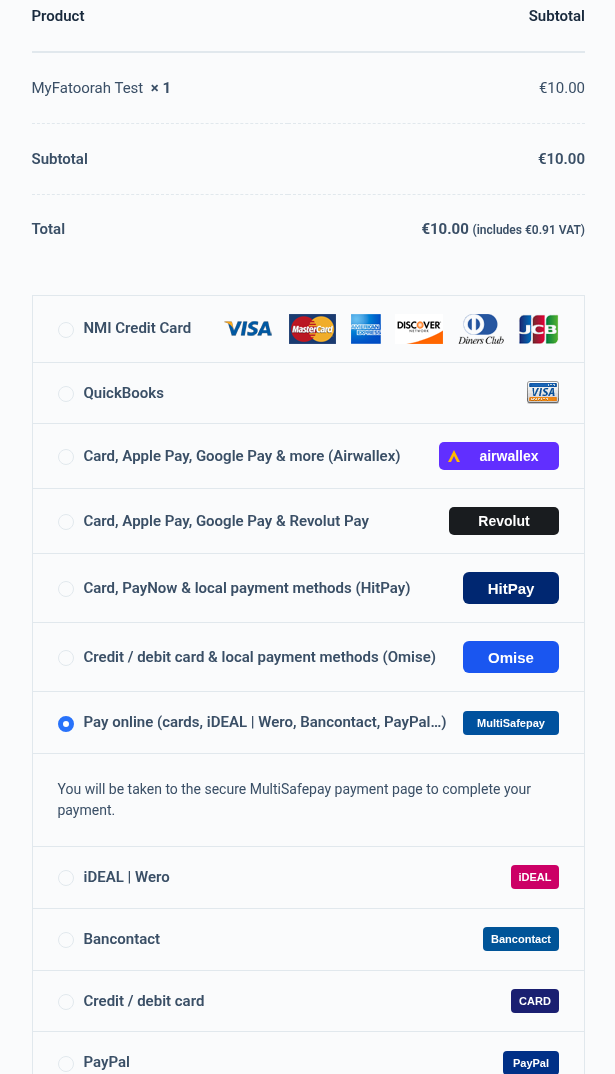
Classic checkout with “Pay online (cards, iDEAL | Wero, Bancontact, PayPal…)” selected (customer details blurred). 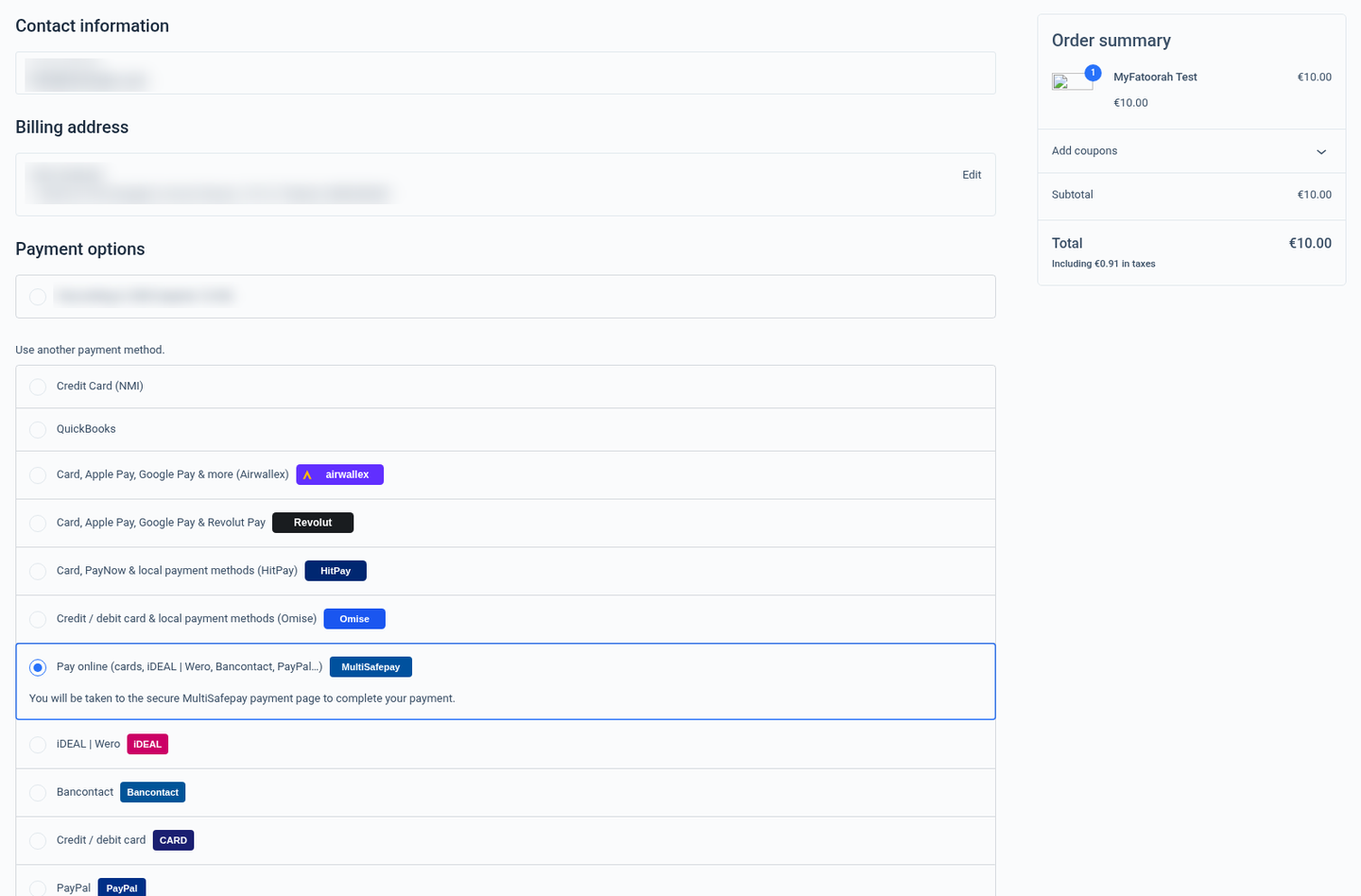
Blocks checkout with the MultiSafepay option selected (customer details blurred). Pay on the MultiSafepay page
The customer is sent to MultiSafepay’s payment page, which shows your shop name, the order description and the amount, and every active method. For a test card choose Visa and enter
4111 1111 1111 1111; for iDEAL | Wero pick a Test Scenario and click TEST.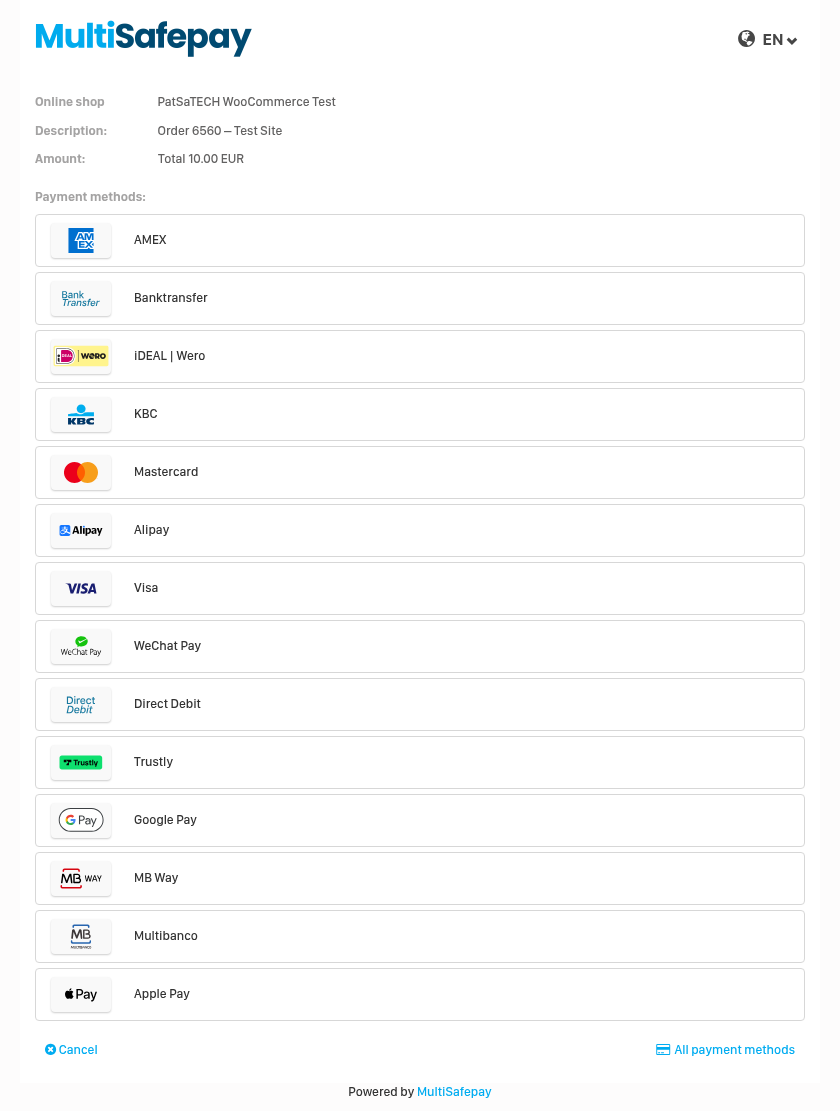
MultiSafepay payment page for a 10.00 EUR order with the methods of the test website. 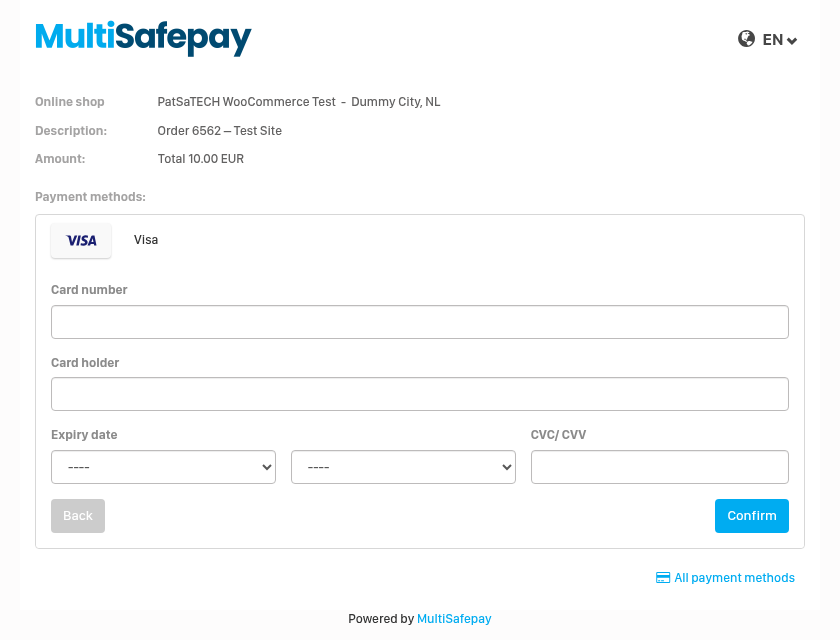
Card form after choosing Visa. 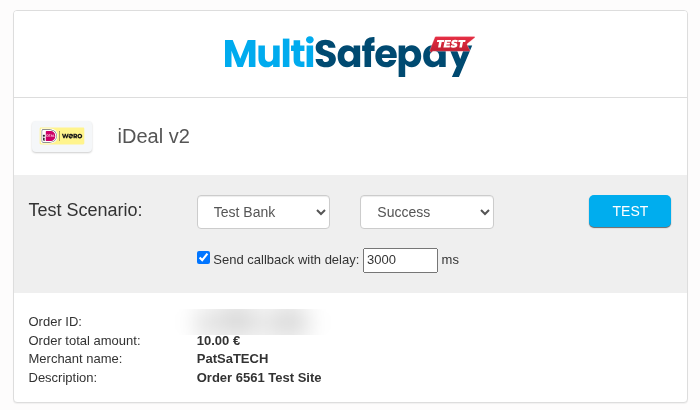
MultiSafepay’s iDEAL | Wero test page: Test Scenario Success / Failure / Cancelled / Expired (order ID blurred). Order received
After a successful payment the customer comes back to the order-received page. The plugin reads the payment from MultiSafepay before showing it as paid; if the notification is still on its way the page says “Thank you. We are waiting for MultiSafepay to confirm your payment; your order will update automatically.”
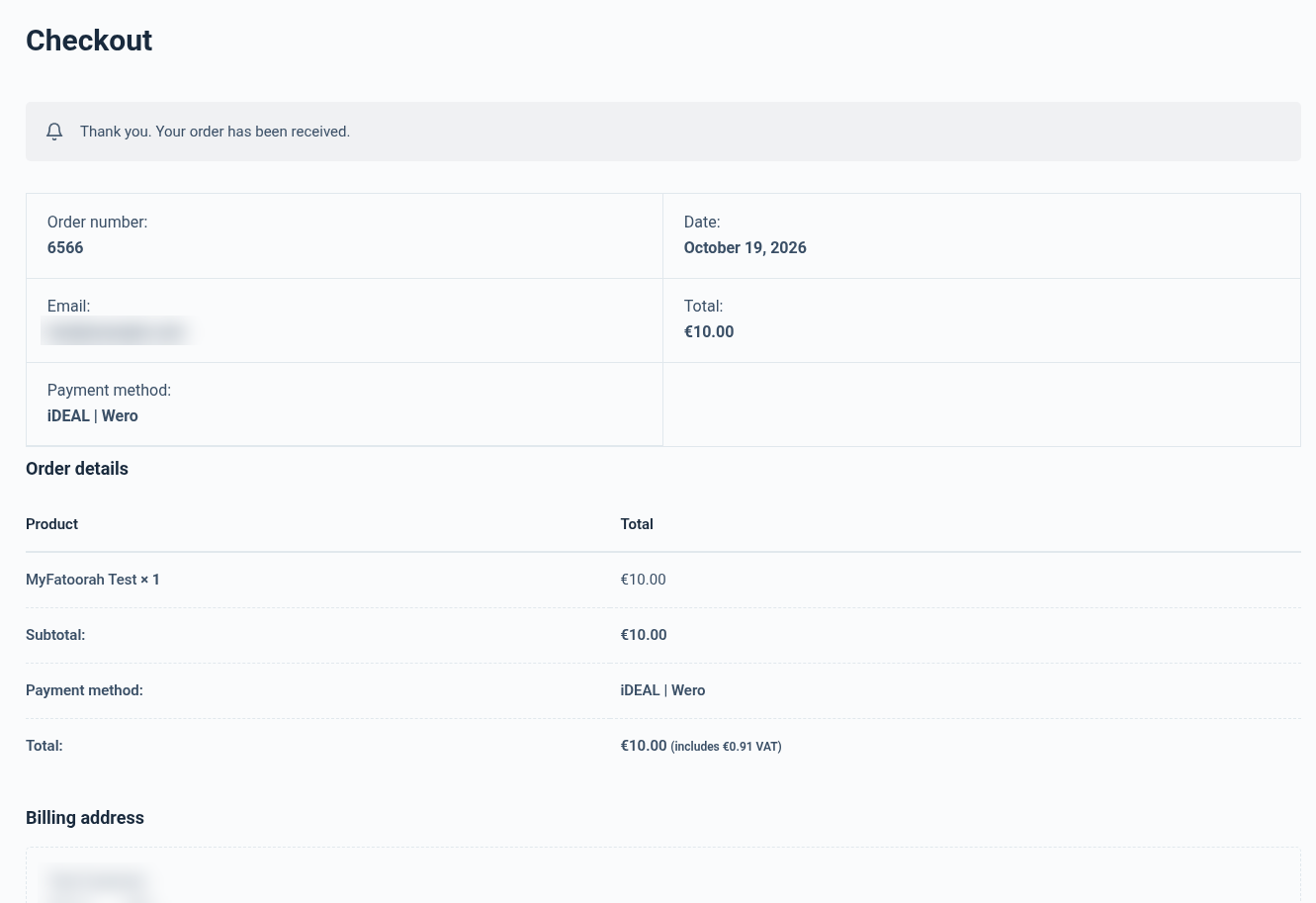
Order received page after a MultiSafepay payment (email blurred). Order is Processing
The order becomes Processing. The MultiSafepay transaction ID is the order’s transaction ID, and a note records the method and how the payment was confirmed: “MultiSafepay payment … (iDEAL) completed (MultiSafepay order wc-6552-1-…, test mode, confirmed by notification).”
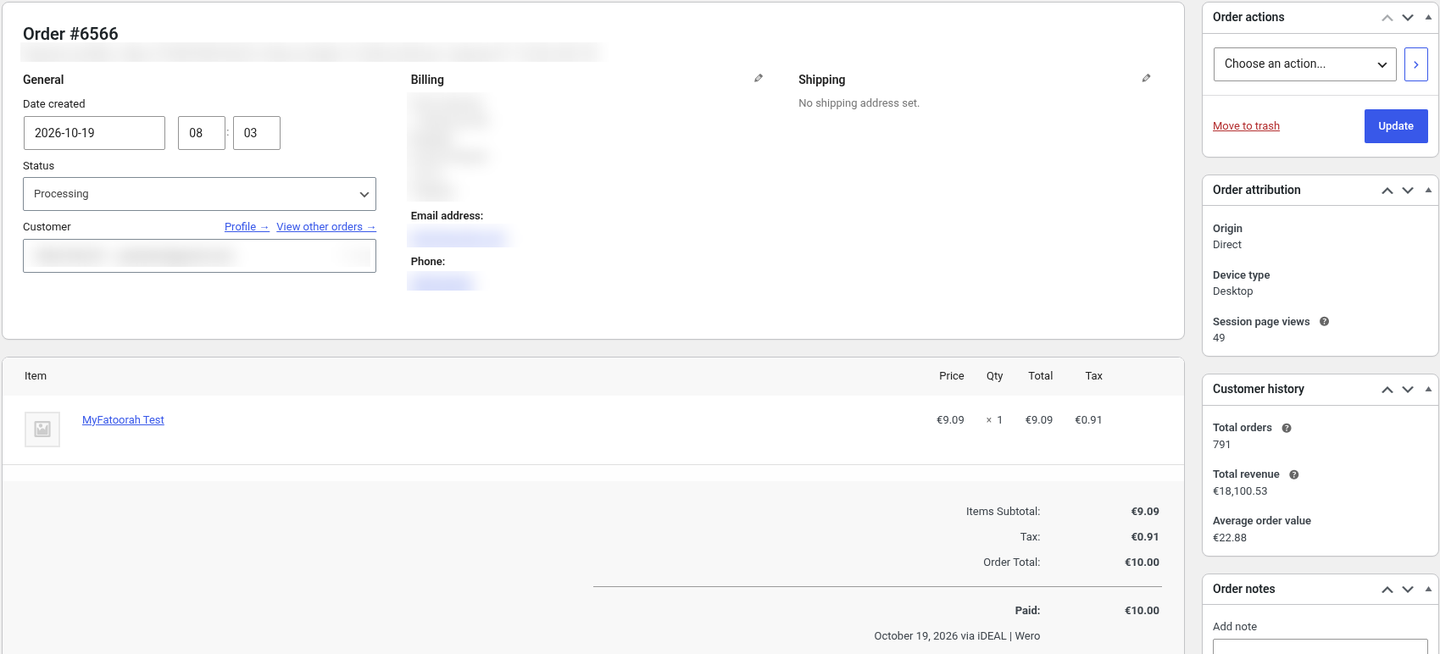
Order Processing: “Payment via Pay online (cards, iDEAL | Wero, Bancontact, PayPal…)” and the transaction ID (ID, IP and customer details blurred). 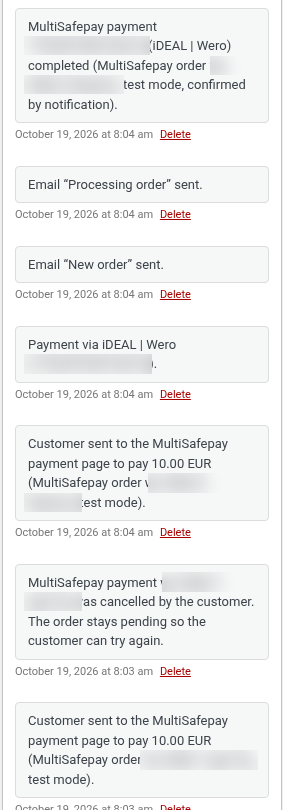
Order notes: “Customer sent to the MultiSafepay payment page…”, then “MultiSafepay payment … completed (… confirmed by notification).” (IDs blurred).
6. Getting your MultiSafepay API key
Test account and API key
- Create a free test account at testmerchant.multisafepay.com/signup (no business verification needed for testing). If MultiSafepay asks for a verification code or two-factor authentication, enter it yourself.
- In MultiSafepay Control open Websites › Add website (or open your existing website). Enter your site name and URL. You may enter the notification URL shown in the plugin as the Webhook URL; this is optional because the plugin sends it with every payment.
- Copy the website’s API key and paste it into WooCommerce → Settings → Payments → MultiSafepay (Test API key). Use the copy button: never send the key by email or chat.
- Open Settings › Payment methods and switch on the methods you want to test (iDEAL | Wero, Bancontact, Visa, Mastercard, PayPal…). On a test account every method can be switched on.
Live API key
- Your live account at
merchant.multisafepay.comis opened by MultiSafepay after business verification (KYC). Complete that with MultiSafepay; enter any 2FA codes yourself. - Add your website under Websites, copy its API key, and activate the payment methods in your contract.
- Paste it into the Live API key field, switch test mode off and save. The plugin checks the key and lists the active methods.
7. Plugin settings
WooCommerce → Settings → Payments → MultiSafepay
| Setting | Description |
|---|---|
| Enable/Disable | Shows MultiSafepay at checkout. |
| Title / Description | What customers see. Default: “Pay online (cards, iDEAL | Wero, Bancontact, PayPal…)” and “You will be taken to the secure MultiSafepay payment page to complete your payment.” |
| API key help | Where to find the key (MultiSafepay Control › Websites › your website › API key) and the store’s notification URL https://your-store.com/wc-api/patsatech_multisafepay_webhook/. |
| Test mode | Ticked by default: uses testapi.multisafepay.com and the test API key (no real money moves). Orders keep the mode they were created in. |
| Test API key / Live API key | The website API key from your test or live account (password fields). Checked when you save; the active payment methods are listed. Also used to verify notification signatures. |
| Payment page language | Site language (default), or English, Nederlands, Deutsch, Français, Español, Italiano. |
| Cancel unpaid orders after (minutes) | Default 60. The payment link expires after this time; the order is then checked once more and closed if nothing was paid. 0 = never (bank transfers can take days: use 0 or a large value if you offer them). |
| Debug log | Logs every request and status line to WooCommerce → Status → Logs (source woomultisafepay). Warnings, errors and notification receipts are logged even when it is off; API keys never are. |
8. iDEAL | Wero, Bancontact, card and PayPal as their own checkout options
Besides the main MultiSafepay option (all methods on one page), you can enable MultiSafepay iDEAL | Wero, MultiSafepay Bancontact, MultiSafepay Credit / debit card and MultiSafepay PayPal under WooCommerce → Settings → Payments. Each sends the customer straight to that method (“Pay with … on the secure MultiSafepay page.”) and uses the main gateway’s API key and settings.
- The method must also be active on your MultiSafepay website (Settings › Payment methods). If it isn’t, the plugin hides it at checkout and shows an admin notice telling you where to activate it.
- iDEAL | Wero and Bancontact are offered only when the store currency is EUR.
9. Notifications (webhooks)
Notifications let MultiSafepay tell the store about a payment even when the customer closes the browser before coming back.
Notification URL: https://your-store.com/wc-api/patsatech_multisafepay_webhook/
The plugin sends this URL with every MultiSafepay order (notification_url, method POST), so nothing has to be set up in MultiSafepay Control. You can also enter it as the website’s Webhook URL in MultiSafepay Control › Websites › your website.
| Notification | How it is checked | What the plugin does |
|---|---|---|
POST (JSON body, Auth header) | The Auth header is base64(timestamp:signature); the signature is HMAC-SHA512 of timestamp:raw body with your website API key. A wrong signature is refused (HTTP 403). | Reads the order back from MultiSafepay (GET /orders/{id}: status, amount, currency) under a per-order lock, then updates the order. A completed payment is final; repeats and older notifications are ignored. |
GET (?transactionid=…, no body) | Sent when the Webhook URL is used without the POST method. It cannot be signed, so the plugin trusts nothing in it and only reads the order back from MultiSafepay. | |
| Refund created / accepted | Same checks. | The refund list of the payment (related_transactions) is compared with what the order already has: a Reserved refund that becomes completed gets one note “MultiSafepay refund … is now completed.”; a cancelled refund gets a warning; a refund made in MultiSafepay Control is recorded as a WooCommerce refund. No refund is ever recorded twice. |
Notifications for orders this site did not create (wrong order-id prefix or unknown order) are acknowledged and ignored. Every applied notification writes a log line saying how it was verified (signature or API lookup).
10. Payment flow & order statuses
| MultiSafepay status | WooCommerce order |
|---|---|
| Order placed, customer on the MultiSafepay page (initialized) | Pending payment |
| completed (amount and currency match) | Processing (or Completed for virtual/downloadable items, as WooCommerce decides) |
| declined | Stays Pending payment with one note. MultiSafepay first shows its own “Transaction declined” page; after the customer clicks Cancel or Back there, the store shows “The payment was declined. Please try again or use another payment method.” and the customer can pay again on the same order |
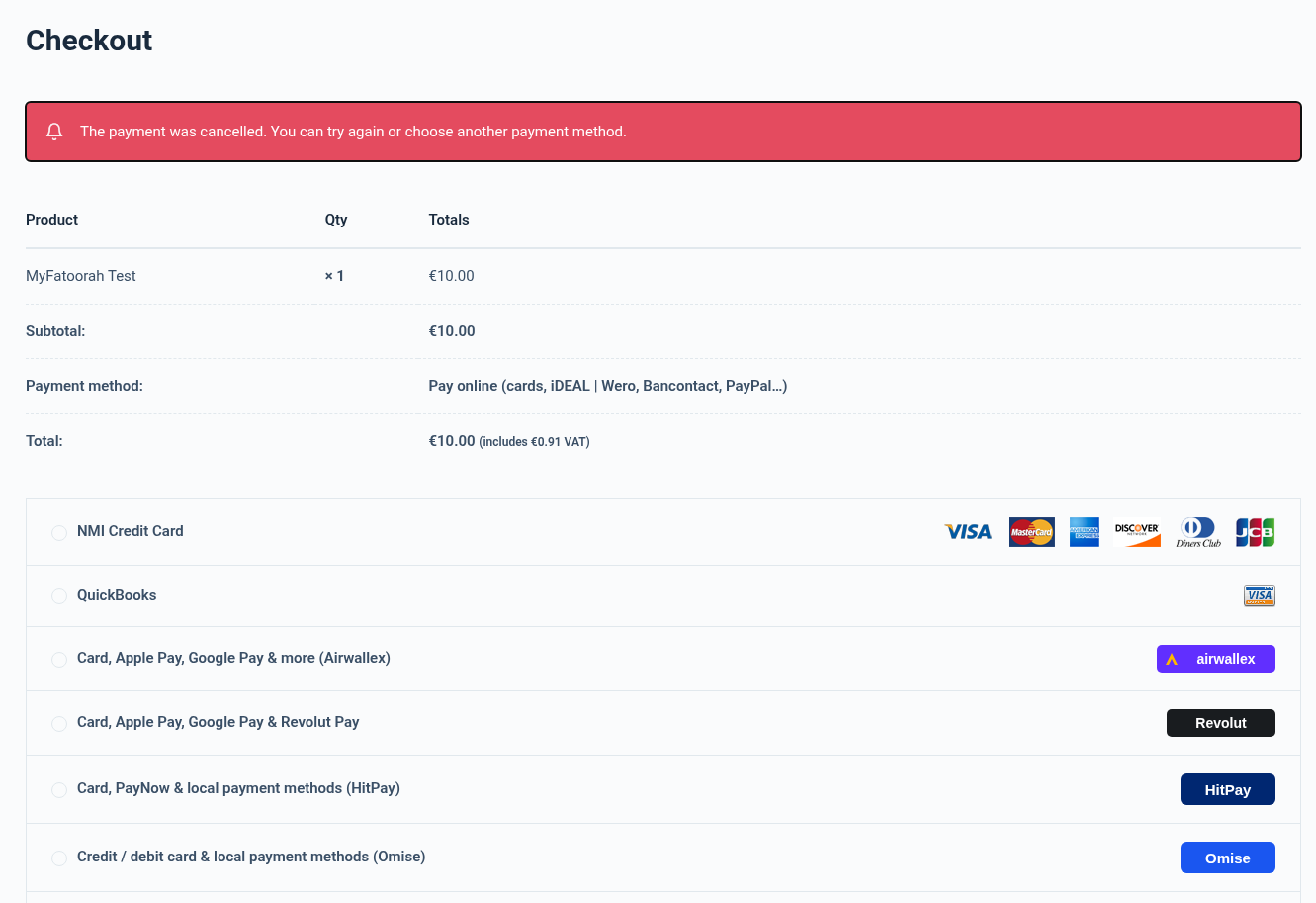
| Customer clicks Cancel on the payment page (the MultiSafepay order stays initialized), or void | Stays Pending payment with one “cancelled by the customer” note; the customer is sent back to the pay-for-order page with “The payment was cancelled. You can try again or choose another payment method.” |
| expired, or time limit reached without a payment | Cancelled (or Failed if a payment attempt was declined), after one last check: “Unpaid order closed: no completed MultiSafepay payment 60 minutes after checkout.” |
| uncleared (MultiSafepay is reviewing it) | On hold: “Do not ship yet”; updated automatically when MultiSafepay accepts or declines it |
| reserved (authorized, not captured) | On hold: capture or cancel it in MultiSafepay Control |
| Amount or currency mismatch | On hold: “MultiSafepay payment … was NOT accepted…” |
| chargeback | On hold with a warning note |
| A second payment for an already-paid order | Note + admin notice to refund the extra payment in MultiSafepay Control |
| refunded / partial_refunded | Refunds recorded as described under Refunds; fully refunded orders become Refunded |
11. Transaction ID and finding the payment
The MultiSafepay transaction ID (PSP ID) is saved as the WooCommerce order’s transaction ID. Each payment attempt has its own MultiSafepay order ID in the form wc-<order number>-<attempt>-<random>, for example wc-6554-2-… for the second attempt on order 6554. In MultiSafepay Control open Transactions and search for either ID; refunds appear under Related transactions.
12. Refunds
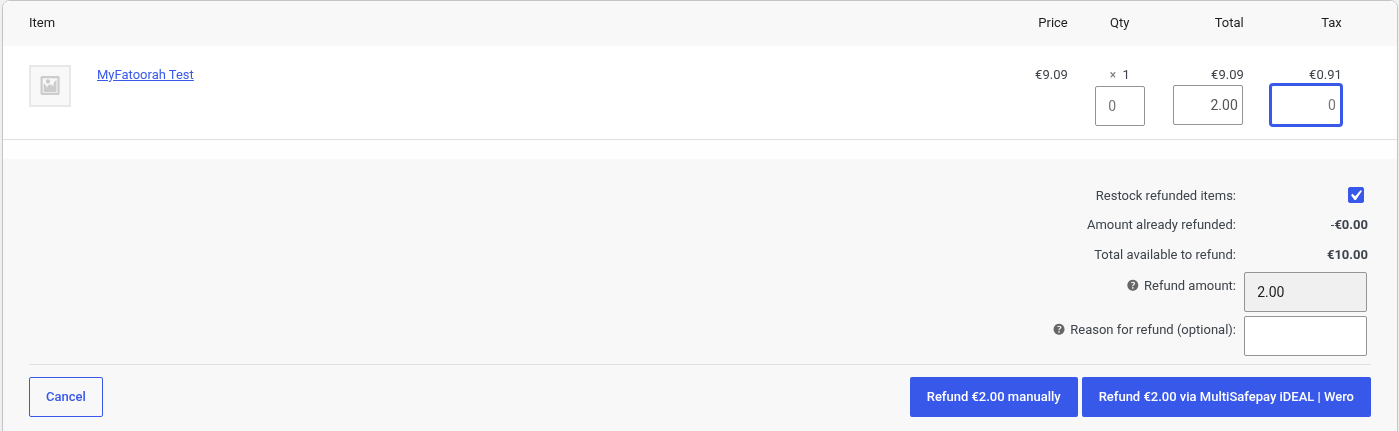
- Open the order and click Refund.
- Enter the amount (or line-item quantities), an optional reason, and click Refund … via MultiSafepay.
- The refund is sent to MultiSafepay at once, and the plugin reads its real status back:
- Completed (usually cards): “Refund of 10.00 EUR completed by MultiSafepay (refund …).”
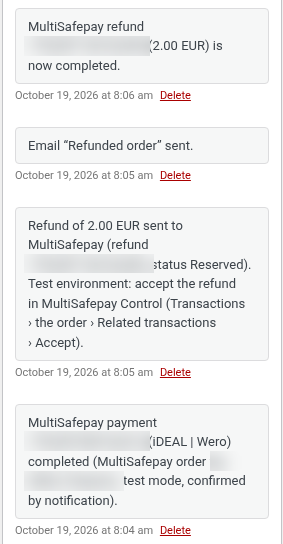
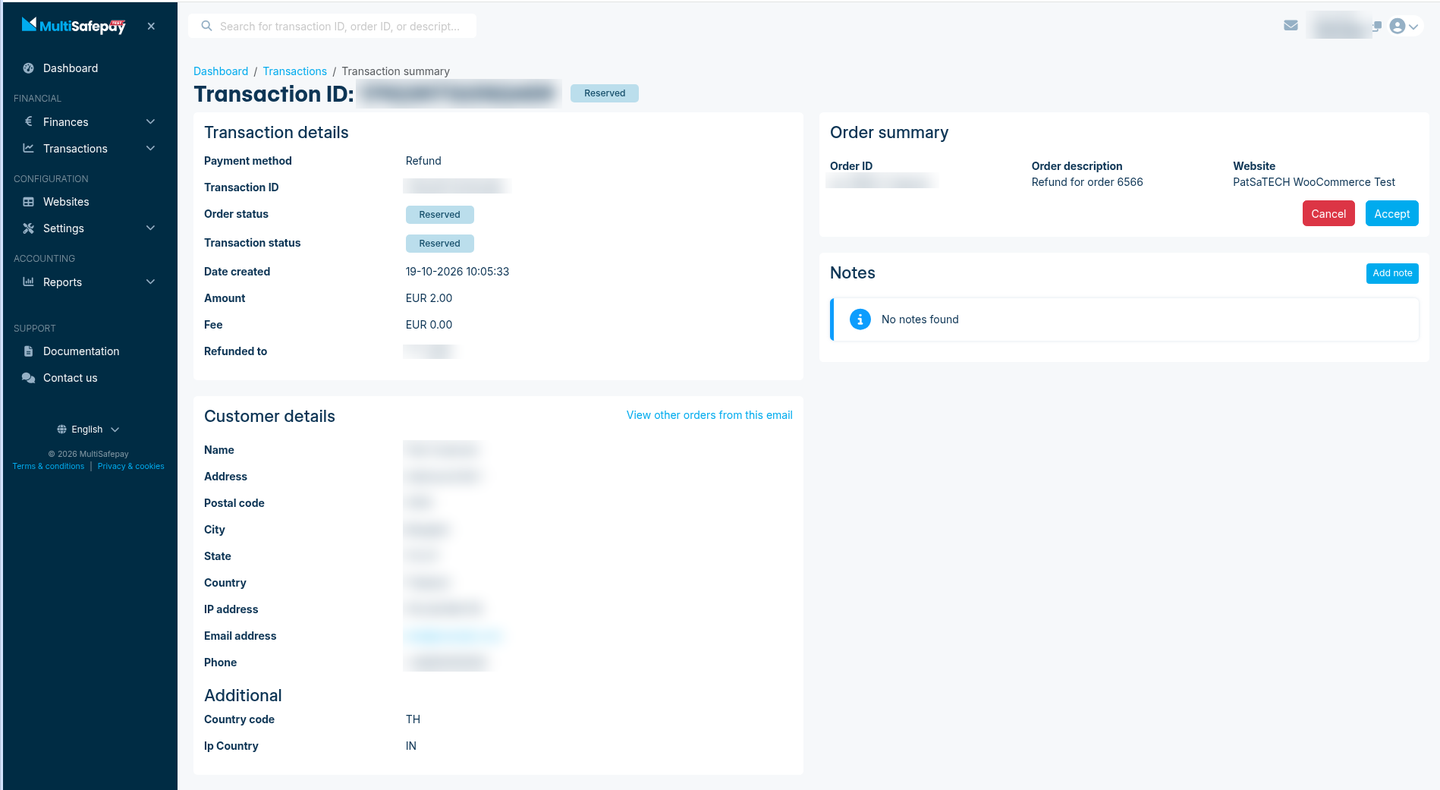
- Reserved (iDEAL | Wero and most bank methods): “Refund of 3.00 EUR sent to MultiSafepay (refund …, status Reserved).” plus a hint: live, “MultiSafepay completes it at the end of the day; until then it can be cancelled in MultiSafepay Control.”; test, “accept the refund in MultiSafepay Control (Transactions › the order › Related transactions › Accept).”
- A Reserved refund is picked up automatically: when it completes, MultiSafepay sends a notification and the order gets exactly one note, “MultiSafepay refund … (3.00 EUR) is now completed.” If it is cancelled in MultiSafepay instead, a warning note says so. Confirmed live on order 6555.
- Partial and full refunds both work, several times up to the amount paid. WooCommerce refuses more than the order’s remaining total, and the plugin also refuses more than is left on the MultiSafepay payment (“Only … can still be refunded on this MultiSafepay payment.”).
- Refunds made in MultiSafepay Control are recorded in WooCommerce once (“A MultiSafepay refund was made outside WooCommerce: … recorded as a refund.”).
- MultiSafepay refuses refunds when your balance is too low, refuses the same amount twice within 5 minutes, and on test accounts partial refunds must be enabled by MultiSafepay support. The plugin shows a clear message and WooCommerce rolls the refund back.
13. Declined, cancelled and expired payments
When a payment is declined or the customer clicks Cancel on the MultiSafepay page, the customer comes back to the store with one clear message and the order stays Pending payment with one note (for example “MultiSafepay payment … was declined. The order stays pending so the customer can try again.”). They can pay again straight away, with the same or another method; each attempt gets a new MultiSafepay order ID. Order 6554 was declined with iDEAL and then paid with Bancontact.
Declined payment, step by step. When a payment is declined (for example the iDEAL | Wero Failure test scenario or a declined card), MultiSafepay first shows its own Transaction declined page and the customer is still on MultiSafepay. The order already gets its decline note from the notification. Only when the customer clicks Cancel or Back on that page do they return to the store, which shows “The payment was declined. Please try again or use another payment method.” and lets them pay again. If the customer closes the tab instead, the order stays Pending payment until Cancel unpaid orders after closes it.
Time limit. The payment link expires after Cancel unpaid orders after (default 60 minutes). Shortly after that the order is checked with MultiSafepay once more; if nothing was paid it is closed (Cancelled, or Failed after a declined attempt). The check is removed as soon as the order is paid.
14. Testing (test payment details)
Test payments use your MultiSafepay test account (testmerchant.multisafepay.com) and its website API key; they run on testapi.multisafepay.com and no money moves. All payment methods can be switched on for a test website under Settings › Payment methods.
| Method | What to do | Result |
|---|---|---|
| iDEAL | Wero | Choose iDEAL | Wero. MultiSafepay shows its test page: pick a Test Scenario and click TEST. | Success = paid · Failure = declined (MultiSafepay shows its “Transaction declined” page; click Cancel or Back to return to the site) · Cancelled = cancelled · Expired = expired. Used for orders 6552 and 6554. |
| Visa / Mastercard | 4111 1111 1111 1111 (Visa) or 5500 0000 0000 0004 (Mastercard), any name, any future expiry, CVC 123 | Paid. If a 3-D Secure test page appears, choose Authenticated (Y); our Visa tests went straight through. Used for order 6553. |
| Card declined | 4012 0010 3746 1114 (3-D Secure failed) or 4012 0010 3848 8884 (insufficient funds) | Declined: the customer sees a clear message and can try again. |
| Bancontact | Card 6703 4500 0546 20008, any future expiry (6703 6640 0000 00042 = declined) | Paid (order 6554). |
| Other cards and scenarios | MultiSafepay’s docs, “Test payment details”: docs.multisafepay.com/docs/testing | Declined, 3-D Secure, Uncleared and more. |
15. Payment methods & currencies
Who can use MultiSafepay. MultiSafepay (Amsterdam) serves businesses in the Netherlands, Belgium and across Europe. Anyone can open a free test account; a live account is opened by MultiSafepay after business verification.
Payment methods. Every method active on your MultiSafepay website appears on the payment page, as your contract allows: Visa, Mastercard, Maestro, American Express, iDEAL | Wero, Bancontact, PayPal, Klarna, Apple Pay, Google Pay, bank transfer, SEPA Direct Debit, Trustly, KBC/CBC, Belfius, MB WAY, Multibanco, Alipay, WeChat Pay, gift cards and more. When you save the API key the plugin lists the active methods.
Currency. MultiSafepay takes many currencies (EUR, GBP, USD, CHF, SEK, DKK, NOK, PLN and others; card methods are the most flexible). iDEAL | Wero and Bancontact are EUR only, and the plugin hides a method that cannot take the store currency. The tests used EUR.
Amounts. Amounts are sent in cents; the total must be above zero.
16. Debug logs
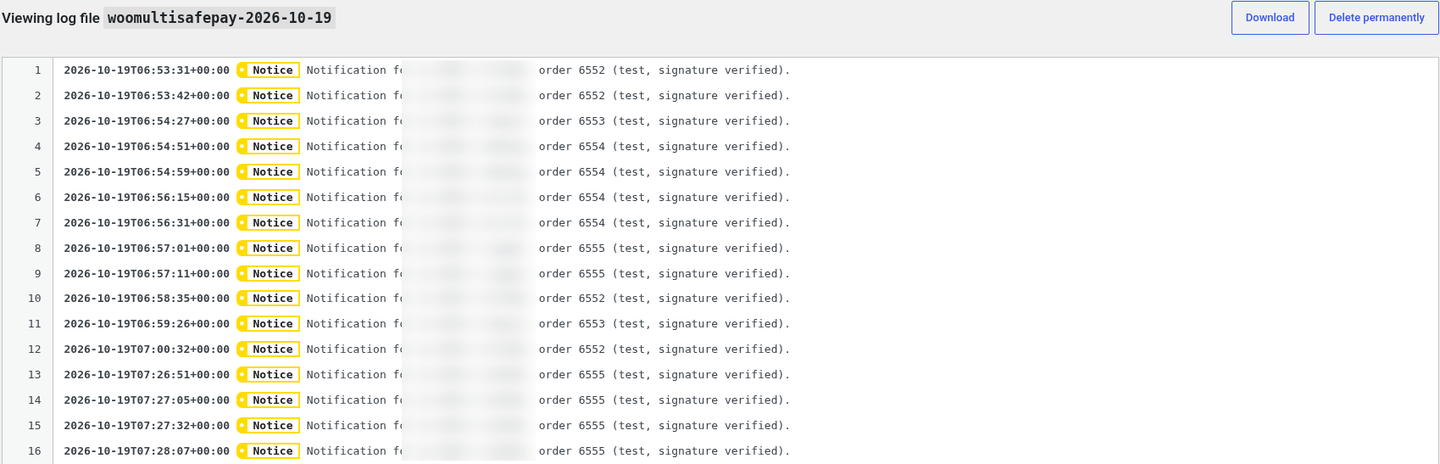
Tick Debug log in the settings, then open WooCommerce → Status → Logs and choose the woomultisafepay source. Always logged, even with Debug log off: warnings and errors (for example a payment rejected because its amount or currency does not match, a refused notification signature, a failed refund) and each notification receipt with how it was verified. Only with Debug log ticked: every API request and status line. API keys, card data and customer details are never logged.
17. Troubleshooting & FAQ
“The API key was refused” when saving
Copy the website API key from MultiSafepay Control › Websites › your website (not an account password), and check it belongs to the selected environment: a test key only works with Test mode on, a live key only with it off.
A method doesn’t appear at checkout
It must be active on your MultiSafepay website (Settings › Payment methods). iDEAL | Wero and Bancontact need EUR. The plugin shows an admin notice when an enabled separate option is not active in MultiSafepay; save the settings again after activating it.
Paid on MultiSafepay but the order is still Pending payment
The notification URL is sent with every payment, so check that the site is reachable over https and that no firewall blocks https://your-store.com/wc-api/patsatech_multisafepay_webhook/. The return page and the expiry check also read the payment from MultiSafepay. WP-Cron / Action Scheduler must run. See the woomultisafepay log.
The log shows “Notification for … refused: signature …”
The notification was signed with a different API key, usually because the website in MultiSafepay Control is not the one whose key is in the plugin, or test and live keys are mixed up.
Why does one refund say “completed” and another “Reserved”?
After each refund the plugin reads the status back from MultiSafepay. Card refunds are usually completed at once; iDEAL | Wero and other bank refunds start as Reserved. Live, MultiSafepay completes them at midnight (until then they can be cancelled in MultiSafepay Control); in the test environment they stay Reserved until you click Accept.
Will I get a note when a Reserved refund completes?
Yes. A Reserved refund is picked up automatically once it is accepted: MultiSafepay sends a notification, the plugin reads the payment back and the order gets exactly one “MultiSafepay refund … is now completed” note (or a warning if the refund was cancelled). No second WooCommerce refund is created.
“MultiSafepay cannot refund this payment right now”
Check your MultiSafepay balance; partial refunds must be enabled on test accounts by MultiSafepay support, and the same amount cannot be refunded twice within 5 minutes.
Bank transfer orders are cancelled
Bank transfers can take days. If you offer them, set Cancel unpaid orders after to 0 or a large value.
Does it work next to MultiSafepay’s official plugin?
Yes. The IDs, classes, options and endpoints are all different. Don’t enable both for the same checkout.
Subscriptions?
No. One-time payments only.
18. Tested on
- WordPress 7.1.3
- WooCommerce 11.2.1 (classic checkout and Cart/Checkout Blocks)
- PHP 8.1.34; PHP 7.4 or later required
- MultiSafepay test environment (testapi.multisafepay.com), store currency EUR
- Scenarios: iDEAL | Wero paid, declined and cancelled; Visa on the Blocks checkout; Bancontact retry on the same order; signed POST notifications; card refund completed at once; iDEAL partial refunds Reserved and then accepted (one completion note each); over-refund blocked
- Not yet tested by PatSaTECH: live payments, PayPal, Klarna, Apple Pay / Google Pay, uncleared payments and chargebacks (covered by automated tests only)
19. Changelog
1.0.0 — 2026-10-19
- Initial release.
- MultiSafepay payment page (API v1, redirect) with every active method; optional separate iDEAL | Wero, Bancontact, card and PayPal options.
- HPOS compatible; classic and Blocks checkout.
- Test and live API keys checked on save; notification URL sent with every payment; POST notifications verified with the HMAC-SHA512
Authheader, GET notifications by API lookup. - Every payment re-read from the API under a per-order lock; amount and currency verified; uncleared, reserved and chargeback payments put On hold.
- Full and partial refunds with the real refund status; Reserved refunds followed up automatically; refunds made in MultiSafepay Control recorded.
- Payment links expire and unpaid orders are closed; debug logging (no API keys).
20. Support
PatSaTECH · [email protected] · www.patsatech.com
Please include your WordPress, WooCommerce and PHP versions, the mode (test or live) and the relevant log lines. Never send your API key.