1. Overview
WooCommerce HitPay Payment Gateway by PatSaTECH connects your WooCommerce store to HitPay. For every checkout the plugin creates a HitPay payment request and sends the customer to HitPay’s secure checkout page, where they pay by card, PayNow, Apple Pay, Google Pay, GrabPay, ShopeePay, FPX, GCash, QRIS or any other method enabled in your HitPay account. Card data never touches your store.
The order is marked paid only after HitPay confirms the payment, through a status check with the HitPay API or a signed webhook; the status in HitPay’s return link is never trusted. Refunds (full and partial) are made from the WooCommerce order screen.
This is an independent PatSaTECH plugin with its own gateway ID (patsatech_hitpay), classes and options, so it does not clash with the official HitPay plugin.
2. Features
- HitPay checkout page
- Cards, PayNow, wallets & local methods
- Choose which methods to show
- Classic & Blocks checkout
- HPOS compatible
- Sandbox & Live API keys
- API key checked on save
- Signed webhooks (Hitpay-Signature)
- Return status never trusted
- Amount & currency verification
- Per-order lock
- Duplicate payments refunded automatically
- Full & partial refunds
- Dashboard refunds noted
- Card brand & last 4 in the order note
- Clear minimum-amount message
- Unpaid orders cancelled on a timer
- HitPay SMS always off
- Debug log (no secrets logged)
- Translation-ready (.pot)
3. Requirements
| Component | Minimum |
|---|---|
| WordPress | 6.0 (tested up to 7.1.3) |
| WooCommerce | 8.0 (tested up to 11.2.1) |
| PHP | 7.4 |
| SSL / HTTPS | Required. HitPay does not deliver webhooks to localhost or IP addresses. |
| HitPay account | A verified HitPay account (live) or a free sandbox account (testing), its API key, and an Event Webhook with its salt |
| Store currency | One HitPay supports, see Currencies |
Tested on: WordPress 7.1.3, WooCommerce 11.2.1 (classic and Blocks checkout), PHP 8.1.34, HitPay sandbox (Singapore, SGD). See Tested on.
4. Installation
- In WordPress admin go to Plugins → Add New → Upload Plugin.
- Choose
woohitpay-1.0.0.zipand click Install Now. - Activate WooCommerce HitPay Payment Gateway (PatSaTECH). WooCommerce must be active.
FTP: upload the woohitpay folder to /wp-content/plugins/ and activate it.
Step-by-step setup with screenshots
- Card payment on the Blocks checkout, order Processing with “Method: Card (Visa ending 4242)” (order 6500)
- Signed Event Webhooks accepted (Payment Request Completed, Charge Created)
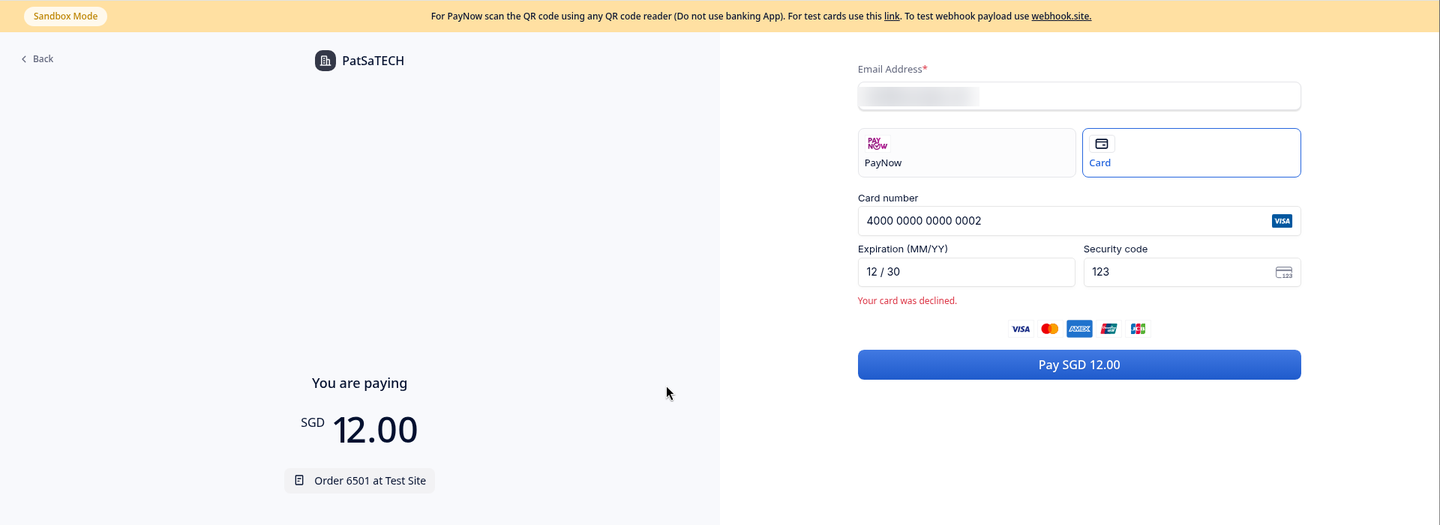
- Declined card on the classic checkout: the customer stays on HitPay’s page and can retry (order 6501)
- Partial refund (3.00) and refund of the rest (9.00) from WooCommerce; a refund larger than the balance refused; a refund made in the HitPay dashboard noted on the order
- Duplicate-payment guard, minimum amount (0.10 order) and a method that is not activated (orders 6506–6508)
- Unpaid order cancelled by the time limit (order 6508)
Click any screenshot to open it full size. API keys, salts, HitPay payment-request and charge IDs, email addresses, phone numbers and IP addresses are blurred or left out.
Part A: HitPay dashboard
Copy your API key
In the HitPay dashboard (sandbox:
dashboard.sandbox.hit-pay.com) open Developers → API Keys and copy the API key. Full details: Getting your HitPay API key and webhook salt.SCREENSHOT TODO: HitPay Developers → API Keys (key and salt blurred).Add an Event Webhook for this store
Open Developers → Event Webhooks, add a webhook with the URL
https://your-store.com/wc-api/patsatech_hitpay_webhook/, tick the 5 events (Payment Request Completed, Payment Request Failed, Charge Created, Charge Updated, Charge Failed) and save. Open it and copy its salt; each Event Webhook has its own salt.SCREENSHOT TODO: HitPay Developers → Event Webhooks with the URL and the 5 events ticked (salt blurred).
Part B: WordPress / WooCommerce
Upload and activate the plugin
Plugins → Add New → Upload Plugin, choose
woohitpay-1.0.0.zip, install and activate.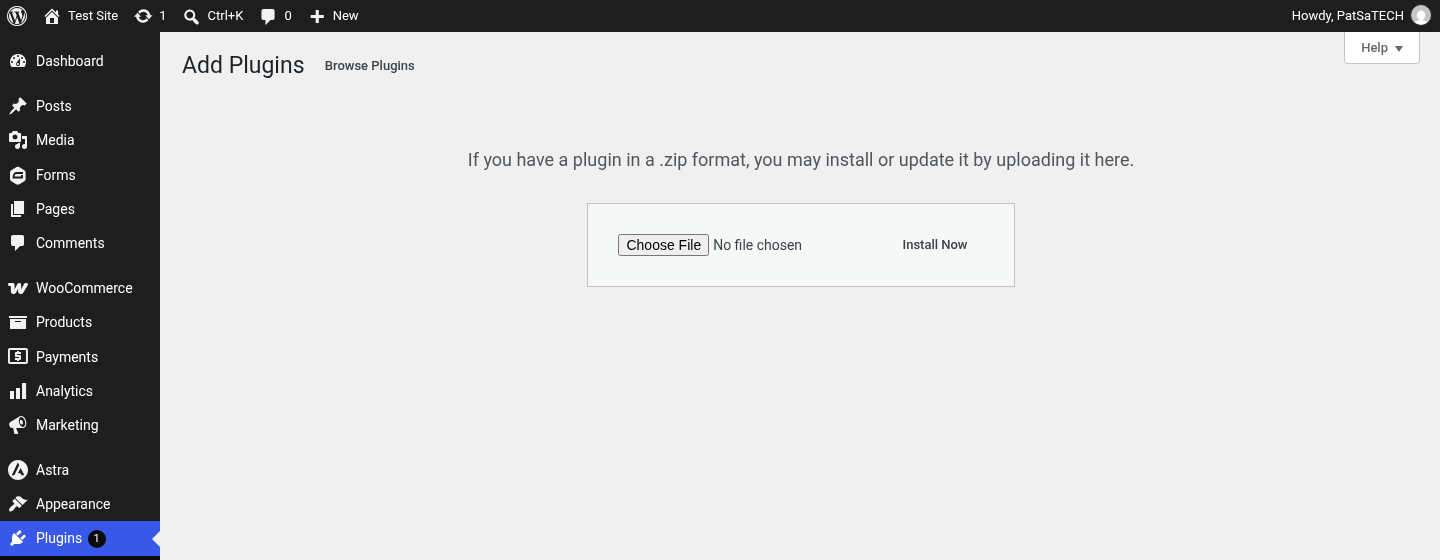
Plugins → Add New → Upload Plugin. 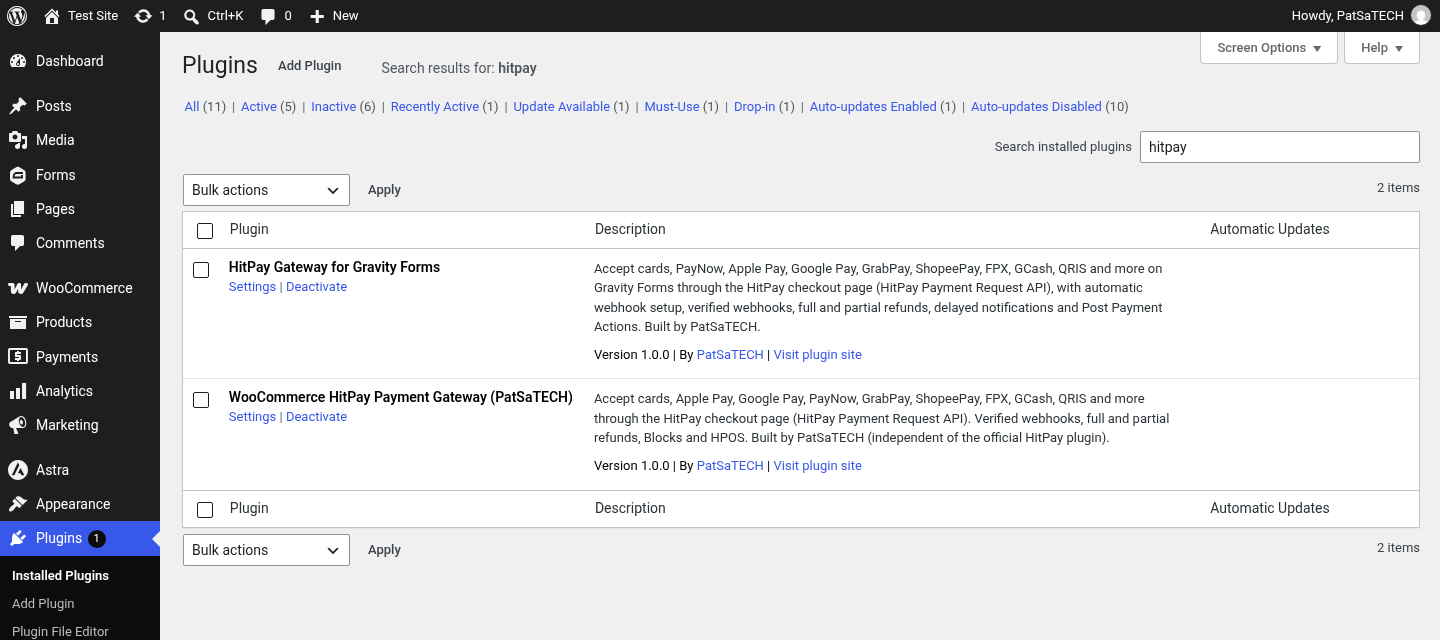
WooCommerce HitPay Payment Gateway (PatSaTECH) 1.0.0 active. Paste the API key and webhook salt
Go to WooCommerce → Settings → Payments → HitPay (PatSaTECH), tick Enable HitPay, keep Sandbox ticked, paste the Sandbox API key and the Sandbox webhook salt and click Save changes. The plugin checks the key with HitPay.
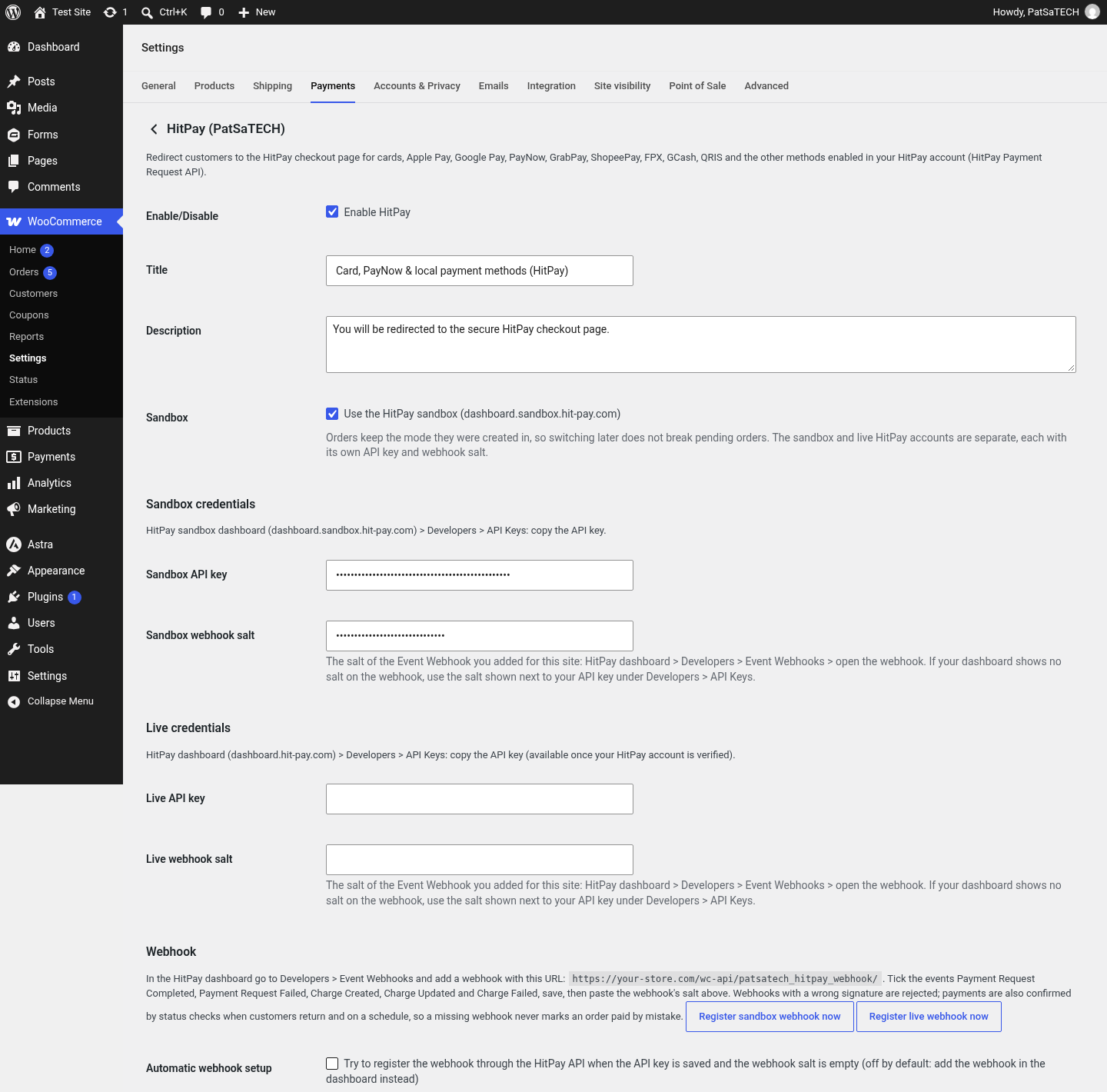
Enable, title, sandbox, sandbox and live API keys and webhook salts (masked), and the webhook URL with the events to tick. 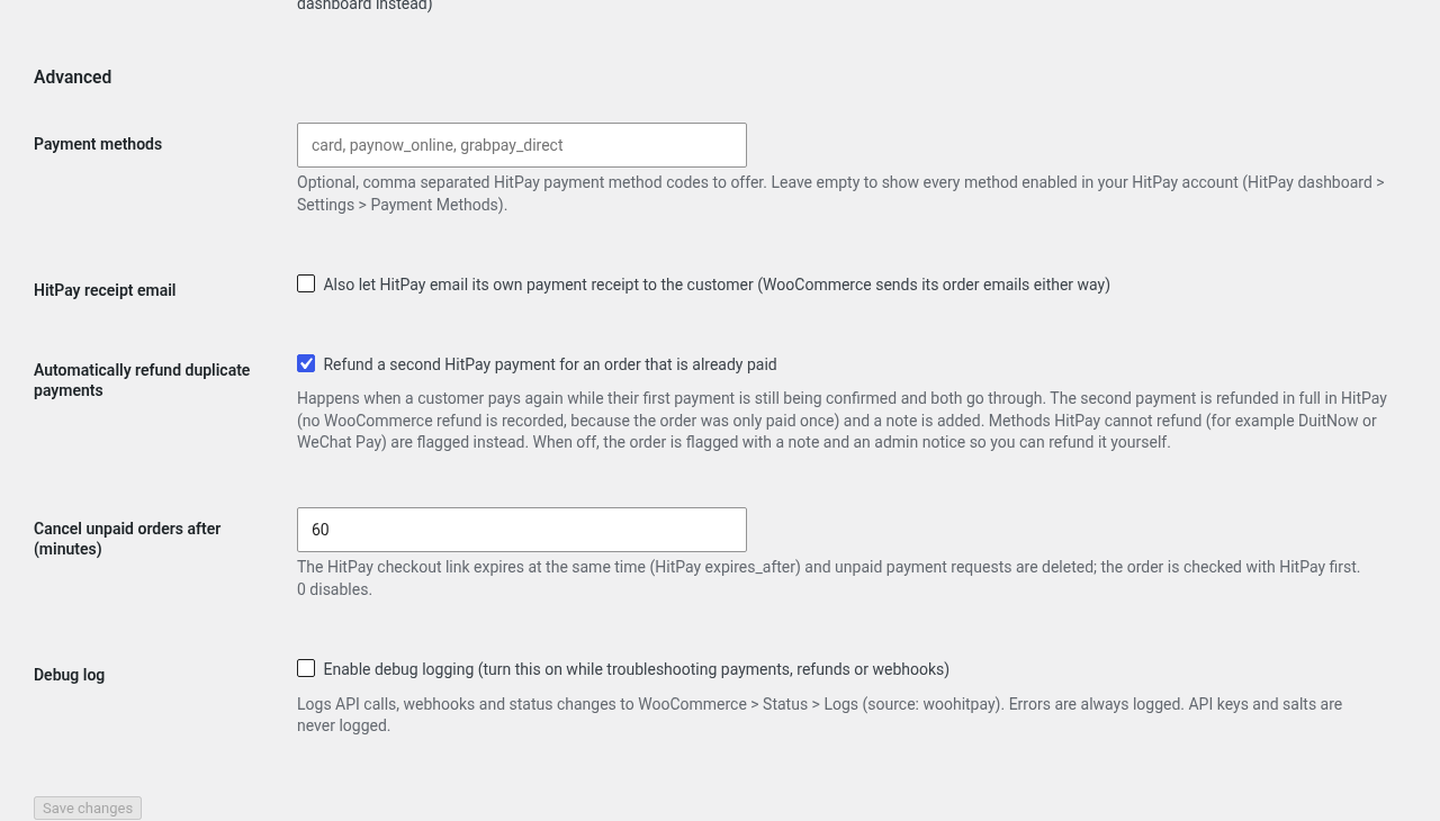
Automatic webhook setup (off by default), payment methods, HitPay receipt email, duplicate refunds, the unpaid-order time limit and the debug log.
Part C: Test payment
Choose HitPay at checkout
Add a product to the cart and choose Card, PayNow & local payment methods (HitPay) on the classic or Blocks checkout, then click Place order.
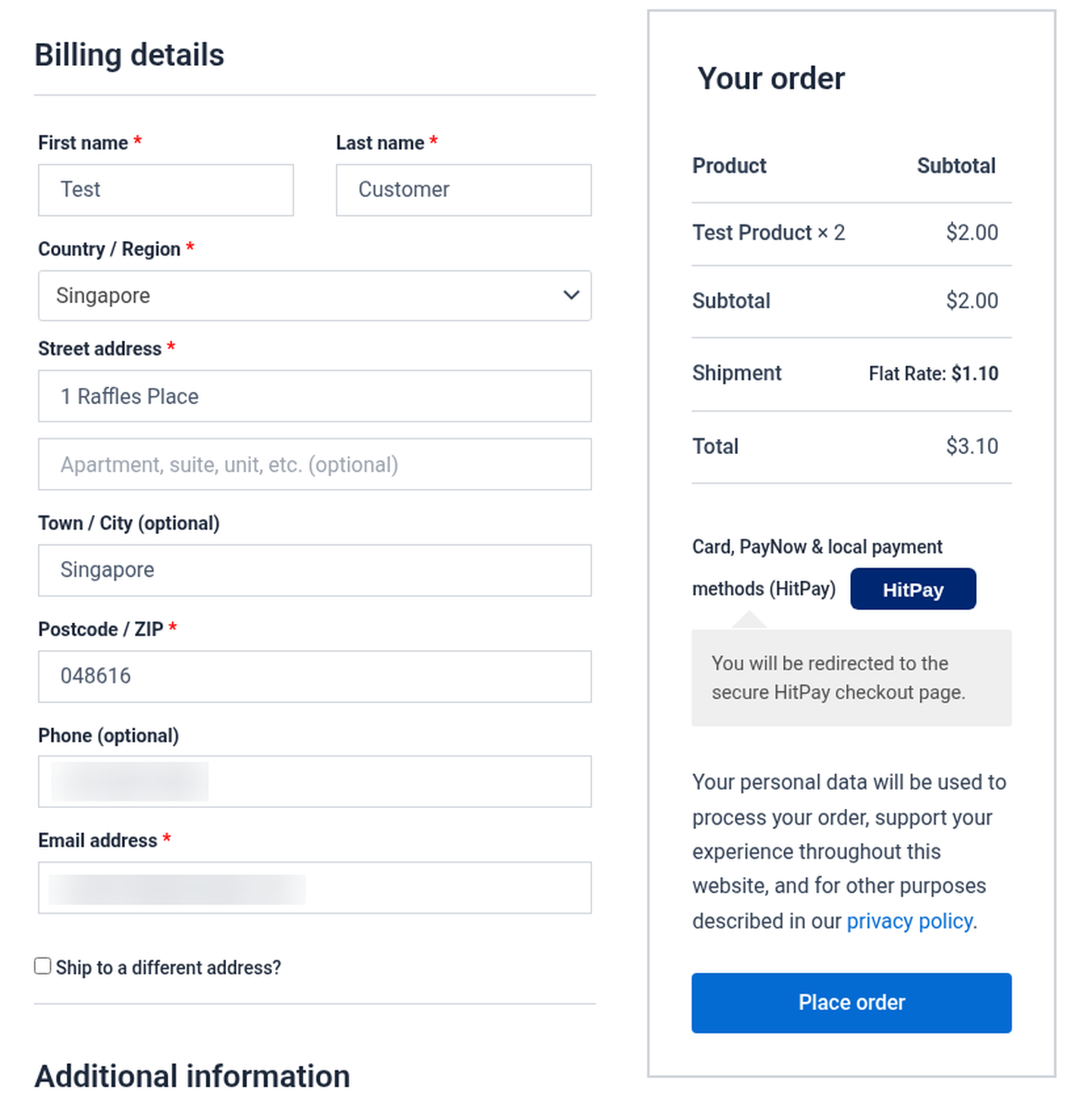
Classic checkout with the HitPay option (dummy customer details). 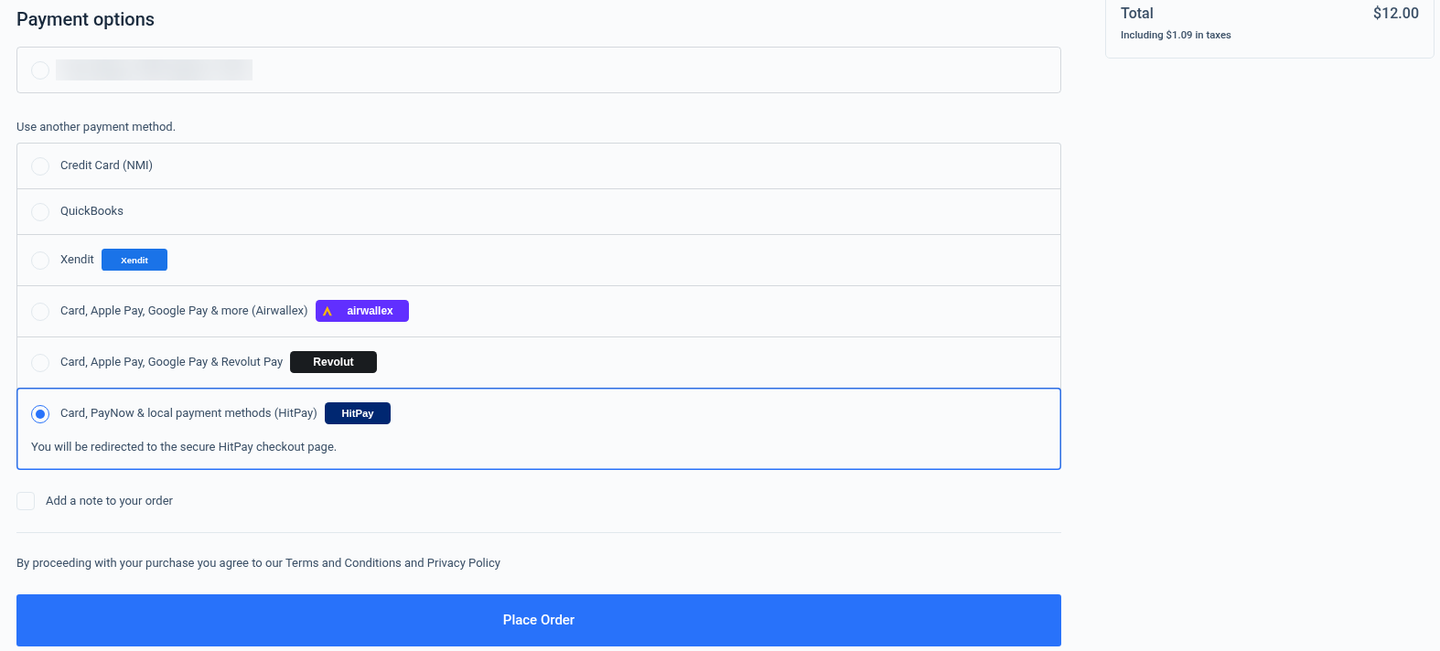
Blocks checkout with HitPay selected (saved card blurred). Pay on HitPay’s checkout page
The customer sees the amount and the methods enabled on your account. In the sandbox, open the Card tab and pay with
4242 4242 4242 4242, any future expiry and any CVC.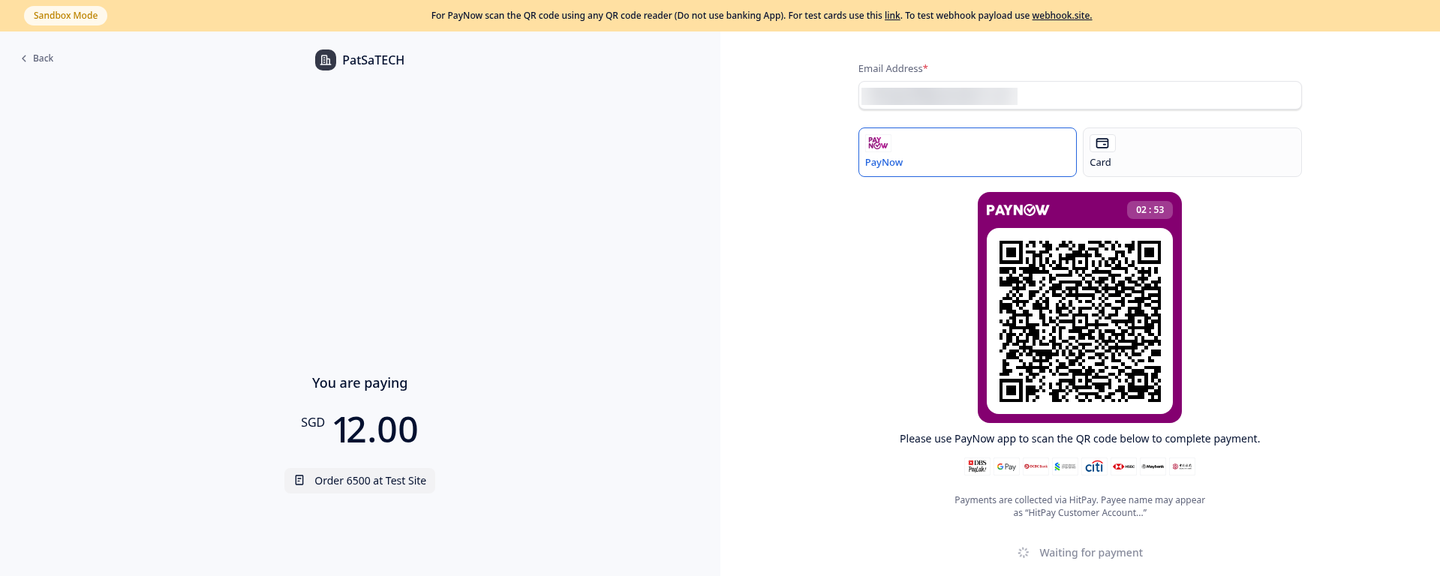
HitPay checkout page for order 6500 (SGD 12.00) with the PayNow QR code and the Card tab (email blurred). 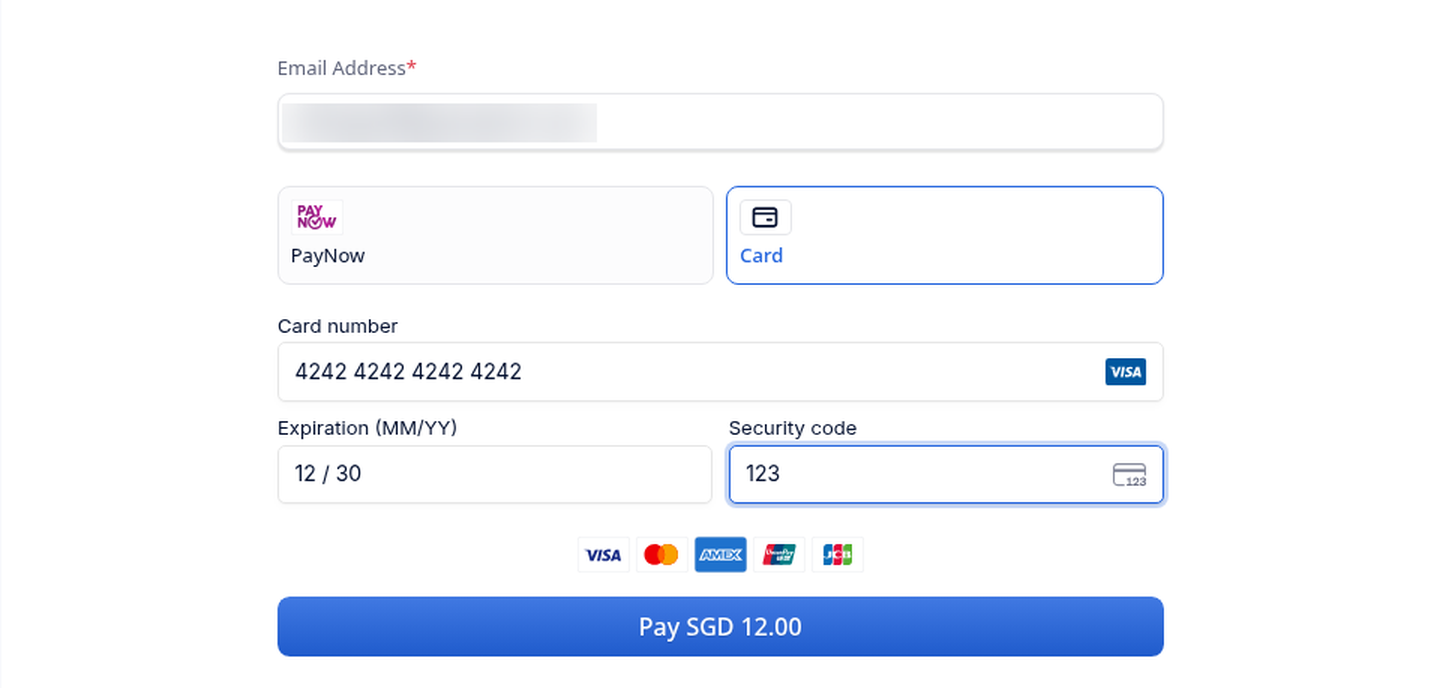
Card tab with the 4242 test card. Order received
HitPay sends the customer back to the order-received page. The plugin checks the payment with HitPay first; if HitPay is still confirming it, the customer sees “Your payment is being confirmed” and the order updates as soon as HitPay confirms it.
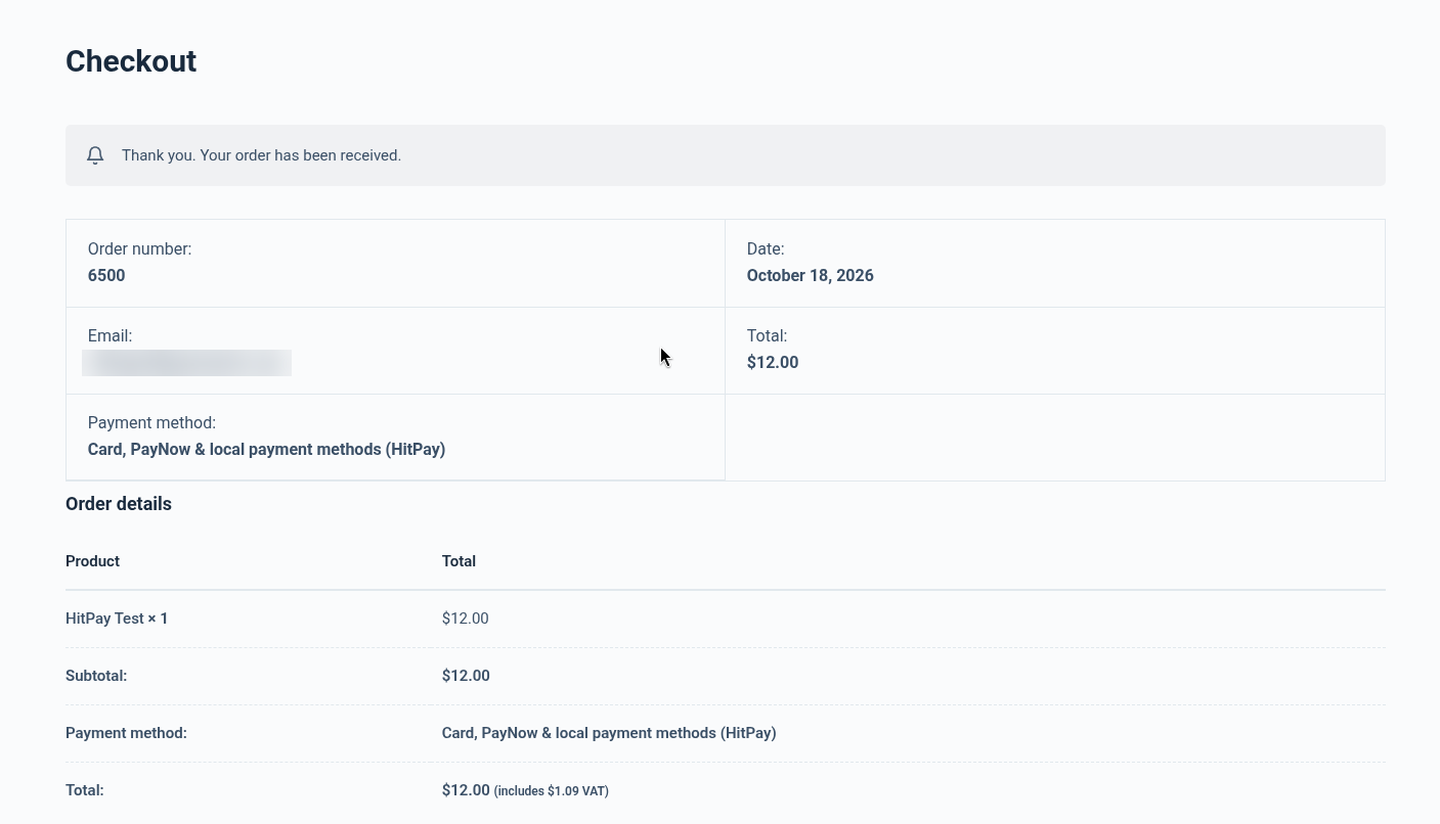
Order received page for order 6500 (email blurred). Order is Processing
The order becomes Processing. The HitPay payment request ID is the order’s transaction ID, and a note records the amount and the method, for example “Method: Card (Visa ending 4242)”.
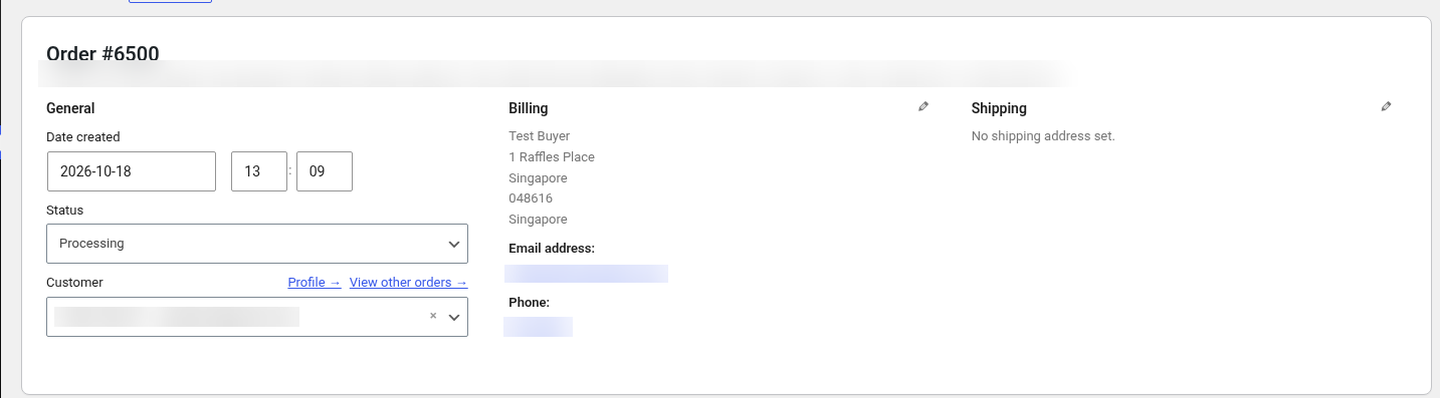
Order 6500 Processing, paid via HitPay (transaction ID, IP, customer, email and phone blurred). SCREENSHOT TODO: Order notes of a paid order showing “HitPay payment completed … Method: Card (Visa ending 4242)” (not captured in the final test run).
5. Getting your HitPay API key and webhook salt
- Sandbox (for testing): sign up for free at dashboard.sandbox.hit-pay.com (no real money moves). Live: sign in at dashboard.hit-pay.com once HitPay has verified your business. The sandbox and live accounts are separate, each with its own API key and webhooks.
- Turn on the methods you want under Settings → Payment Methods (cards may need a bank account and HitPay’s card onboarding first; in the sandbox dummy details are enough).
- Open Developers → API Keys and copy the API key. SCREENSHOT TODO: HitPay dashboard → Developers → API Keys, with the key and salt blurred. Not included: the test captures of this page showed real secrets, so they were not used.
- Open Developers → Event Webhooks and click Add (the button name may differ slightly). Give it any name (for example your site name), paste the webhook URL shown in the plugin settings, tick the 5 events listed under Webhooks and save. SCREENSHOT TODO: HitPay dashboard → Developers → Event Webhooks → new webhook form with the URL and the 5 events ticked (salt blurred).
- Open the webhook you just saved and copy its salt. Each Event Webhook has its own salt: use the salt of the webhook that points to this site, not the salt of another webhook or another site.
- Paste the API key and the webhook salt into WooCommerce → Settings → Payments → HitPay (PatSaTECH) (Sandbox API key and Sandbox webhook salt, or the live fields) and save. The plugin checks the API key with HitPay straight away.
- Repeat in your live account at dashboard.hit-pay.com when you go live (only the sandbox was used for this guide).
6. Plugin settings
WooCommerce → Settings → Payments → HitPay (PatSaTECH)
| Setting | Description |
|---|---|
| Enable/Disable | Shows HitPay at checkout. |
| Title / Description | What customers see at checkout. Default: “Card, PayNow & local payment methods (HitPay)” and “You will be redirected to the secure HitPay checkout page.” |
| Sandbox | Ticked by default: uses the HitPay sandbox (dashboard.sandbox.hit-pay.com). Orders keep the mode they were created in. |
| Sandbox / Live API key | From HitPay → Developers → API Keys. Checked with HitPay when you save. |
| Sandbox / Live webhook salt | The salt of the Event Webhook you added for this store (each webhook has its own salt). If your dashboard shows no salt on the webhook, use the salt shown next to your API key. |
| Webhook | Shows your webhook URL (https://your-store.com/wc-api/patsatech_hitpay_webhook/) and the events to tick, with optional Register sandbox / live webhook now buttons. |
| Automatic webhook setup | Off by default. When ticked, the plugin tries to register the webhook through the HitPay API when a key is saved and the salt is empty. Adding the webhook in the dashboard is the recommended way. |
| Payment methods | Optional, comma-separated HitPay method codes (for example card, paynow_online, grabpay_direct). Empty = every method enabled in your HitPay account. |
| HitPay receipt email | Also let HitPay email its own receipt (WooCommerce sends its order emails either way). HitPay SMS is always off. |
| Automatically refund duplicate payments | On by default. See Double-payment protection. |
| Cancel unpaid orders after (minutes) | Default 60. The HitPay checkout link expires at the same time; the plugin checks HitPay once more, deletes the unpaid payment request and cancels the order. 0 disables it. |
| Debug log | Logs API calls, webhooks and status changes to WooCommerce → Status → Logs (source woohitpay). Errors are always logged; API keys and salts never are. |
7. Webhooks (Event Webhook, 5 events)
Add one Event Webhook for this store in the HitPay dashboard under Developers → Event Webhooks and paste its salt into the plugin. The settings page shows the exact URL.
Webhook URL: https://your-store.com/wc-api/patsatech_hitpay_webhook/
| # | Event to tick in the HitPay dashboard | What the plugin does |
|---|---|---|
| 1 | Payment Request Completedpayment_request.completed | The plugin reads the payment request again from the HitPay API; if it is completed and the amount and currency match, the order / entry is marked paid (card brand and last four digits in the note). |
| 2 | Payment Request Failedpayment_request.failed | Records that HitPay ended the payment request without a payment (for example an expired request). |
| 3 | Charge Createdcharge.created | Triggers the same API check, so a payment is recorded even if the payment-request event is late. |
| 4 | Charge Updatedcharge.updated | Notes refunds made in the HitPay dashboard and keeps the refunded total in step. |
| 5 | Charge Failedcharge.failed | Records a failed charge when HitPay sends one. |
Hitpay-Signature header must be the HMAC-SHA256 of the raw request body with the webhook salt. The plugin then reads the payment request again from the HitPay API before it changes the order, so a forged or replayed webhook cannot mark an order paid. Payments are also confirmed by status checks when the customer returns and on a schedule, so a missed webhook never leaves a paid order unpaid, and a missing webhook never marks an order paid by mistake. Allow /wc-api/patsatech_hitpay_webhook/ through any firewall or security plugin.8. Payment flow & order statuses
| Situation | WooCommerce order |
|---|---|
| Customer sent to HitPay, not paid yet | Pending payment; note “HitPay payment for order #… is being processed (HitPay payment request …); waiting for confirmation.” |
| HitPay still confirming when the customer returns | Pending payment; “Your payment is being confirmed” notice; checked again automatically |
| Payment completed (amount and currency match) | Processing (or Completed for virtual/downloadable orders); transaction ID = HitPay payment request ID; note with the method, e.g. “Method: Card (Visa ending 4242)” |
| Card declined on HitPay’s page | Stays Pending payment: HitPay keeps the request payable and sends no failure webhook (see HitPay behaviour) |
| HitPay reports the request failed | Failed, with the reason in the notes; the customer can pay again |
| Time limit reached without a payment | Cancelled; the unpaid HitPay payment request is deleted |
| Amount or currency mismatch | On hold, with a note |
| Fully refunded | Refunded |
If the customer comes back to the store without paying (through the plugin’s return link) the unpaid HitPay request is deleted and the cart is kept, with a single notice. If they place the order again, the old request is replaced by a fresh one and noted (“Customer started a new payment attempt…”). Viewing the cart in another tab does not cancel anything. If HitPay is still confirming a payment, the customer is asked to wait a few minutes (at most 5, or 10 once HitPay reports the charge as succeeded) before paying again.
9. Refunds
- Open the order and click Refund.
- Enter the amount (or line-item quantities), an optional reason, and click Refund … via HitPay (PatSaTECH).
- The refund is sent to HitPay straight away and a note records it. When the whole amount is refunded the order becomes Refunded.
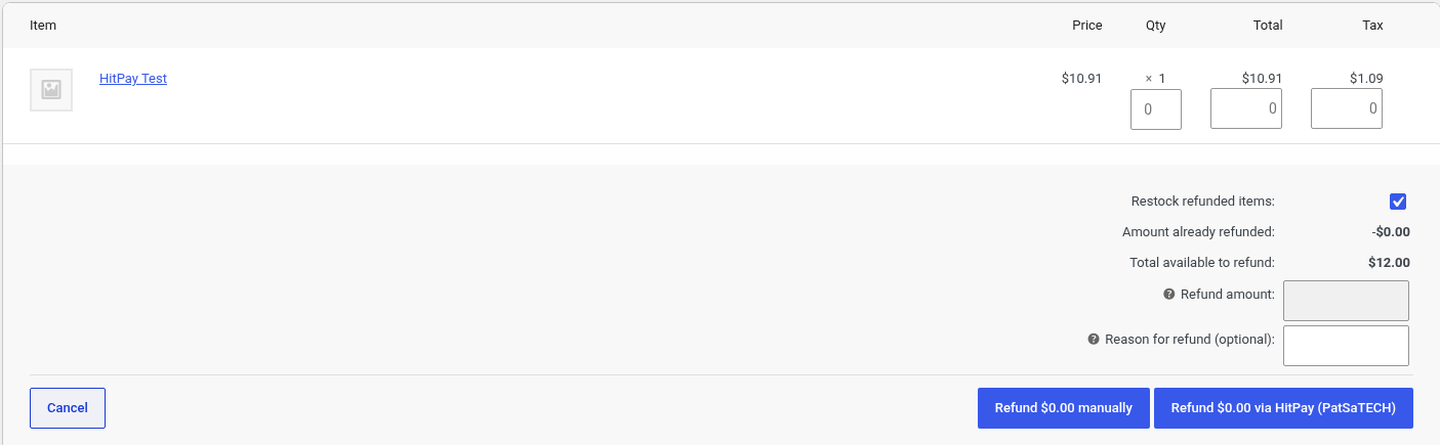
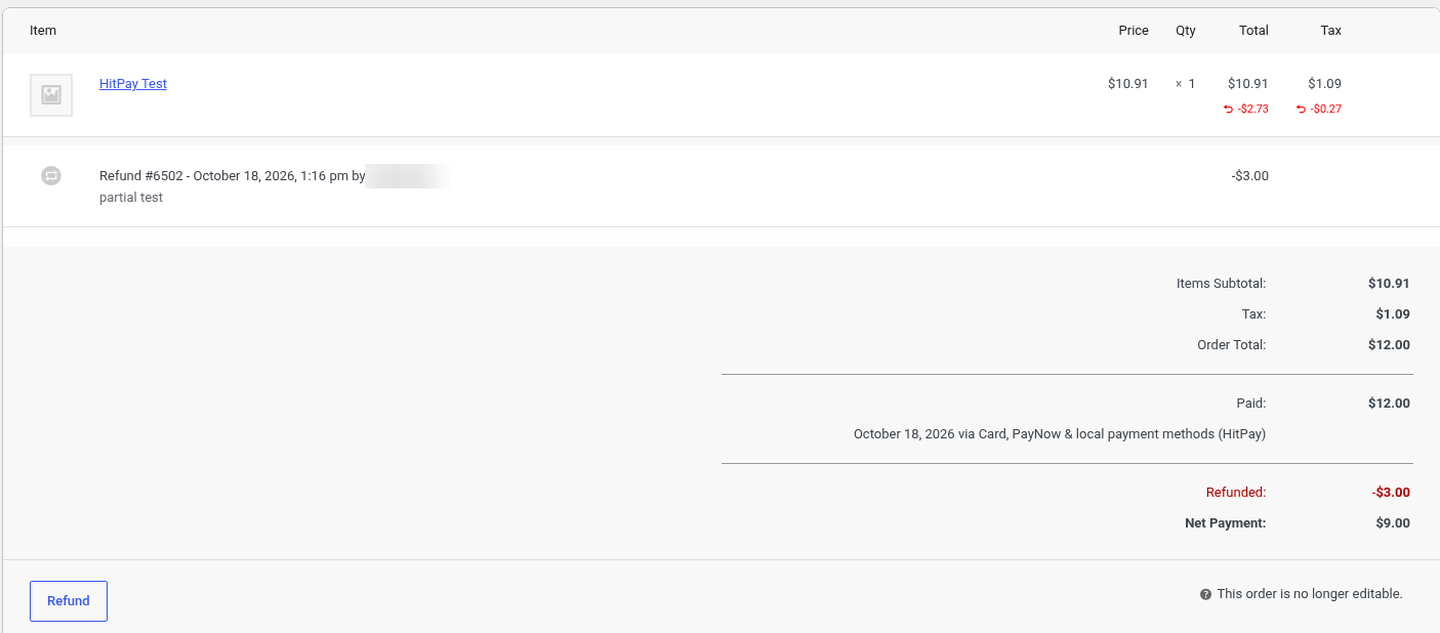
- Partial and full refunds both work; you can refund several times up to the amount paid. WooCommerce refuses a refund larger than the remaining balance (tested: 20.00 against 9.00 left).
- Refunds made in the HitPay dashboard are noted on the order through the Charge Updated webhook; WooCommerce’s own refund total is not changed automatically, so record it in WooCommerce too if you want the order totals to match.
- Some methods cannot be refunded through HitPay (for example DuitNow, WeChat Pay, over-the-counter methods, Atome in Malaysia). The plugin shows a clear message instead of trying; refund those customers another way.
10. HitPay behaviour to know (declines, minimum amount, time limit)
Failed card payments stay pending on HitPay
When a card is declined, HitPay shows “Your card was declined.” on its own checkout page and the customer can try another card or method there. The HitPay payment request stays pending and payable, and HitPay sends no failure webhook for the declined attempt. So the WooCommerce order stays Pending payment: it becomes Processing if the customer then pays, and otherwise it is cancelled by the time limit (Cancel unpaid orders after, default 60 minutes), when the plugin also deletes the unpaid payment request so the old link can no longer be paid.
Minimum amount 0.30
HitPay accepts payments from 0.30 (in the order currency) up to 999,999,999.99. For a smaller order HitPay refuses the payment request and the customer sees: “This order total is below HitPay’s minimum payment amount. Please choose another payment method.” The detailed HitPay error is kept in the order note (tested with a 0.10 order, #6507).
Methods not activated on your account
If the Payment methods setting lists a method HitPay has not activated for your account, HitPay refuses the request and the customer gets a friendly message to choose another method (tested with GrabPay, #6508). Leave the setting empty to show only what HitPay has enabled.
Times are in Singapore time
HitPay reports times in Singapore time without a time zone. The plugin converts them, so expiry and notes match your WordPress time zone.
11. Double-payment protection
- A per-order lock means a webhook and the customer’s return can never complete the same order twice.
- When an order is paid, its other open HitPay payment requests are deleted.
- If a second payment still goes through (for example the customer paid in two tabs), it is refunded automatically in full in HitPay and a note is added (setting Automatically refund duplicate payments, on by default; tested on #6506). No WooCommerce refund is recorded, because the order was only paid once. Methods HitPay cannot refund are flagged with a note instead. With the setting off, the order gets a note and an admin notice so you can refund it yourself.
12. Testing with the HitPay sandbox (test cards)
Use any future expiry date (for example 12/30), any 3-digit CVC and any name. Card numbers are from HitPay’s sandbox test-card list (the sandbox banner on HitPay’s page links to it).
| Scenario | Card | What happens |
|---|---|---|
| Success | Visa 4242 4242 4242 4242 | Paid. Used for the successful test payments (order 6500, entry 9620). |
| Declined | 4000 0000 0000 0002 | HitPay shows “Your card was declined.” on its own page and the customer can try another card or method there. HitPay sends no failure webhook for this, so the order / entry stays unpaid until it is paid or the time limit is reached (order 6501, entry 9621). |
- PayNow (SGD) shows a QR code in the sandbox; scan it with any QR reader, not a banking app (HitPay’s sandbox instructions).
- Cards in the sandbox: if the Card tab is missing, turn cards on under Settings → Payment Methods in the HitPay sandbox dashboard (it may ask for a dummy bank account and a test card-processing onboarding first).
- Methods that are not activated on your account are rejected by HitPay; the customer sees a friendly message and can choose another method (tested with GrabPay, order 6508).
13. Countries, currencies & payment methods
Who can use HitPay. HitPay is a payment platform for small and medium businesses in South-East Asia; its core markets are Singapore, Malaysia and the Philippines. A live account needs HitPay’s business verification. Anyone can open a free sandbox account at dashboard.sandbox.hit-pay.com to test, but HitPay does not offer production accounts to businesses in every country (for example, India-based merchants cannot get one). Check with HitPay before you buy.
Currencies. SGD MYR USD AUD NZD PHP HKD THB EUR CAD GBP IDR AED KRW CNY INR JPY CHF BND SAR SEK DKK NOK PLN QAR TWD ZAR VND. Local methods appear only for their own currency (for example PayNow for SGD, FPX for MYR, GCash for PHP).
Amount limits. HitPay accepts payments from 0.30 up to 999,999,999.99 in the store currency. Below 0.30 HitPay refuses the payment; the plugin then tells the customer clearly that the amount is below HitPay’s minimum (tested with a 0.10 order).
Payment methods. HitPay’s checkout page shows the methods enabled in your HitPay account (Settings → Payment Methods): cards, Apple Pay, Google Pay, PayNow, GrabPay, ShopeePay, FPX, GCash, QRIS and more, depending on your country and currency. Use the plugin’s Payment methods setting to show only some of them (for example card, paynow_online).
Finding the payment in HitPay
In the HitPay dashboard open Payments → Transactions. The Charges list shows every payment with its date, customer, charge ID, amount, fee, method (for example Visa •••• 4242) and status (Succeeded, Refunded…). The WooCommerce order shows as “Order <number> at <site name>” on HitPay’s checkout page, and the HitPay payment request ID is the order’s transaction ID.

14. Debug logs
Tick Debug log in the settings, then open WooCommerce → Status → Logs and choose the woohitpay source. Errors and webhook receipts are always logged; API keys and salts are never logged.
15. Troubleshooting & FAQ
The API key was rejected
Check the Sandbox box matches the key: sandbox keys only work with Sandbox ticked, live keys only with it unticked. The sandbox and live HitPay accounts are separate.
Paid in HitPay but the order is still Pending payment
Check that the Event Webhook points to https://your-store.com/wc-api/patsatech_hitpay_webhook/, that its 5 events are ticked, and that the salt in the plugin is the salt of that webhook. Make sure no firewall blocks the URL and that WP-Cron / Action Scheduler runs. The plugin also checks open orders on a schedule; see the woohitpay log.
The customer’s card was declined but the order is still Pending
That is how HitPay works: the payment request stays payable and no failure webhook is sent. The order is cancelled automatically after the time limit if it is not paid.
“This order total is below HitPay’s minimum payment amount”
HitPay’s minimum is 0.30. Offer another payment method for very small orders.
The Card tab is missing on HitPay’s page
Turn cards on in the HitPay dashboard under Settings → Payment Methods, and check the Payment methods setting in the plugin.
Does it work next to the official HitPay plugin?
Yes. The IDs, classes, options and endpoints are all different. Do not enable both for the same checkout.
Subscriptions?
No. One-time payments only.
16. Tested on
- WordPress 7.1.3
- WooCommerce 11.2.1 (classic shortcode checkout and Cart/Checkout Blocks)
- PHP 8.1.34; PHP 7.4 or later required
- HitPay sandbox (Singapore account, SGD). Live payments not yet tested.
- Scenarios: card payment with the brand and last four in the note, signed Event Webhooks, declined card and retry, partial and full refunds, over-refund refused, dashboard refund noted, duplicate-payment guard, minimum amount, method not activated, unpaid order cancelled by the time limit
17. Changelog
1.0.0 — 2026-10-18
- Initial release.
- HitPay Payment Request API with the HitPay checkout page; every method enabled on the account, or a chosen list.
- HPOS compatible; classic and Blocks checkout.
- Sandbox and live API keys checked on save; one Event Webhook with 5 events, verified with Hitpay-Signature.
- Return status never trusted; every change re-checked with the API under a per-order lock; amount and currency verified.
- Full and partial refunds; dashboard refunds noted; duplicate payments refunded automatically.
- Clear minimum-amount and method messages; unpaid orders cancelled after a time limit; debug logging (no secrets).
18. Support
PatSaTECH · [email protected] · www.patsatech.com
Please include your WordPress, WooCommerce and PHP versions, the mode (sandbox or live) and the relevant log lines (never send your API key or salt).