Quick answer
If you need to rotate payment gateway API keys in WooCommerce, treat the change as a credential migration, not a copy-and-paste task.
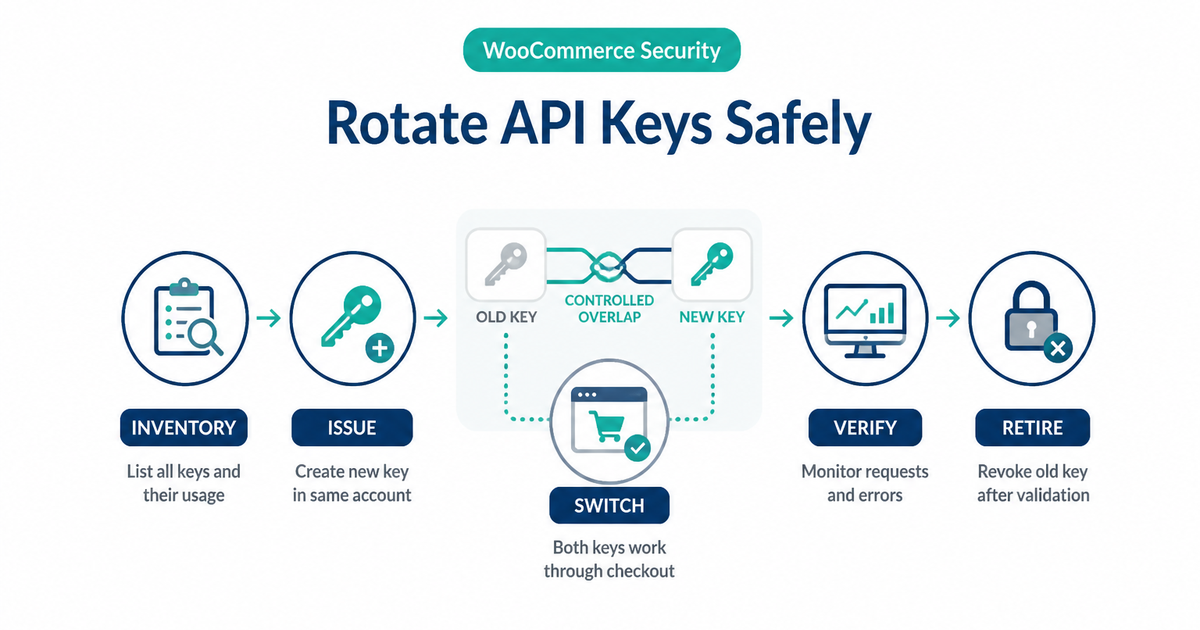
Use this sequence:
- Identify the exact credential type, account, environment, permissions, and every system that uses it.
- Confirm whether the provider supports two active credentials, delayed expiry, or another documented overlap method.
- Rehearse the provider’s process in a sandbox with separate test credentials.
- Create the replacement for the same merchant account and environment, using only the permissions the integration needs.
- Update the WooCommerce extension and any server, worker, scheduled job, or custom integration that uses the old value.
- Test checkout, capture, refunds, saved methods, renewals, and API-driven admin actions.
- Monitor provider request logs and WooCommerce errors until the old credential has no legitimate traffic.
- Expire or revoke the old credential, then verify again.
Do not assume every provider supports dual-key overlap. If it does not, true zero-downtime rotation may be impossible from the merchant side; use the provider’s documented change window or atomic replacement process. If a secret is actively compromised, rapid containment takes priority over a leisurely overlap.
Classify the credential before rotating it
“API key” is often used for several different credentials. Rotating the wrong one can leave checkout working while refunds, subscriptions, or callbacks fail later.
| Credential | Typical purpose | Rotation implication |
|---|---|---|
| Publishable key or client identifier | Identifies an account or application in browser-side code | Not a server secret, but it must still match the intended account and environment |
| Secret or restricted API key | Authenticates server-to-server API requests | Protect it as a secret; replace it everywhere that sends payment, refund, capture, or lookup requests |
| OAuth client secret | Lets an application request OAuth tokens | Follow the provider’s application-credential process; changing it may affect token refresh |
| OAuth access or refresh token | Authorizes API calls for a connected account | Usually managed by the extension’s connection flow; do not replace it as if it were a static dashboard key |
| Webhook signing secret | Verifies incoming callback signatures | Separate from outbound API authentication and outside this runbook’s cutover |
| Customer, payment-method, or vault token | References a saved payment method | Not an API credential; access may fail if the replacement points to a different merchant account |
Stripe’s API-key documentation explicitly separates publishable, secret, restricted, and webhook signing secrets. PayPal’s REST authentication guide uses a client ID and client secret to obtain an OAuth 2.0 access token. Square’s credential guide distinguishes personal and OAuth access tokens and requires OAuth tokens to be refreshed before expiry.
Those are three different lifecycle models. The correct WooCommerce action may therefore be:
- Paste a new secret into a gateway setting.
- Replace a host-level environment variable.
- Reconnect the extension through the provider’s OAuth flow.
- Ask the gateway vendor to rotate a credential that the merchant cannot self-manage.
Inventory first. Do not turn a provider-specific connection into a generic “regenerate every secret” exercise.
Keep webhook signing secrets out of this change
An API key authenticates WooCommerce or its extension to the provider. A webhook signing secret helps WooCommerce verify an event from the provider. They may appear on the same dashboard, but they protect different directions of traffic.
Rotating both in one change expands the failure surface. Unless the provider requires a coordinated change, leave webhook signing secrets untouched and confirm callbacks still pass signature validation. Use PatSaTECH’s webhook monitoring guide to verify callback delivery and order updates.
When a no-downtime cutover is possible
A low-risk overlap needs three capabilities:
- The provider can keep the old and new credentials valid at the same time, or offers a documented replacement mechanism.
- You can identify every request still using the old credential.
- You can revoke the old credential after legitimate traffic reaches zero.
Stripe documents a rotation workflow that creates a replacement and can schedule expiry of the old key. Its guidance also recommends gradual rollout, checking request logs, and expiring the old key only after its request volume has stopped. That is a provider capability—not a universal payment-industry rule.
Before promising “no downtime,” answer:
- Can two credentials coexist?
- How long can the overlap last?
- Does rotation preserve the same merchant account, permissions, and sandbox/live mode?
- Can the provider show request activity by key?
- Can the old credential be restored, or is revocation irreversible?
- Does the WooCommerce extension cache credentials or maintain an OAuth connection?
- Who can change the secret store and who can disable the old key?
If the answer to overlap is no, plan a short controlled window with a tested rollback or ask the provider for its supported procedure. Do not invent a dual-key method around a plugin field that stores only one credential.
Prepare the change
1. Map every consumer
The visible WooCommerce setting may not be the only consumer. Search the operating environment for references without printing secret values:
- WooCommerce gateway settings
wp-config.php, environment variables, or host secret stores- Custom plugins and middleware
- Subscription or scheduled-payment workers
- Refund, capture, reconciliation, and reporting jobs
- CI/CD secrets used for deployment or smoke tests
- Command-line tools and support utilities
- Multiple web nodes, background workers, or regional deployments
Record the storage location, owner, environment, account ID, credential identifier or last few non-sensitive characters, and update method. Never paste the full old or new key into a ticket, screenshot, chat, runbook, or Git repository.
If nobody knows all consumers, stop and observe before revoking. A rarely used monthly renewal job can remain invisible during a five-minute checkout test.
2. Establish a baseline
Capture a short pre-change baseline:
- Successful and failed payment counts
- API authentication errors
- Checkout error rate
- Refund and capture status
- Webhook delivery and signature-validation health
- Pending-order volume
- Scheduled renewal success, when applicable
Use a timestamp and timezone. The baseline lets you distinguish a rotation regression from an existing provider or checkout problem.
3. Rehearse in sandbox
Run the provider’s documented rotation flow with test credentials first. Keep sandbox and production isolated, as described in staging versus production payment testing.
The rehearsal should prove:
- Who can create and retire credentials
- Where the WooCommerce extension reads them
- Whether settings save atomically
- Whether the provider exposes per-key request logs
- Which tests generate API calls
- How long rollback takes
Do not copy the production database into staging with live secrets or real customer payment tokens just to make the rehearsal “realistic.”
4. Define rollback boundaries
For a routine rotation, rollback may mean restoring the old credential while it is still valid and trusted. For an exposed credential, rolling back to the leaked value is not safe.
Write both conditions before the change:
- Routine rollback: old key remains valid, no evidence of compromise, and the new key causes a confirmed integration failure.
- No rollback to old key: exposure, unauthorized use, uncertain custody, or provider instruction to revoke immediately.
Run the rotation
Step 1: Create the replacement with the right scope
Create the new credential in the same provider account and intended environment. Prefer a restricted key when the provider and extension support the permissions required. Stripe’s secret-key best practices recommend limited-permission keys, secure storage, periodic rotation, and a practiced contingency process.
Do not reduce permissions by guesswork. A checkout-only test can pass while later refund, capture, dispute, or customer lookup calls fail. Build the required permission list from the extension vendor’s current documentation and your observed API operations.
Step 2: Store the replacement securely
Use the existing secret store or the WooCommerce extension’s supported connection screen. Limit access to the people and services that need it. Do not stage the key in a shared document before deployment.
If the extension expects a publishable/secret pair, confirm both belong to the same account and environment. A sandbox publishable key paired with a live secret is an environment error, not a rotation strategy.
WooCommerce’s Stripe setup documentation uses an account connection plus webhook setup, illustrating why some modern extensions should be reconnected through their supported flow rather than edited as a raw key pair.
Step 3: Update every runtime
Apply the new credential to all mapped consumers:
- Primary WooCommerce web process
- Background and scheduled workers
- Custom API middleware
- Refund or reconciliation tooling
- Any additional production nodes
Use a canary only if the provider and architecture support it. A single WordPress site with one global gateway setting is not automatically canary-capable.
Avoid broad cache purges unless the extension or host documentation requires one. Credential settings are not ordinary page content, and an unnecessary purge can add unrelated load during the cutover.
Step 4: Prove the new key is being used
Use the provider’s per-key logs or credential activity view when available. Confirm new requests identify the replacement key and authentication errors remain at baseline.
Do not infer success solely from the WooCommerce settings screen. A saved form proves storage, not a successful API request.
Step 5: Keep the old credential temporarily—only when supported
For routine rotation, keep the old key active for the documented overlap while traffic drains. Watch for any old-key calls. Each one identifies a missed consumer.
For providers without overlap, follow their atomic replacement instructions and monitor closely. Never simulate overlap by sharing two secrets in an unsupported field or custom code path.
Verify every WooCommerce payment path
A homepage check is not a payment test. Run a compact matrix using provider-supplied sandbox data first, followed by the smallest approved live smoke test if your policy and provider allow it.
| Path | What to verify |
|---|---|
| New checkout | Authorization or payment succeeds and the order gets the expected status |
| Capture | A previously authorized payment can be captured when the store uses separate capture |
| Refund or void | The API request succeeds and WooCommerce records the provider result |
| Saved payment method | An existing token can still be used under the same merchant account |
| Subscription renewal | A scheduled or manual test renewal authenticates and records an order note |
| Admin lookup | Transaction status or details can be retrieved |
| Webhook update | Callbacks remain reachable and signatures still validate |
| Failure path | An invalid or declined test produces a useful error without exposing secrets |
Saved payment methods deserve special attention. Replacing a key for the same account normally should not mean replacing customer vault tokens, but moving accidentally to another account or environment can make those references inaccessible. Review tokenization and saved payment methods before testing renewals.
Also inspect:
- WooCommerce order notes at the test timestamp
- Gateway and PHP logs, with secrets redacted
- Provider request logs for authentication failures
- Pending orders that stop advancing
- Scheduled actions or cron jobs using the integration
- Checkout support contacts and conversion changes
Change one variable at a time. If the team also updates the gateway plugin, modifies webhooks, and changes firewall rules, a failure will not identify the cause.
Handle an exposed key differently
Routine rotation optimizes continuity. Incident rotation optimizes containment.
If a secret appears in source control, logs, a ticket, a public screenshot, or an unknown party’s possession:
- Follow the provider’s emergency revocation instructions.
- Create a replacement through a trusted administrator session.
- Update known consumers immediately.
- Review provider request logs for unauthorized actions.
- Contact the provider or acquirer when its incident process requires it.
- Preserve non-sensitive identifiers, timestamps, and actions taken.
- Remove the exposed value from active systems and access paths.
Do not delay revocation for a long observation window when the credential is being abused. Do not “test” whether an exposed key still works by placing it in another tool. Do not claim that rotation alone proves no unauthorized access occurred.
The provider may recommend additional steps such as account review, permission changes, user-session review, or transaction reconciliation. Follow that current guidance rather than a generic checklist.
Retire the old key and close the change
Before expiry or revocation, confirm:
- New-key requests are healthy.
- Old-key request volume is zero for a period appropriate to every scheduled consumer.
- Renewals and delayed jobs have been exercised or their next run is covered by monitoring.
- Refund, capture, and reconciliation tools use the new credential.
- Webhooks still update orders.
- The new key is stored only in approved locations.
Then expire or revoke the old credential through the provider’s supported control. Immediately repeat the authentication, checkout, and operational smoke checks. An old key reaching zero requests is useful evidence; it is not a substitute for post-revocation verification.
Close the change by recording:
- New credential identifier—not the secret
- Account and environment
- Creation and old-key retirement times
- Tests and observed results
- Monitoring owner and review window
- Any missed consumers and corrective action
Remove temporary secret copies from clipboards, local notes, deployment variables, and administrative sessions where your platform supports that cleanup. Update the rotation runbook while the details are fresh.
Common rotation mistakes
- Rotating webhook secrets at the same time: this can break incoming events and obscure whether outbound API authentication works.
- Assuming every provider supports two keys: overlap must be documented, not improvised.
- Changing account or environment: the new key works, but existing customers, payment methods, or transactions are not visible.
- Testing only a new checkout: refunds, captures, saved methods, and renewals can fail later.
- Leaving the old key active forever: the “temporary” overlap becomes another unmanaged credential.
- Revoking before finding background consumers: monthly jobs fail after the change appears complete.
- Sharing keys in tickets: the rotation creates a new exposure while fixing the old one.
- Using a secret key in browser code: publishable and secret credentials have different exposure rules.
- Treating a connected account as a text field: OAuth-based extensions may need a supported reconnect flow.
- Promising zero downtime without evidence: provider capability and deployment design determine what is possible.
If test/live confusion is part of the problem, use the checks in common WooCommerce payment gateway mistakes.
FAQ
Can I rotate a WooCommerce gateway key without taking checkout offline?
Often, but not always. It depends on whether the provider supports overlapping credentials or a documented atomic replacement and whether every runtime can be updated promptly. Plan minimal downtime; do not promise zero downtime before checking those capabilities.
Is a publishable key safe to expose?
A publishable key is designed for client-side use in providers such as Stripe, but it is still tied to an account and environment. It cannot replace a server secret, and it should not be confused with a webhook signing secret.
Should I rotate the webhook signing secret too?
Not as part of a routine API-key change unless the provider requires it. API credentials authenticate outbound calls; webhook secrets verify inbound events. Rotate and test them as separate changes.
Will API-key rotation delete saved cards?
Rotating a credential should not itself delete provider-vaulted payment methods. However, a key for a different account or environment may be unable to access existing customer and payment-method references. Verify saved methods and renewals before retiring the old key.
What if the plugin uses OAuth?
Use the extension’s documented reconnect or reauthorization flow. PayPal, Square, Stripe-connected extensions, and other providers can use different token models. Do not paste an OAuth access token into a field intended for a static secret key.
How long should both keys remain active?
Use the provider’s allowed overlap and your longest relevant job interval. Provider request logs should show the old key at zero legitimate use before retirement. A compromised key may need immediate revocation instead.
Do I need a live payment?
Rehearse in sandbox first. For production, use the smallest live smoke test approved by your organization and provider, then reconcile and refund or void it according to policy. Never use invented card details on live payment rails.
Sources
Primary sources accessed September 20, 2026:
- Stripe Docs — API keys
- Stripe Docs — Best practices for managing secret API keys
- PayPal Developer — Authentication
- Square Developer — Access tokens and other credentials
- WooCommerce — Setup and configuration of the Stripe extension
This article provides general operational guidance, not a universal processor procedure. Follow the current documentation and incident instructions for your gateway, WooCommerce extension, host, and merchant account.