Quick answer
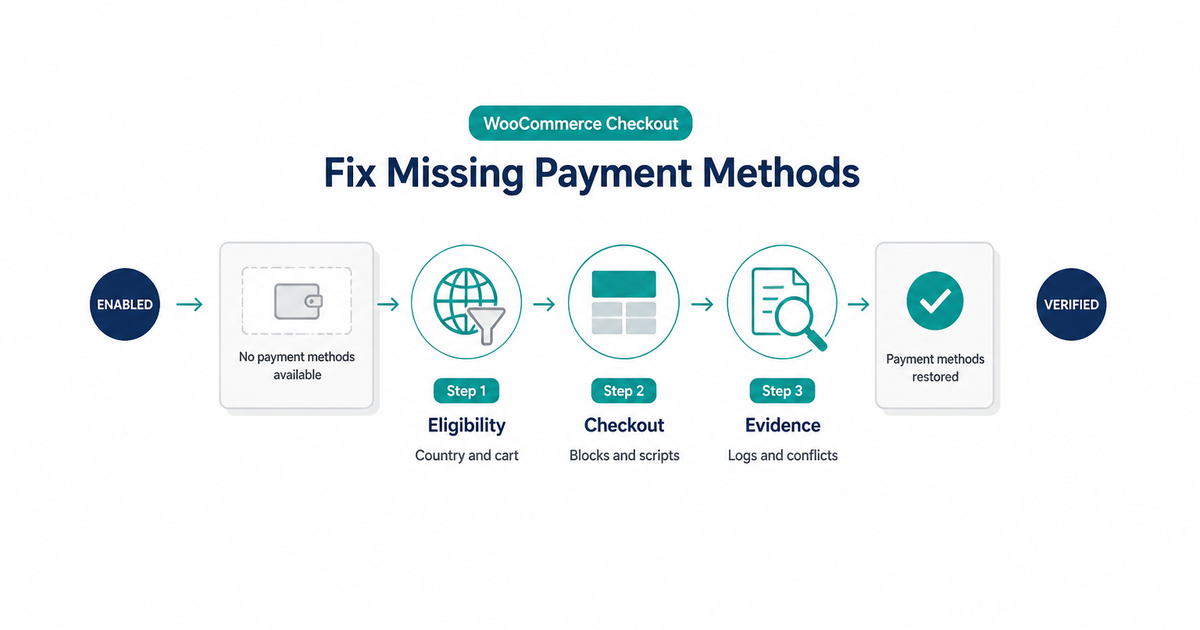
When WooCommerce says no payment methods are available, it usually means the current checkout failed every method’s availability test. That is different from a card decline: the shopper has not reached a payment attempt yet.
Check in this order:
- Confirm at least one gateway is enabled, configured, and in the intended test or live mode.
- Reproduce the problem with the same cart, address, currency, shipping method, login state, and checkout type.
- Test whether the method is excluded by selling region, currency, product type, order total, shipping, or subscription support.
- Compare Checkout block and classic checkout on staging to isolate a Blocks integration problem.
- Exclude checkout from full-page cache and inspect failed scripts or Store API requests.
- Read WooCommerce status, fatal-error, and gateway logs.
- Run a plugin/theme conflict test on a backup or staging copy.
Change one variable at a time. If you enable every gateway, clear every cache, and disable many plugins together, the checkout may recover without telling you why.
What the notice actually tells you
WooCommerce first builds the order context, then asks each enabled payment method whether it can serve that checkout. A method can be installed and enabled globally yet still be unavailable to one shopper.
The context can include:
- Billing and shipping country
- Store and charge currency
- Selected shipping method
- Physical, virtual, subscription, or pre-order products
- Cart total or gateway minimum and maximum amounts
- Guest versus signed-in customer
- Saved-payment capability
- Checkout block compatibility
- Gateway account or credential state
For Checkout blocks, WooCommerce’s payment-method integration documentation defines canMakePayment as the callback that decides whether a method should be offered to the shopper. It receives current-order data such as the cart, totals, addresses, shipping methods, and payment requirements. A method can therefore disappear intentionally when its conditions are not met.
This distinction saves time:
| Shopper sees | Failure stage | Start with |
|---|---|---|
| No payment methods or no payment options | Availability or rendering | Settings, eligibility, Blocks, JavaScript |
| Method appears, but payment is declined | Authorization | Issuer/gateway response and payment failure recovery |
| Shopper sees success, order stays Pending | Asynchronous confirmation | Gateway dashboard and webhook monitoring |
| Wallet button alone is missing | Wallet eligibility | HTTPS, domain verification, device/browser support |
Do not use a decline guide to debug an empty method list. No authorization has happened.
Capture one failing checkout
Before changing settings, preserve a small reproducible case:
- Checkout URL and whether it uses a Checkout block or classic shortcode
- Guest or signed-in customer
- Cart products, quantities, coupons, subtotal, fees, tax, and total
- Billing and shipping country, state, and postcode
- Selected shipping method
- Store currency and displayed currency
- Browser/device and an approximate timestamp with timezone
- Exact customer-facing message
- Browser-console or Store API error, if present
Do not copy card numbers, security codes, passwords, API secrets, or full personal details into a support ticket. This problem normally occurs before card entry, so sensitive payment data is not useful evidence.
Now create a control checkout. Use a simple in-stock physical or virtual product that normally qualifies for your gateway, no coupon, a supported address, and the store’s base currency. If the control works, the gateway is not globally absent; one eligibility input is removing it.
Run the checks in order
1. Confirm the method is enabled and configured
Open WooCommerce → Settings → Payments. WooCommerce’s Payments settings documentation confirms that this screen controls whether methods are enabled, their display order, and their configuration.
For the intended method, verify:
- The enable toggle is on.
- Required merchant identifiers and credentials are present.
- Test mode uses test credentials; live mode uses live credentials.
- The account or connection has not been disabled or disconnected.
- A setup change was saved successfully.
- The extension supports the installed WordPress, WooCommerce, and PHP versions.
Do not paste secrets into a public screenshot. Record only the credential type, environment, last four non-sensitive characters if permitted, and who verified it.
If no method is enabled, the diagnosis ends here. If one is enabled but hidden only for certain checkouts, continue.
2. Check location and currency eligibility
WooCommerce General settings define the countries where the store sells and ships, plus the shop currency. A gateway can add narrower supported-country or supported-currency rules.
Compare:
- Store selling locations with the shopper’s billing country
- Shipping locations with the delivery country
- WooCommerce base currency with gateway-supported charge currencies
- Any multi-currency display currency with the currency actually sent for payment
- Gateway account country with its documented market availability
If changing only the billing country makes the methods return, you have an eligibility rule—not a random checkout failure. Verify the required region in the gateway’s official documentation before widening it. PatSaTECH’s international payments and currency guide explains the difference between display, charge, and settlement currency.
3. Check the cart and order requirements
Replace the failing cart with the control product, then add the original items back one at a time. Look for:
- A minimum or maximum transaction amount
- Zero-total orders
- A product restricted by country or shipping class
- Virtual-only or physical-only conditions
- Subscription, pre-order, saved-card, or recurring-payment requirements
- A coupon or fee that changes the payable total
- A product extension that adds its own payment restrictions
If the method vanishes only when a subscription enters the cart, confirm recurring-payment and token support. Do not force-show a method that cannot process the order type.
4. Check shipping before blaming payments
Payment availability can depend on the selected shipping method. Cash on delivery is an obvious example, but custom gateways and checkout-rule plugins can also restrict methods by zone or shipping class.
WooCommerce’s Shipping Zones documentation explains how customer addresses match a zone and its methods. Confirm that:
- The address matches the expected zone.
- A valid shipping method is selected.
- The payment method allows that shipping method.
- Recalculating shipping does not remove the payment choice.
If the checkout says no shipping options and no payment methods, solve shipping first. The payment state may be downstream of an incomplete order context.
5. Separate a Blocks issue from a global gateway issue
An extension needs a server-side gateway and a client-side registration for Checkout blocks. An old integration may work on classic checkout but never register—or return false from canMakePayment—on the block checkout.
On staging:
- Duplicate the checkout page.
- Keep one copy as the current Checkout block.
- Use the classic checkout shortcode on the other copy.
- Test the same cart, address, account, currency, and gateway mode.
If classic shows the method and Blocks does not, investigate Blocks support, registered scripts, JavaScript errors, and extension versions. Use PatSaTECH’s dedicated WooCommerce Blocks payment gateway test matrix rather than treating a permanent switch to classic as the only fix.
If both fail, return to server-side availability, credentials, and logs.
6. Remove stale checkout state and script interference
Checkout is dynamic. Cached HTML can show an old cart or omit scripts needed to register a method.
Verify that:
- Cart, checkout, My Account, and Store API requests are not full-page cached.
- Cookie/session variation is respected by the cache.
- JavaScript combine, defer, delay, or minify features are not breaking the gateway bundle.
- Content Security Policy and security tools are not blocking required scripts or frames.
- The browser Network panel shows successful Store API requests.
- The canonical checkout uses HTTPS without mixed content.
Test once in a private window after purging the relevant cache. Do not repeatedly clear every cache as a substitute for identifying the layer. If HTTPS or blocked payment frames are involved, follow the WooCommerce SSL and mixed-content checklist.
7. Read logs at the failing timestamp
WooCommerce’s System Status documentation explains that WooCommerce → Status → Logs includes automatic fatal-error logs, while some gateway logs must first be enabled in the extension.
At the reproduced timestamp, look for:
- Fatal PHP errors
- Missing class, script, or dependency errors
- Authentication or account-connection failures
- Unsupported currency or amount messages
- Availability-rule decisions if the extension records them
- Store API or checkout validation failures
Enable debug logging only as long as needed. Redact secrets and personal data before sharing, and follow the extension’s instructions. The broad symptom/fix list in common WooCommerce payment gateway mistakes can help classify the log result.
8. Run a controlled conflict test
When the evidence points to a theme or plugin interaction, follow WooCommerce’s conflict-testing process. WooCommerce recommends a backup and staging environment because testing is the reliable way to identify a conflict.
On staging:
- Reproduce the failure.
- Switch to a default WooCommerce-compatible theme.
- Leave WooCommerce and the affected gateway active.
- Disable other extensions.
- Confirm the method returns.
- Re-enable extensions in small groups, then individually.
- Reproduce the failure again before naming the conflict.
Do not run a broad deactivation test on a busy production store. It can break checkout, scheduled jobs, tracking, subscriptions, and customer sessions.
Use the pattern to narrow the cause
| Pattern | Most likely layer | Next evidence |
|---|---|---|
| No shopper sees any method | Global settings, credentials, fatal error | Payments settings, status report, gateway log |
| One country loses all methods | Selling region or gateway market rule | Billing-country test and provider country list |
| One currency loses methods | Gateway currency support or multi-currency handoff | Actual charge currency and gateway response |
| One product/cart loses methods | Amount, product type, subscription, or rule plugin | Add items one at a time |
| Method appears after selecting shipping | Shipping-dependent availability | Zone and selected rate |
| Classic works; Blocks fails | Client registration or canMakePayment | Console, Store API, Blocks support |
| Private window works | Cache, session, or optimization | Cache bypass and cookie behavior |
| Admin works; guests fail | Guest/account rule or session cache | Guest setting and anonymous request |
This matrix is evidence, not proof. Confirm the suspected layer by changing one input and reproducing the before/after result.
Verify the fix safely
After correcting the root cause, run a compact regression matrix:
- Guest and signed-in checkout
- Supported billing and shipping country
- At least one deliberately unsupported country
- Physical and virtual cart if the store sells both
- Lowest and highest normal order values
- Checkout block and any still-supported classic flow
- Mobile and desktop browser
- Successful sandbox payment and documented decline
- Redirect, wallet, or 3-D Secure return when used
- Webhook-driven order update
Confirm unsupported checkouts fail with useful guidance rather than an empty dead end. Record the condition changed, versions tested, timestamp, and rollback.
Do not send random or invented card numbers to a live processor. Use provider-supplied sandbox data and the workflow in staging versus production payment testing.
What not to do
- Do not install another gateway immediately. More methods can hide the root cause and expand maintenance work.
- Do not force a hidden gateway visible with CSS or JavaScript. Visibility does not create server-side eligibility.
- Do not turn off all security controls. Isolate one rule on staging and retain a rollback.
- Do not test by repeatedly submitting live payments. You can create charges, fraud signals, and duplicate orders.
- Do not assume the shopper’s card is the problem. No payment method means the checkout did not offer a method.
- Do not make five changes at once. A recovered checkout without a known cause will regress.
The goal is not merely to make an icon reappear. It is to prove which availability condition failed and verify that the chosen method can process that exact order safely.
FAQ
Why are WooCommerce payment methods enabled but not showing?
“Enabled” is only the global starting point. A gateway can still reject the current country, currency, amount, product type, shipping method, account state, or Checkout block context.
Why do payment methods appear only after entering an address?
WooCommerce and gateway extensions use billing, shipping, tax, and zone data to determine eligibility. Before enough address data exists, a method may remain hidden or the checkout may need to recalculate.
Can cache make every payment method disappear?
Yes. A cached checkout can serve stale cart state or omit the scripts that register methods. Exclude dynamic checkout and Store API traffic from full-page caching, then verify the exact cache layer that caused the issue.
Why does a gateway show on classic checkout but not Checkout blocks?
The extension may support legacy PHP checkout hooks but lack a working Blocks registration, or its canMakePayment callback may return false for the current order. Confirm the extension’s documented Blocks compatibility.
Should I switch permanently to classic checkout?
Use the classic comparison on staging as an isolation test. A permanent choice should follow your supported theme, extension roadmap, accessibility needs, and tested checkout stack—not a one-off workaround.
What should support receive?
Send WooCommerce, WordPress, PHP, theme, and gateway versions; checkout type; sanitized cart/address conditions; timestamp and timezone; exact message; relevant redacted logs; and the smallest reproducible case. Never send API secrets or card data.
Sources
Primary sources accessed September 20, 2026:
- WooCommerce — Payments settings
- WooCommerce — General settings
- WooCommerce — Setting up Shipping Zones
- WooCommerce developer docs — Payment method integration for Checkout blocks
- WooCommerce — Understanding the System Status Report
- WooCommerce — How to test for plugin and theme conflicts
- WooCommerce — Finding PHP error logs
This guide provides general technical troubleshooting. Gateway eligibility and account restrictions are provider-specific; follow the current documentation and support instructions for your processor and extension.
After you confirm country, currency, and Blocks rules, open the matching product and its docs—for example NMI for WooCommerce or Moneris Direct CA. If no catalog plugin covers the processor, use custom payment gateway integration.