1. Overview
WooCommerce Xendit Payment Gateway by PatSaTECH connects your store to Xendit using the modern Payment Sessions API in PAYMENT_LINK mode. Customers leave your checkout briefly to pay on Xendit’s PCI-compliant hosted page, then return to your thank-you page.
This design keeps sensitive payment data off your server and lets one integration cover cards, e-wallets, virtual accounts, QR and retail outlets across Southeast Asia.
2. Features
- Hosted checkout (all methods)
- Optional Cards / E-Wallets / VA / QR gateways
- Live & Test mode keys
- Webhook token verification
- Idempotent webhooks
- Return-URL API verification
- Full & partial refunds
- HPOS compatible
- WooCommerce Blocks support
- Classic shortcode checkout
- Currency & min-amount checks
- WC_Logger debug toggle
- Settings link on Plugins page
- Translation-ready (.pot)
- Safe uninstall (options only)
3. Requirements
| Component | Minimum |
|---|---|
| WordPress | 6.0 |
| WooCommerce | 8.0 (tested up to 11.2.1) |
| PHP | 7.4 |
| SSL / HTTPS | Required (Xendit return URLs must be HTTPS) |
| Xendit account | Secret key with Money-in Write permission |
Tested on: WordPress 7.1.3, WooCommerce 11.2.1 (classic and Blocks checkout), Xendit Test mode. Requires PHP 7.4 or later; code checked on PHP 8.4.
4. Installation
Upload ZIP (recommended)
- In WordPress admin go to Plugins → Add New → Upload Plugin.
- Choose
wooxendit-1.0.0.zipand click Install Now. - Activate WooCommerce Xendit Payment Gateway.
FTP / SFTP
- Unzip the package.
- Upload the
wooxenditfolder to/wp-content/plugins/. - Activate from the Plugins screen.
Step-by-step setup with screenshots
- Classic checkout payment
- Blocks checkout payment
- 3-D Secure card authentication
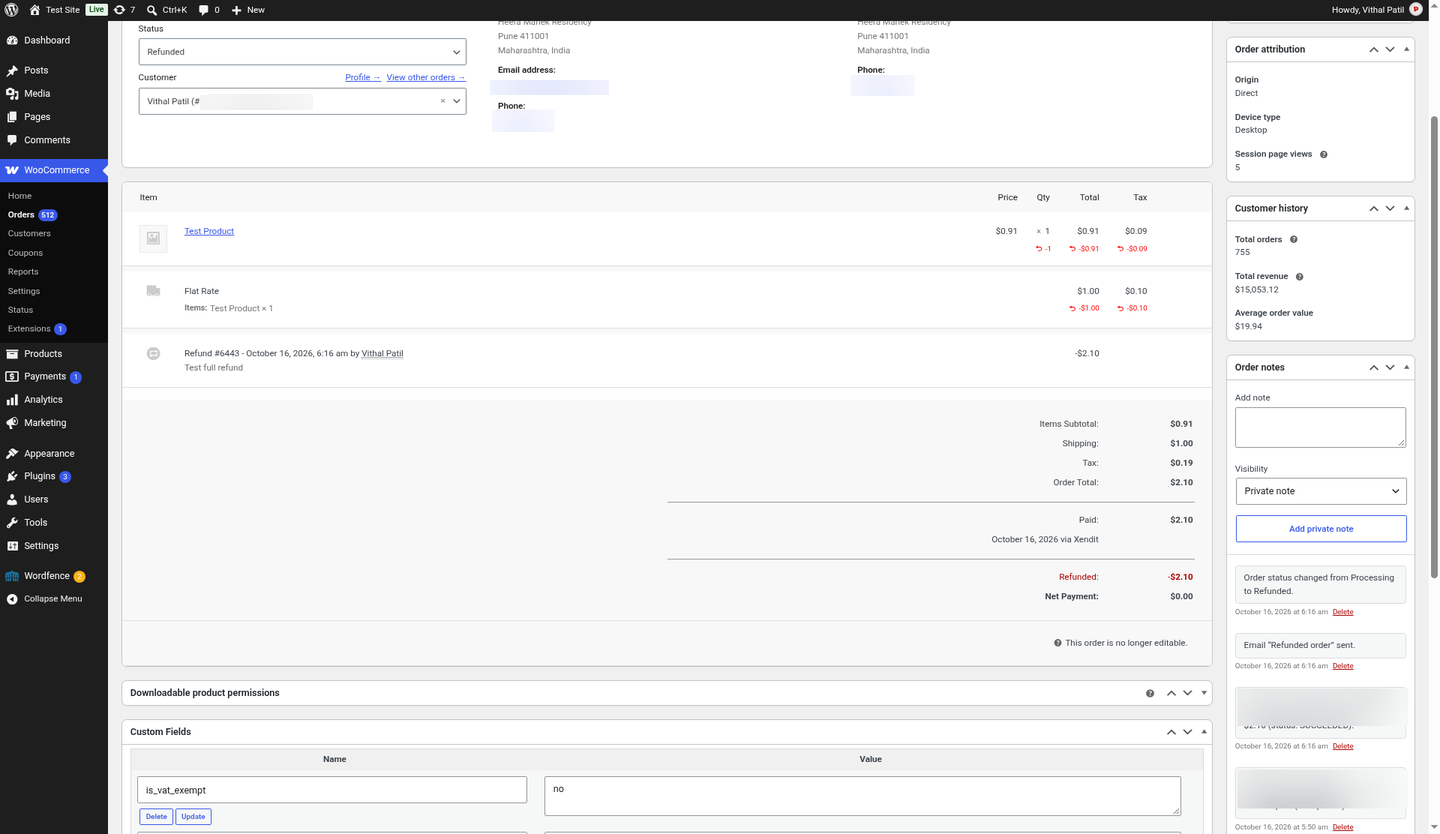
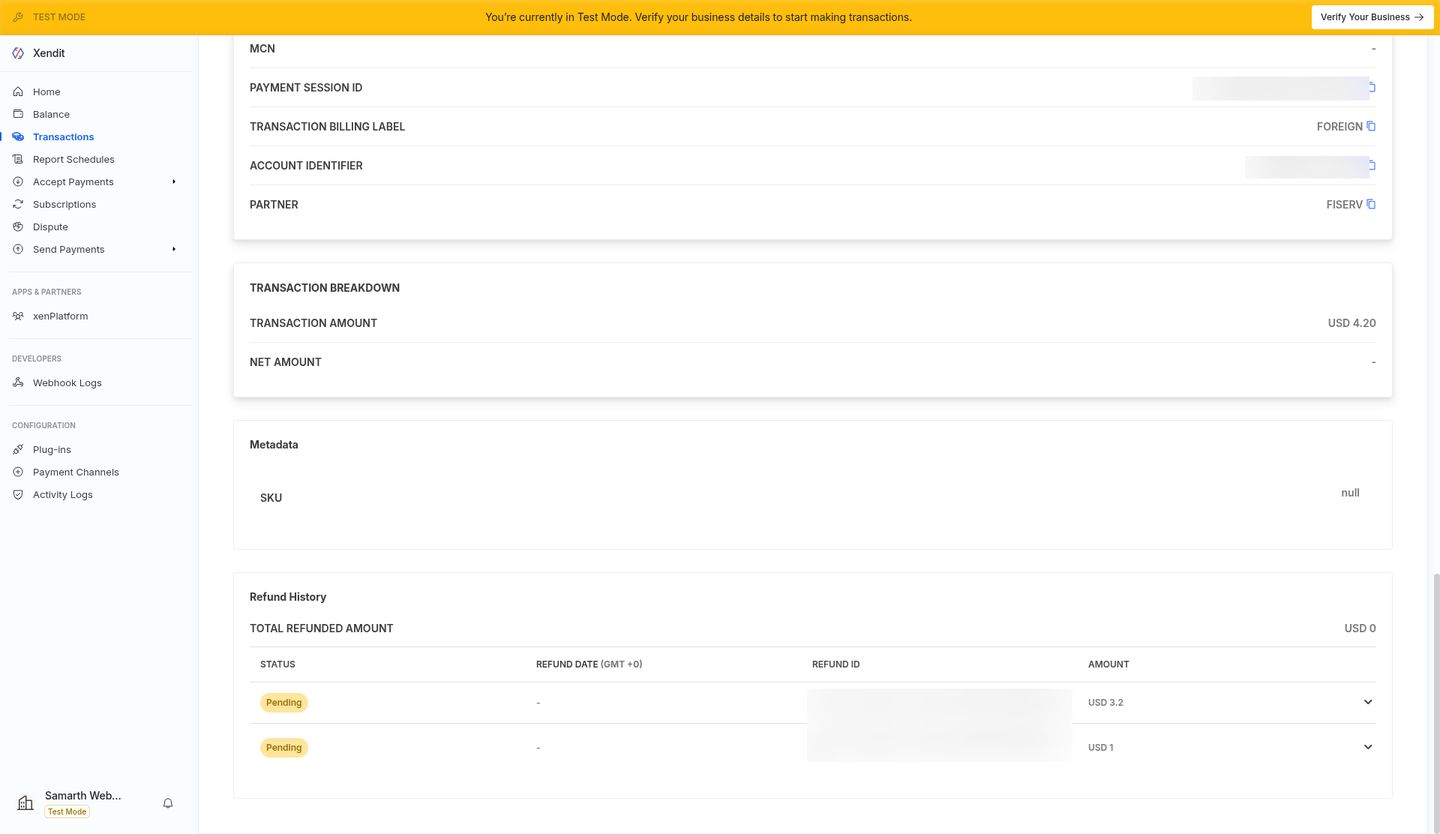
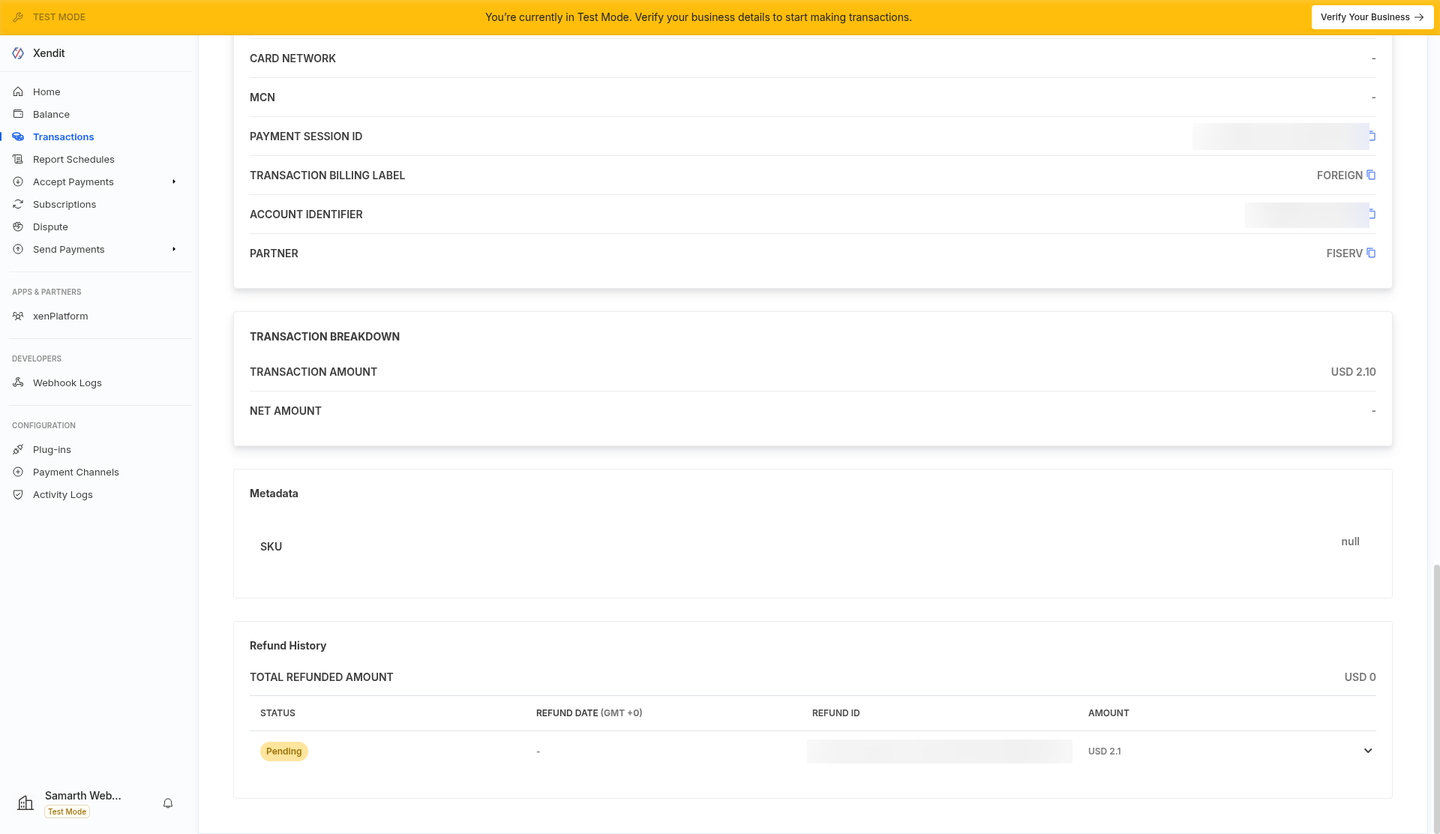
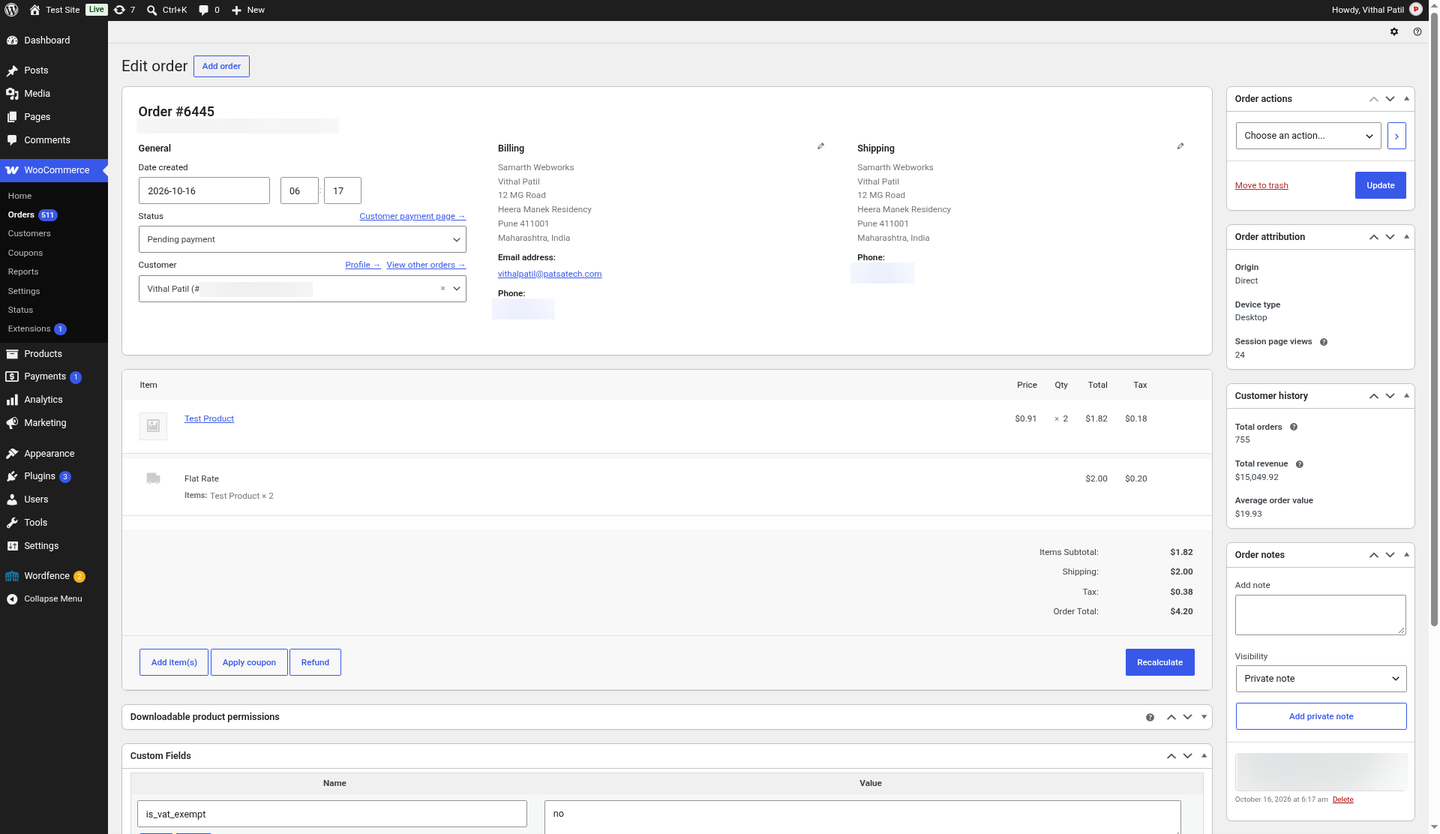
- Partial refund and full refund
- Declined card (order note added, order stays Pending)
- Xendit dashboard test pings (200, logged as Info)
This walkthrough shows a complete setup on a real test store, from creating Xendit test keys to a paid WooCommerce order. Click any screenshot to open it full size. Keys and tokens are blurred.
Part A: Xendit Dashboard
Open Settings → Developers → API Keys (Test mode)
Make sure the yellow Test Mode banner is showing. The public key is not needed by this plugin. You only need a secret key.
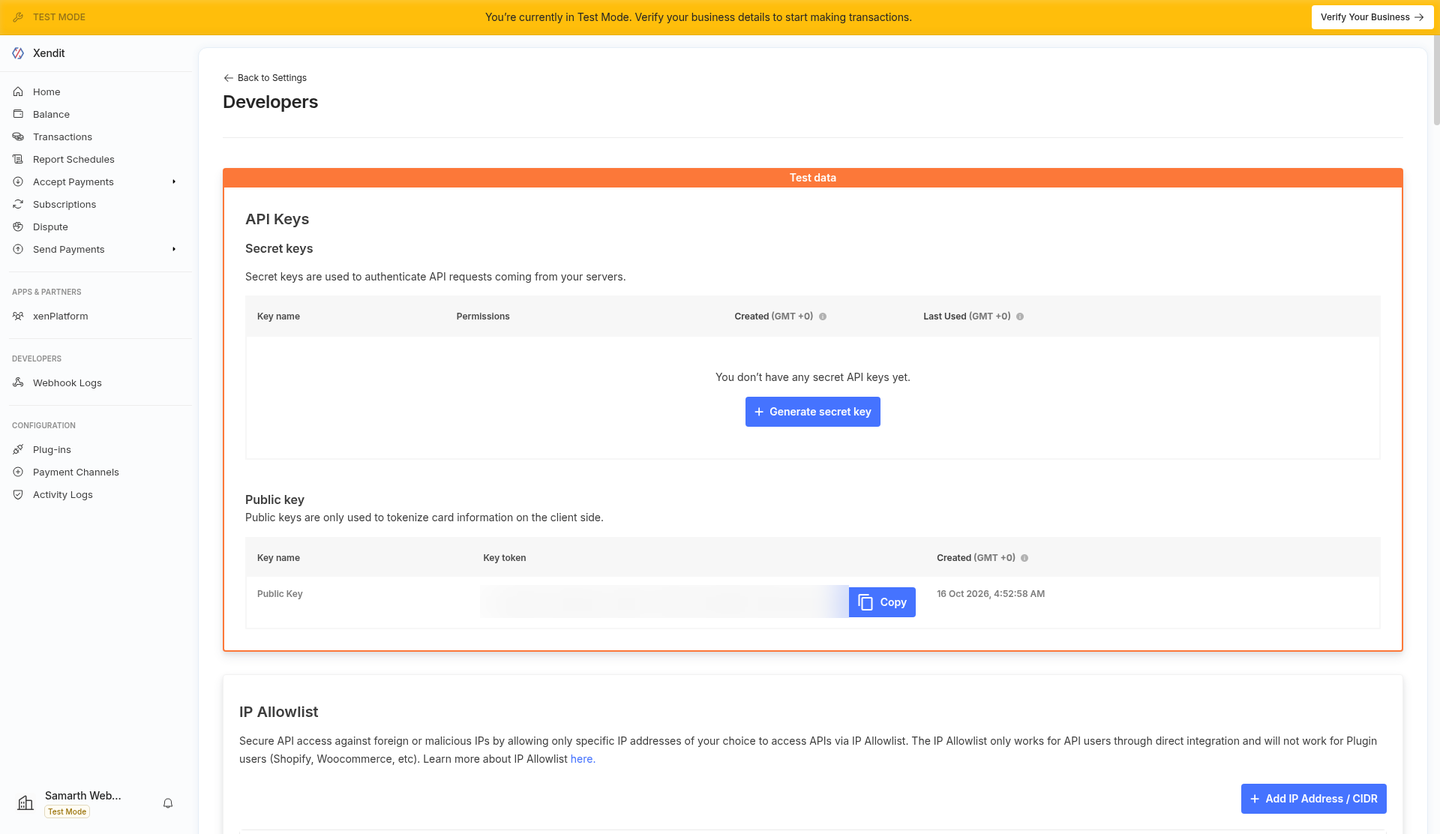
API Keys page in Test mode (public key blurred). Turn on 2FA if Xendit asks
If you click Generate secret key without 2FA, Xendit shows this prompt. Click Enable 2FA, link your authenticator app, then come back.
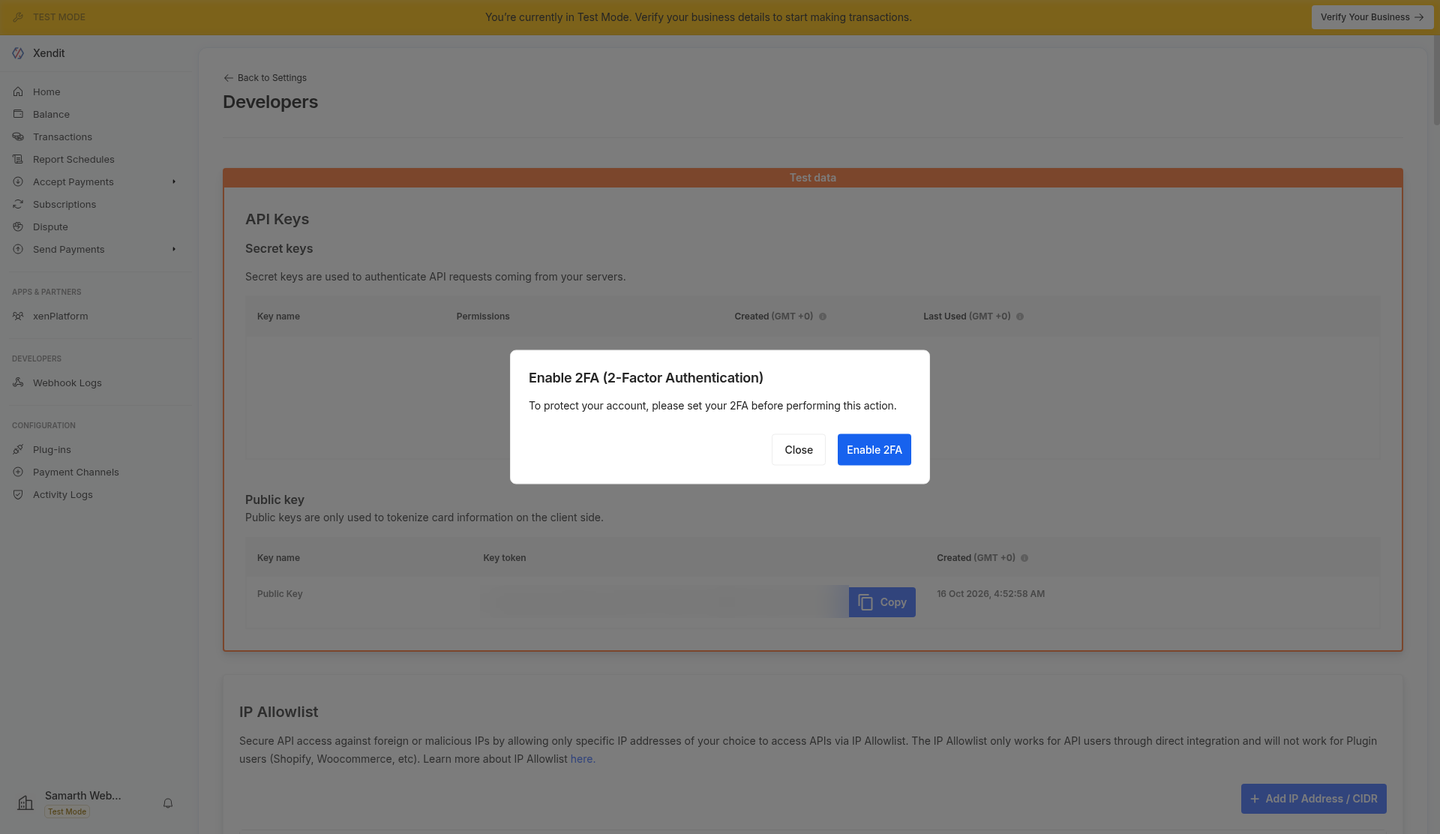
2FA is required before a secret key can be generated. Generate a secret key with Money-in Write
Give the key a name (e.g.
woo-yourstore-test), set Money-in products → Write, leave everything else on None, click Generate key and enter your 2FA code. Copy the key (starts withxnd_development_) straight away, because Xendit shows it only once.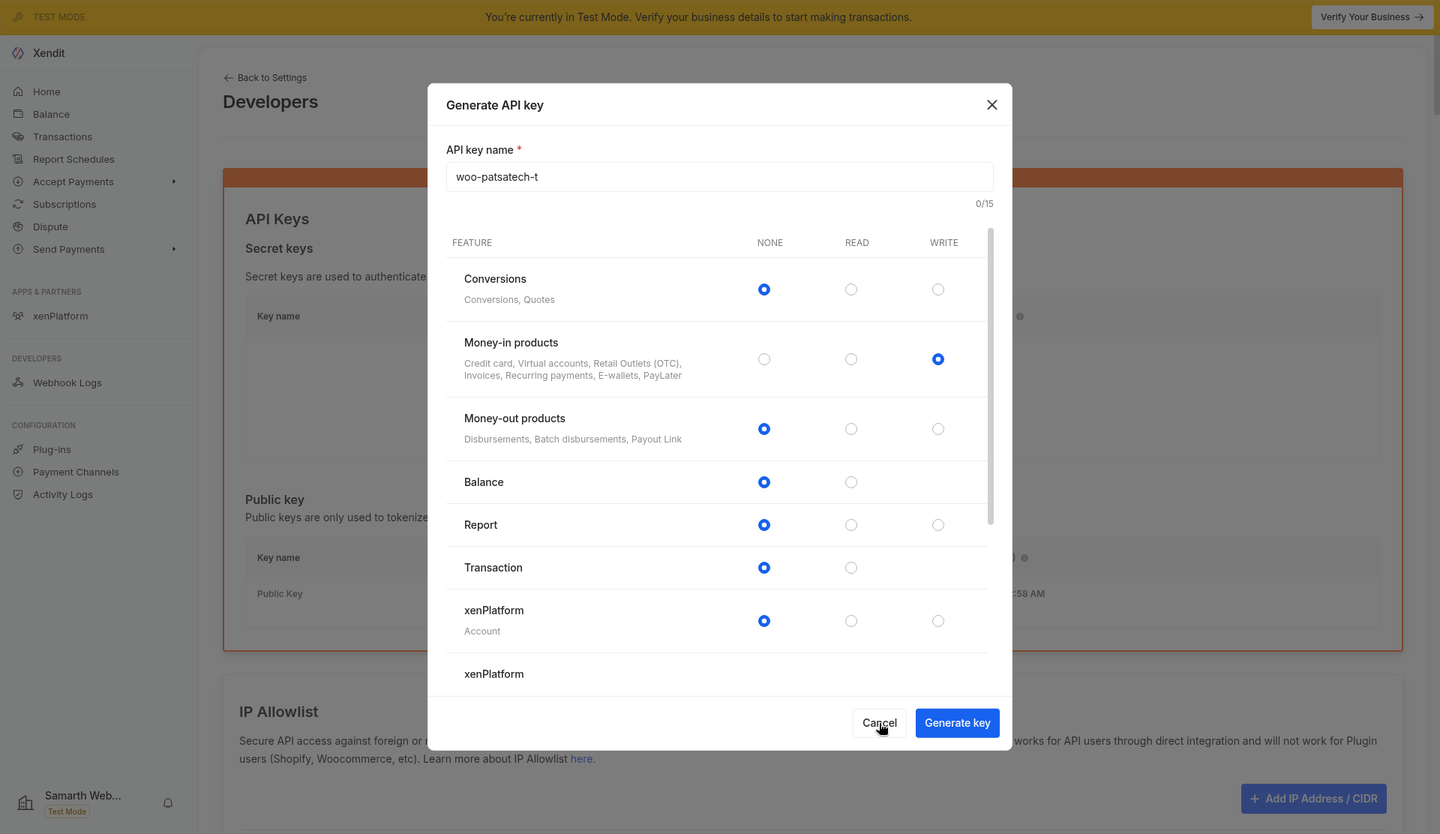
Only Money-in Write is needed. Reveal the webhook verification token
Scroll to Webhooks → Webhook verification token and click View Webhook Verification Token (Xendit asks for your password). Copy the token for the plugin settings.
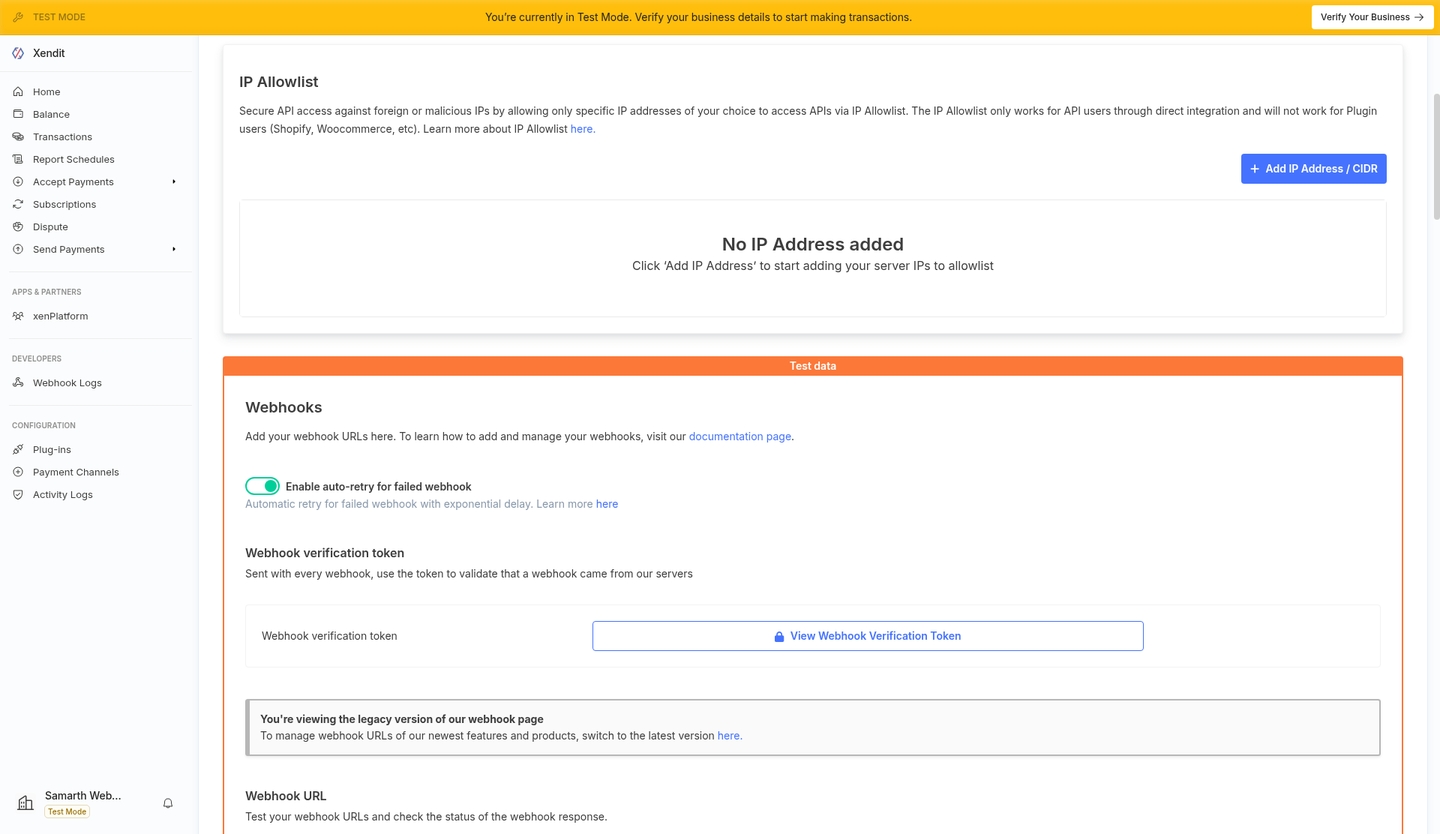
Webhook verification token section. Find the Payment Session webhook fields
In the webhook URL list, find the Payment Session group with Payment Session Completed and Payment Session Expired.
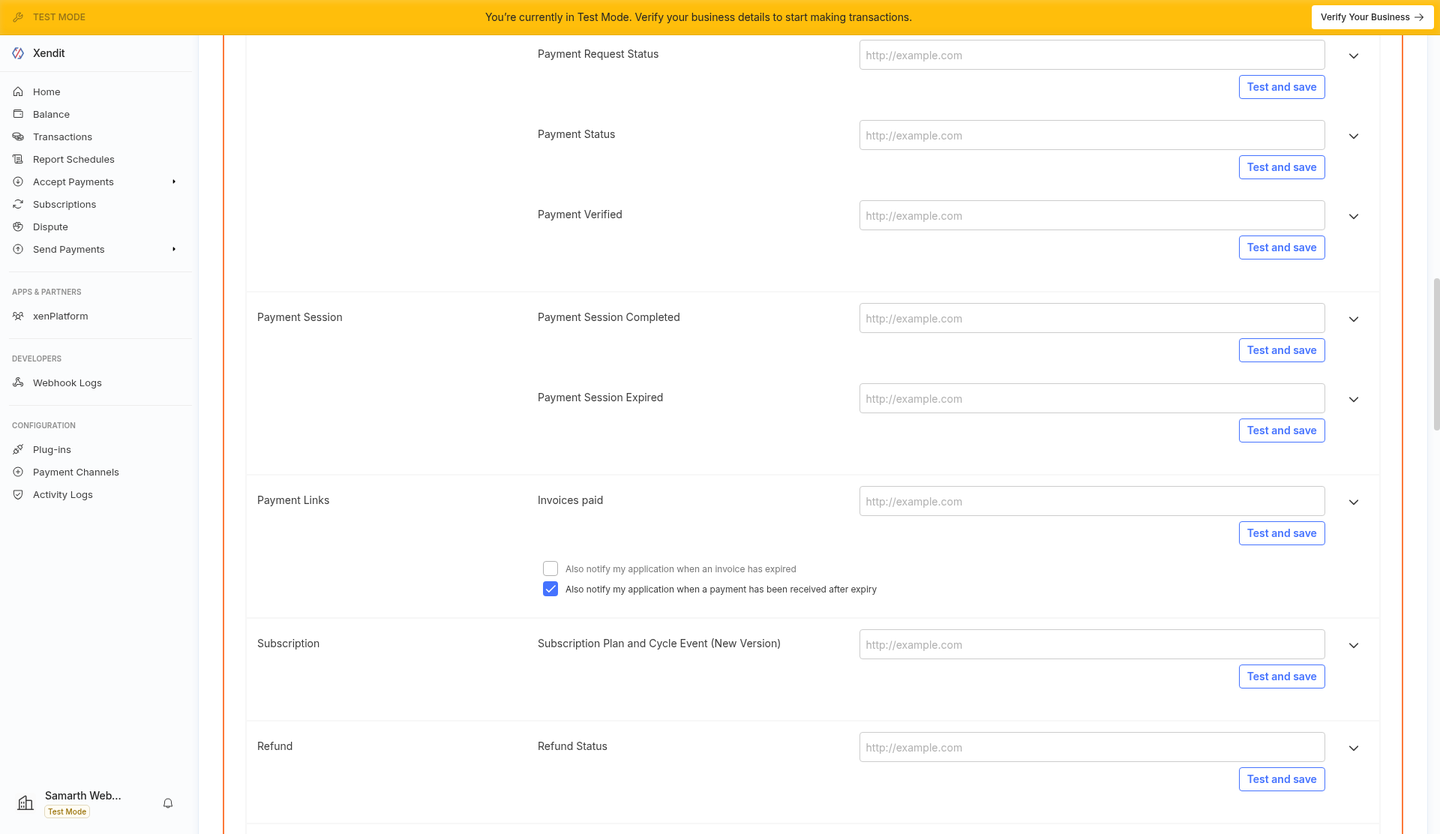
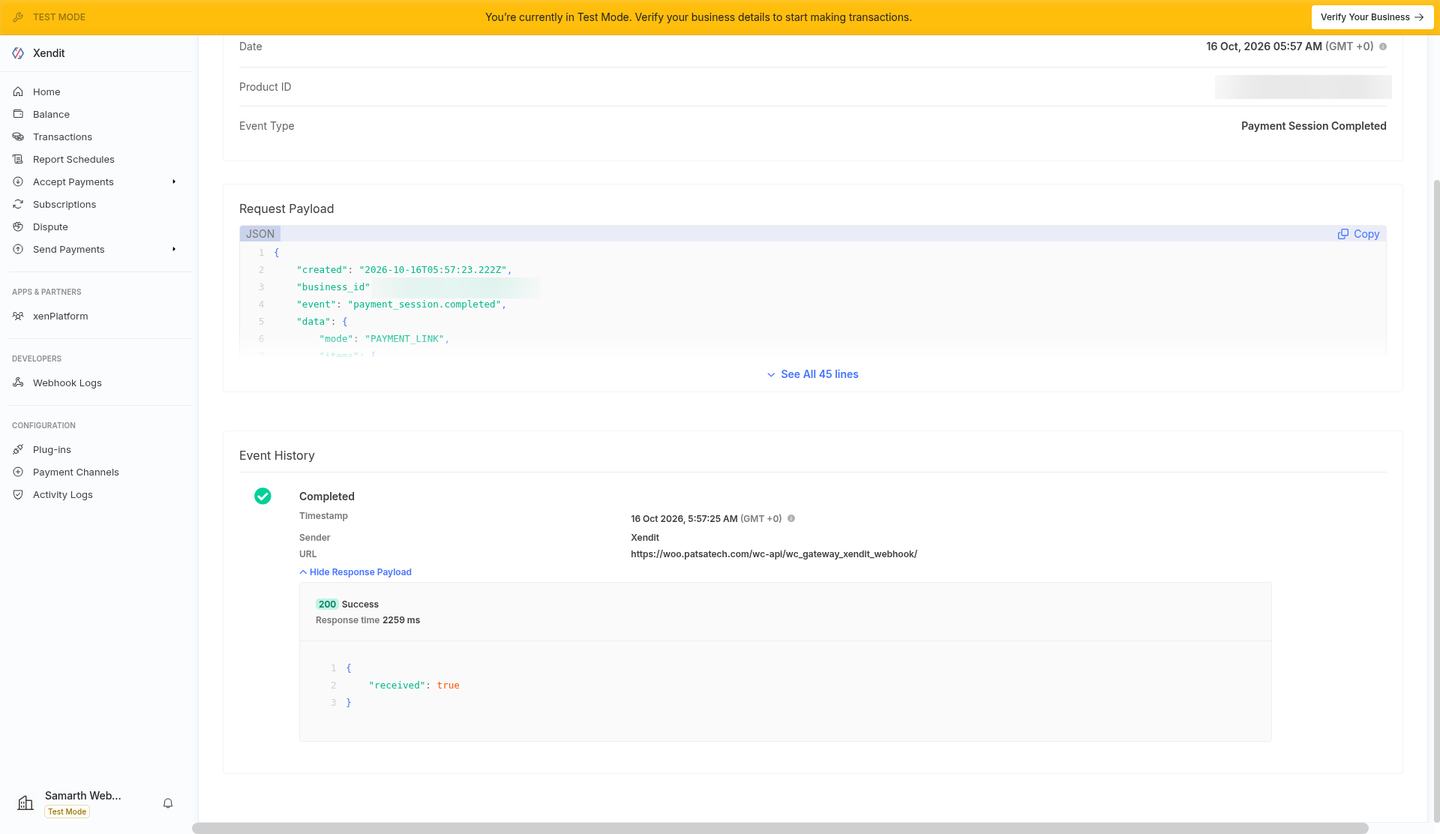
Payment Session Completed and Expired fields. Enter the webhook URL in both fields, then click Test and save
Use exactly:
https://<your-site>/wc-api/wc_gateway_xendit_webhook/
Set it for Payment Session Completed and Payment Session Expired. Once the token is saved in the plugin (Part B), Test and save should return status 200 with
{"received":true}.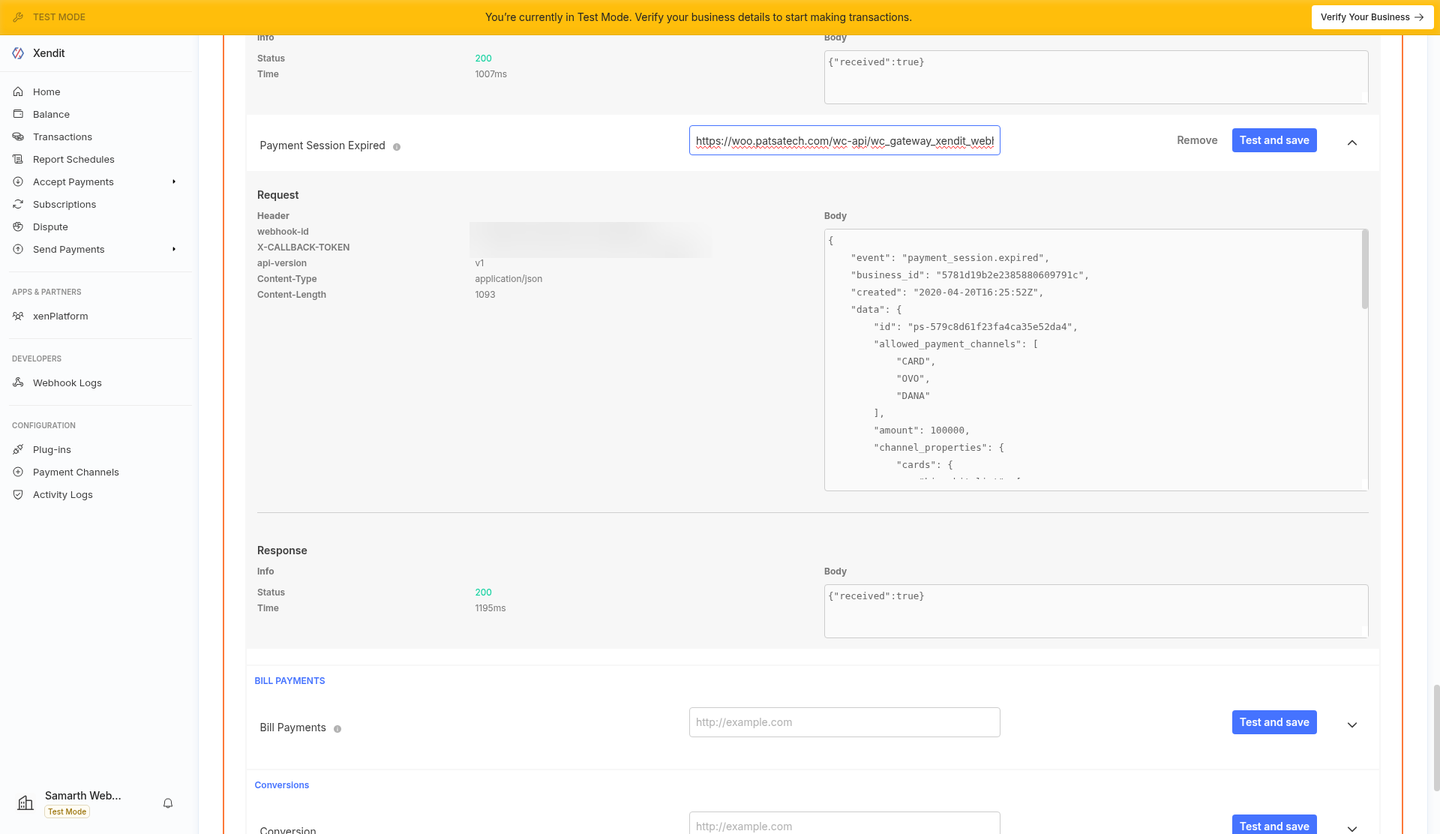
Correct URL saved, test returns 200 (token and webhook id blurred).
/wc-api/wc_gateway_xendit_webhook/, that the plugin is active, and that the same verification token is saved in the plugin settings.Part B: WordPress / WooCommerce
Upload the plugin
Plugins → Add New → Upload Plugin, choose
wooxendit-1.0.0.zip, then click Install Now.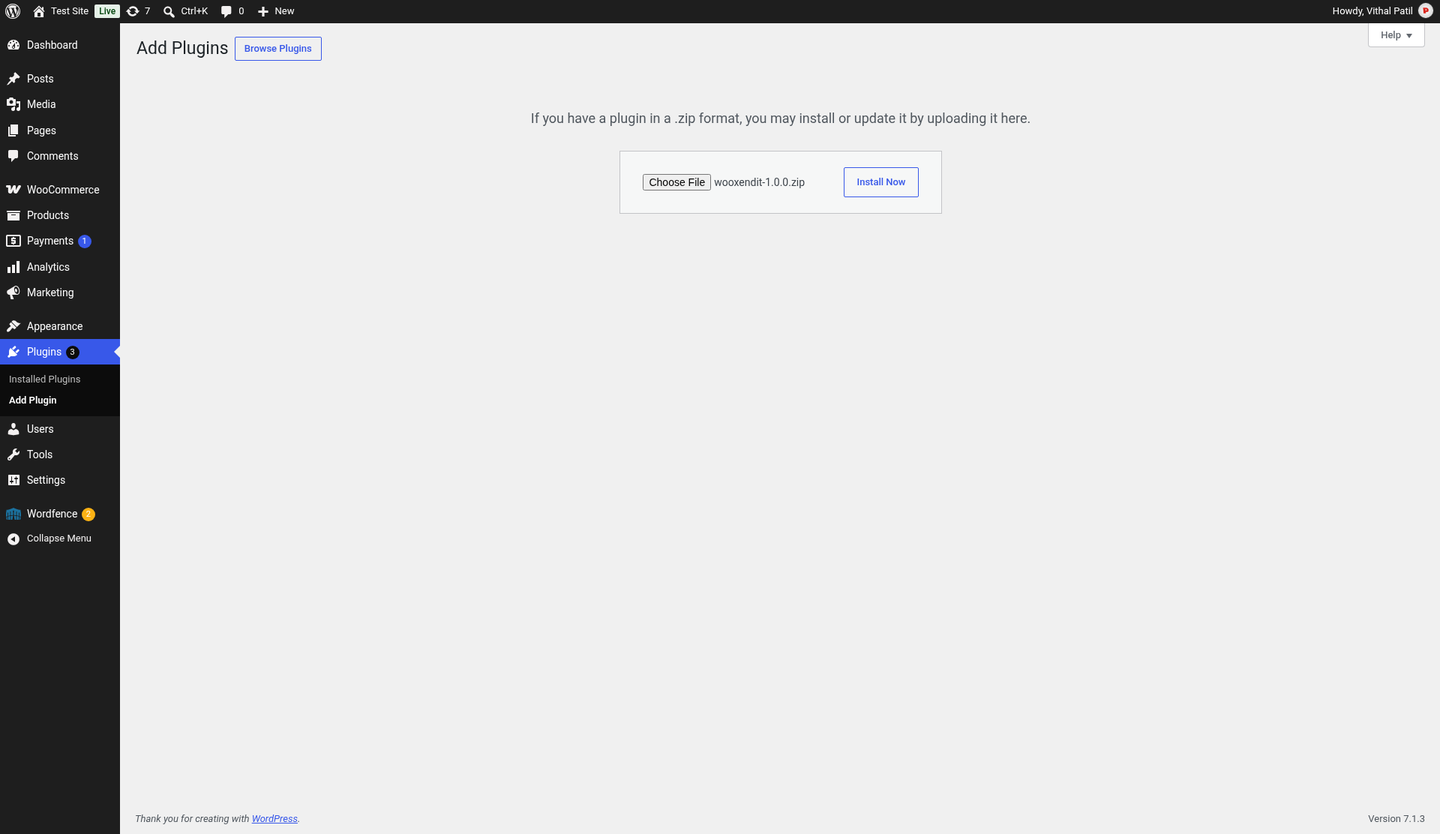
Activate
Click Activate Plugin. A Settings link appears in the plugin row.
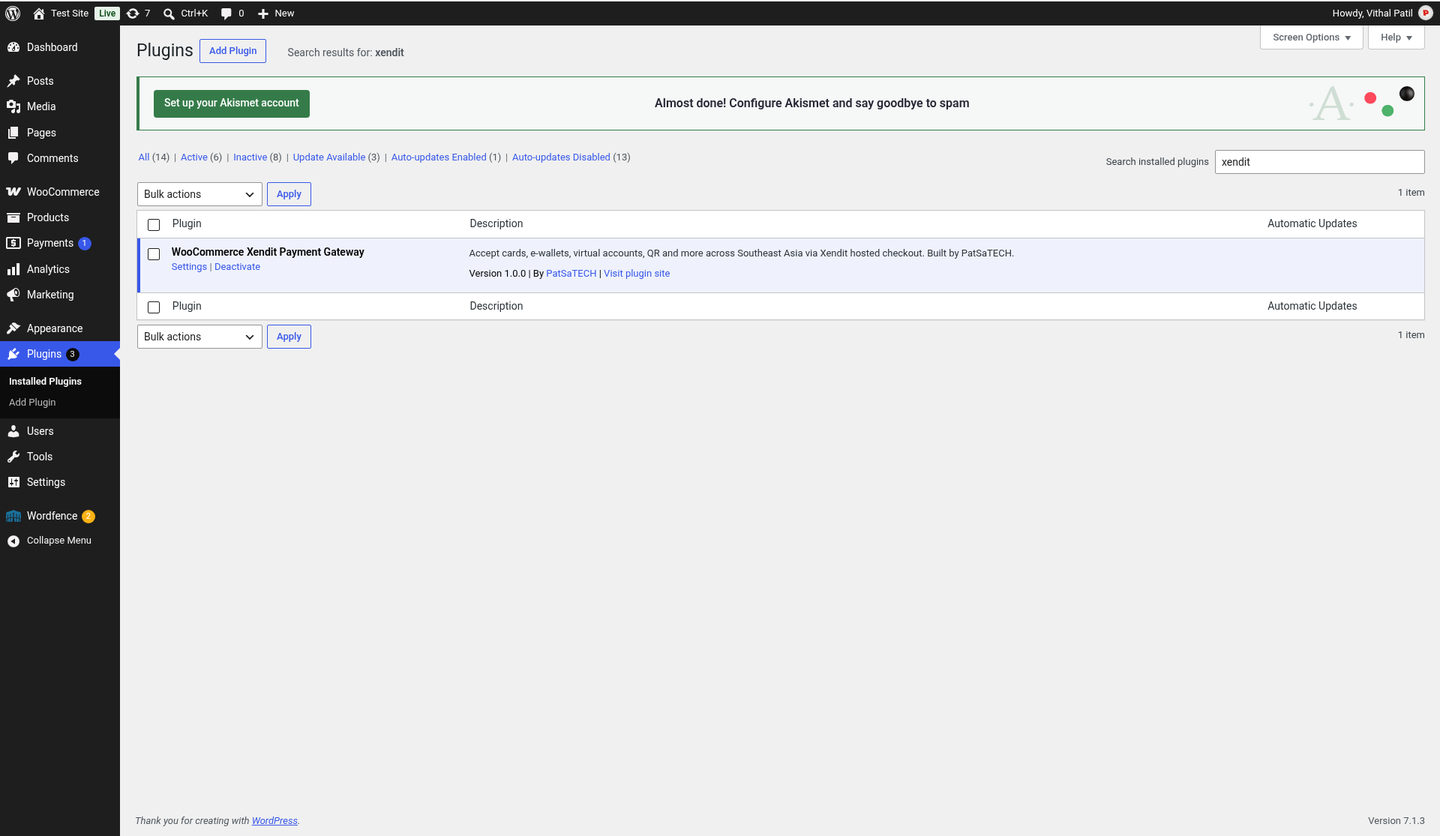
Xendit Payment Gateway for WooCommerce 1.0.0 activated (WordPress 7.1.3, WooCommerce 11.2.1). Open WooCommerce → Settings → Payments
Find Xendit in the payment providers list and click Manage.
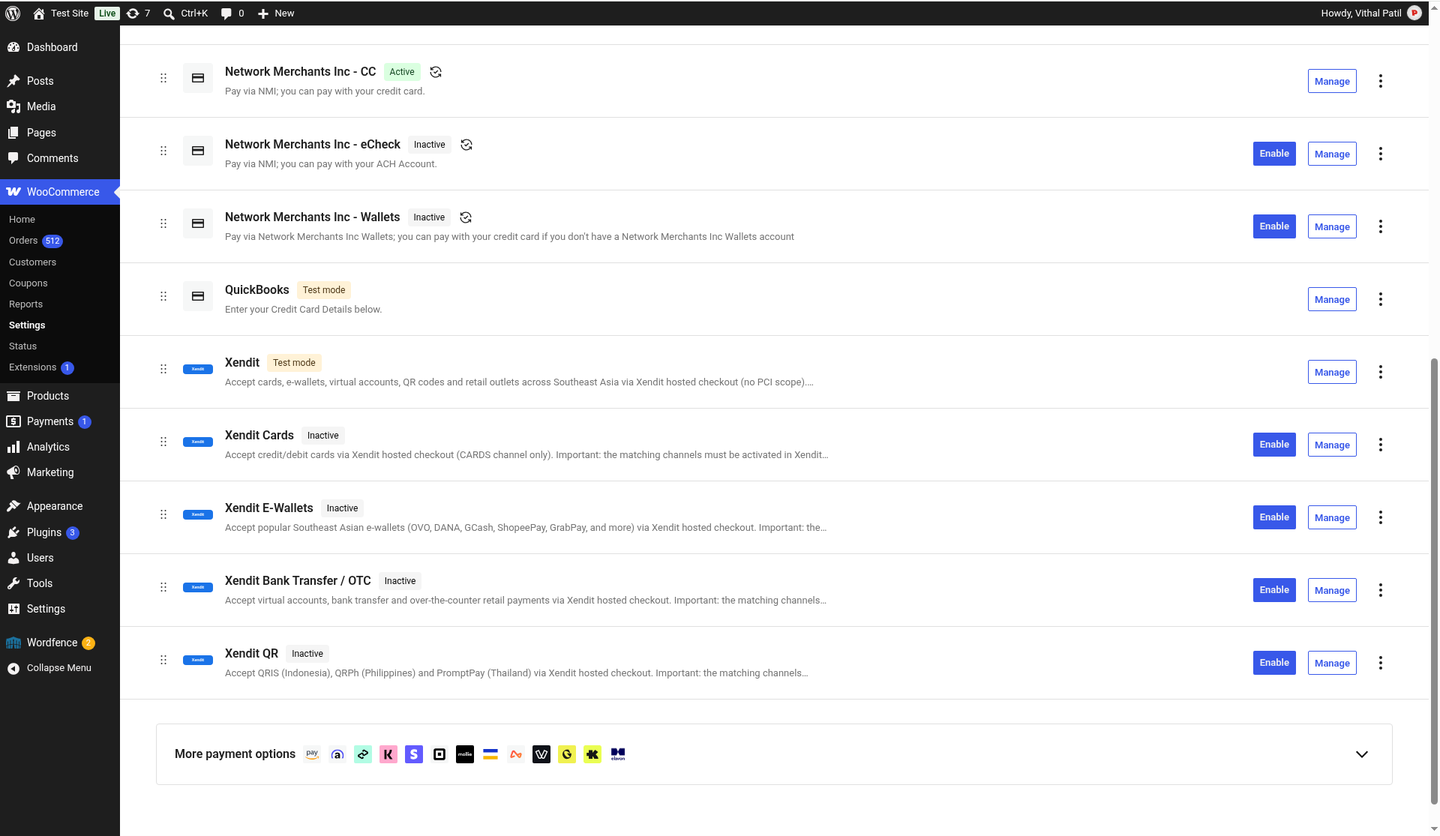
Configure Xendit
Tick Enable, keep Test mode on, paste the Test Secret Key and the Webhook Verification Token, then click Save changes. The webhook URL to copy is shown at the bottom of this page.
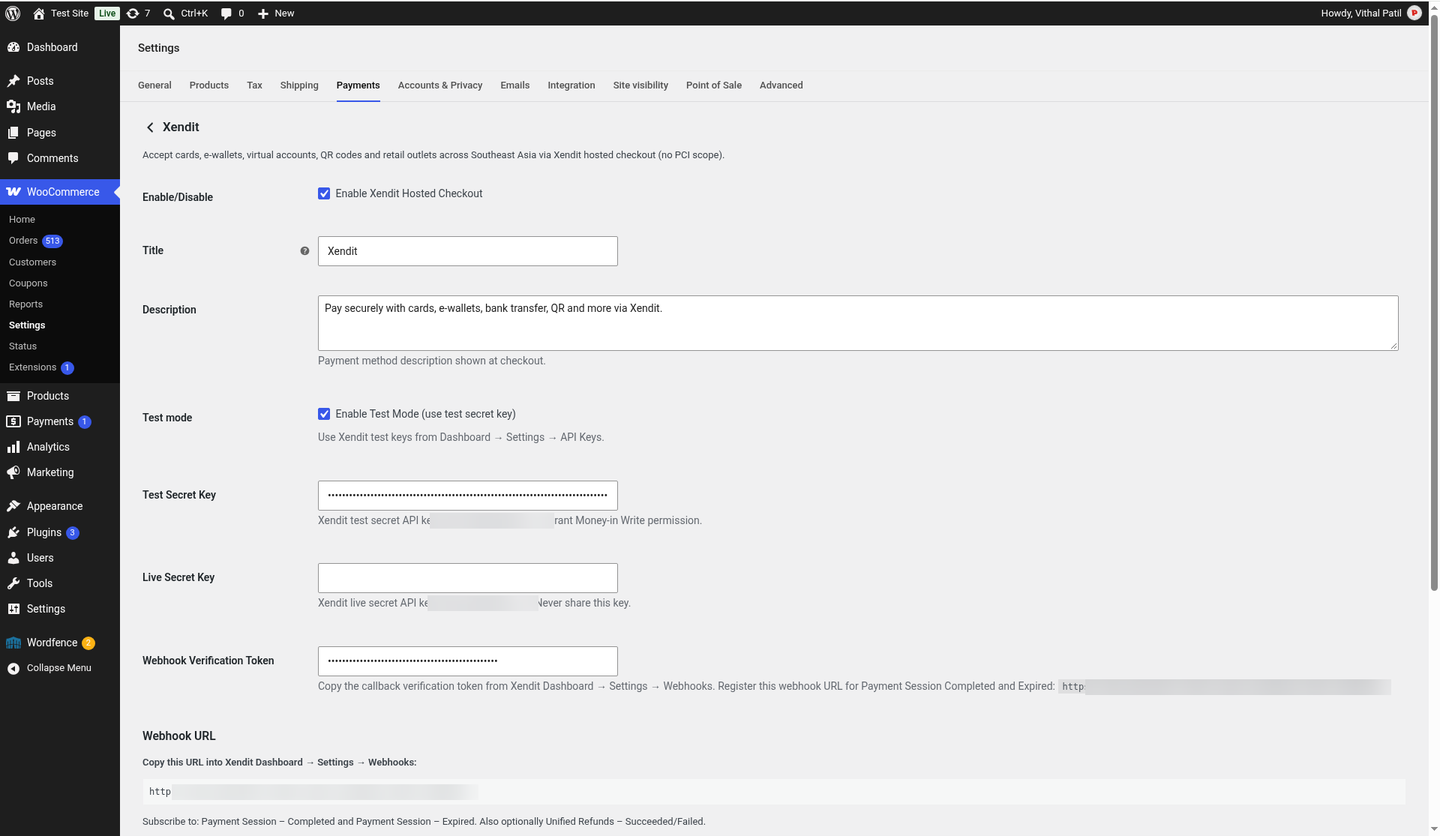
Top of the Xendit settings. Secrets are masked in the fields. 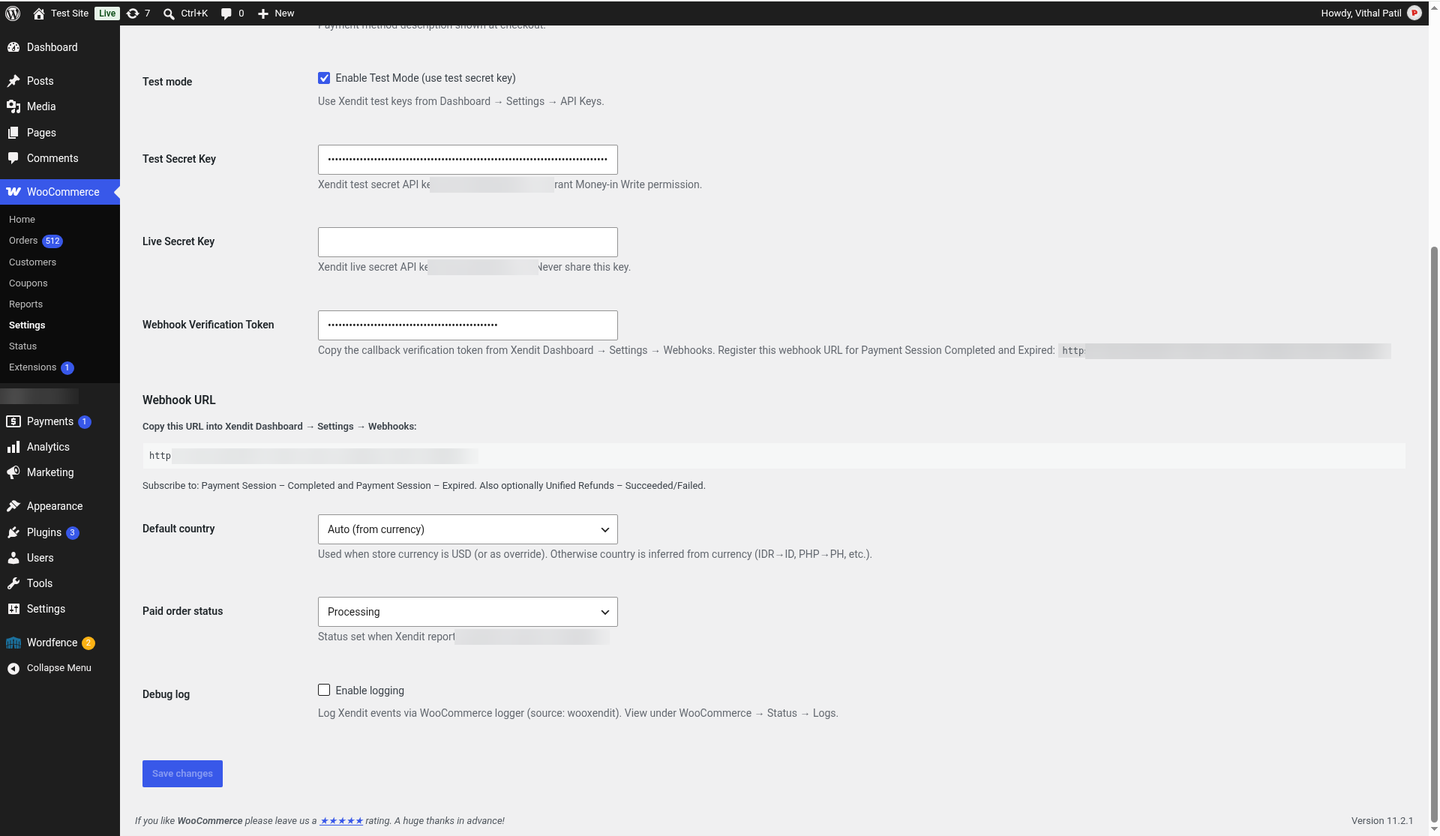
Bottom of the settings: Webhook URL to copy into Xendit, order statuses and debug log.
Part C: Test order (classic checkout)
Choose Xendit at checkout
Add a product to the cart, fill in billing details, select Xendit and click Place order.
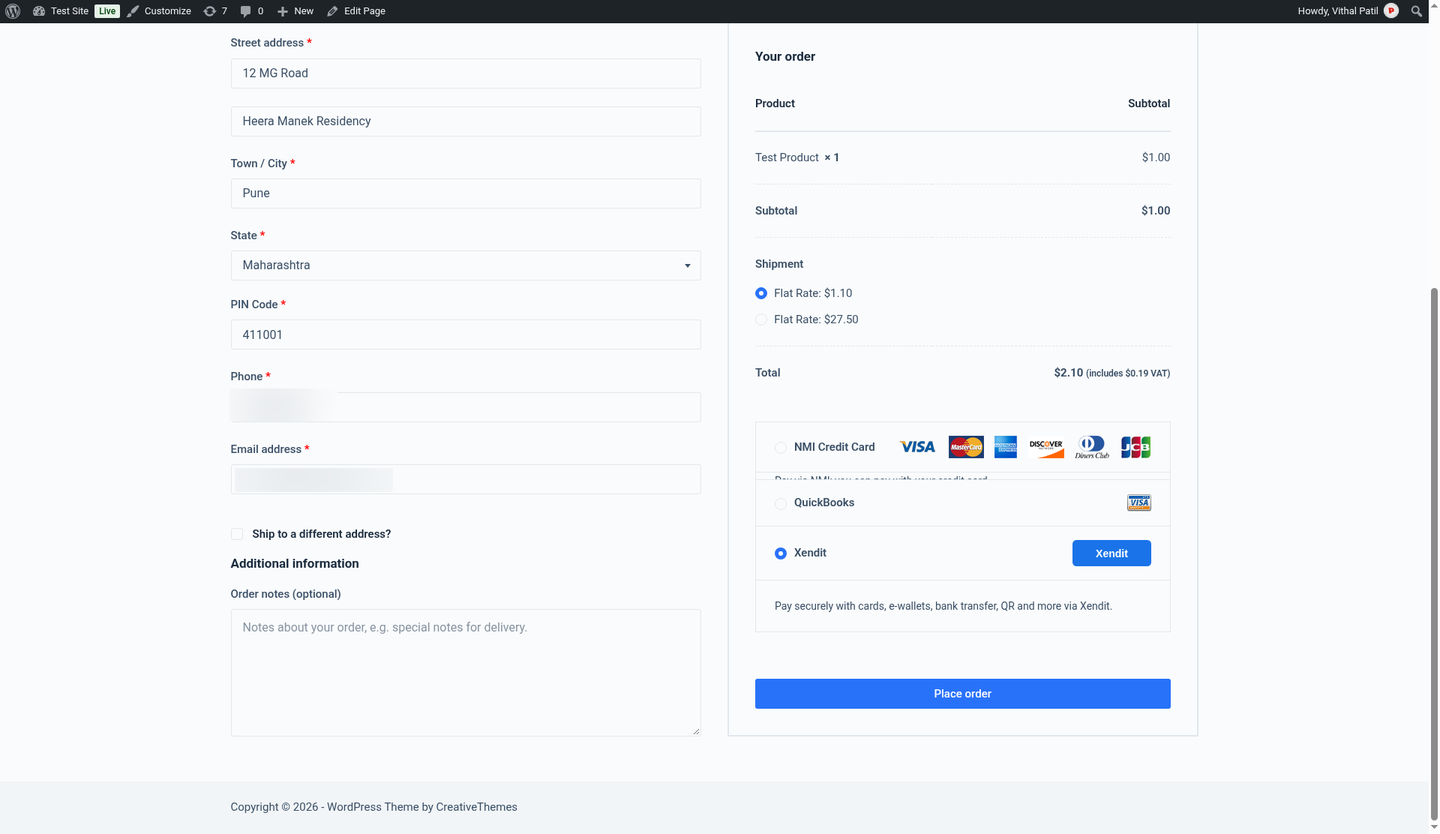
Pay on the Xendit hosted page
The customer is redirected to Xendit’s secure page. In test mode use one of the test card numbers from Xendit’s docs (or the Simulate scenario link on the page), with any future expiry date and any CVV.
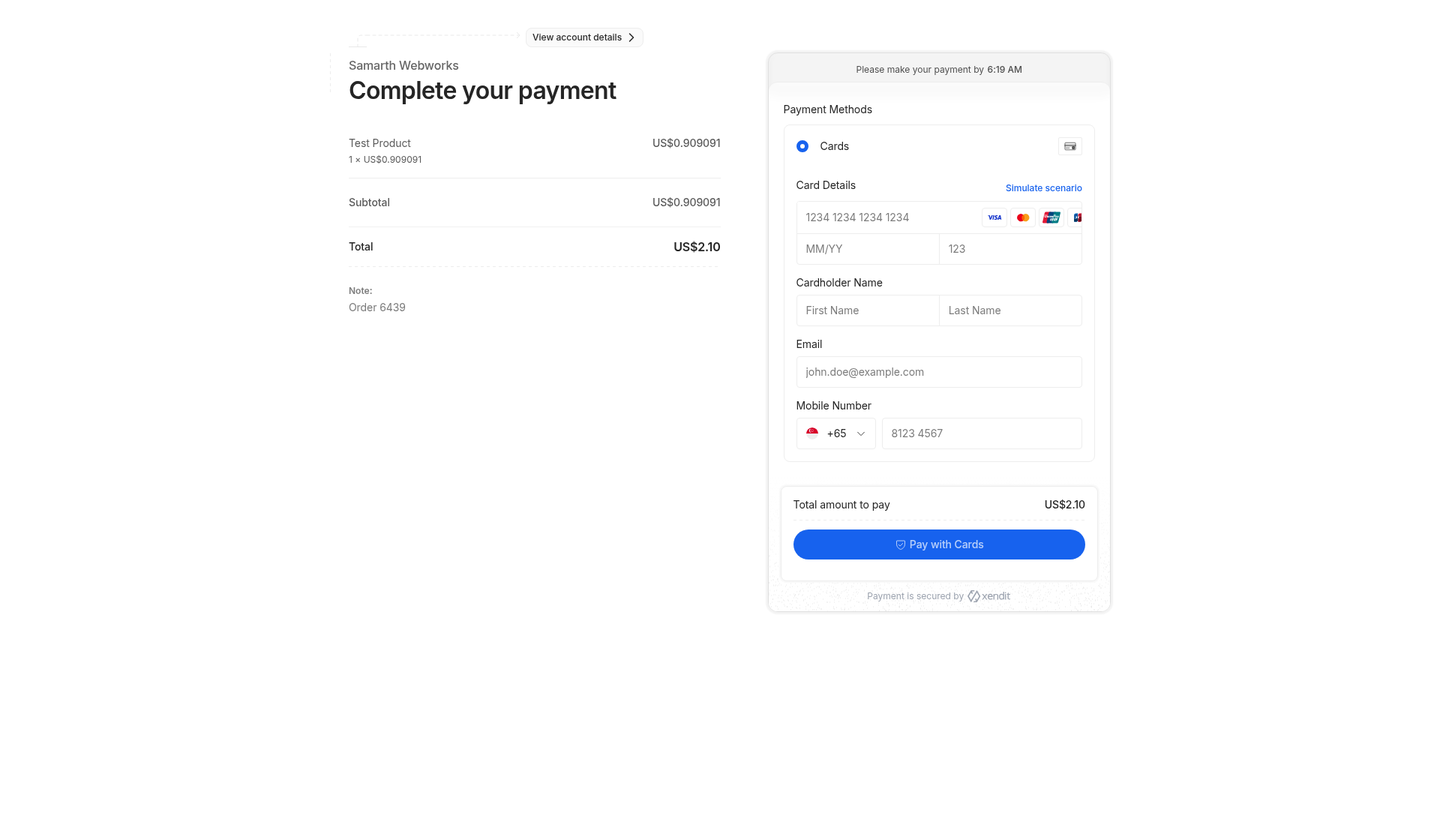
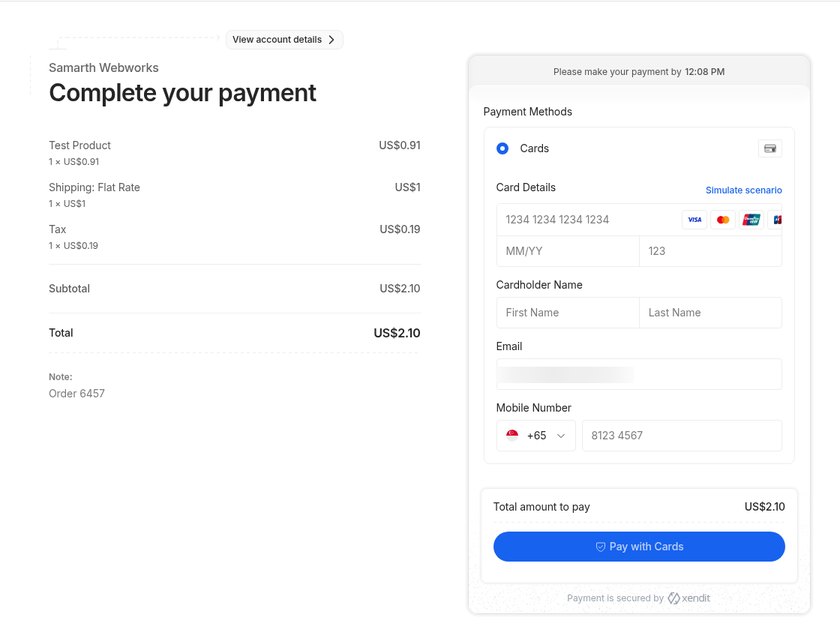
The Xendit page lists the order lines (products, shipping, fees and tax), rounded to the currency’s decimals, and they add up exactly to the order total: Test Product US$0.91 + Shipping US$1.00 + Tax US$0.19 = US$2.10 (order #6457). Complete 3-D Secure
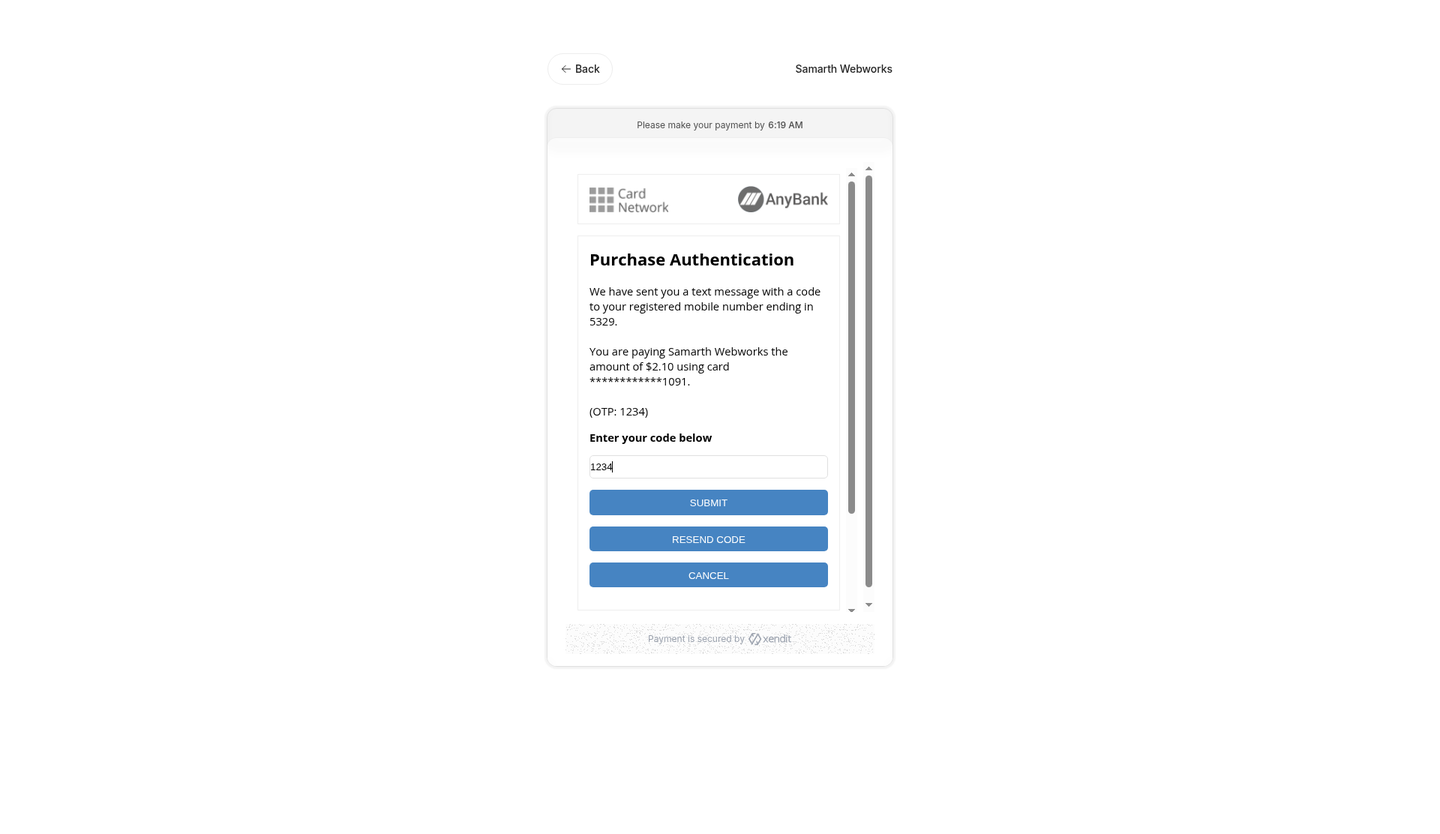
Some test cards show a simulated 3DS / OTP step. Follow the on-screen instructions to approve.
Thank-you page
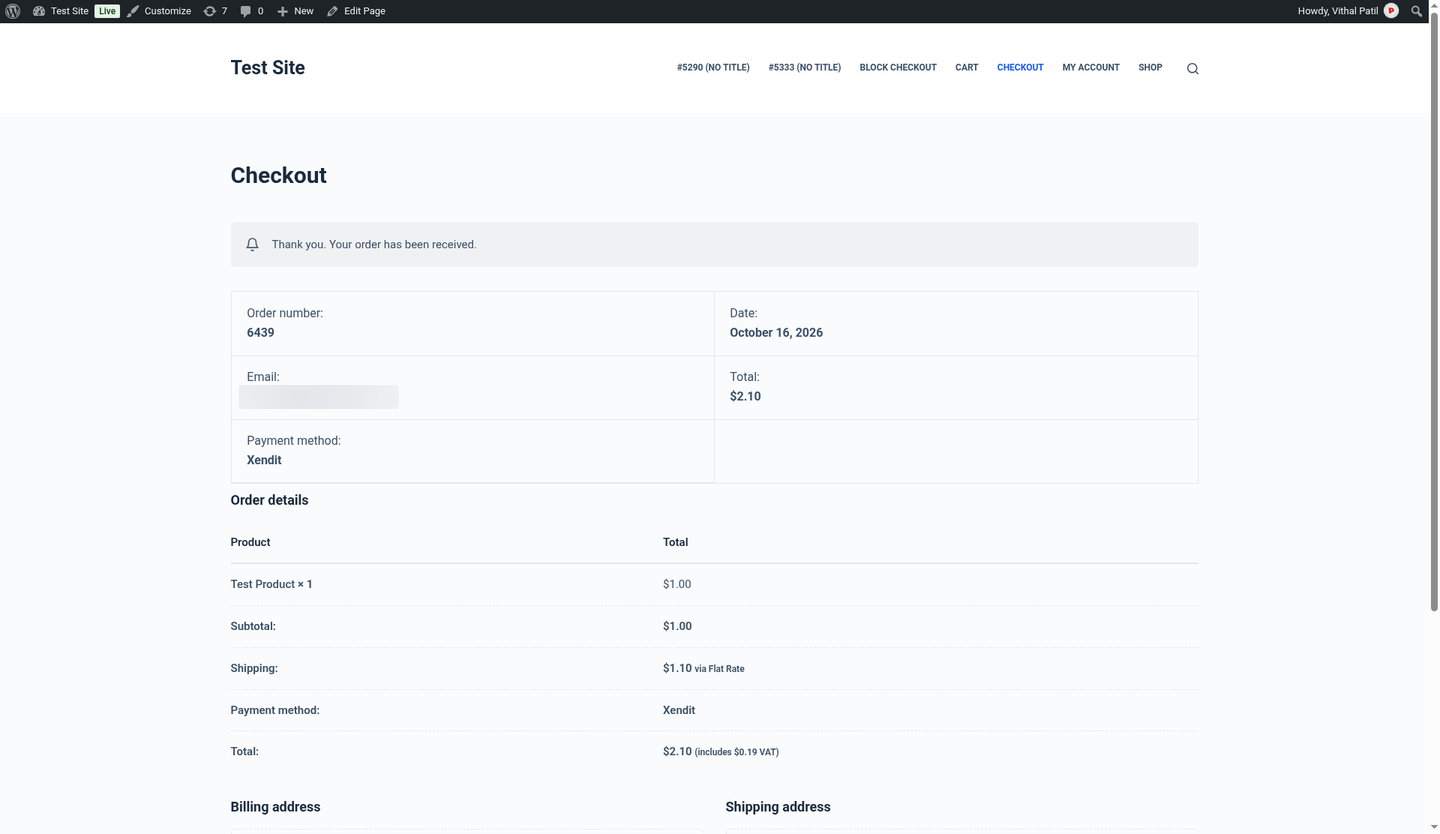
The customer returns to the WooCommerce order-received page.
Order is marked paid
The webhook moves the order to Processing (or Completed, depending on your setting) and adds order notes with the Xendit session and payment IDs. If the customer’s return arrives after the webhook, the plugin detects the order is already paid and does not process it twice.
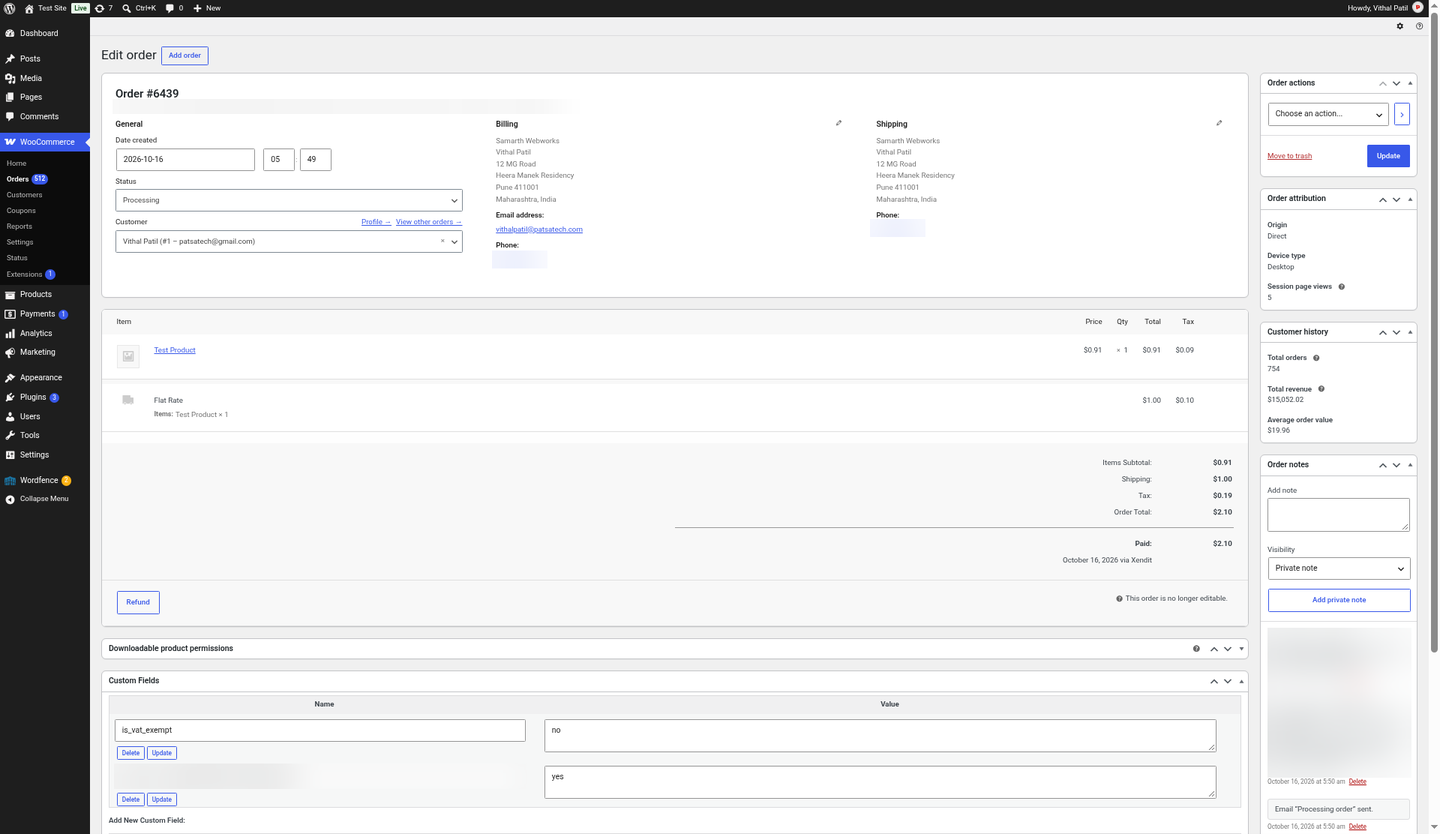
Order notes and internal IDs blurred. Confirm in Xendit
In Xendit → Transactions the payment shows as Successful, with a reference starting
wc-<order id>-.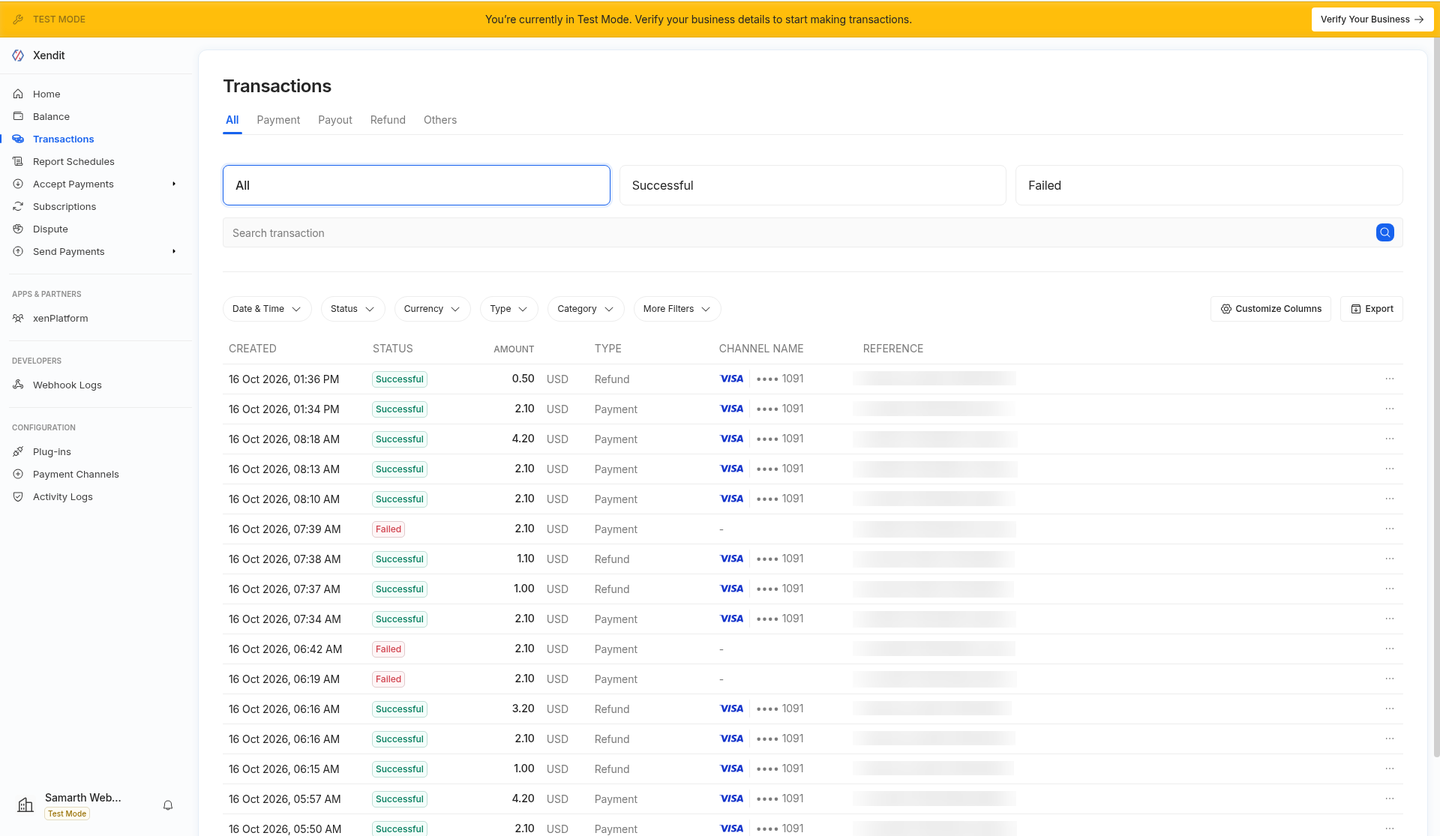
Xendit → Transactions showing the successful test payments and refunds (references blurred).
Part D: Block checkout
Select Xendit in the Checkout block
On a page that uses the WooCommerce Checkout block, Xendit appears under Payment options with its title, description and icon. Select it and click Place order.
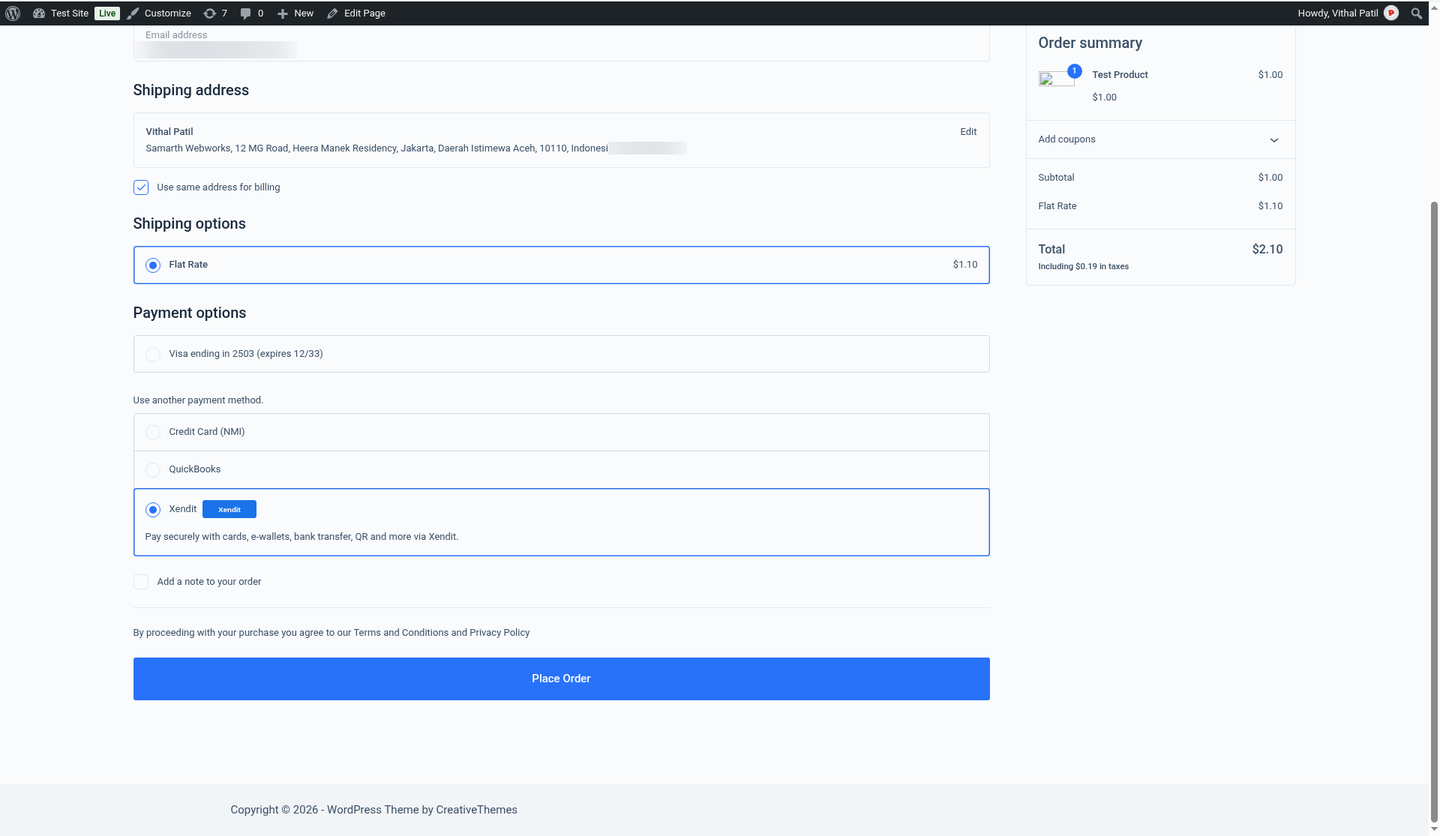
Block checkout with Xendit selected (email and phone blurred). Pay and authenticate on Xendit
Exactly as with classic checkout, the customer pays on Xendit’s hosted page and completes any 3-D Secure step. In the sandbox the OTP is shown on screen.
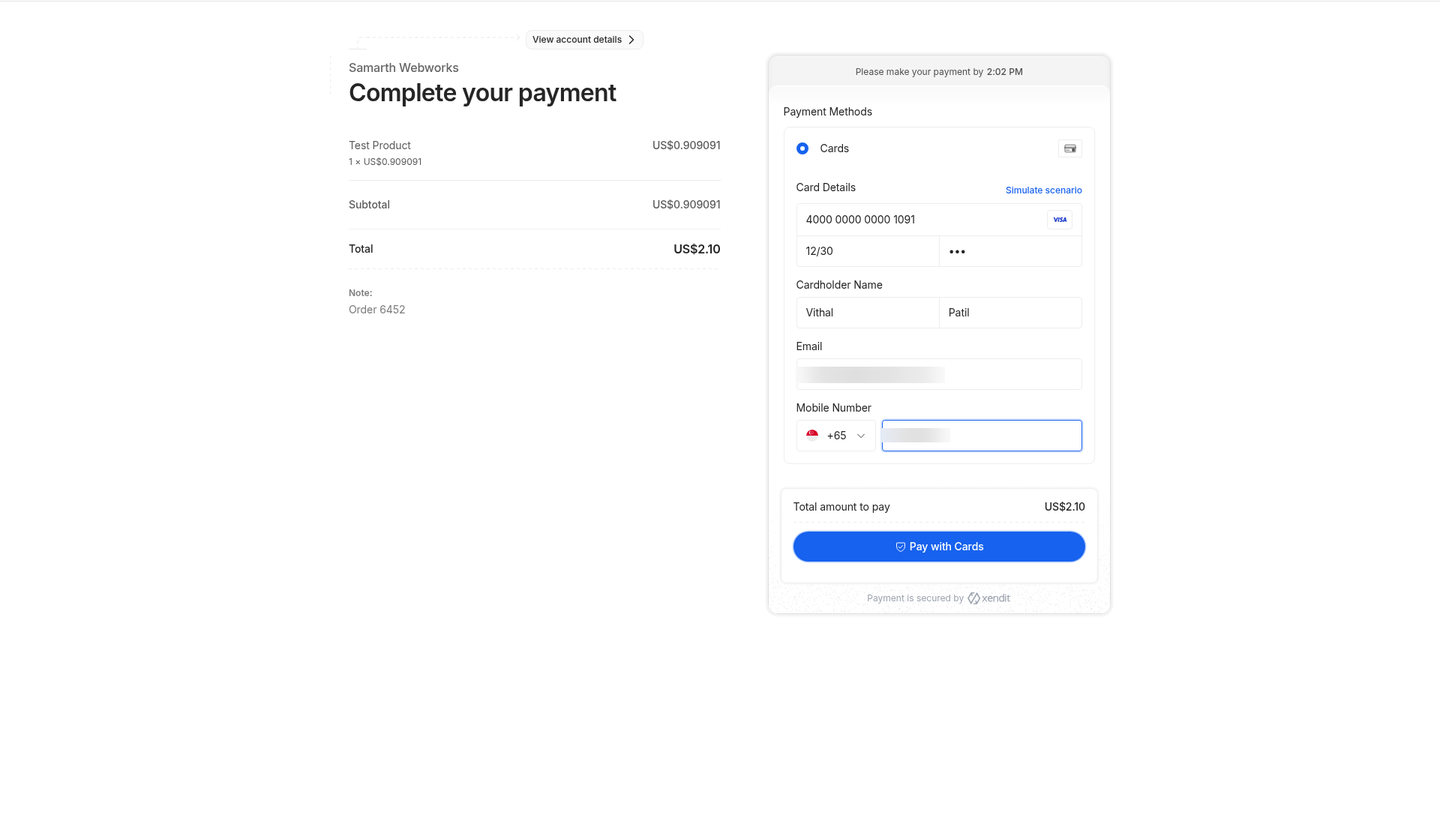
Xendit hosted card form with the customer details pre-filled (email and phone blurred). 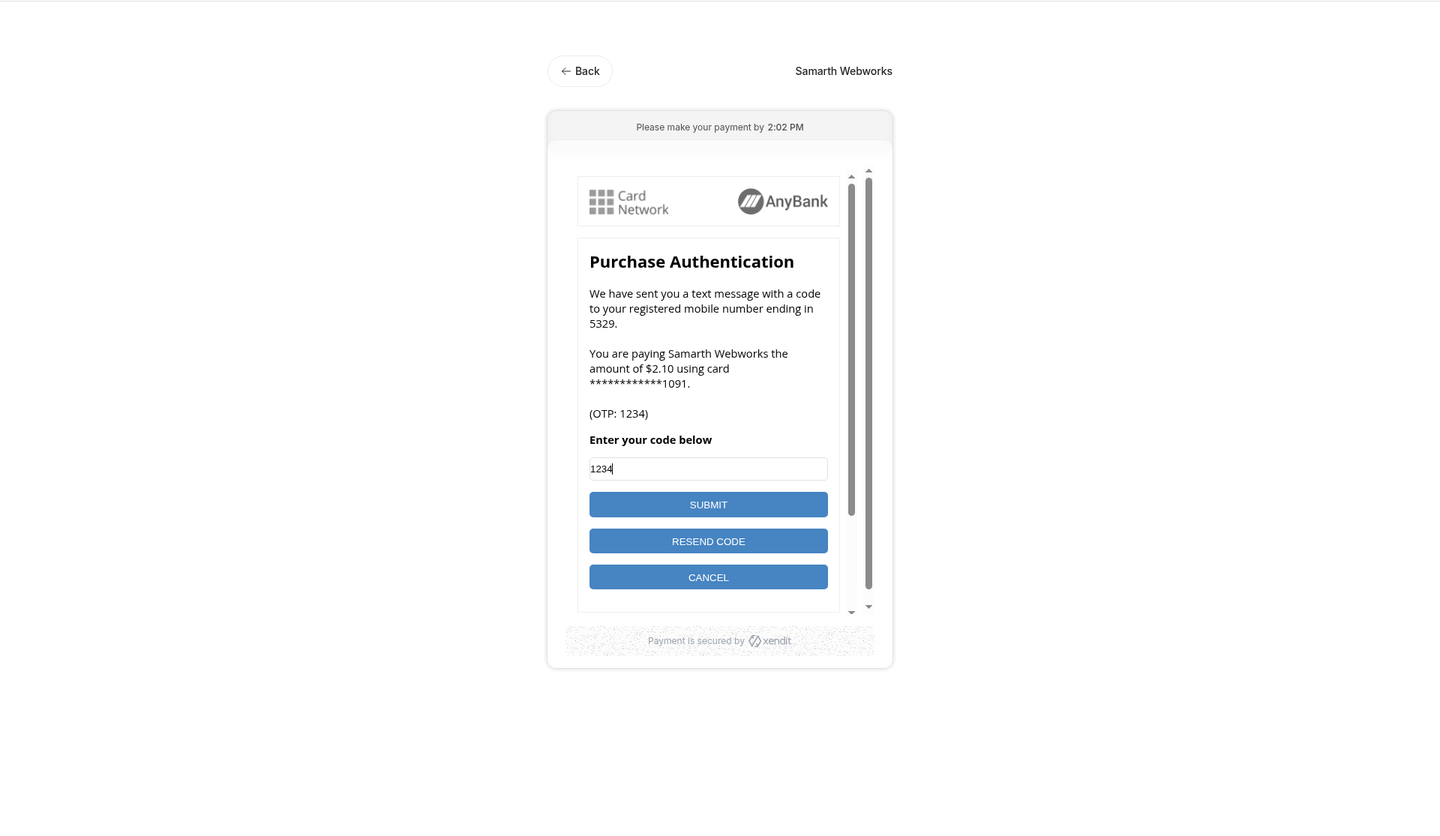
3D Secure step for the test card. Back on the thank-you page
The customer returns to the order-received page with Xendit as the payment method.
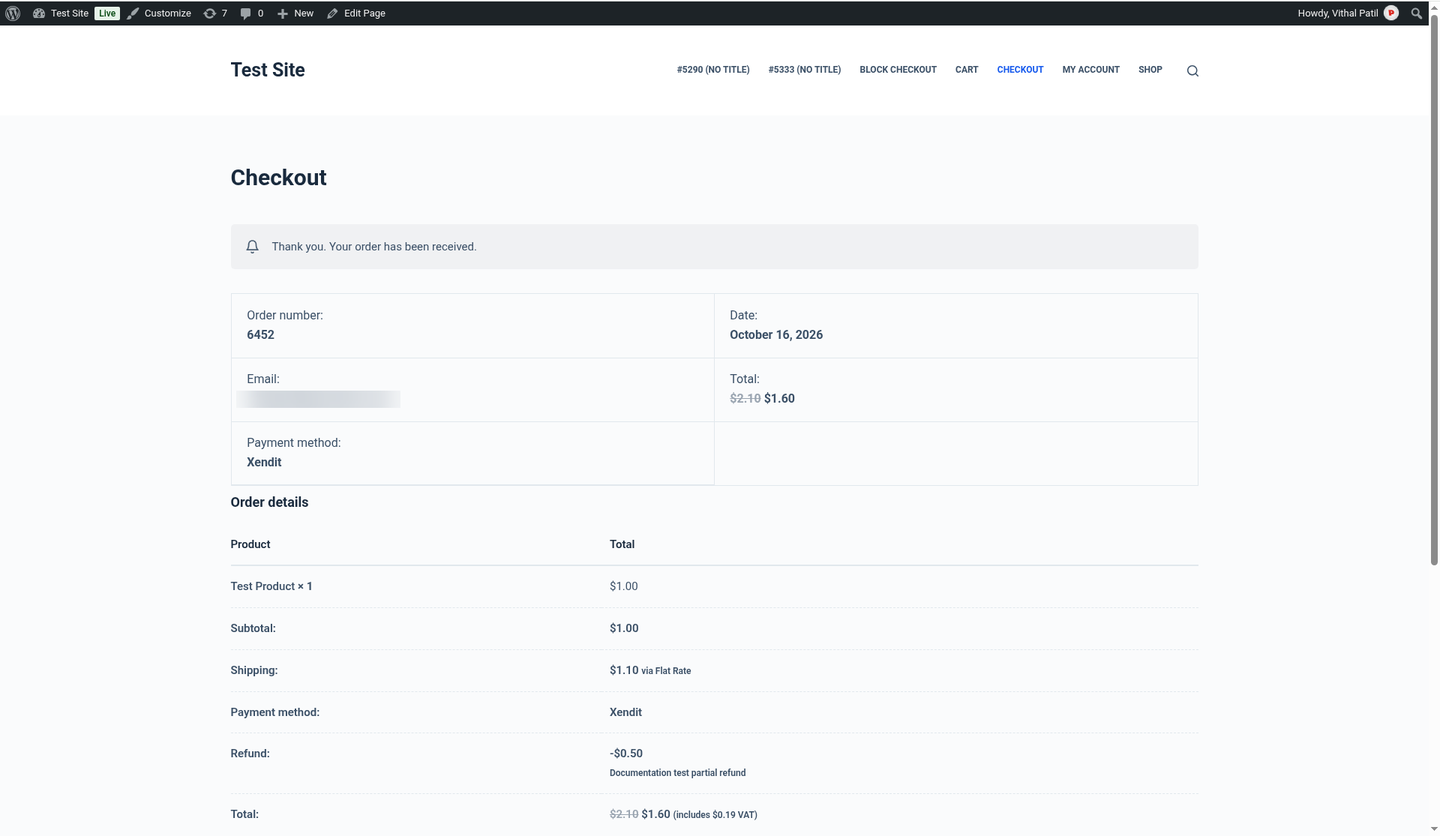
Order received page for test order #6452 (email blurred). Order paid and Processing
The webhook marks the order paid and sets it to Processing, just like a classic checkout order.
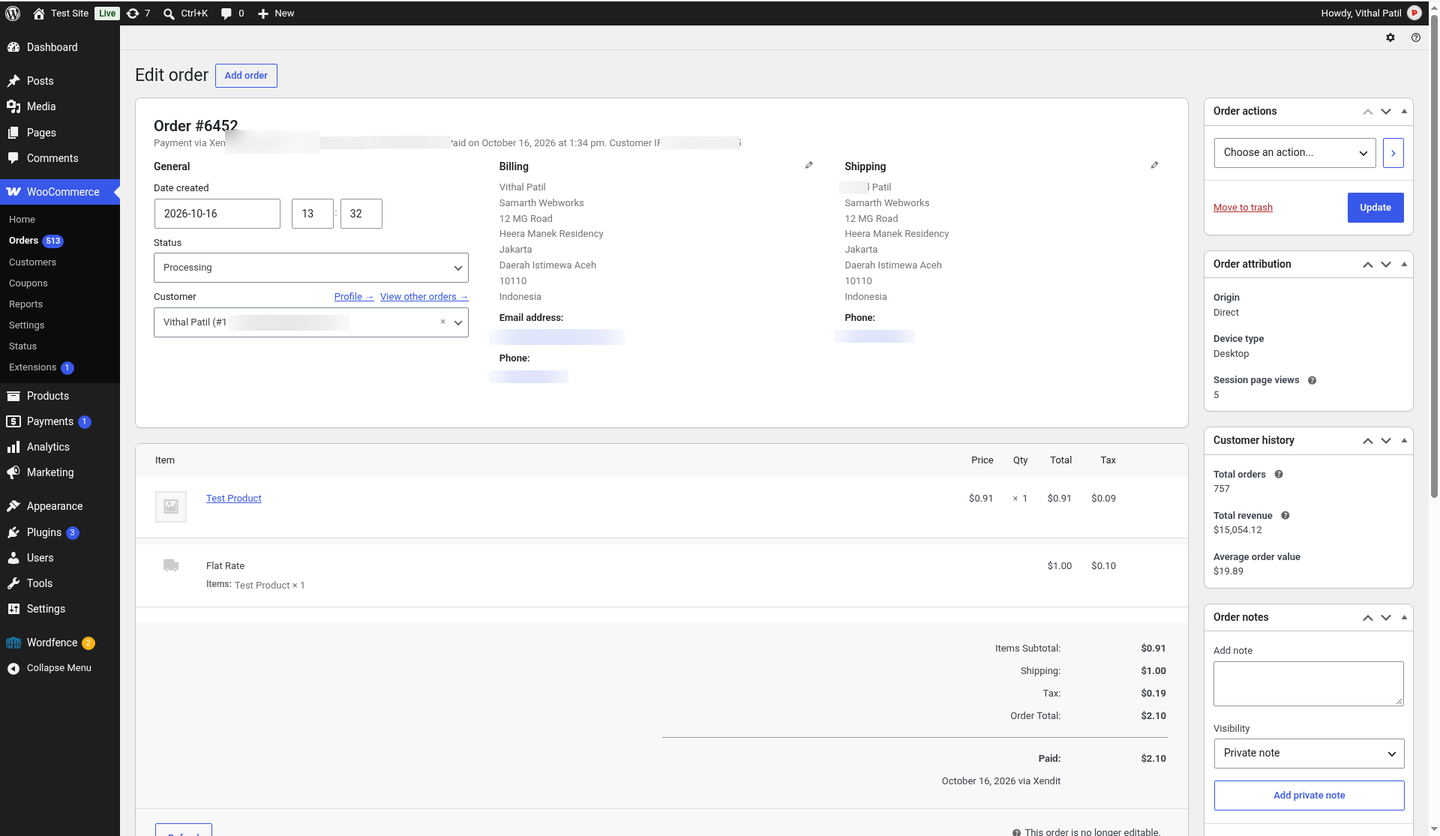
Order #6452 in Processing after payment (payment ID, IP, email and phone blurred).
5. Getting Xendit API keys
- Sign in to the Xendit Dashboard.
- Open Settings → API Keys.
- Enable 2FA on your Xendit account first, because Xendit will not generate secret keys without it.
- Generate a Secret Key with Money-in Write permission (and Read if you also query balances).
- Create separate keys for Test and Live modes.
- Store keys only on the server (this plugin’s settings). Never put secret keys in theme JS or public repos.
xnd_development_. Live keys start with xnd_production_.6. Configuration
Go to WooCommerce → Settings → Payments → Xendit.
| Setting | Description |
|---|---|
| Enable/Disable | Show the main “all methods” hosted checkout at checkout. |
| Title / Description | Customer-facing labels. |
| Test mode | When checked, the Test Secret Key is used. |
| Test / Live Secret Key | Xendit secret API keys. |
| Webhook Verification Token | From Xendit Webhooks settings; compared to x-callback-token. |
| Webhook URL | Copy-only URL: https://<site>/wc-api/wc_gateway_xendit_webhook/. Set it in Xendit for all of these: Payment Session Completed and Expired, Payment Status (payment.capture/payment.failure), Payment Request Status (payment_request.expiry), Refund Status, and on the legacy page Payment Succeeded/Failed and Captured Succeeded. Xendit only sends events that have a URL. See Webhook setup. |
| Default country | Override / USD country (ID, PH, TH, MY, VN, SG). |
| Paid order status | Processing or Completed after successful payment. |
| Debug log | Writes to WooCommerce → Status → Logs (source wooxendit). |
Optional gateways (each has its own enable toggle): Xendit Cards, Xendit E-Wallets, Xendit Bank Transfer / OTC, Xendit QR. They reuse the main gateway’s API keys and filter allowed_payment_channels on the hosted page.
7. Webhook setup (step by step)
- Copy the Webhook URL from the plugin settings:
https://<site>/wc-api/wc_gateway_xendit_webhook/. - In Xendit Dashboard open Settings → Webhooks.
- Add the URL for both Payment Session Completed and Payment Session Expired.
- Add the same URL for the other events in the table below (payment status, payment request, refunds and, if shown, the legacy events).
- Click Test & Save, then copy the callback verification token.
- Paste the token into the plugin’s Webhook Verification Token field and save.
| Xendit Webhooks section | Event | Why |
|---|---|---|
| Payment Session | Payment Session Completed (payment_session.completed) | Required. Marks the order paid. |
| Payment Session | Payment Session Expired (payment_session.expired) | Required. Cancels the order, or marks it Failed if there were failed attempts. |
| Payment Status (Payments API v3) | payment.capture / payment.failure | Recommended. Failure adds the “payment attempt failed” note. |
| Payment Request Status | payment_request.expiry | Recommended. Adds an order note. |
| Refund Status / Unified Refunds | refund.succeeded / refund.failed | Recommended. Adds the refund result to the order notes. |
| Legacy page: Payment Requests V2 | Payment Succeeded, Payment Failed, Captured Succeeded | Recommended on accounts that still show the legacy webhook page (payment.failed is handled). |
https://<site>/wc-api/wc_gateway_xendit_webhook/, for every event above. Unknown events are acknowledged with 200.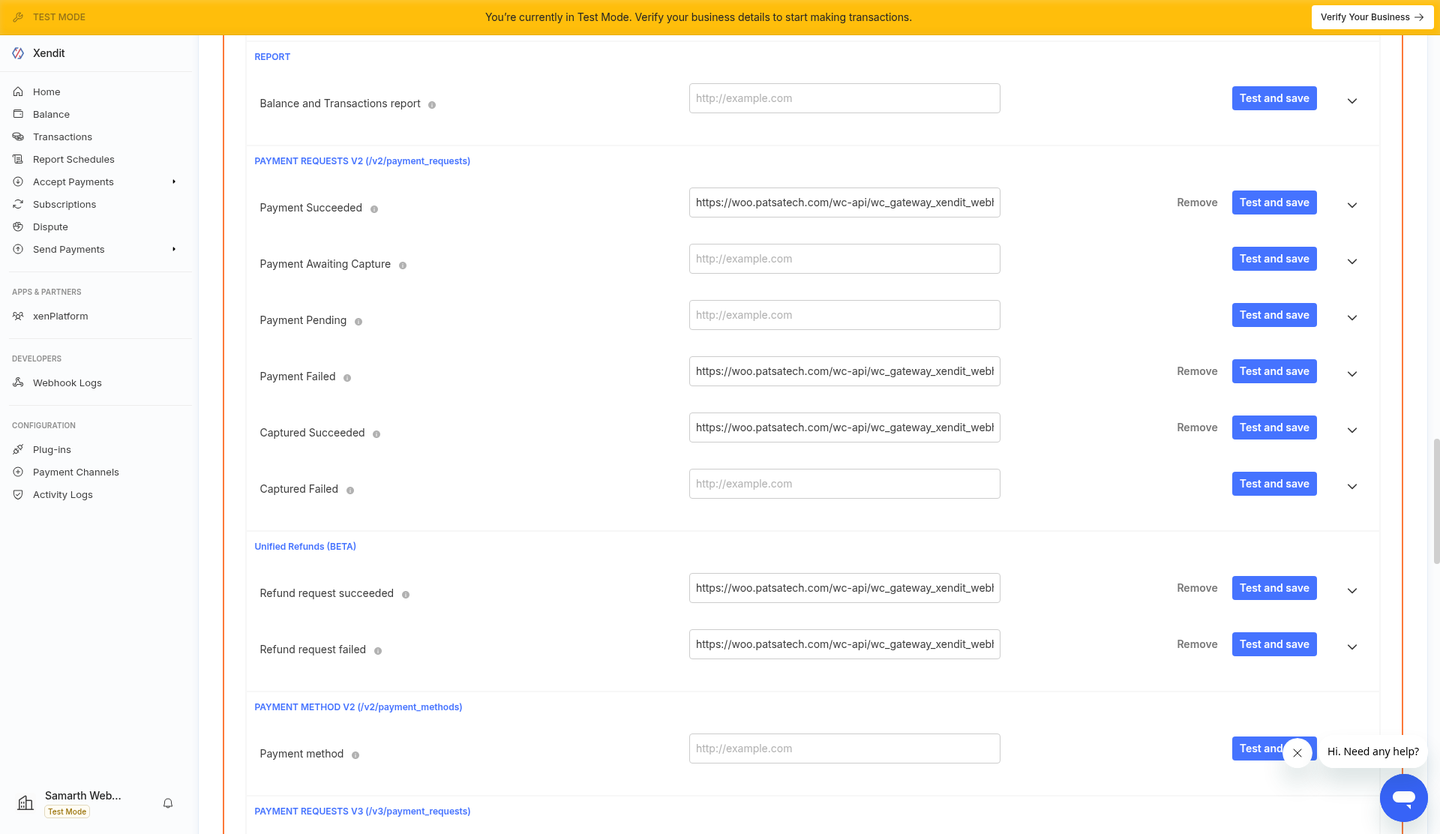
GET /sessions/{id}, but webhooks are required for async methods (VA, OTC, some e-wallets).8. Countries, methods & currencies
| Country | Code | Currency | Example methods |
|---|---|---|---|
| Indonesia | ID | IDR | Cards, OVO, DANA, GoPay, QRIS, VA, Alfamart |
| Philippines | PH | PHP | Cards, GCash, Maya, QRPh, 7-Eleven, Billease |
| Thailand | TH | THB | Cards, PromptPay, TrueMoney, LINE Pay, ShopeePay |
| Malaysia | MY | MYR | Cards, GrabPay, Touch ’n Go, FPX, ShopeePay |
| Vietnam | VN | VND | Cards, MoMo, ZaloPay, ShopeePay, VA |
| Singapore | SG | SGD | Cards, PayNow QR (account-dependent) |
USD is accepted by the Payment Sessions API; set Default country appropriately. Only channels activated on your Xendit account appear on the hosted page.
Conservative minimum order amounts enforced by the plugin:
| Currency | Minimum |
|---|---|
| IDR | 1,000 |
| VND | 1,000 |
| PHP / THB / MYR | 1 |
| SGD / USD | 0.50 |
9. Testing with Xendit test mode
- Enable Test mode and paste a test secret key.
- Configure the webhook URL on the test webhook settings in Xendit (test mode dashboard).
- Place a test order; you will be redirected to
checkout-staging.xendit.co(or a xen.to short link). - Complete payment using Xendit test simulators / test credentials for your channels.
- Confirm the order moves to Processing/Completed and that an order note lists the session ID.
10. Order status flow
Xendit session status | Webhook event | WooCommerce |
|---|---|---|
| ACTIVE | — | pending (awaiting payment) |
| COMPLETED | payment_session.completed | processing or completed |
| EXPIRED | payment_session.expired | cancelled |
| CANCELED | — | cancelled |
Order meta stored: _xendit_session_id, _xendit_payment_request_id, _xendit_payment_id, _xendit_reference_id, _xendit_testmode.
11. Refunds
From the WooCommerce order screen, create a refund as usual. The plugin calls POST /refunds with the order’s payment_request_id, amount, currency and reason mapping (REQUESTED_BY_CUSTOMER, FRAUDULENT, DUPLICATE, CANCELLATION).
REFUND_NOT_SUPPORTED or PARTIAL_REFUND_NOT_SUPPORTED, refund via the Xendit Dashboard or another channel-specific process.12. Blocks vs classic checkout
Both are supported. Classic checkout uses the standard WooCommerce payment method list. Blocks checkout loads assets/js/blocks.js (no Node build step) and registers each enabled Xendit gateway via wc.wcBlocksRegistry.
Transaction ID
When a payment completes, the plugin saves the Xendit payment ID (py-…) as the WooCommerce Transaction ID. The Payment Session ID (ps-…) and Payment Request ID (pr-…) are stored as order meta and listed in the order notes. Use the payment ID to search for the payment in Xendit → Transactions.
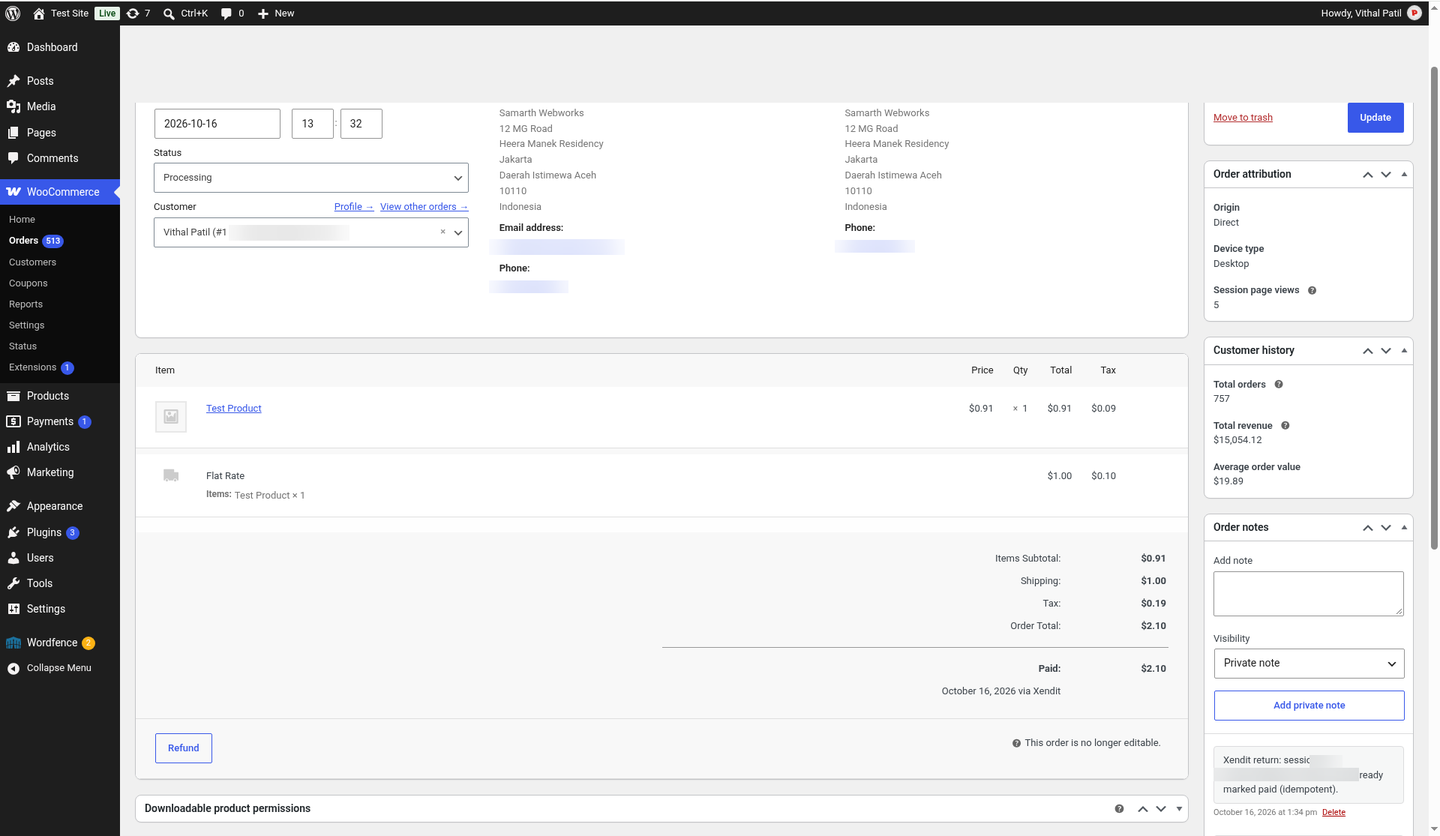
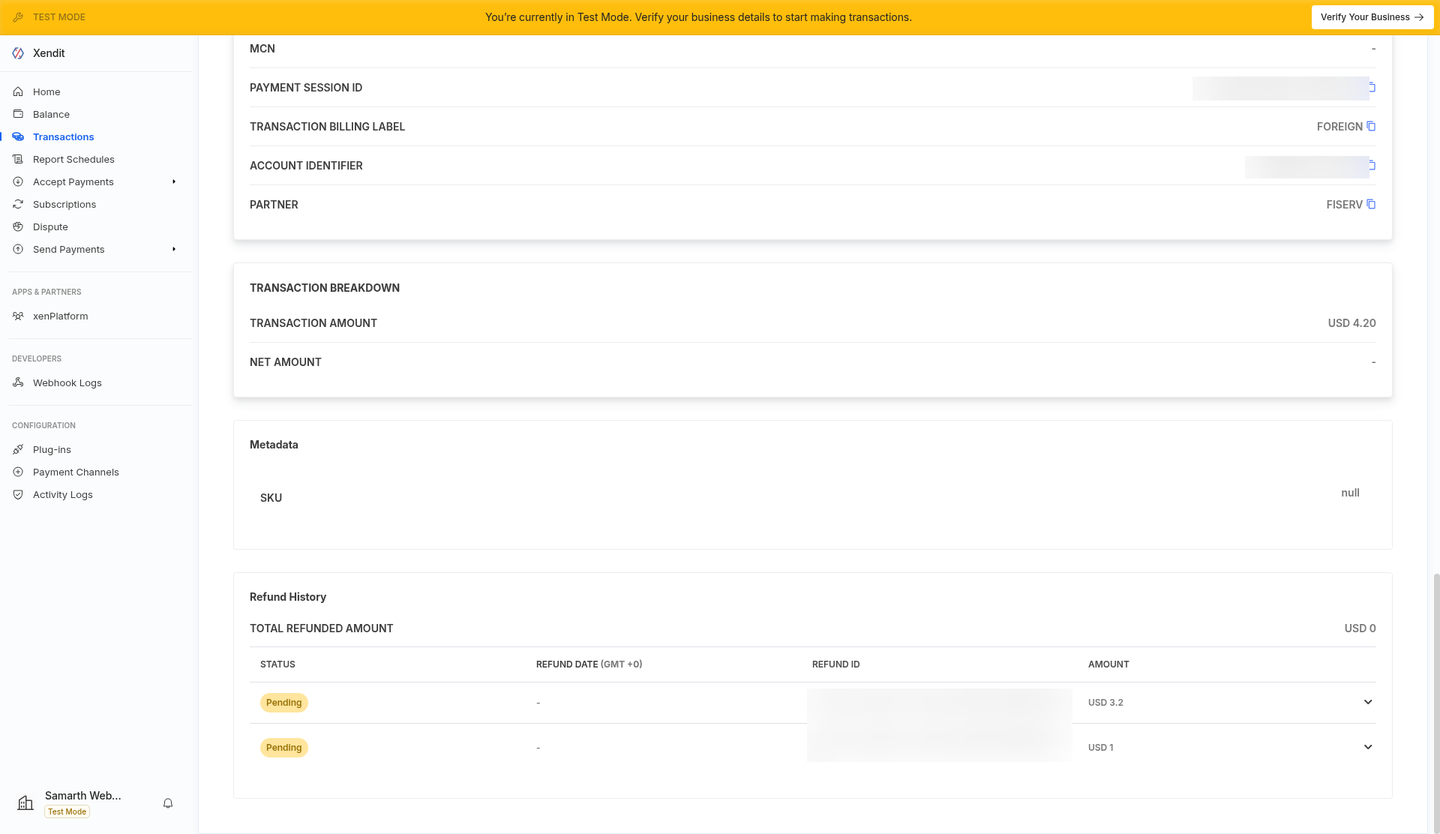
Partial and full refunds
- Open the order and click Refund.
- Enter quantities or amounts in the line-item refund fields (product, shipping, tax). WooCommerce adds them up into Refund amount.
- Click Refund $X via Xendit. The plugin calls the Xendit Refunds API and adds a note with the Xendit refund ID and status.
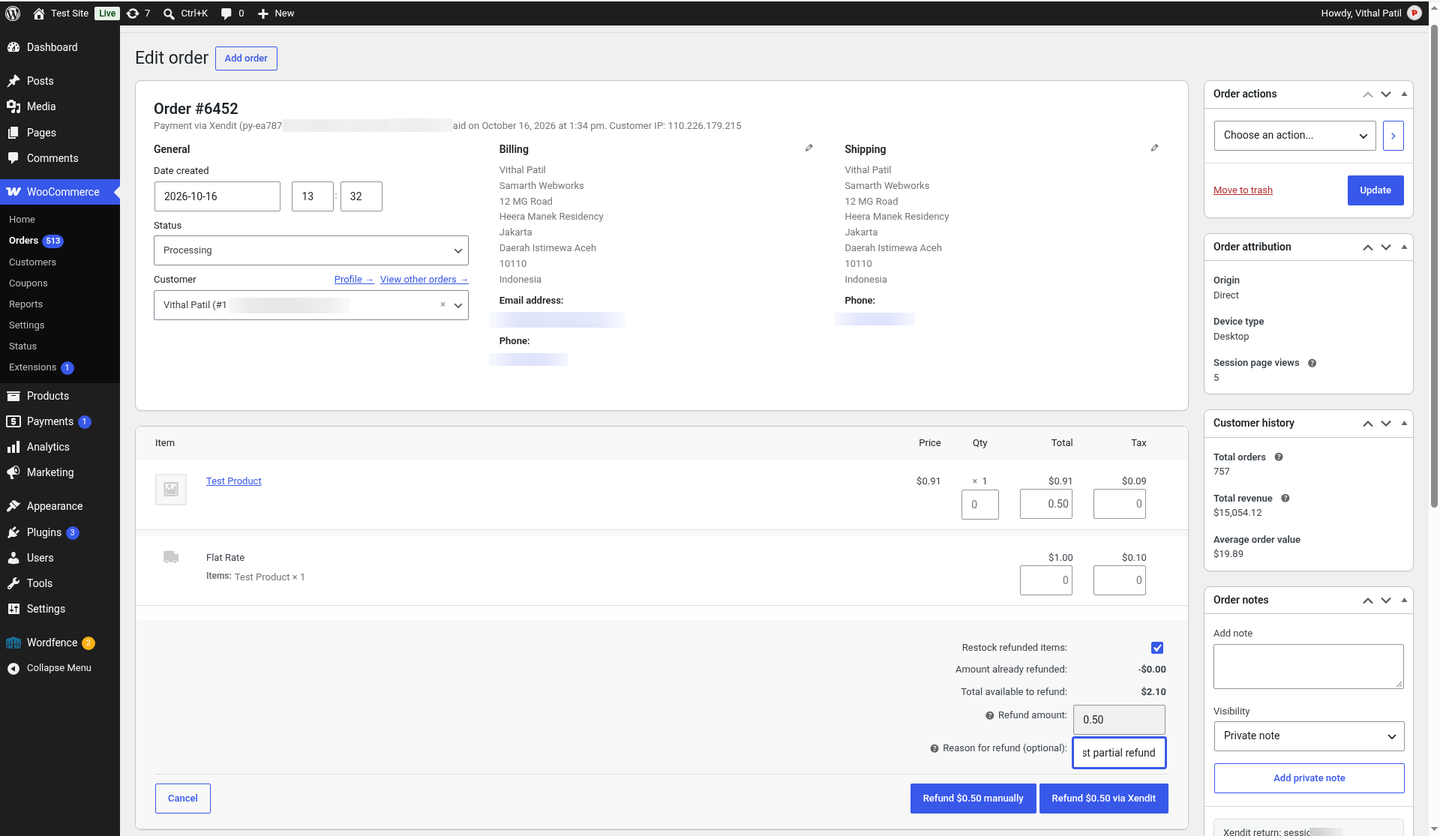
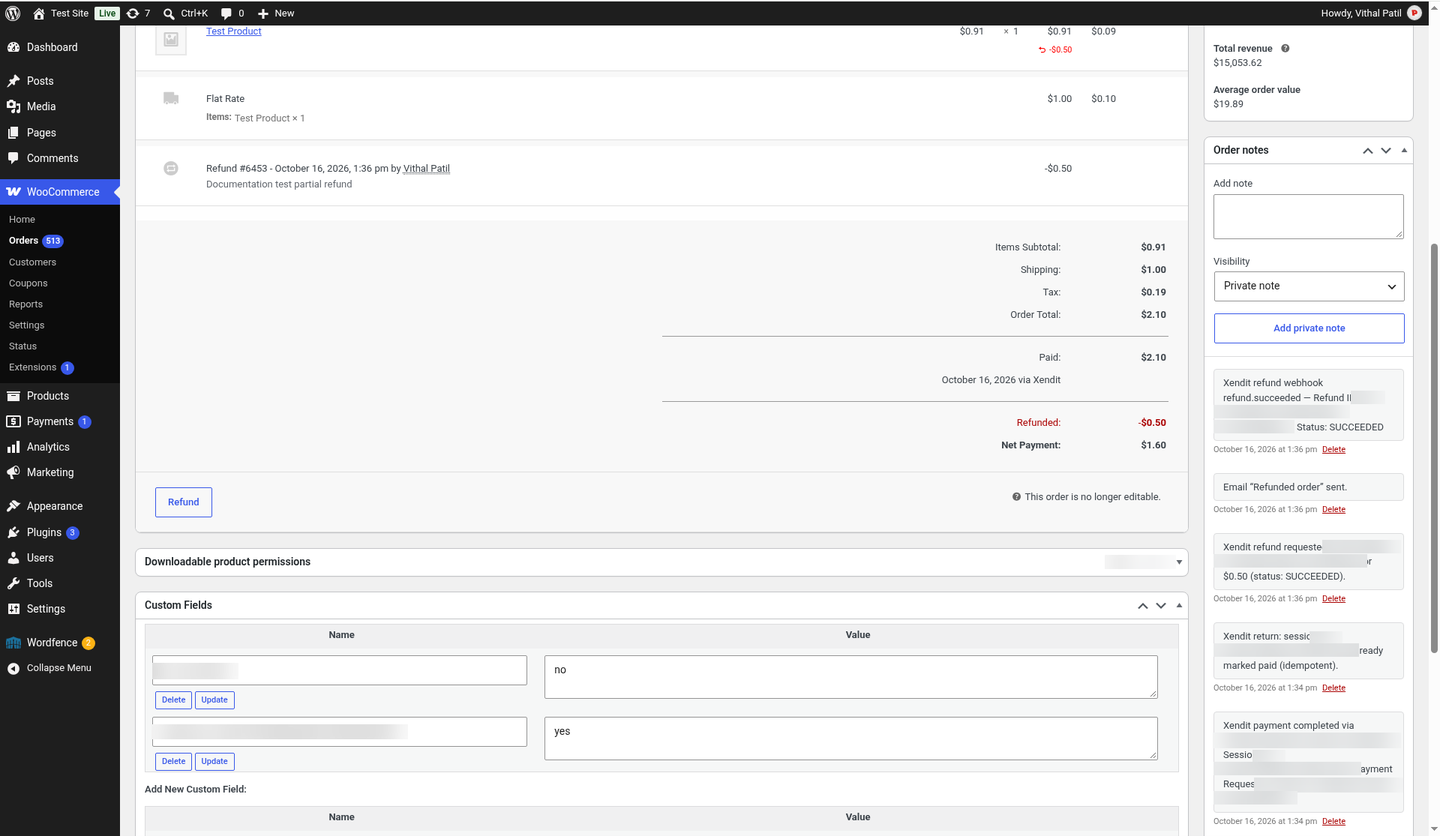
Pending/abandoned and declined payments
| What happens | Order status | Order note |
|---|---|---|
| Customer leaves the Xendit page without paying | Pending payment until the session expires | Xendit Payment Session created |
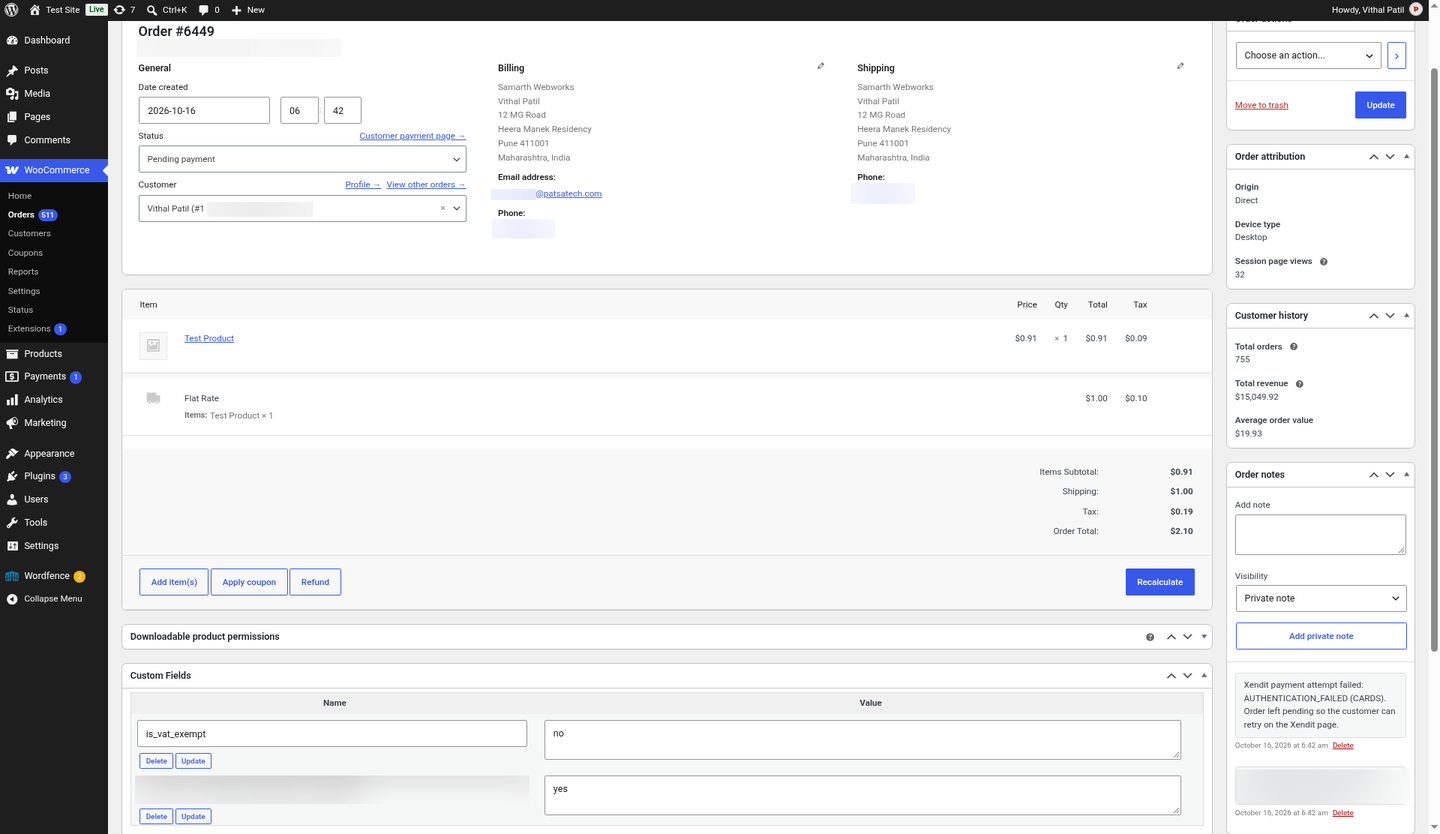
Card declined or payment attempt fails (payment.failure webhook) | Stays Pending, so the customer can retry on the same Xendit page | Xendit payment attempt failed: <failure_code> |
Session expires with no failed attempts (payment_session.expired) | Cancelled | Xendit session EXPIRED |
| Session expires after one or more failed attempts | Failed | Xendit session EXPIRED |
All webhook handling is idempotent: a repeated webhook never adds duplicate notes or changes the status twice. A paid order is never cancelled or failed by a later event.
Additional payment methods (Cards / E-Wallets / Bank Transfer / QR)
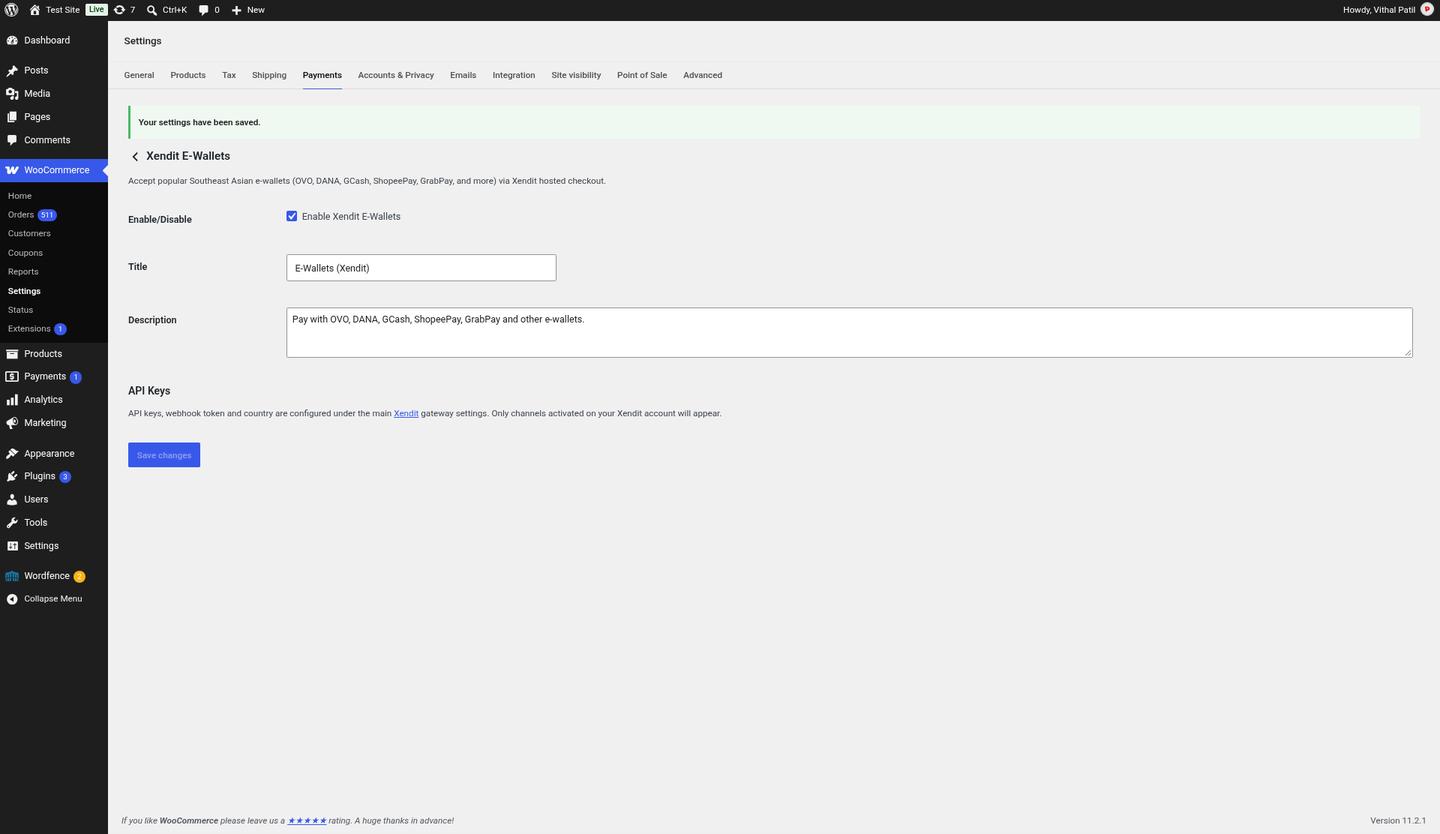
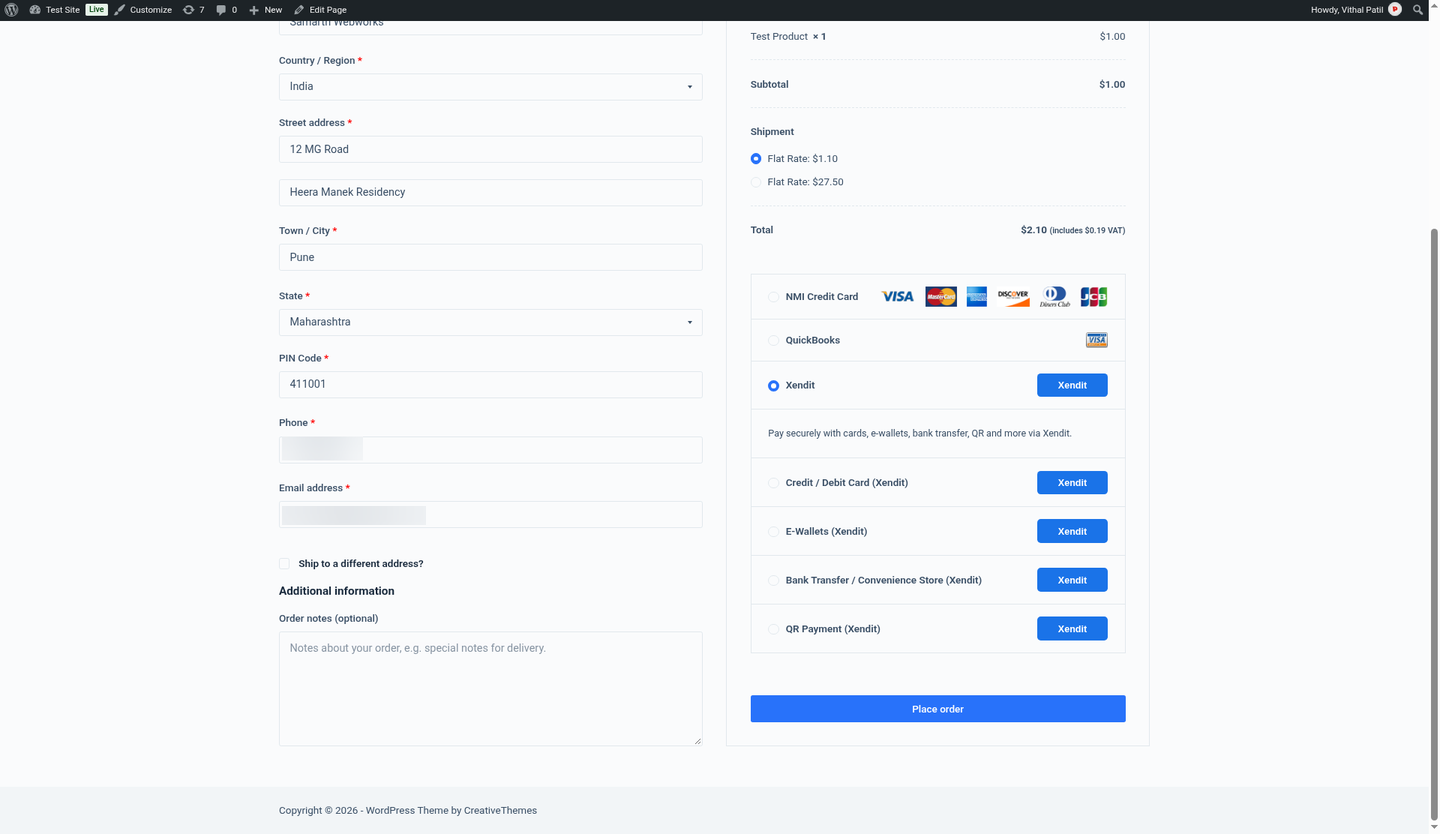
Besides the main Xendit gateway (all channels on one hosted page), you can enable separate checkout options that each open Xendit with only one group of channels:
- Xendit Cards: credit and debit cards
- Xendit E-Wallets: OVO, DANA, GCash, ShopeePay, GrabPay and more
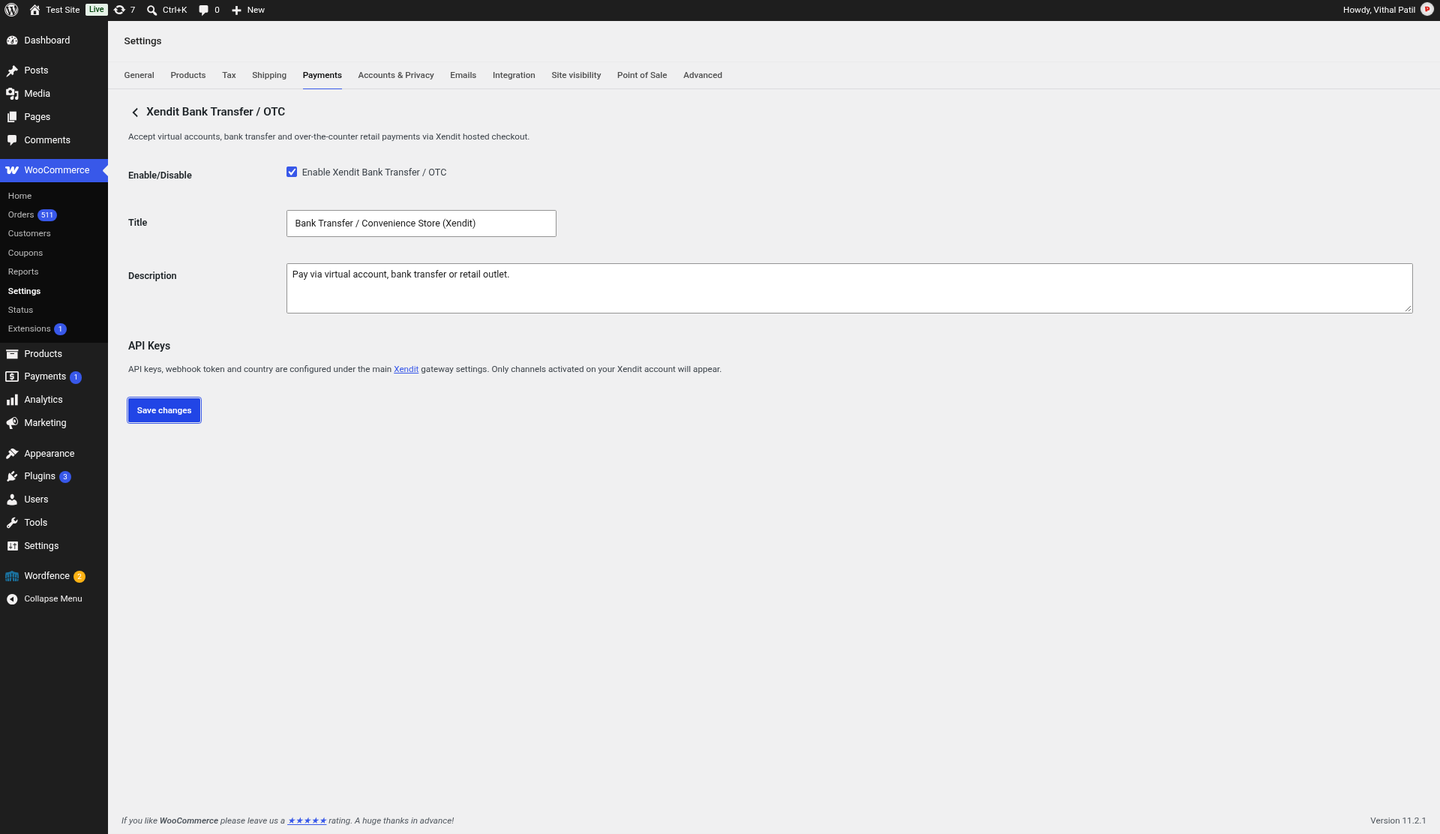
- Xendit Bank Transfer / OTC: virtual accounts and retail outlets
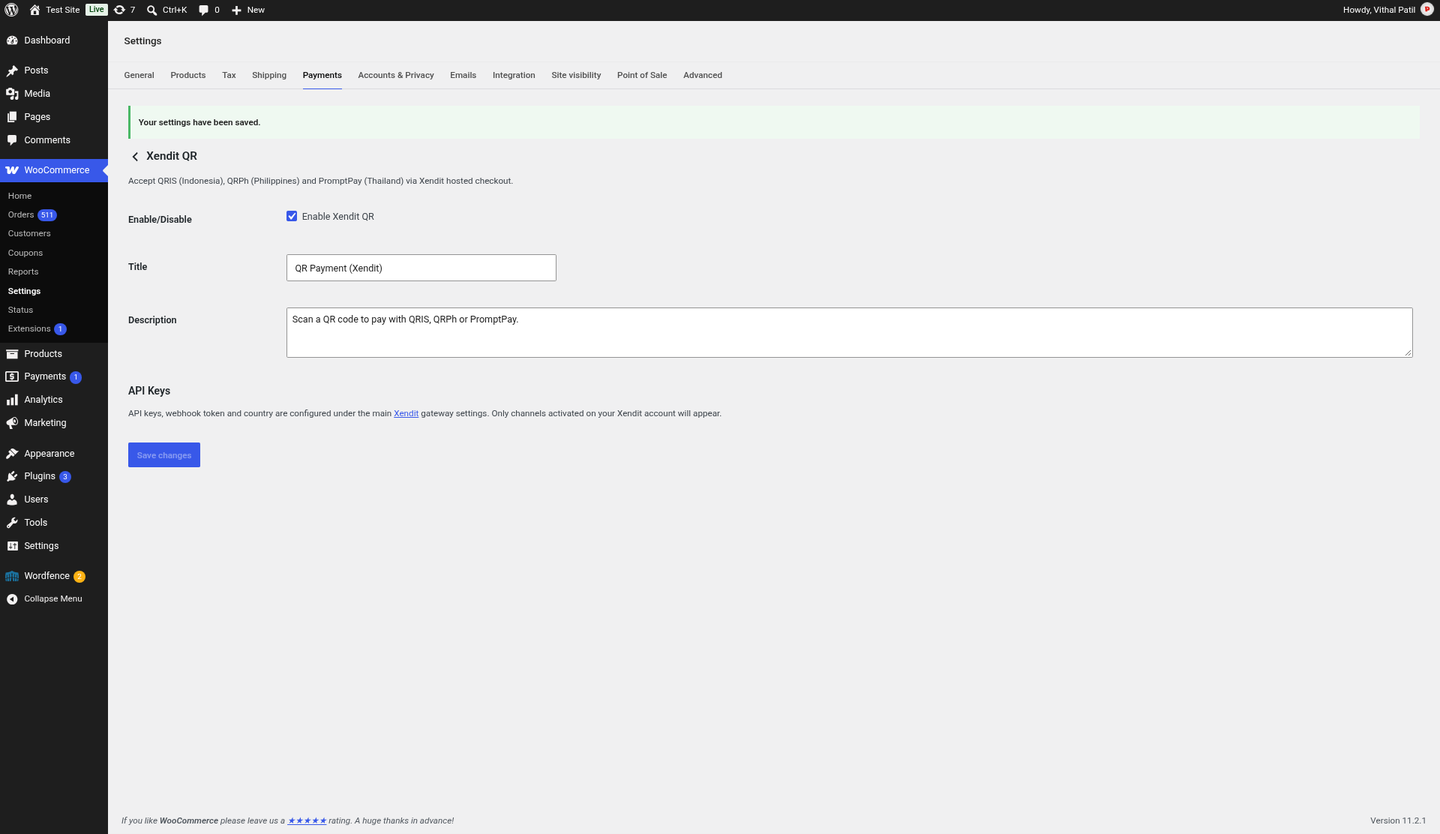
- Xendit QR: QRIS, QRPh, PromptPay
Each one has its own Enable, Title and Description settings and reuses the API keys, webhook token and country from the main Xendit gateway.
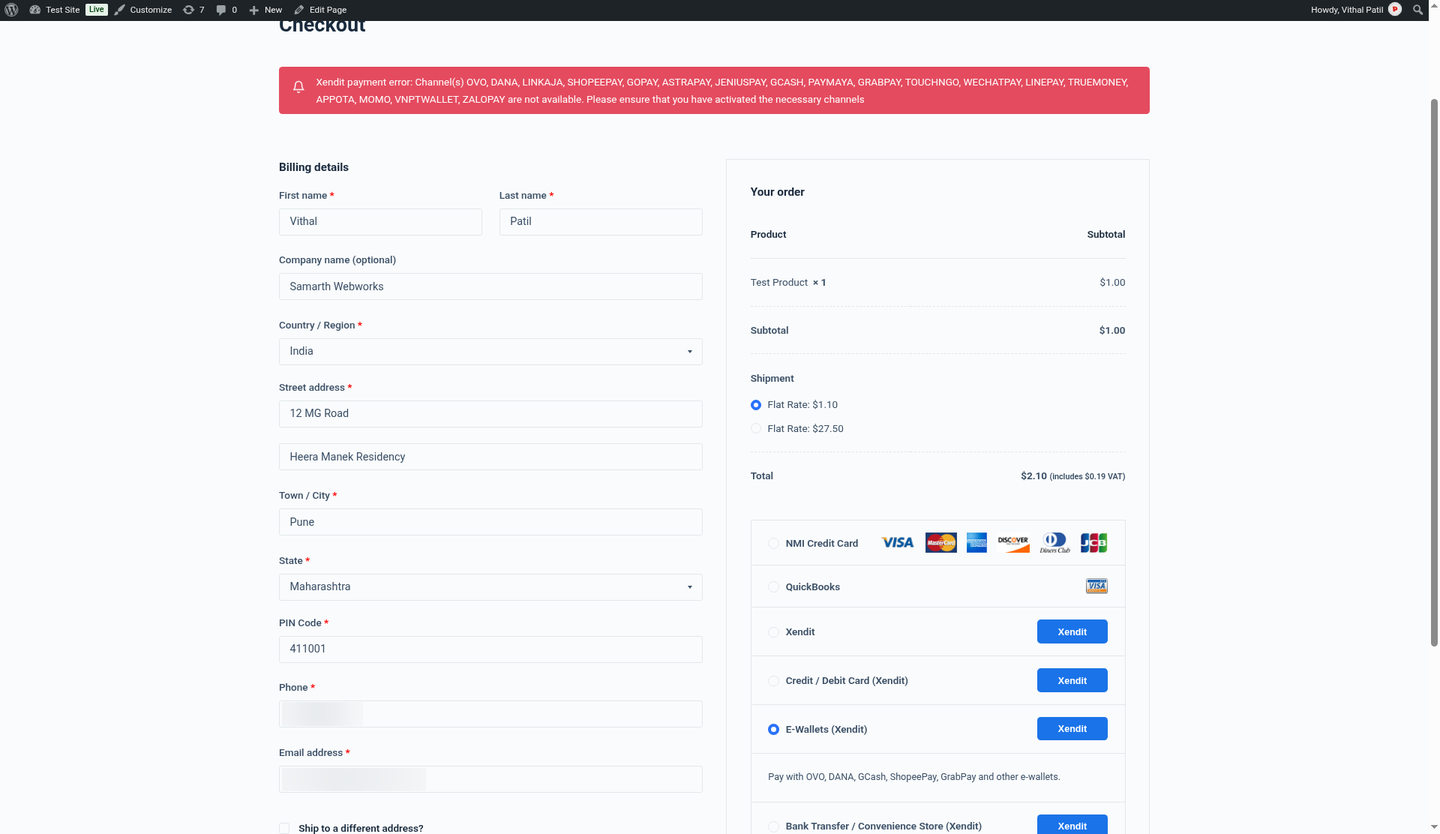
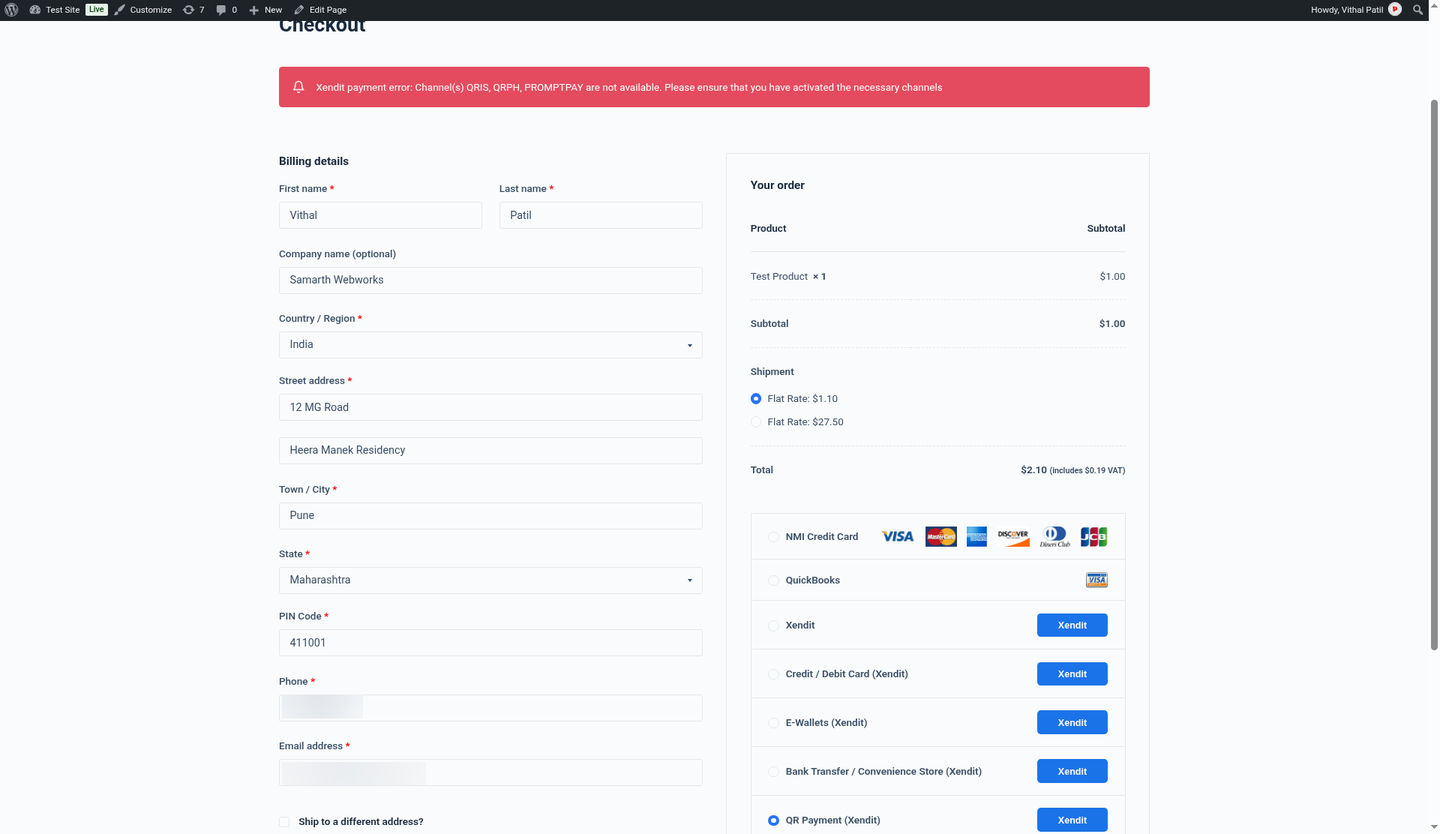
INVALID_PAYMENT_CHANNEL. The customer sees a friendly “payment method not available” message and you get an admin notice. Disable any method whose channels you can’t activate.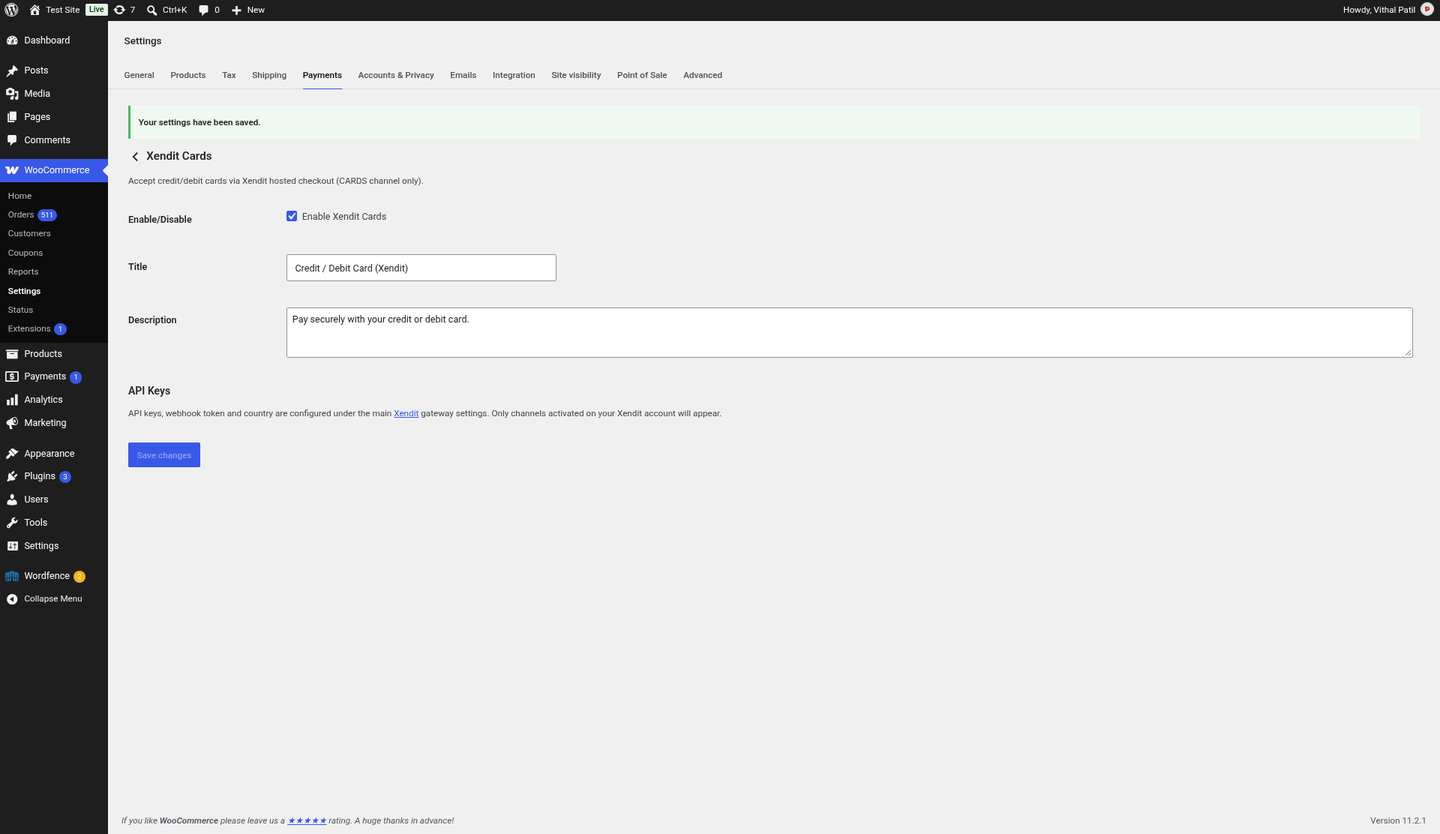
Debug logs
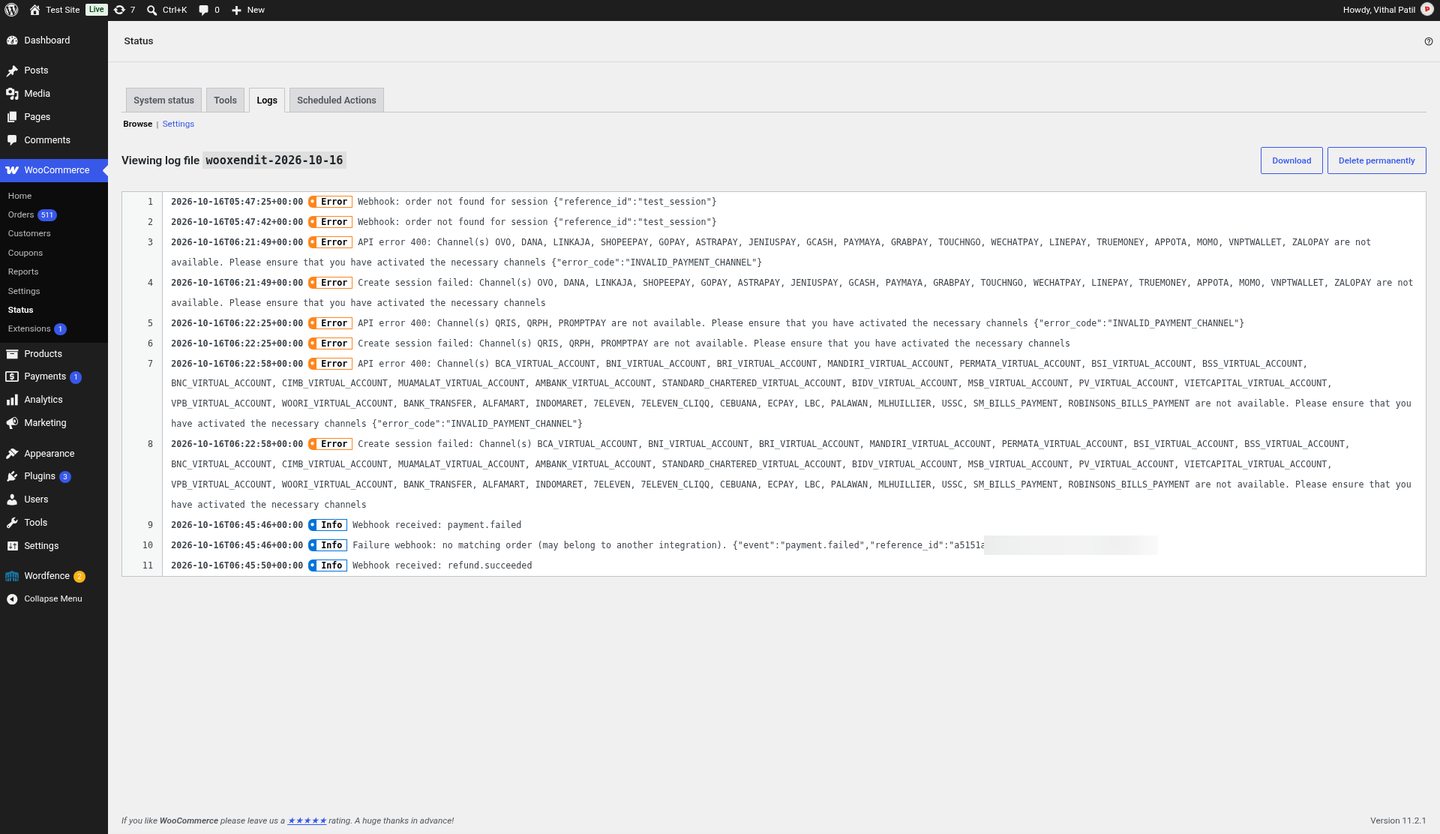
Turn on Debug log in the Xendit settings, then open WooCommerce → Status → Logs and choose the file that starts with wooxendit-. API errors, webhook events and refund calls are logged there. Secret keys are never written to the log.
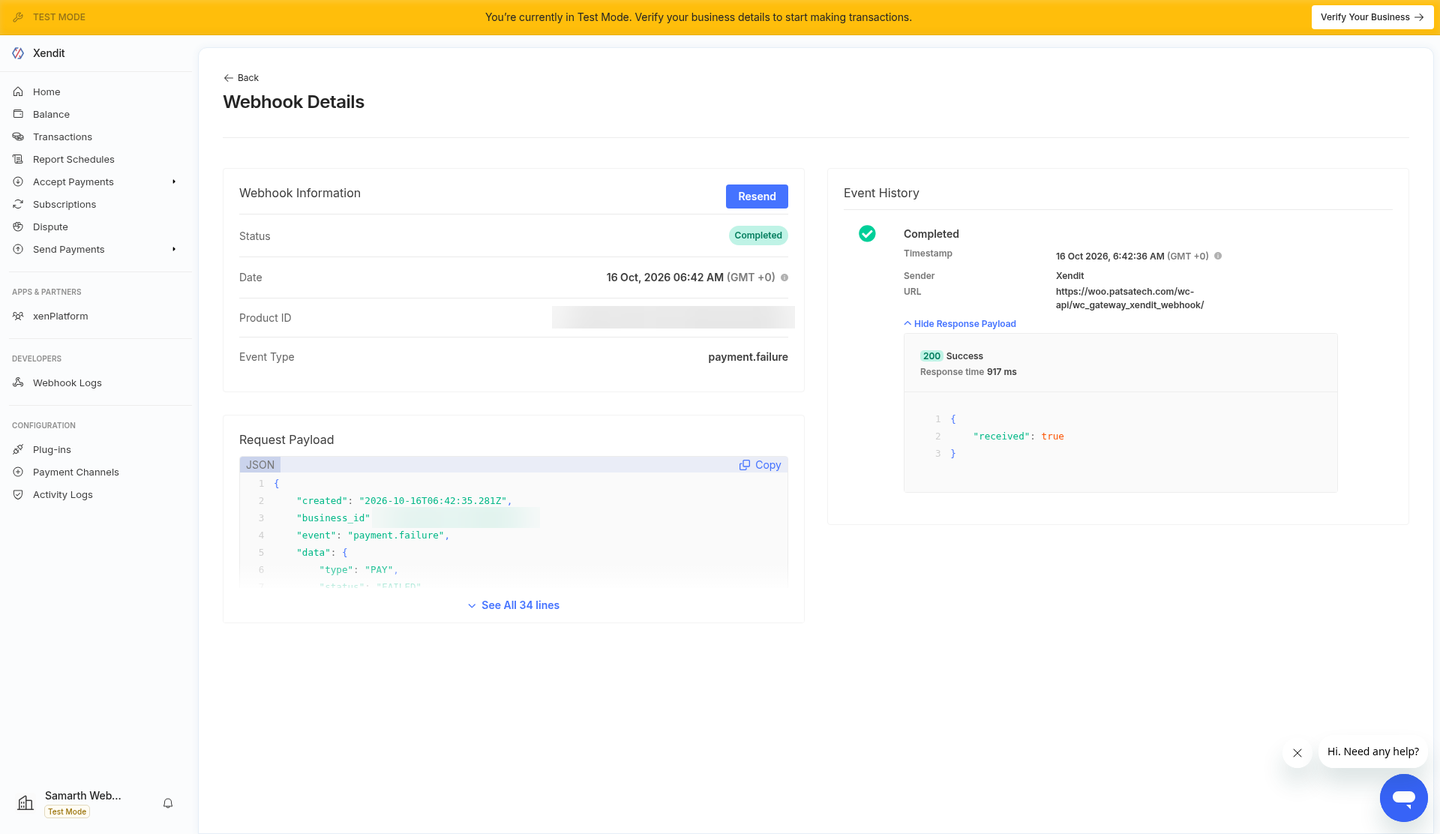
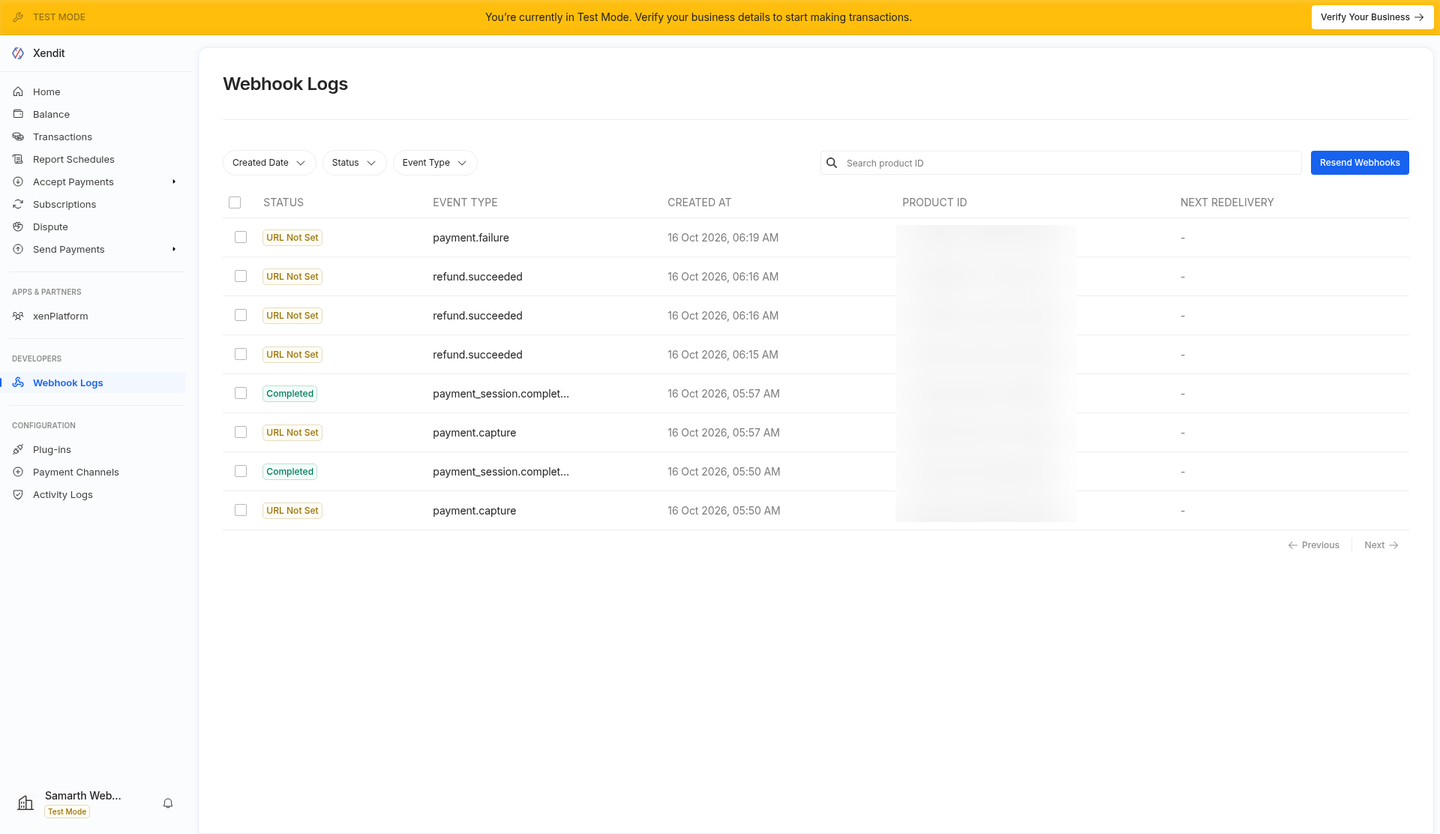
On the Xendit side, Developers → Webhook Logs lists every event Xendit tried to send. URL Not Set means that event type had no webhook URL, so it was never delivered. Open an entry to see the payload and your store’s response.
13. Troubleshooting & FAQ
Gateway does not appear at checkout
- Is the gateway enabled?
- Is a secret key present for the current mode?
- Is store currency one of IDR, PHP, VND, THB, SGD, MYR, USD?
- Is the cart total above the minimum for that currency?
Payment completed in Xendit but order still pending
- Verify webhook URL and token.
- Check Logs → source
wooxendit. - Open the customer return URL path; it re-fetches the session.
API error INVALID_URL
Success/cancel return URLs must be HTTPS. Enable SSL on your store.
API error INVALID_PAYMENT_CHANNEL / “payment method not available”
The channels for that method are not activated on your Xendit account for your country and currency. Activate them in Xendit Dashboard → Settings → Payment Channels, or disable that method (Cards, E-Wallets, Bank Transfer / OTC, QR) in WooCommerce. Customers see a friendly message, and an admin notice tells you which method failed. The notice can be dismissed.
The “Refund amount” box is read-only
That’s standard WooCommerce behaviour when taxes are enabled. Enter the amounts in the line-item refund fields instead. See Partial and full refunds.
“Webhook: order not found” for reference_id test_session
Xendit dashboard Test and save pings use sample data. The plugin detects them, answers with 200 and logs them at info level only.
Card declined but the order stays Pending
That’s expected: the customer can retry while the Xendit session is active. A “Xendit payment attempt failed” note is added, and the order becomes Failed or Cancelled when the session expires. See Pending/abandoned and declined payments.
14. API reference used
| Purpose | Call | Documentation |
|---|---|---|
| Create hosted session | POST https://api.xendit.co/sessions | Create a session |
| Verify session | GET https://api.xendit.co/sessions/{id} | Get session |
| Refund | POST https://api.xendit.co/refunds | Refund a payment request |
| Auth | HTTP Basic (secret key : empty) | API keys |
| Webhook auth | x-callback-token header | Handling webhooks |
| Session webhooks | payment_session.completed / .expired | Session webhook |
15. Changelog
1.0.0 — 2026-10-16
- Initial release.
- Xendit Payment Sessions hosted checkout, plus optional Cards, E-Wallets, Bank Transfer / OTC and QR gateways.
- HPOS compatible; works with both WooCommerce Blocks checkout and classic checkout.
- Verified, idempotent webhooks:
payment_session.completed/.expired,payment.capture,payment.failure(and legacypayment.failed),payment_request.expiry,refund.succeeded/.failed. - Declined attempts add a “Xendit payment attempt failed” note and keep the order Pending; an expired session marks the order Failed (after failed attempts) or Cancelled.
- Xendit dashboard test pings are answered with 200 and logged at info level.
- INVALID_PAYMENT_CHANNEL: friendly customer message, an admin notice and a channel-activation hint in settings.
- Full and partial refunds through the Xendit Refunds API.
- Debug logging and a detailed illustrated guide.
16. Support
PatSaTECH
Email: [email protected]
Web: https://www.patsatech.com
Please include your WooCommerce version, PHP version, a screenshot of Xendit webhook settings, and the relevant wooxendit log lines (with secrets redacted).