1. Overview
Xendit Gateway for Gravity Forms lets any Gravity Forms form take payments through Xendit, the leading payment gateway in Southeast Asia. When a customer submits a form, the add-on creates a Xendit Payment Session (Payments API v3) and redirects the customer to Xendit’s secure hosted payment page. There they can pay by card (with 3-D Secure), e-wallet, virtual account, QR or retail outlet. Card data never touches your website.
The add-on is built on the official Gravity Forms Payment Add-On Framework, so payment status, transaction ID, entry notes, notifications and the Sales report all work the standard Gravity Forms way.
2. Features
- Xendit Payment Sessions hosted checkout
- Cards (3DS), e-wallets, virtual accounts, QR, retail outlets
- IDR, PHP, VND, THB, SGD, MYR, USD
- Feeds with conditional logic
- Billing mapping: first name, last name, email, phone
- Verified, idempotent webhooks
- Return-URL verification fallback
- Full & partial refunds from the entry page
- Declined and expired payment handling
- Friendly “channel not activated” message and admin notice
- Payment Completed / Failed / Refunded notification events
- Test / Live mode, debug logging, translation-ready
3. Requirements
| Item | Requirement |
|---|---|
| WordPress | 6.0 or later |
| Gravity Forms | 2.5 or later (any licence with the Payment Add-On Framework) |
| PHP | 7.4 or later |
| HTTPS | Required (Xendit return URLs and webhooks) |
| Xendit account | Test mode is free; live mode needs Xendit business verification |
| Form currency | IDR, PHP, VND, THB, SGD, MYR or USD (Forms → Settings → Currency) |
4. Installation
- In WordPress go to Plugins → Add New → Upload Plugin.
- Choose
gravityforms-xendit-1.0.0.zip, click Install Now, then Activate. - A new Xendit tab appears under Forms → Settings.
5. Getting Xendit API keys
- Sign in to the Xendit Dashboard and switch to Test mode.
- Open Settings → Developers → API Keys and click Generate secret key.
- Set Money-in products → Write and leave everything else on None.
- Copy the key straight away (test keys start with
xnd_development_, live keys withxnd_production_).
6. Plugin settings
Go to Forms → Settings → Xendit.
| Setting | Description |
|---|---|
| Mode | Test (sandbox) or Live. |
| Test / Live Secret Key | Your Xendit secret API keys (Money-in Write). |
| Webhook Verification Token | From Xendit → Settings → Webhooks. Compared with the x-callback-token header on every webhook; webhooks with a wrong token are rejected with 401. |
| Webhook URL | Read-only: https://<your-site>/?callback=gravityforms-xendit. Set it in Xendit for all event types listed in Webhook setup. |
| Debug log | Logs webhook, API and info messages through Gravity Forms Logging. Errors are always logged. |
7. Webhook setup
In Xendit Dashboard → Settings → Webhooks, paste https://<your-site>/?callback=gravityforms-xendit into each field below and click Test and save. Every field should return 200.
| Xendit Webhooks section | Event | What the add-on does |
|---|---|---|
| Payment Session | Payment Session Completed (payment_session.completed) | Required. Marks the entry Paid and saves the transaction ID. |
| Payment Session | Payment Session Expired (payment_session.expired) | Required. Marks an unpaid entry Failed. |
| Payment Status (v3) | payment.capture / payment.failure | Recommended. Capture is a backup for completion; failure adds a “payment attempt failed” note. |
| Payment Request Status | payment_request.expiry | Recommended. Adds an entry note. |
| Refund Status / Unified Refunds | refund.succeeded / refund.failed | Recommended. Records partial refunds; a full refund sets the entry to Refunded. |
| Legacy page: Payment Requests V2 | Payment Succeeded, Payment Failed, Captured Succeeded | Recommended on accounts that still show the legacy webhook page. |
8. Creating a Xendit feed
- Your form needs pricing fields (Product, Total, etc.) and an Email field. A Name and Phone field are recommended.
- Open the form and go to Settings → Xendit → Add New.
- Transaction Type: Products and Services. Subscriptions aren’t offered because Xendit Payment Sessions take one-time payments.
- Payment Amount: Form Total, or a single product field.
- Billing Information: map First Name, Last Name, Email (required) and Phone. Xendit pre-fills these on the hosted page.
- Notifications (optional): tick Send notifications only when payment is received and choose which form notifications to hold. They are sent once Xendit confirms the payment.
- Post Payment Actions (optional): for add-ons such as Mailchimp, Zapier or User Registration, tick Process <add-on> feed only when payment is received. Those feeds then run after the payment is confirmed instead of on submission.
- Phone format: Xendit needs phone numbers in E.164 format (for example
+919876543210). Map the optional Country billing field (an Address field country works) so the add-on can add the right country code. Otherwise it uses the Address field’s default country, then the Default phone country plugin setting (for exampleIN). A number that can’t be formatted is left out, and the customer types it on the Xendit page. - Conditional Logic (optional): only send the entry to Xendit when your conditions match.
- Save the feed.
Step-by-step setup with screenshots
The Xendit dashboard steps are identical for WooCommerce and Gravity Forms. Where a screenshot shows a /wc-api/… webhook URL, use the Gravity Forms URL https://<your-site>/?callback=gravityforms-xendit instead. Keys and tokens are blurred.
Part A: Xendit Dashboard
Open Settings → Developers → API Keys (Test mode)
Make sure the yellow Test Mode banner shows. Only a secret key is needed; the public key isn’t used.
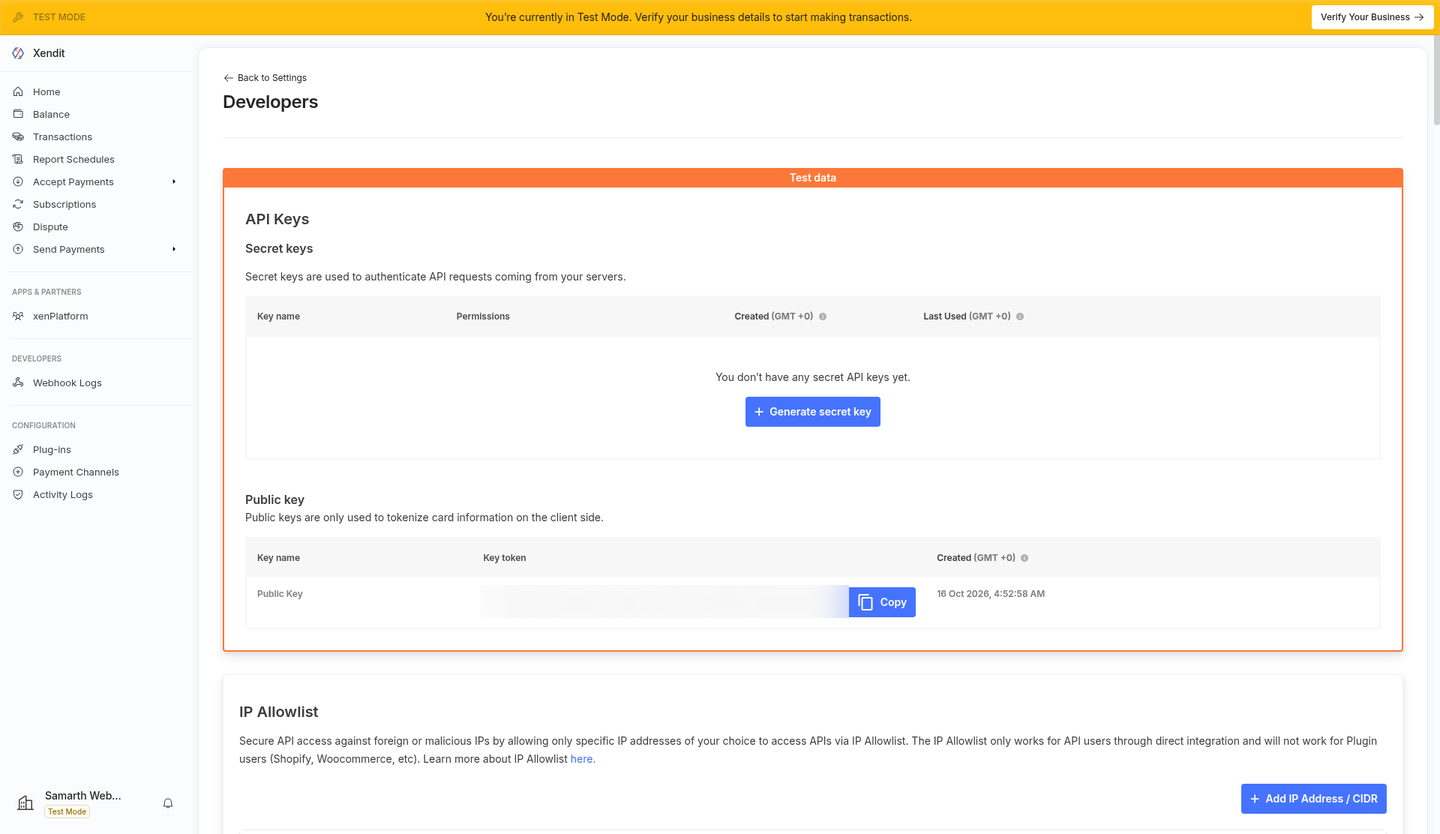
API Keys page (public key blurred). Enable 2FA if prompted
Xendit asks you to enable 2FA before it will generate a secret key.
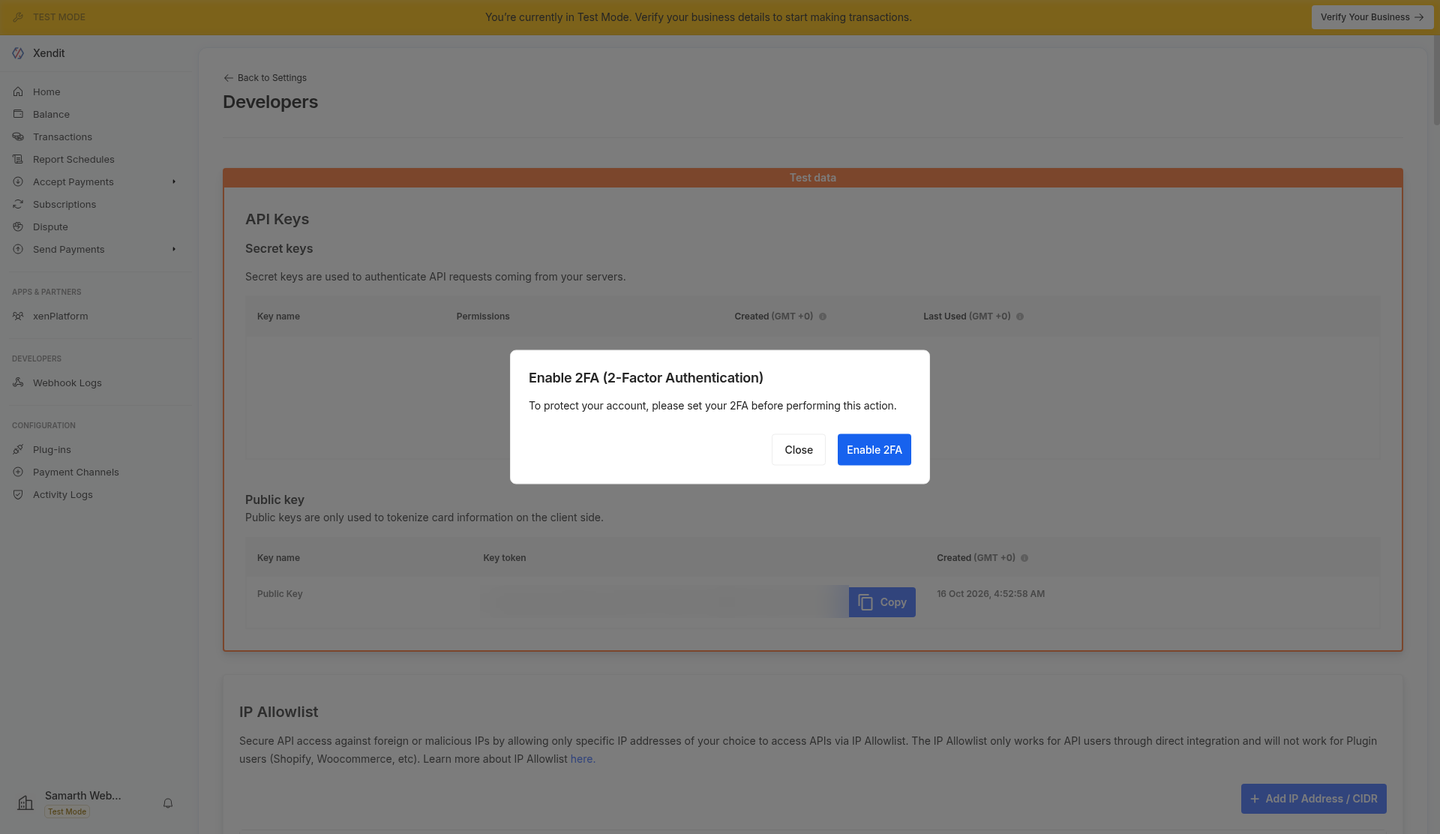
2FA is required to generate keys. Generate a secret key with Money-in Write
Name the key, set Money-in products to Write, click Generate key and enter your 2FA code. Copy the key.
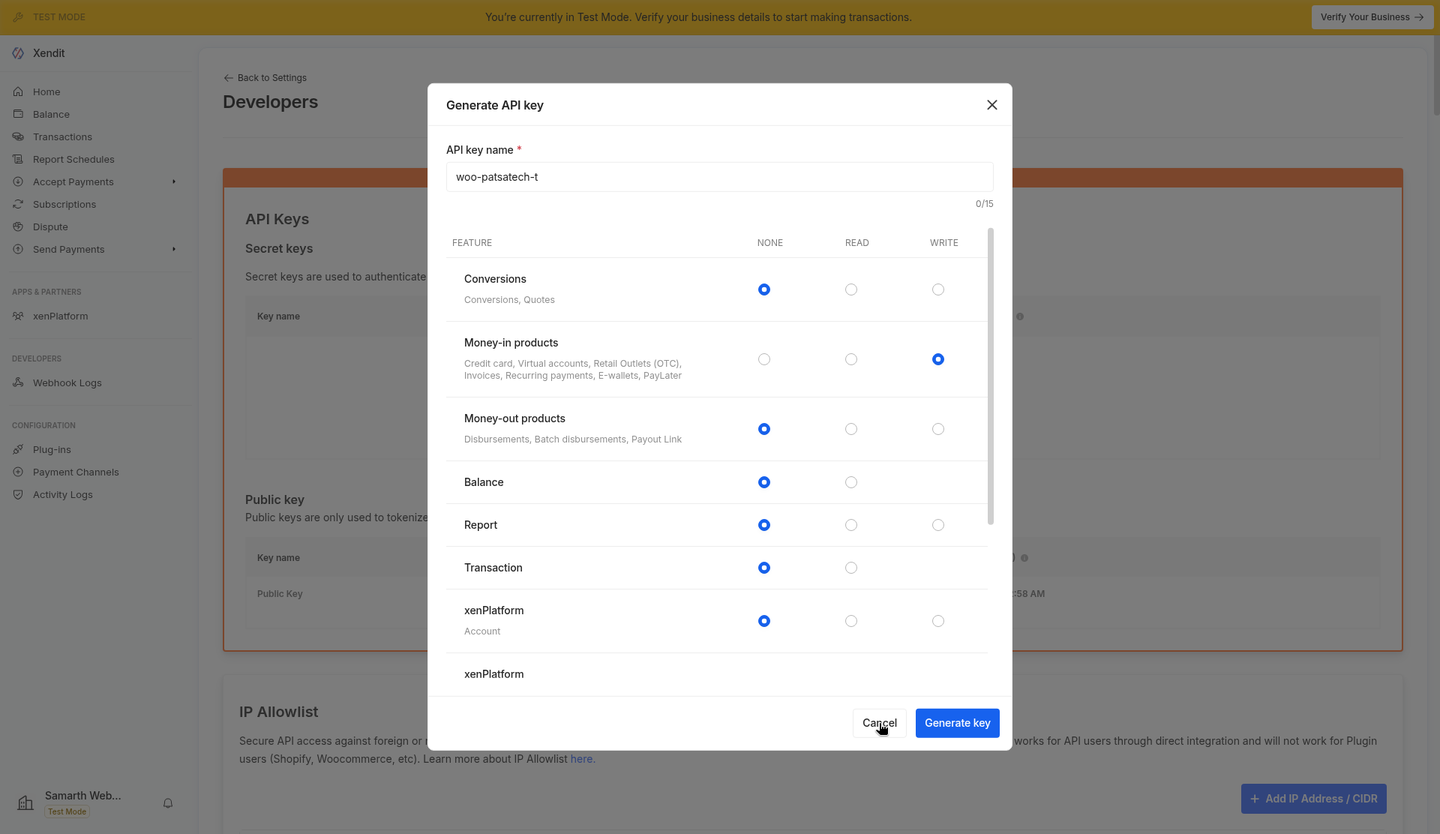
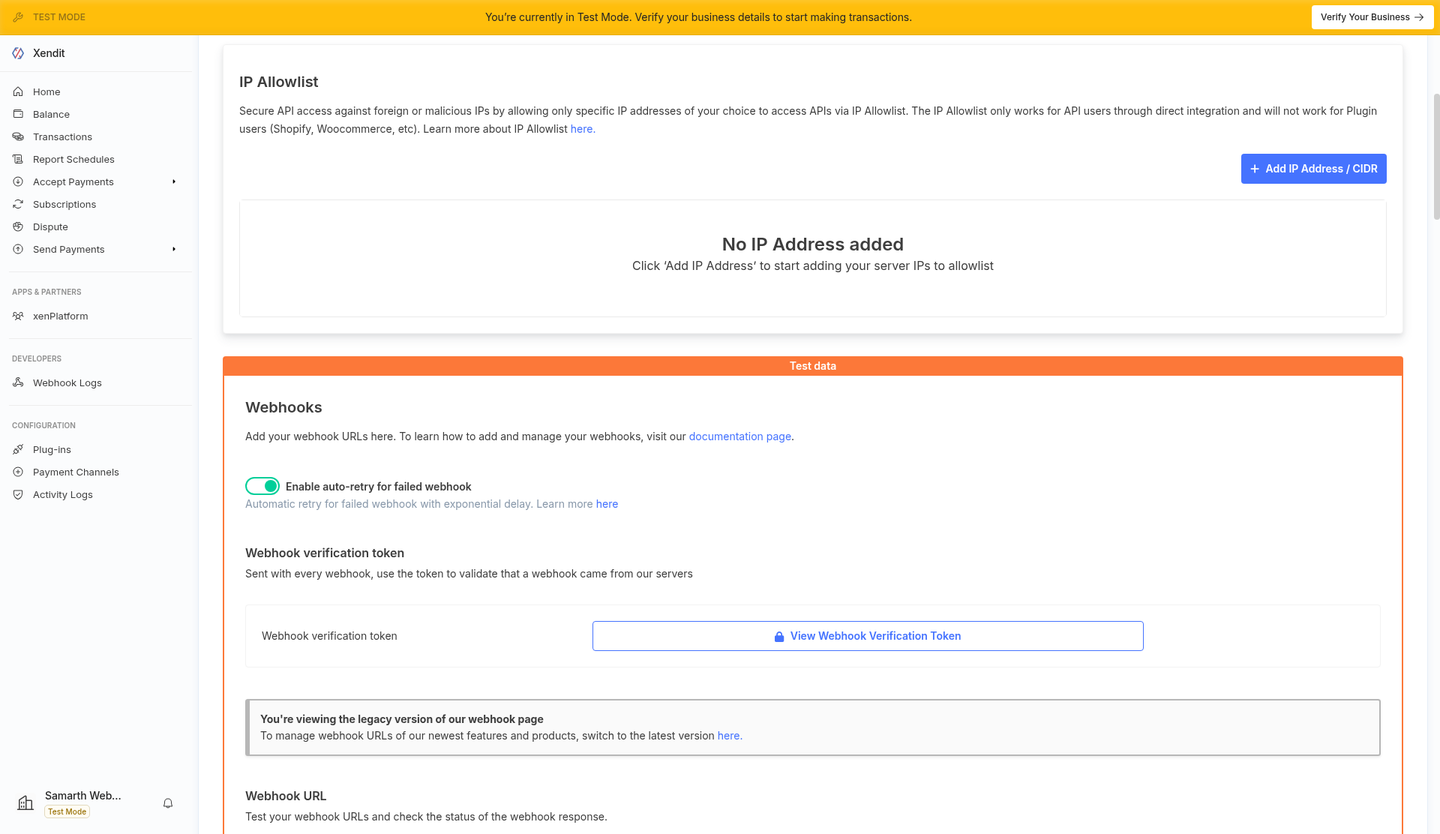
Reveal the webhook verification token
Under Webhooks → Webhook verification token, click View Webhook Verification Token and copy it.
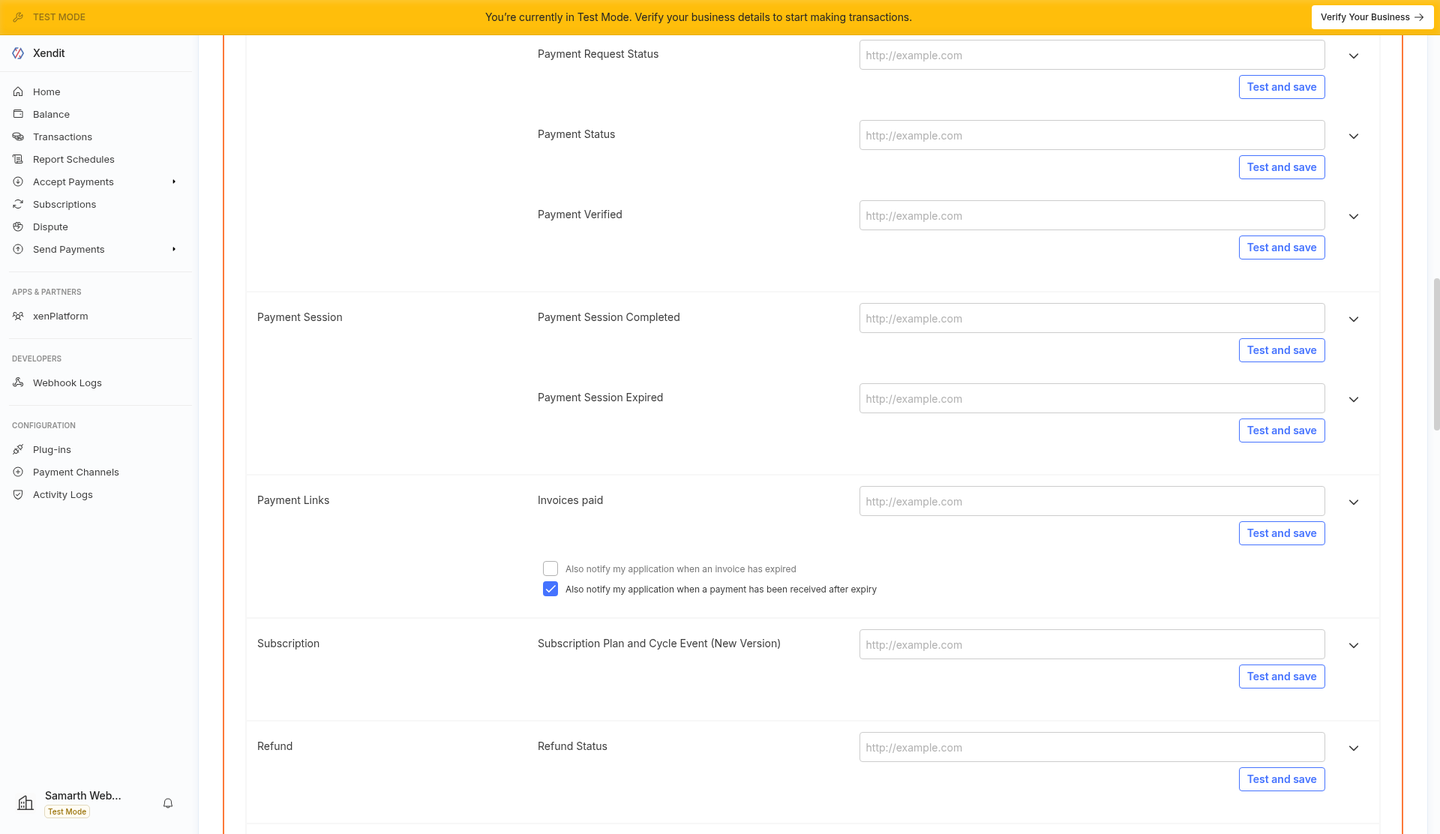
Find the Payment Session webhook fields
Payment Session Completed and Payment Session Expired are both required.
Enter the webhook URL and click Test and save
Use
https://<your-site>/?callback=gravityforms-xendit. Once the token is saved in Gravity Forms, Test and save returns 200.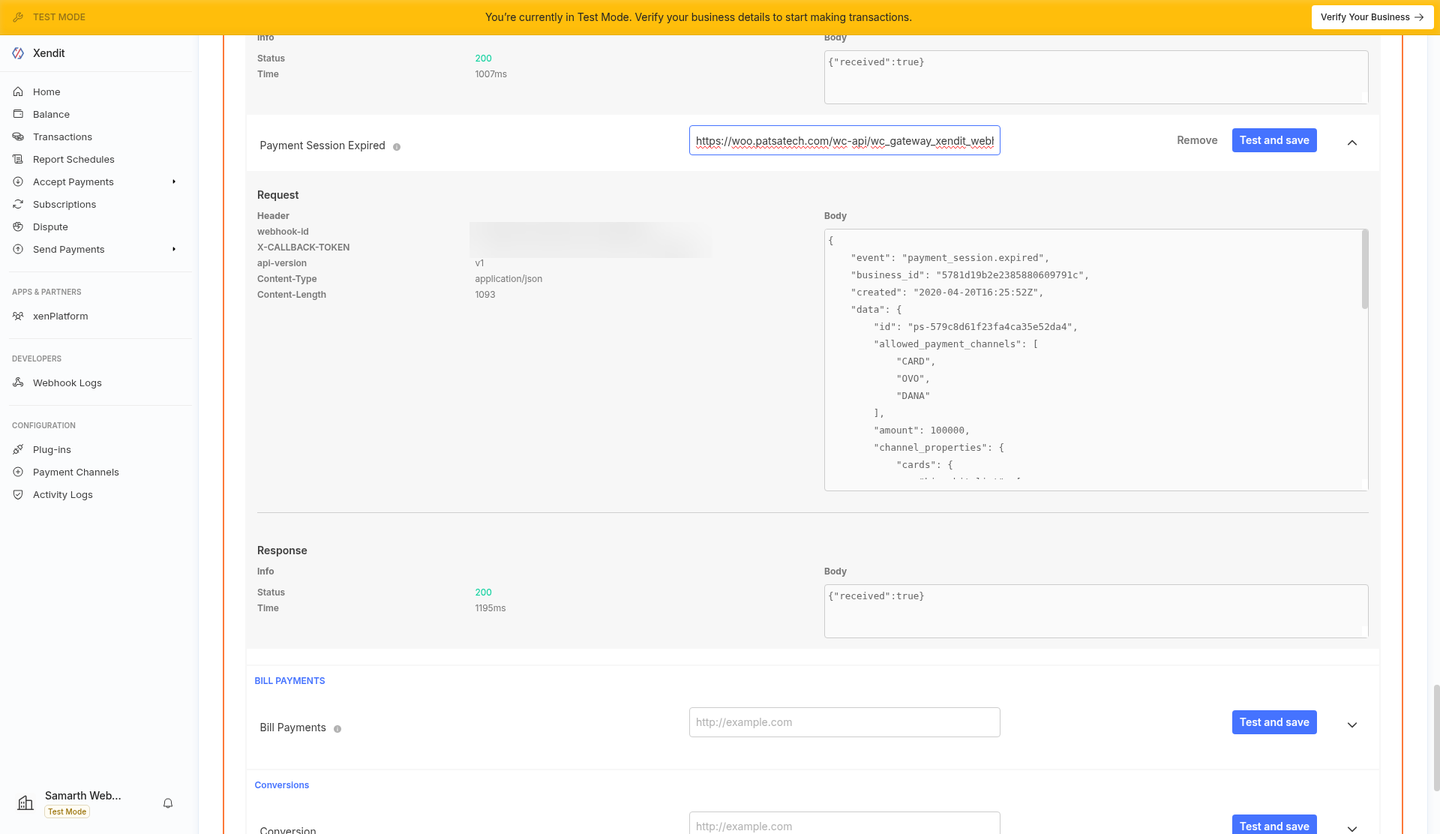
Example 200 response (this screenshot shows the WooCommerce URL; use the Gravity Forms URL). Set the same URL for every other event
Payment Status, Payment Request Status, Refund Status and the legacy Payment Succeeded / Failed / Captured Succeeded fields.
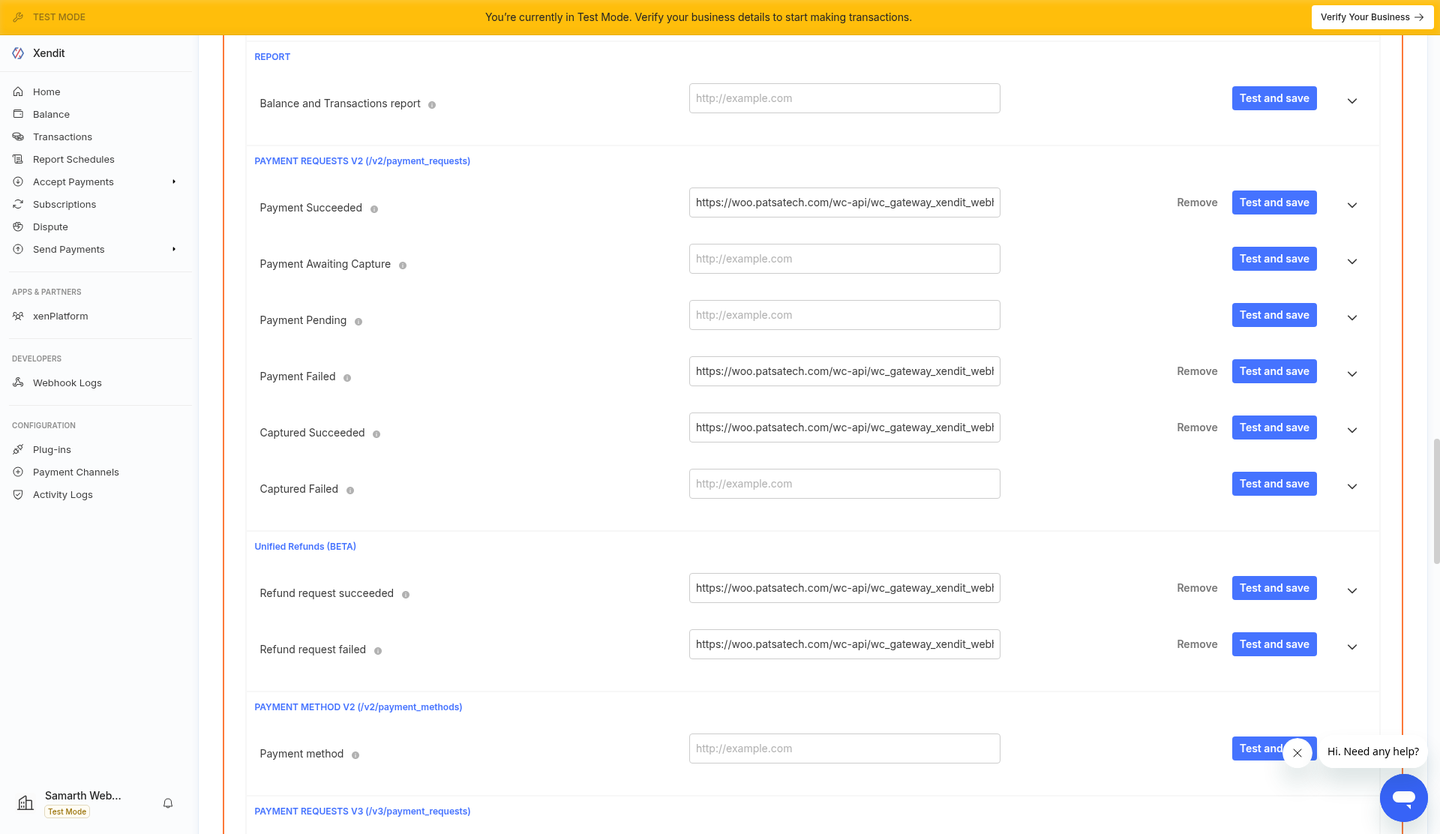
Legacy and refund events with a URL set.
Part B: Gravity Forms
Install and activate the add-on
Plugins → Add New → Upload Plugin →
gravityforms-xendit-1.0.0.zip.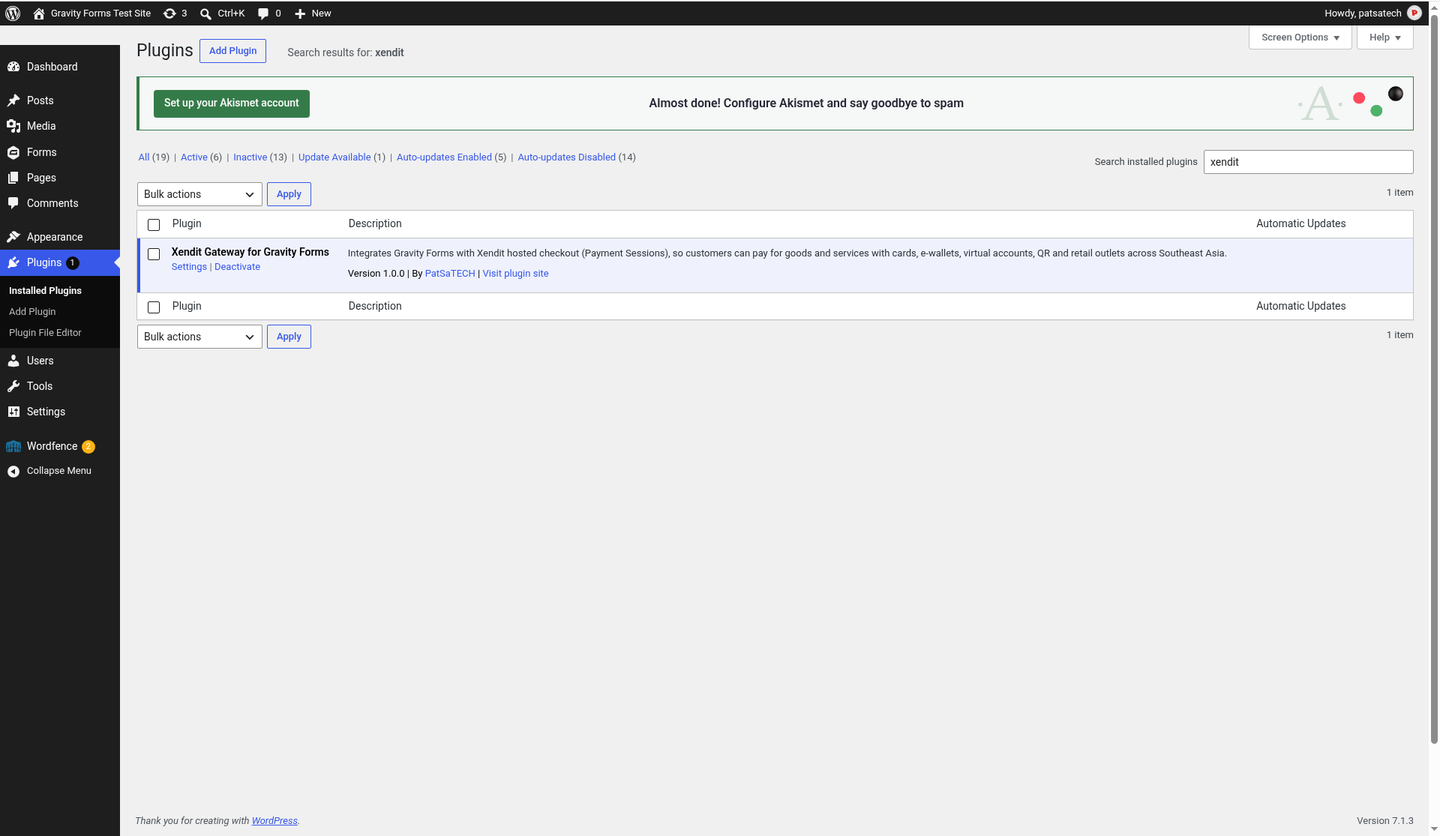
Xendit Gateway for Gravity Forms 1.0.0 activated (WordPress 7.1.3, Gravity Forms 2.10.3). Enter the plugin settings
Forms → Settings → Xendit: Mode, Test Secret Key, Webhook Verification Token. Copy the Webhook URL.
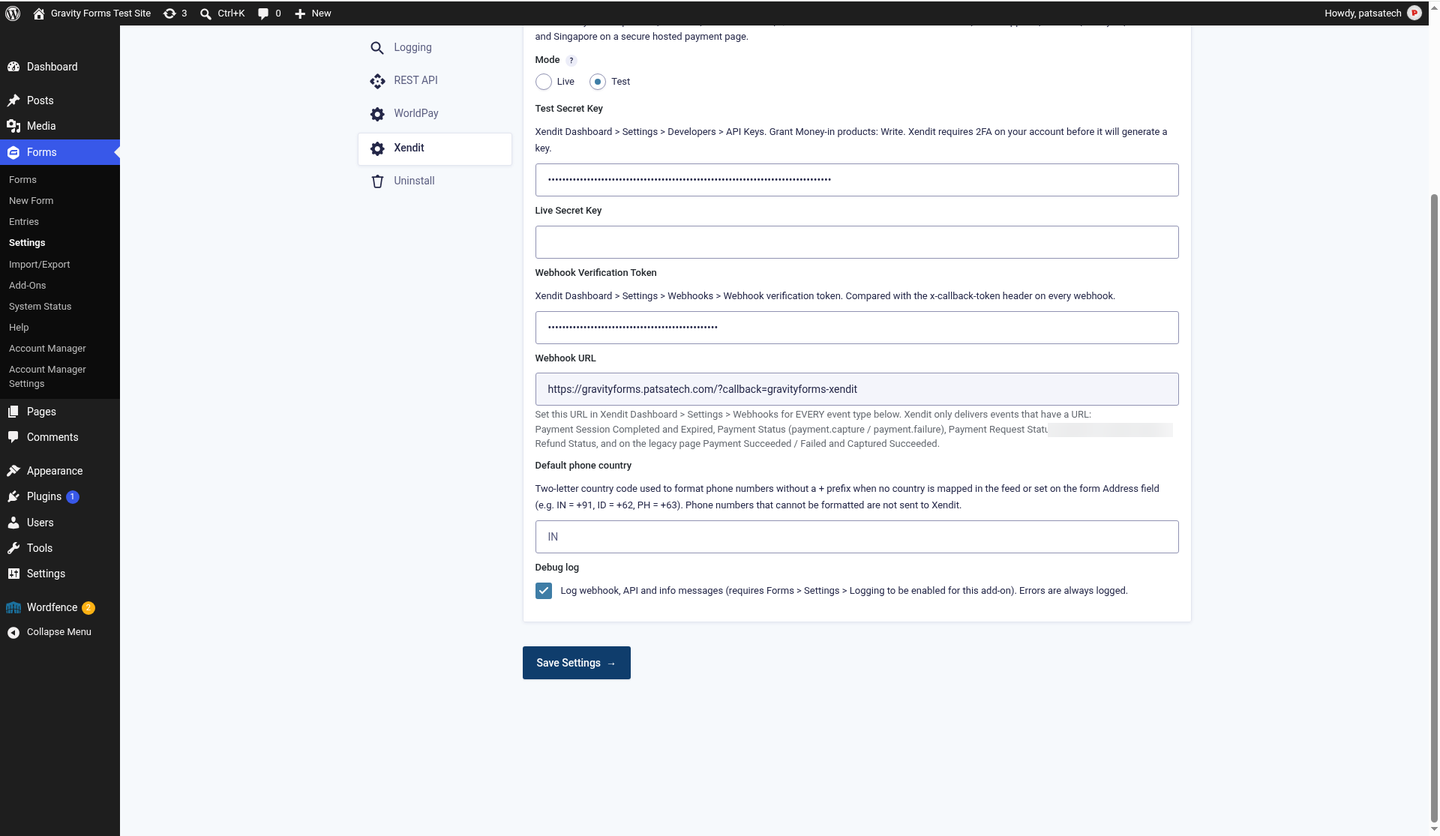
Forms → Settings → Xendit with the key and token saved (masked). 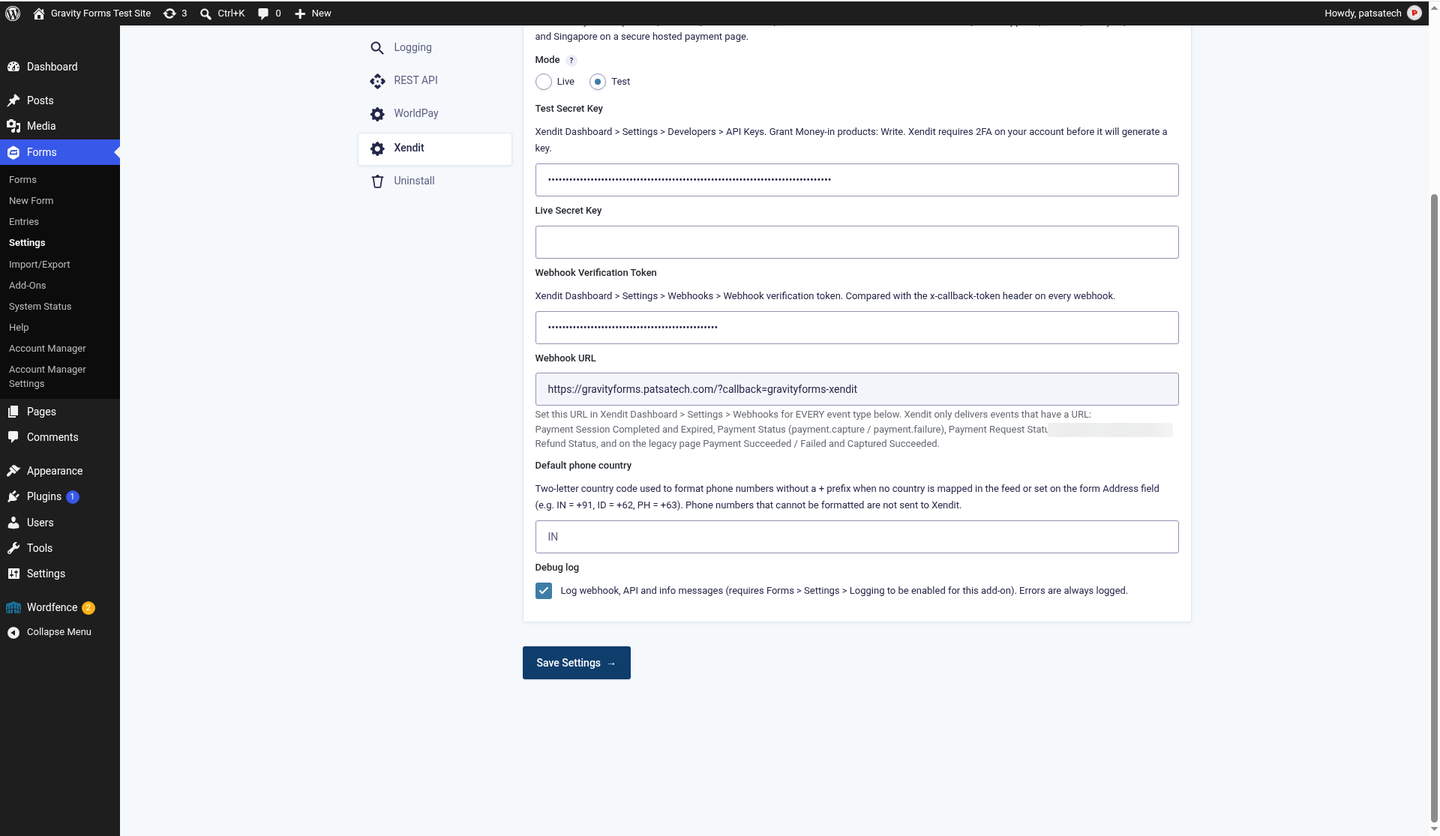
Bottom of the settings: Webhook URL to copy into Xendit and the debug log option. 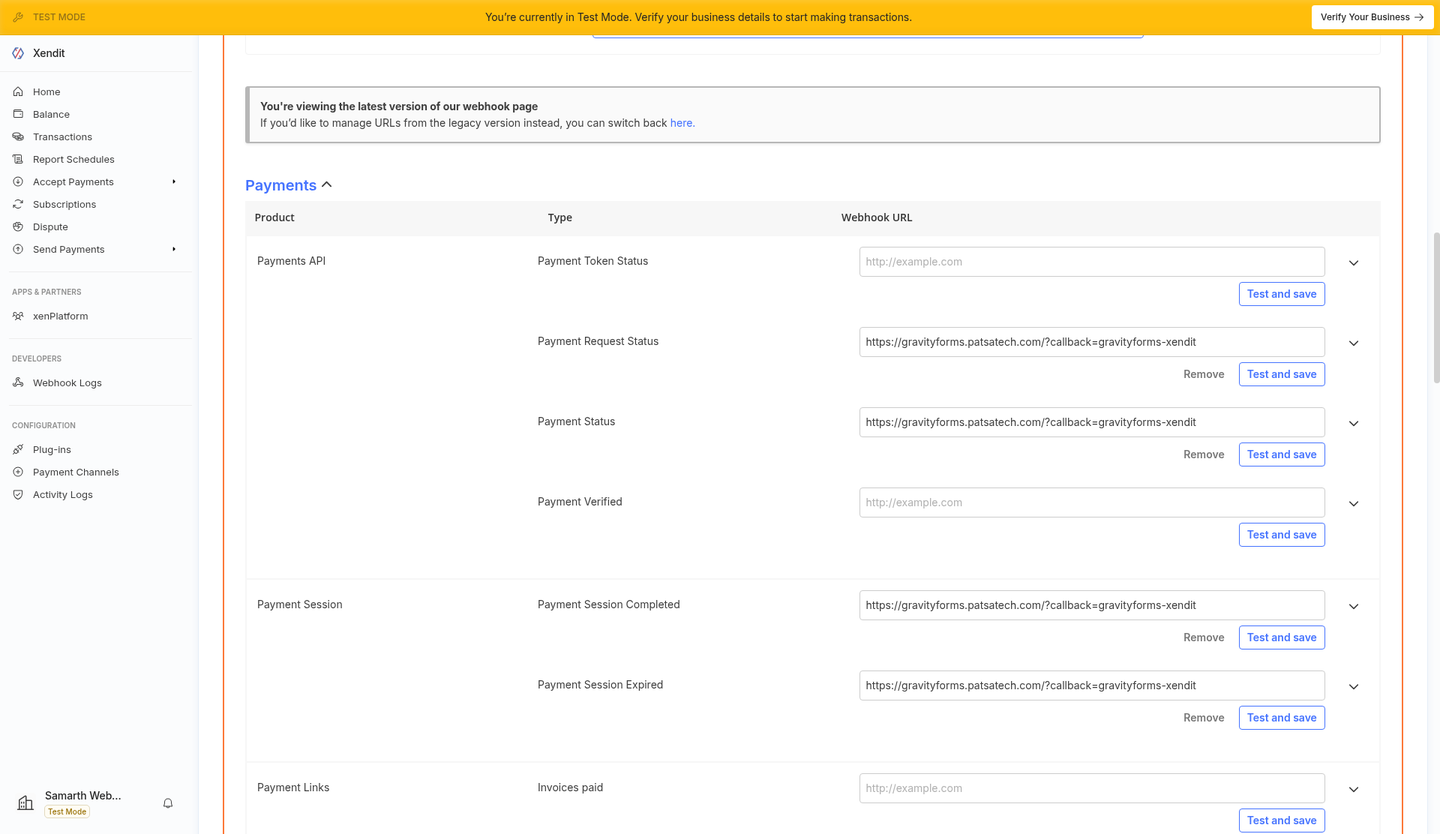
The same Webhook URL entered for Payment Session and Payment Status events in Xendit. Create the feed
Form → Settings → Xendit → Add New: Products and Services, Payment Amount, billing mapping, conditional logic.
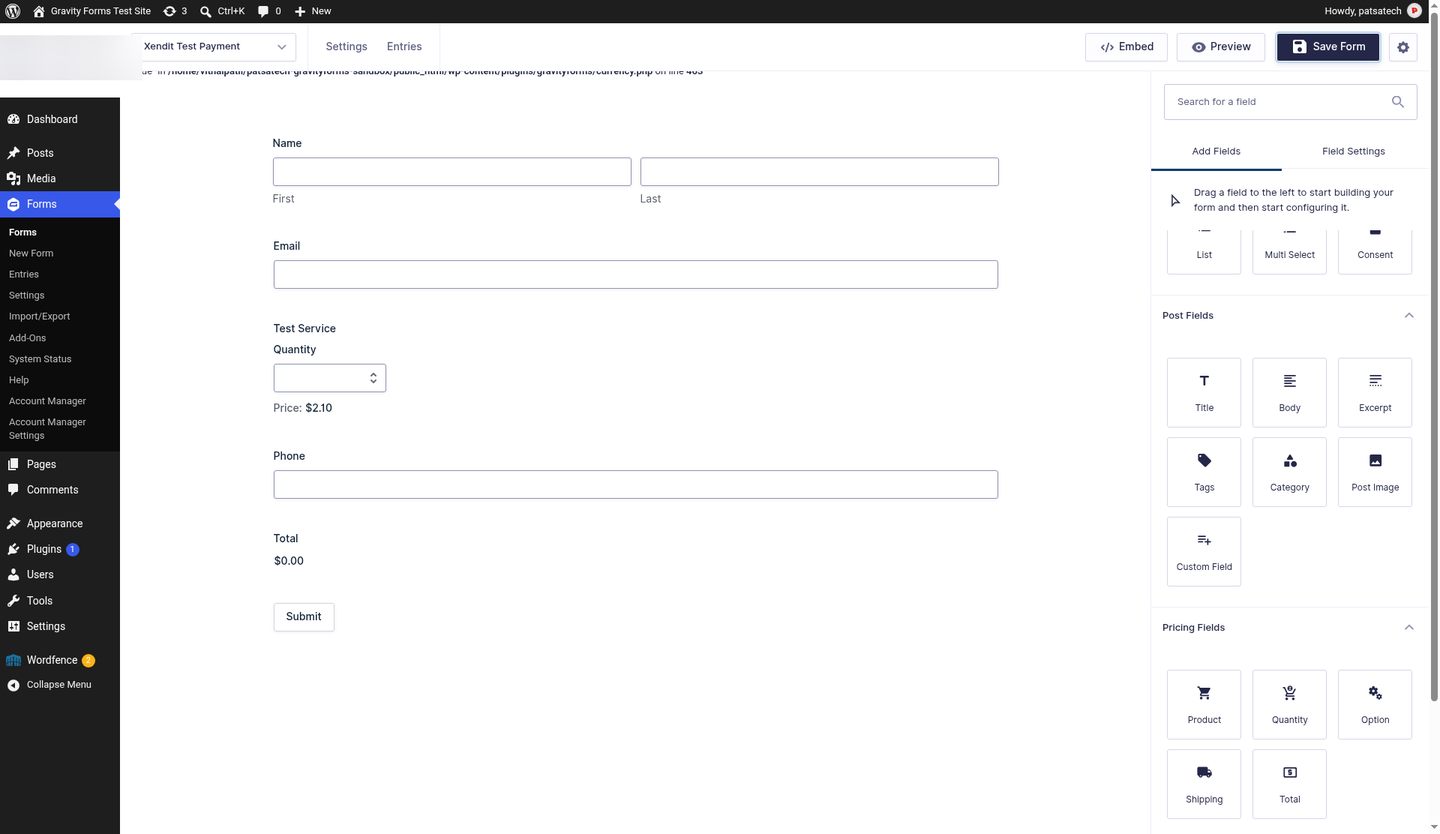
Example form: Name, Email, Product, Phone and Total. 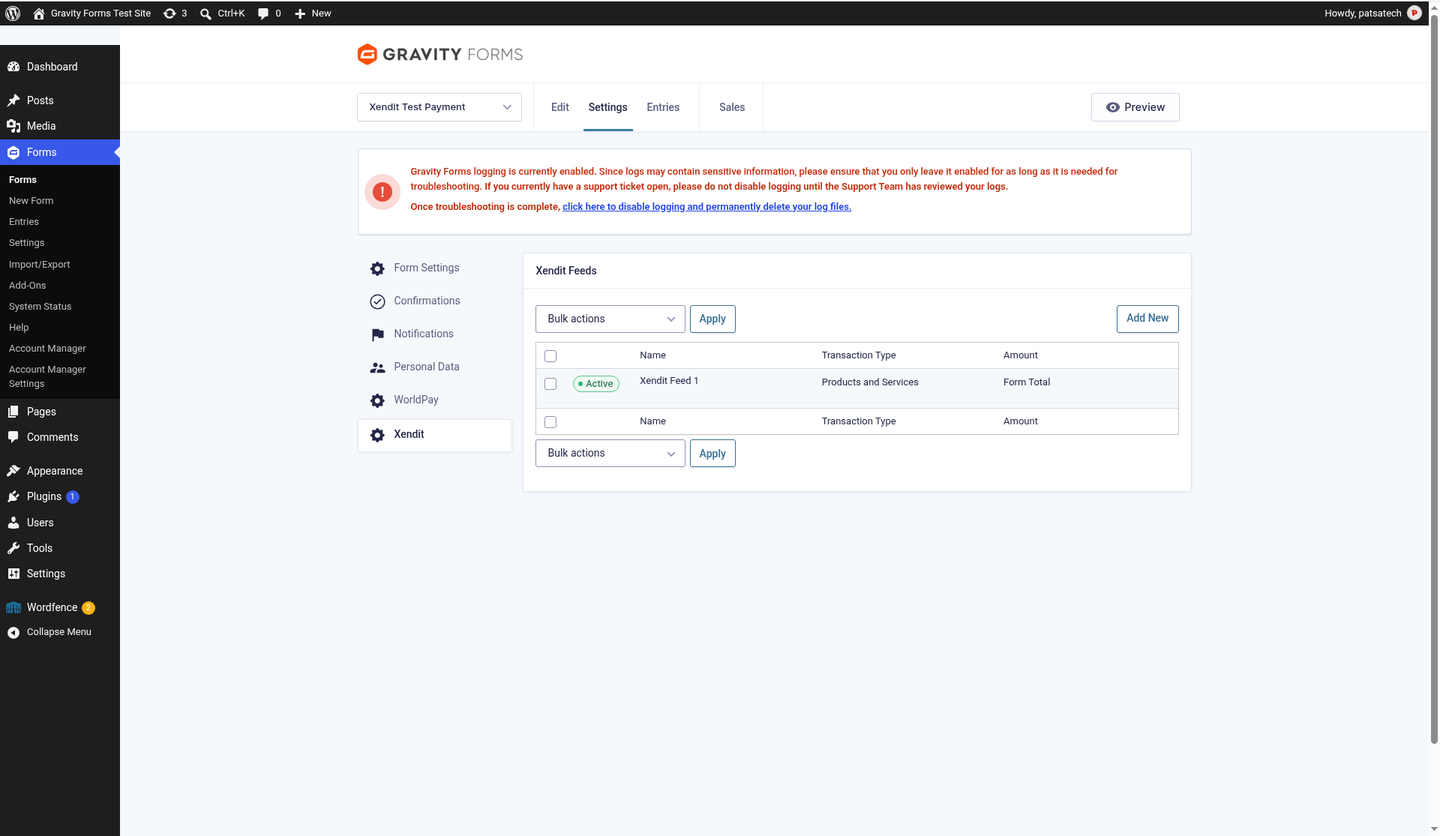
The Xendit feed listed on the form. 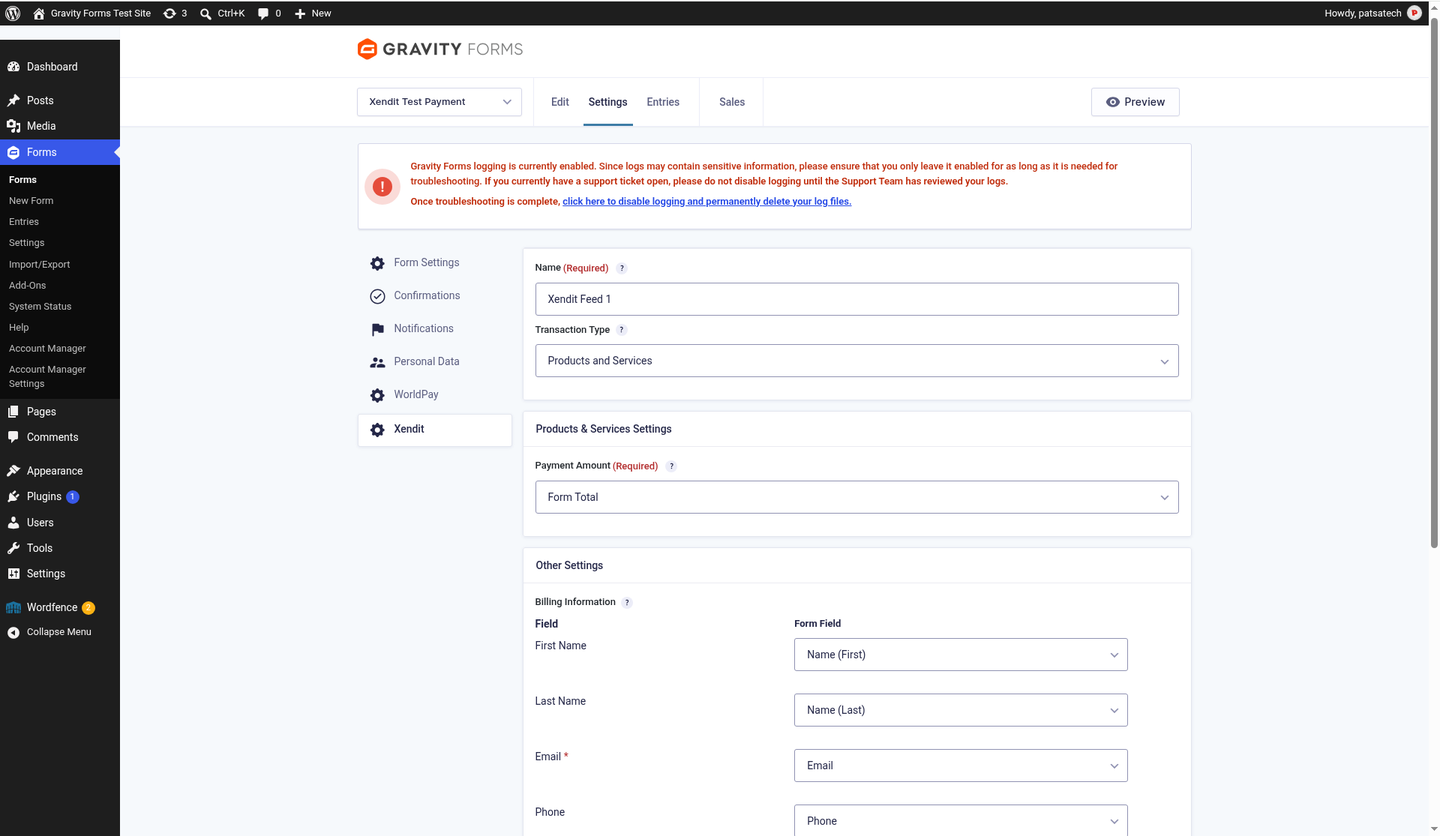
Xendit feed (top): Transaction Type Products and Services, Payment Amount and billing field mapping. No Sample Option. 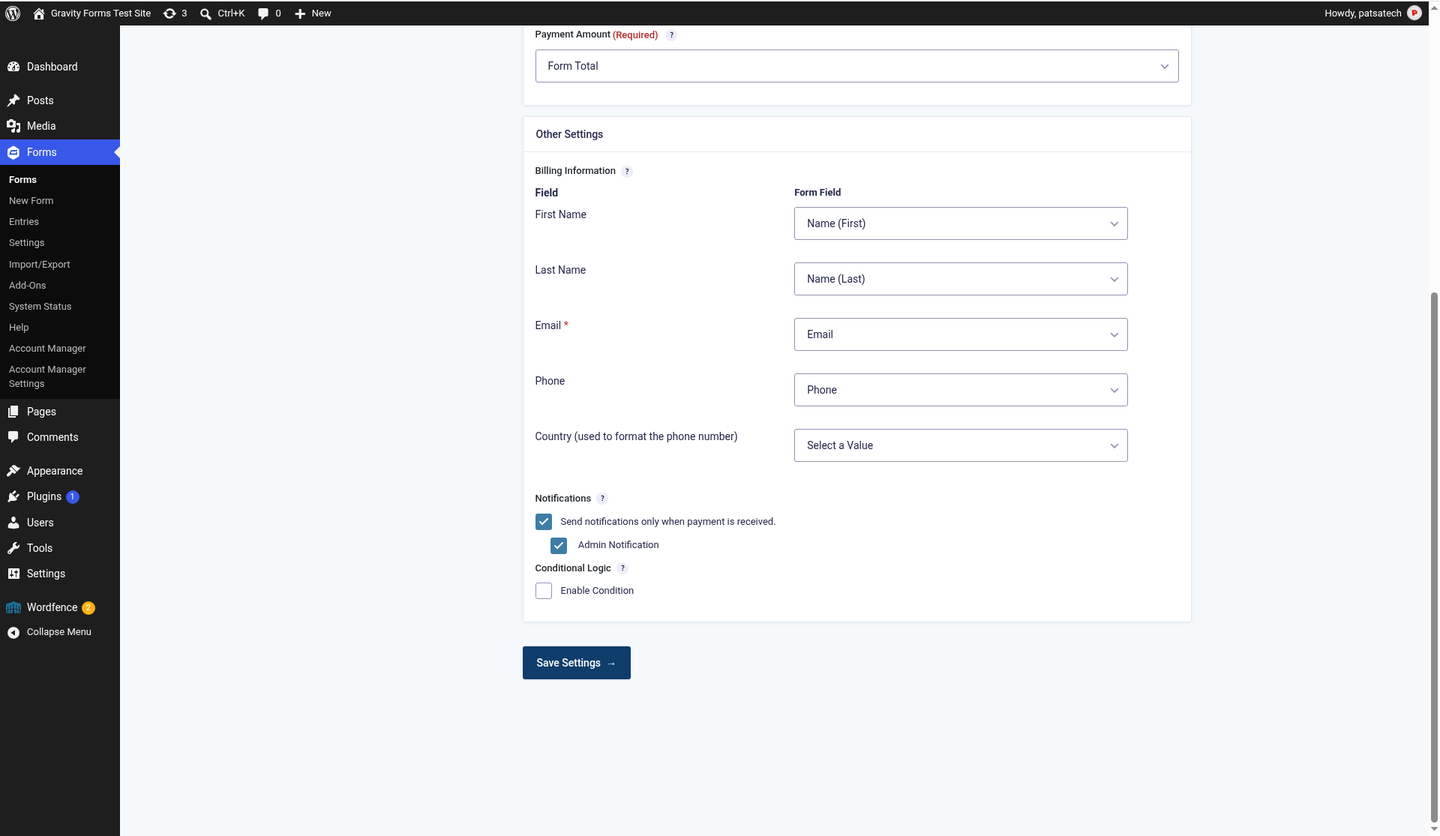
Xendit feed (bottom): other settings, conditional logic and Notifications held until payment is received. Submit the form
The customer fills in the form and is redirected to the Xendit hosted page.
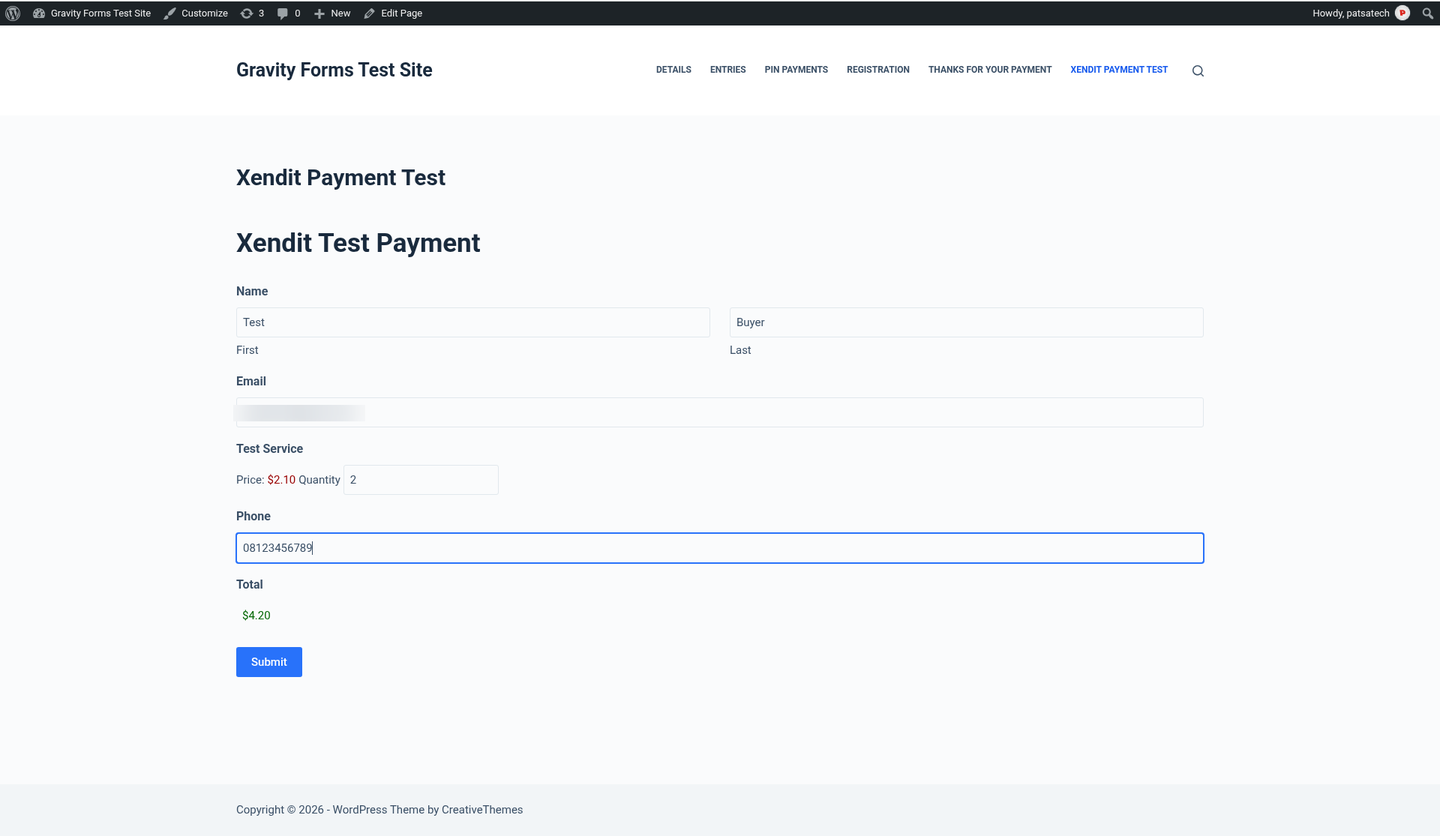
Form on the front end (email and phone blurred). Pay on Xendit
The customer pays (3DS card shown) and returns to your confirmation message.
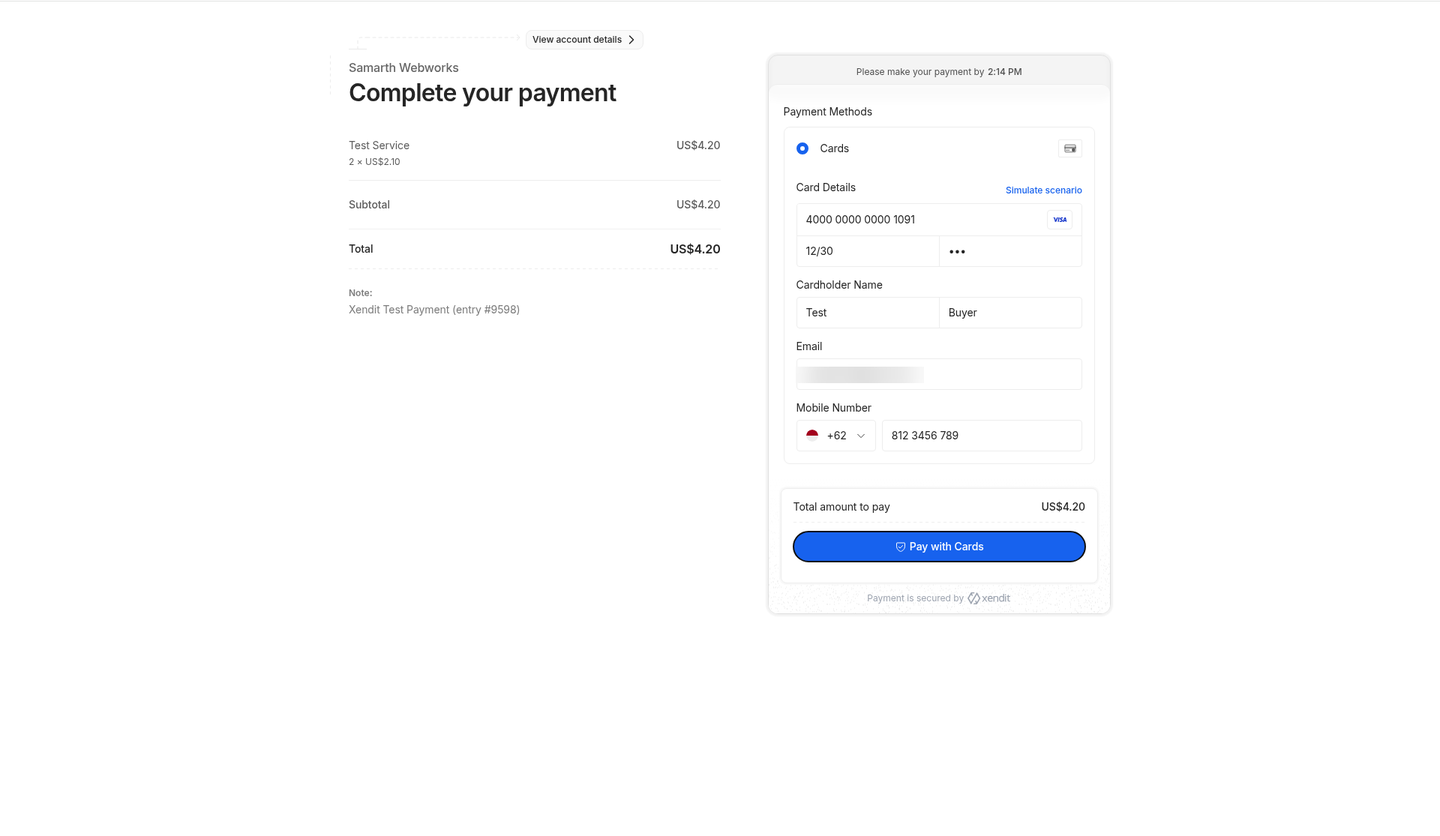
Xendit hosted card form with name, email and phone pre-filled (email blurred). 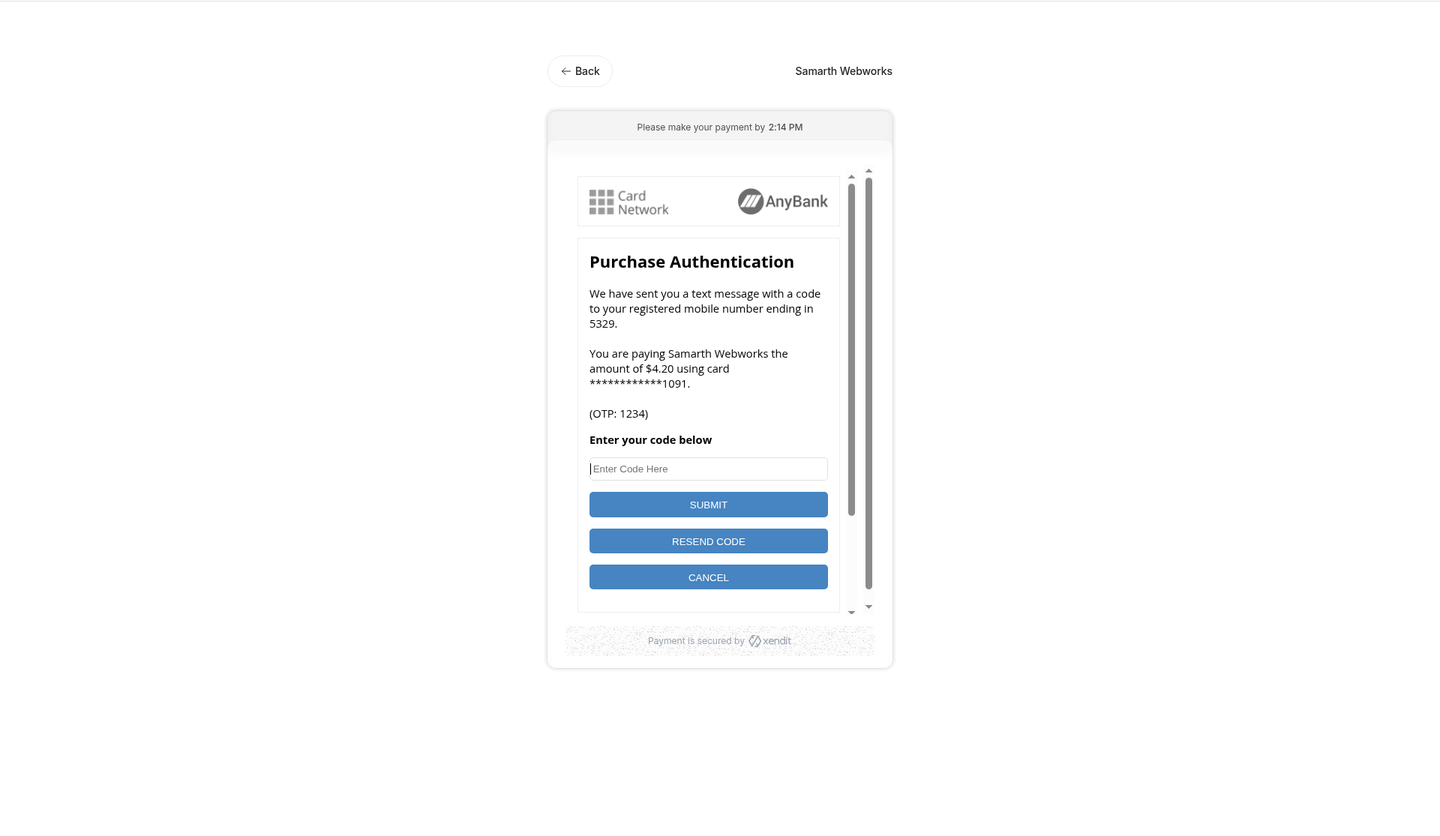
3D Secure step for the test card. 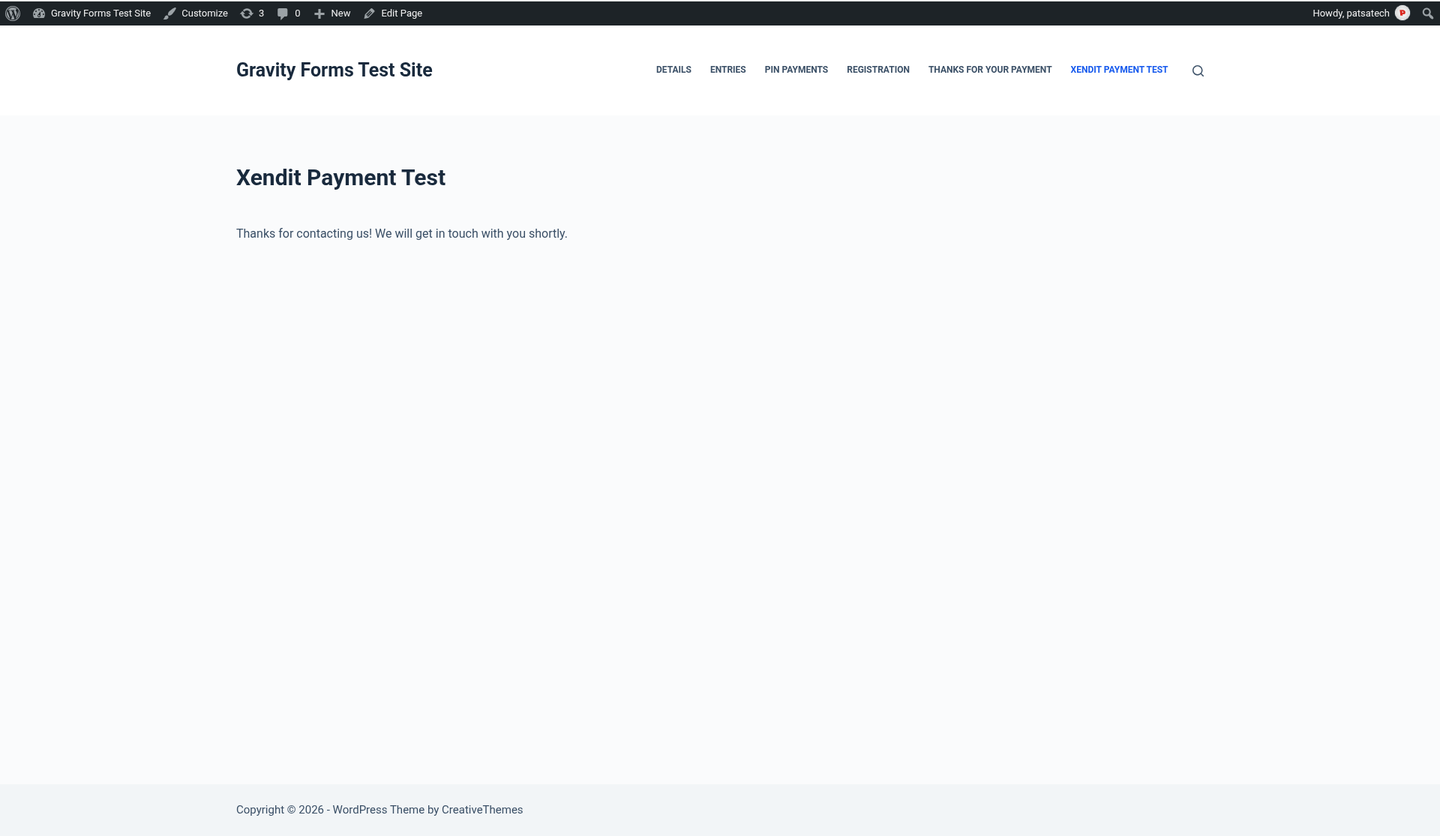
Back on the site: the form confirmation. Entry is Paid
The entry shows Payment Status Paid, the transaction ID and a “Xendit payment completed” note.
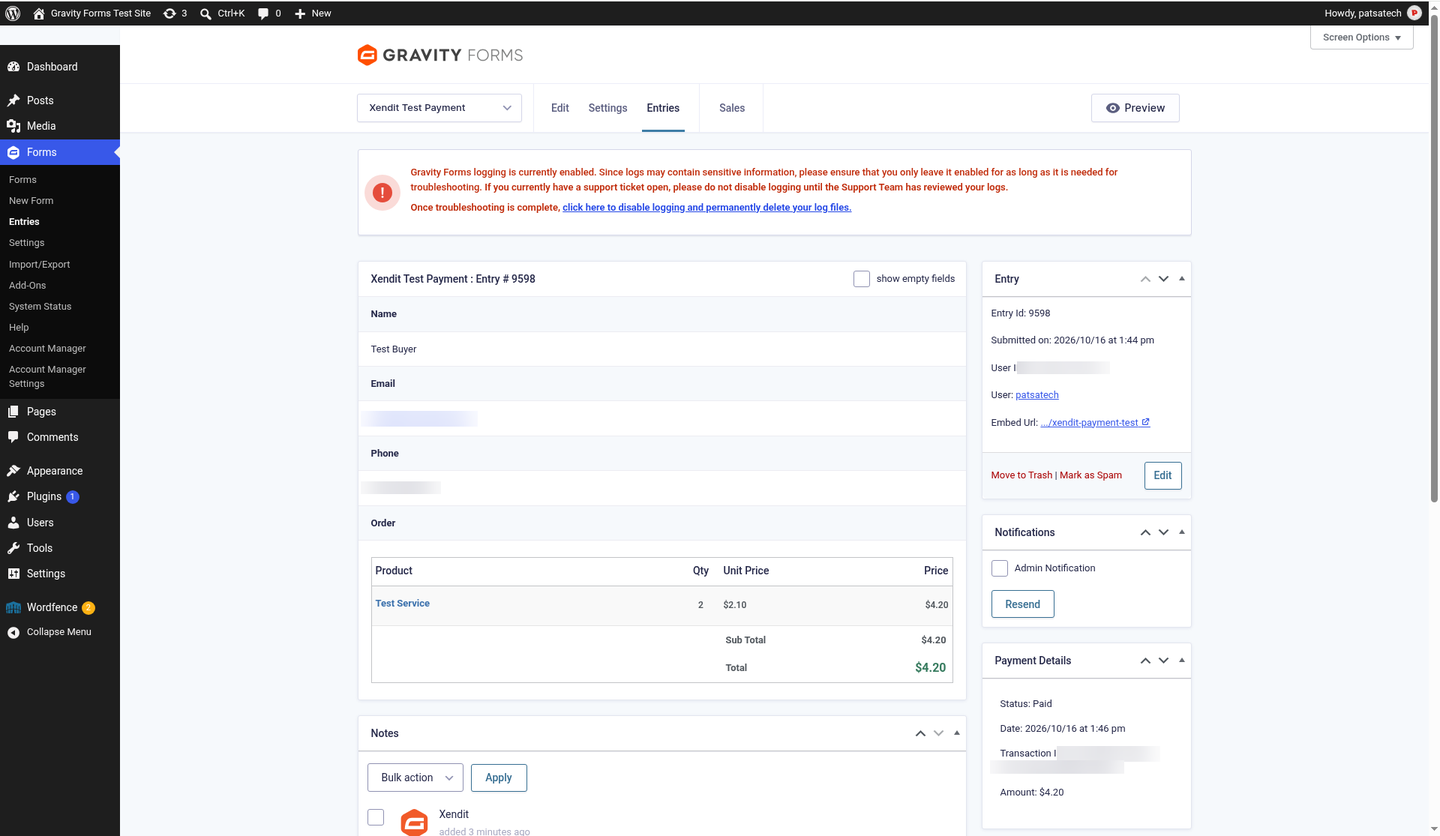
Entry #9598 Paid, with the Xendit transaction ID in Payment Details (IDs, email and phone blurred). 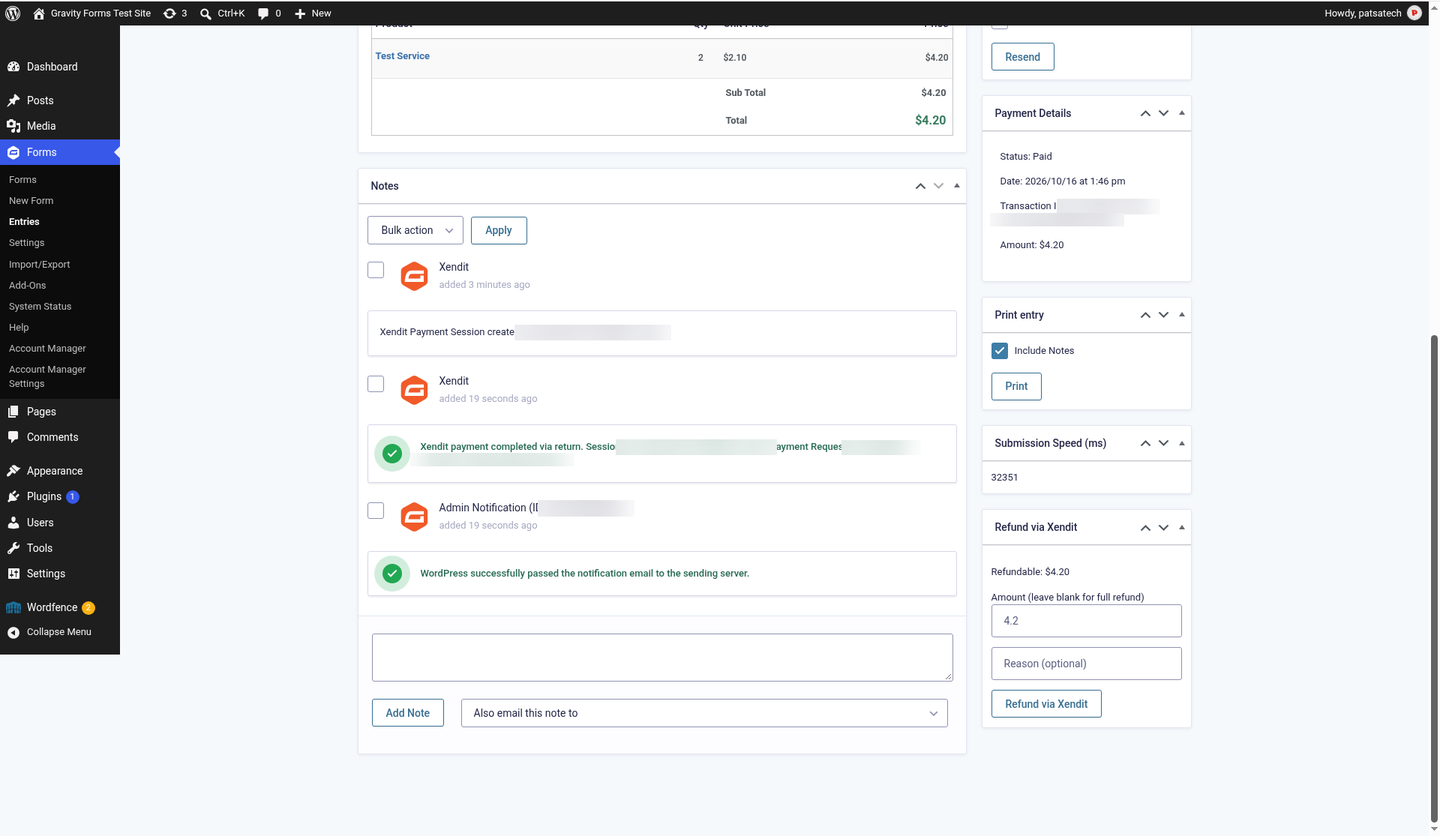
Entry notes: payment completed and the delayed admin notification sent after payment (IDs blurred). 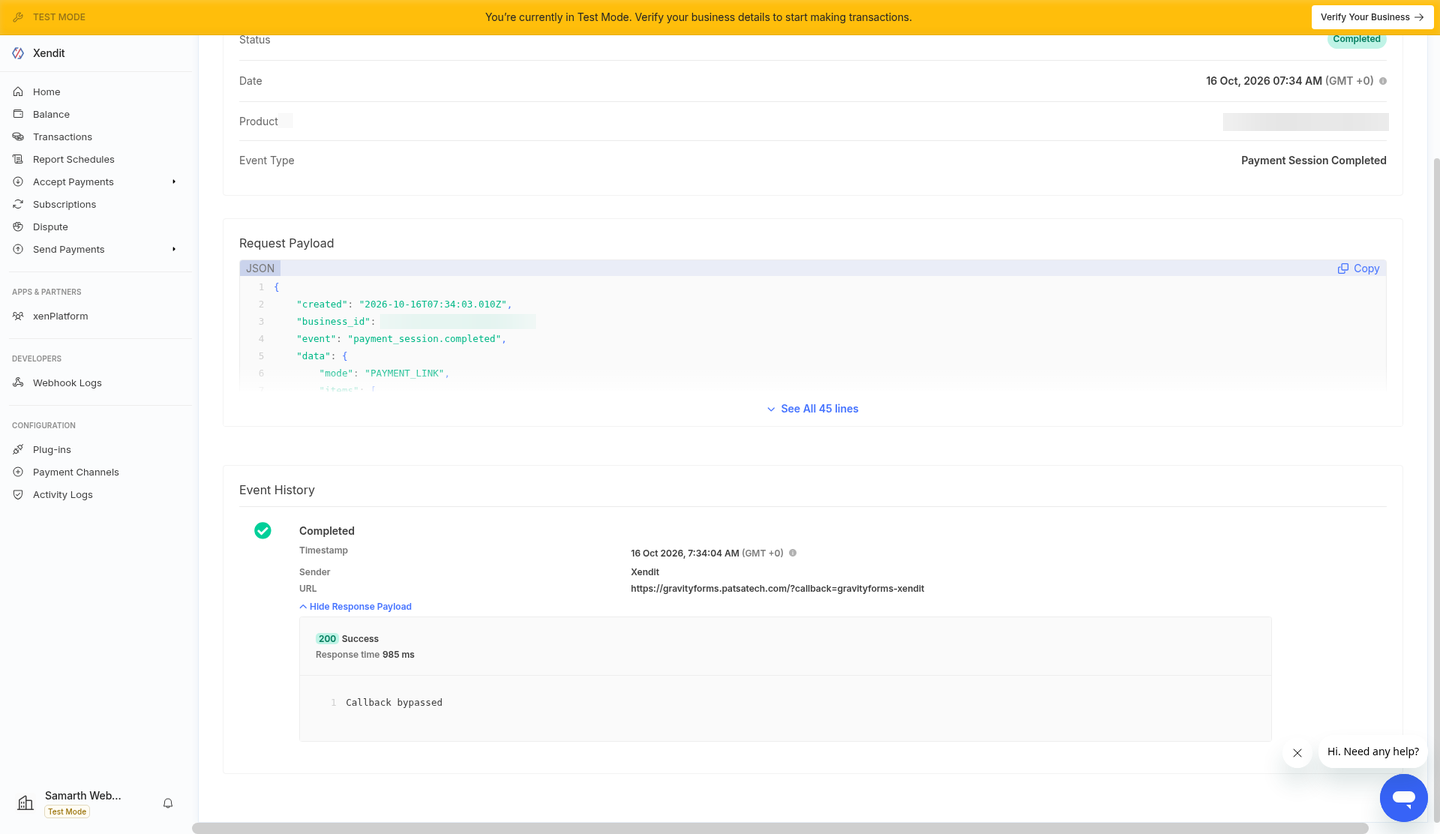
Xendit Webhook Logs: payment_session.completed delivered with HTTP 200. Refund via Xendit
On the entry, use the Refund via Xendit box for a full or partial refund.
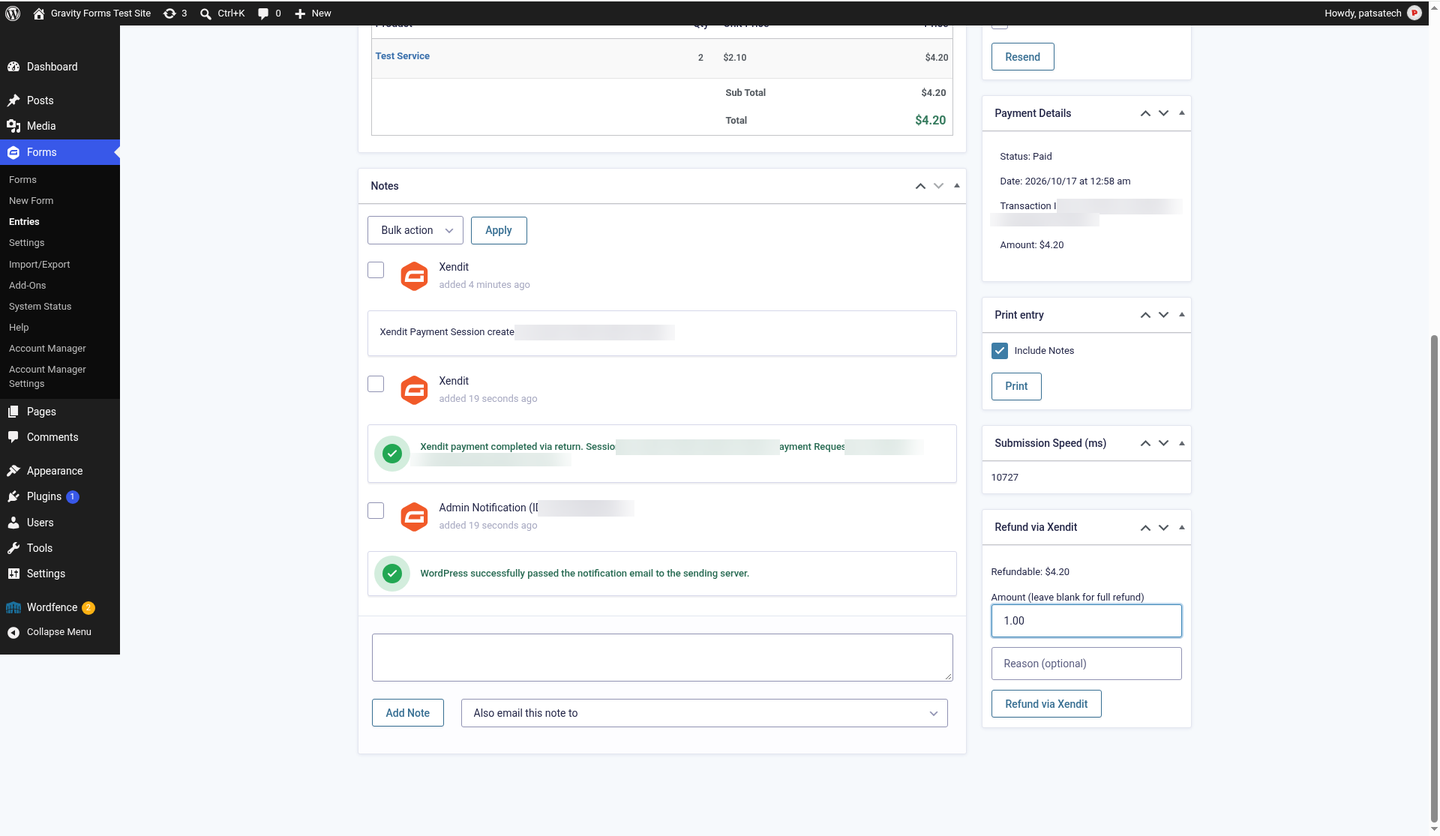
Refund via Xendit box on entry #9599 ($4.20 paid): enter an amount for a partial refund, or leave it blank to refund everything left. 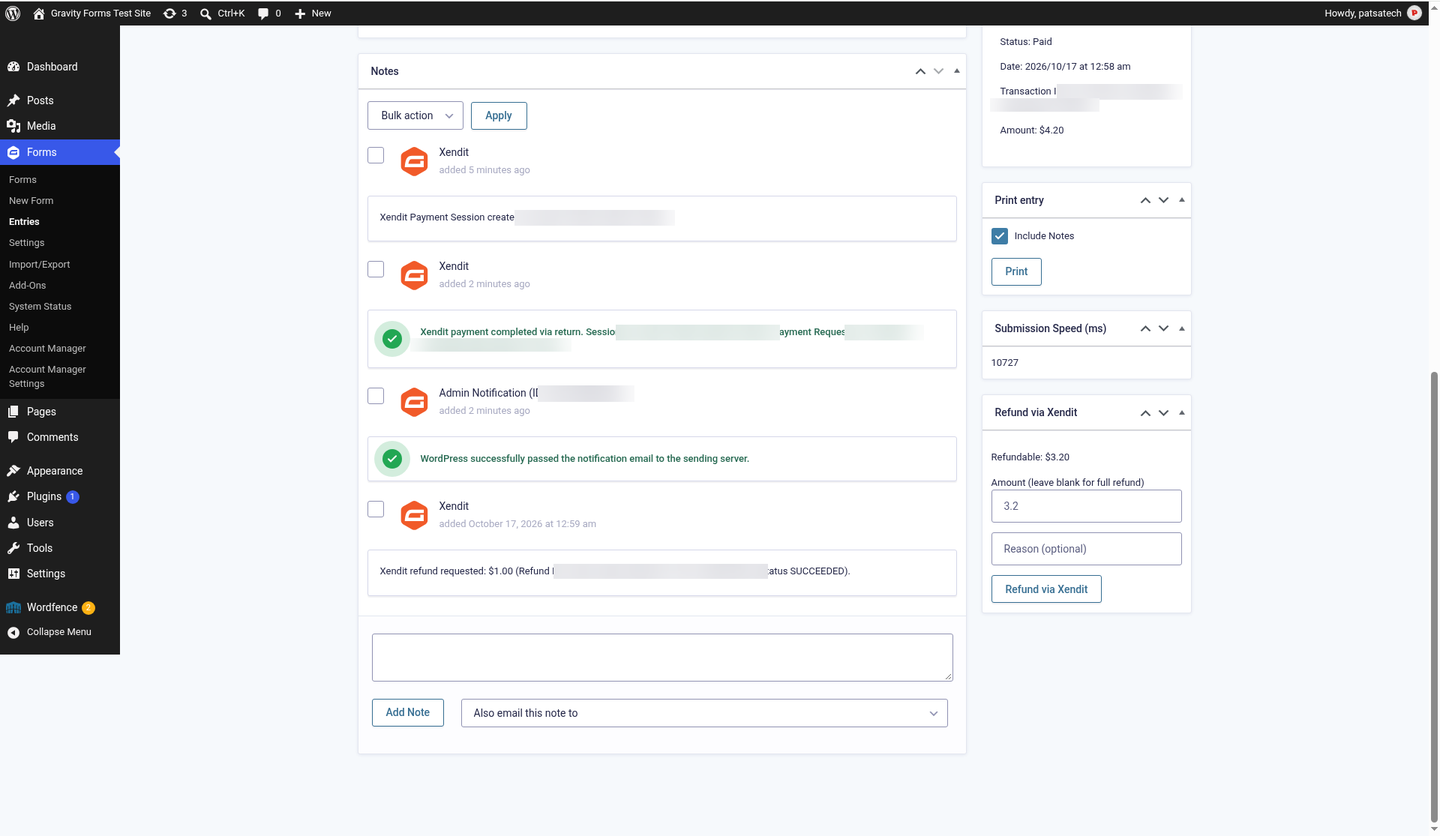
After a partial refund on entry #9599: Refundable drops straight to $3.20 (and stays there after a reload), the note shows the Xendit refund request with status SUCCEEDED, and the entry stays Paid (IDs blurred). 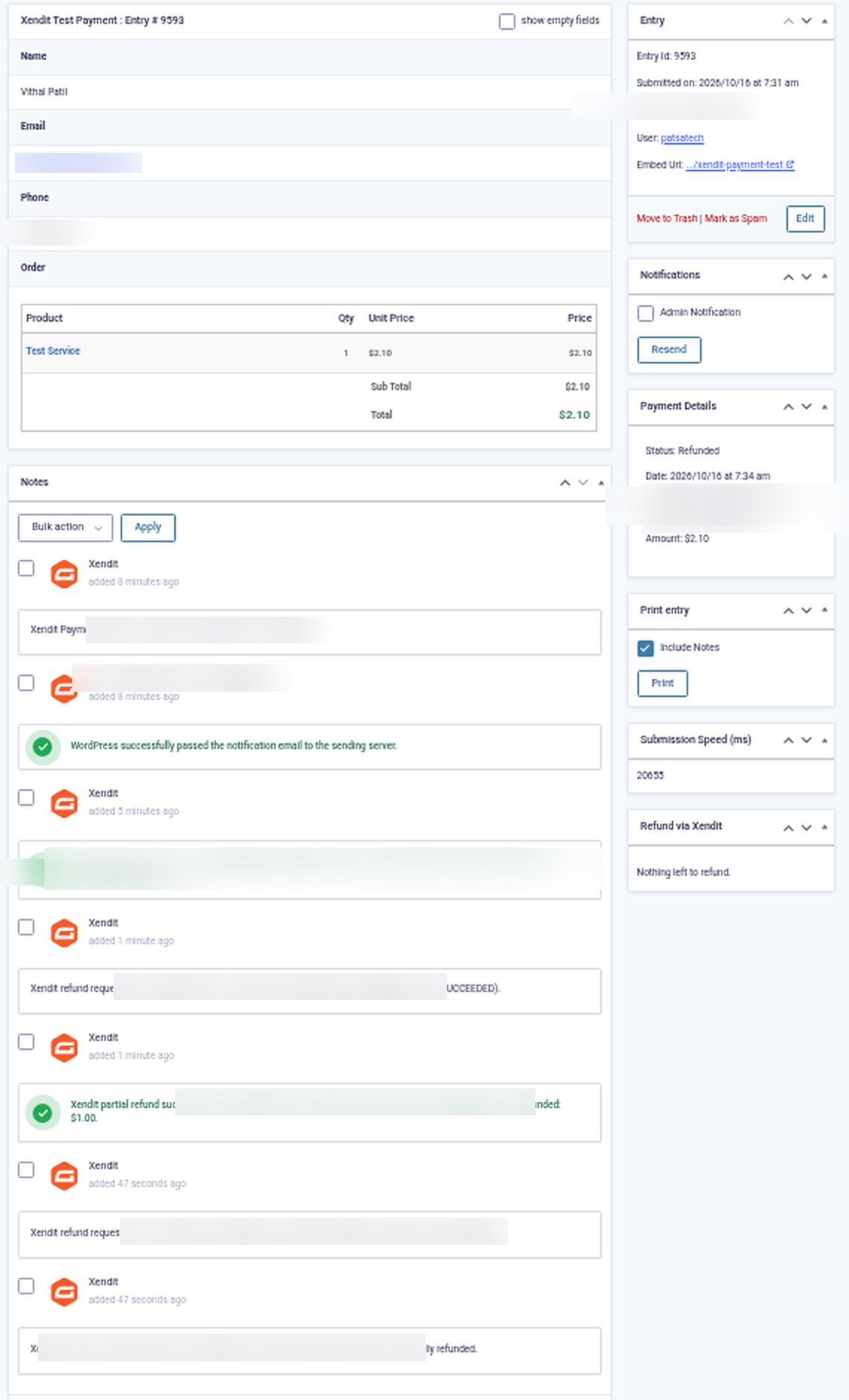
Full refund of the remaining balance: the entry becomes Refunded. 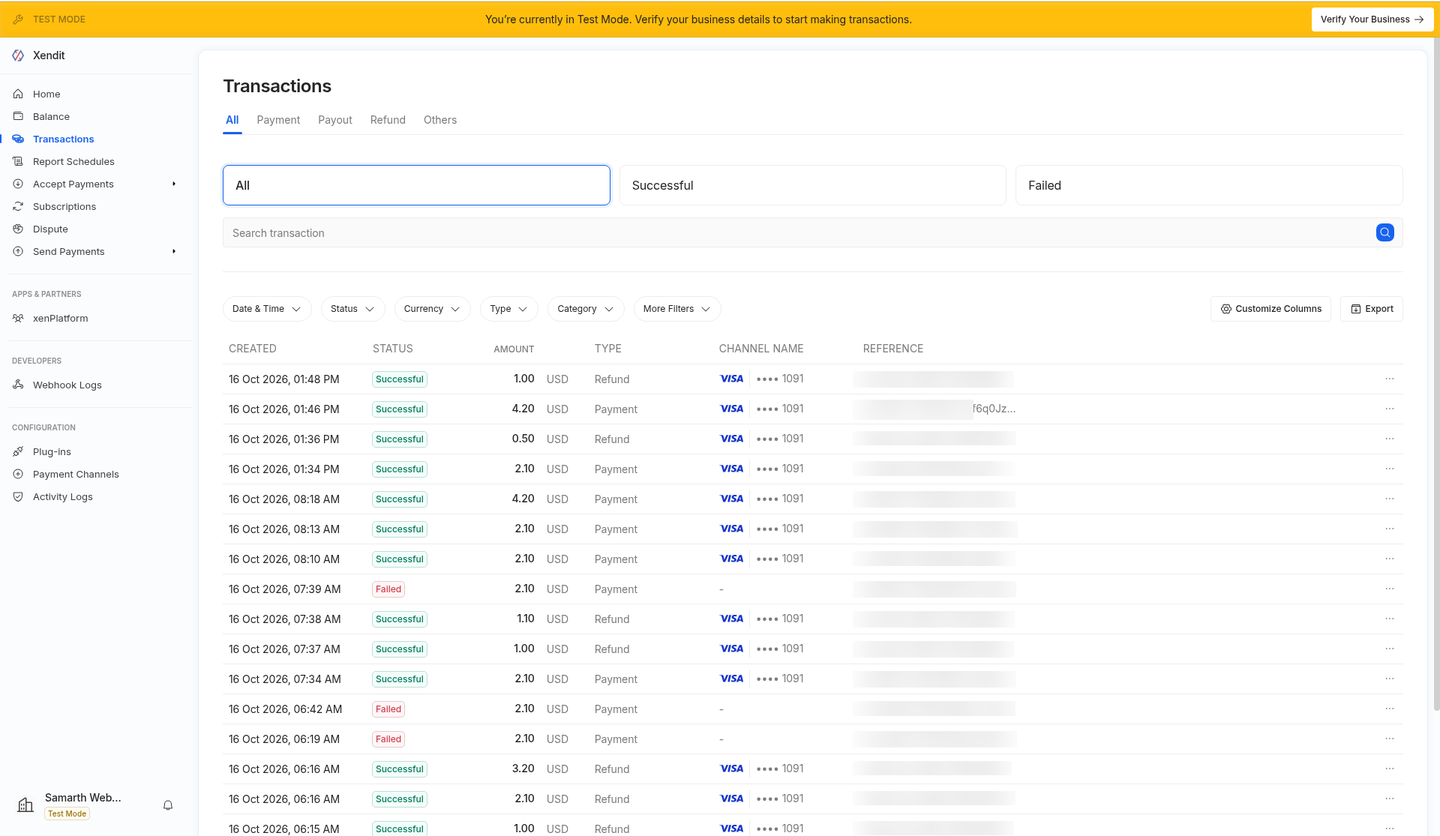
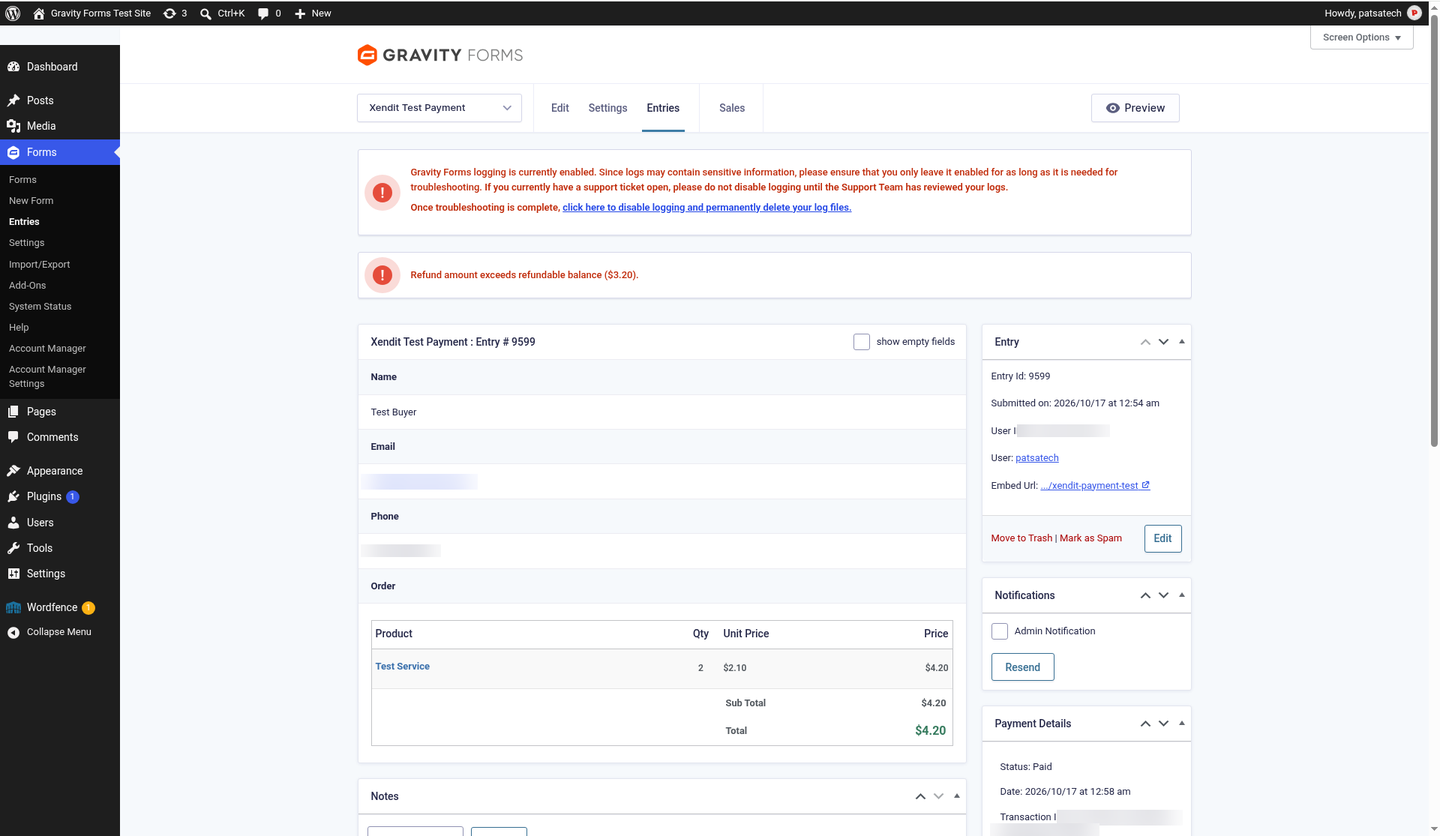
The payment and its refund in Xendit → Transactions (references blurred).
9. Payment flow & entry statuses
- Form submitted → entry created → Payment Session created → entry Processing with note “Xendit Payment Session created”.
- Customer pays on Xendit →
payment_session.completedwebhook → Gravity Forms complete_payment → entry Paid, transaction ID set, “Payment Completed” notifications sent. - The customer returns to the form page. The add-on verifies the session with
GET /sessions/{id}and completes the entry if the webhook hasn’t arrived yet, then shows your confirmation.
Every event has a unique action ID, and the framework’s callback log ensures it is processed only once. Webhook and return-URL processing never double-complete an entry.
10. Transaction ID
The entry’s Transaction ID is the Xendit payment ID (py-…). The Payment Session ID (ps-…) and Payment Request ID (pr-…) are saved as entry meta and in the notes. Search for the payment ID in Xendit → Transactions.
11. Refunds
Gravity Forms has no built-in refund button for payment add-ons, so this add-on adds a Refund via Xendit box to the entry detail page (visible on paid Xendit entries).
- Leave the amount blank for a full refund of the remaining amount, or enter a smaller amount for a partial refund. Over-refunds are blocked.
- The add-on calls
POST /refundsand adds a “refund requested” note. - When Xendit confirms with
refund.succeeded, a partial refund adds a note and the entry stays Paid. A refund that brings the total to the full amount sets the entry to Refunded. refund.failedadds an error note.
12. Pending, declined & expired payments
| Situation | Entry payment status | Entry note |
|---|---|---|
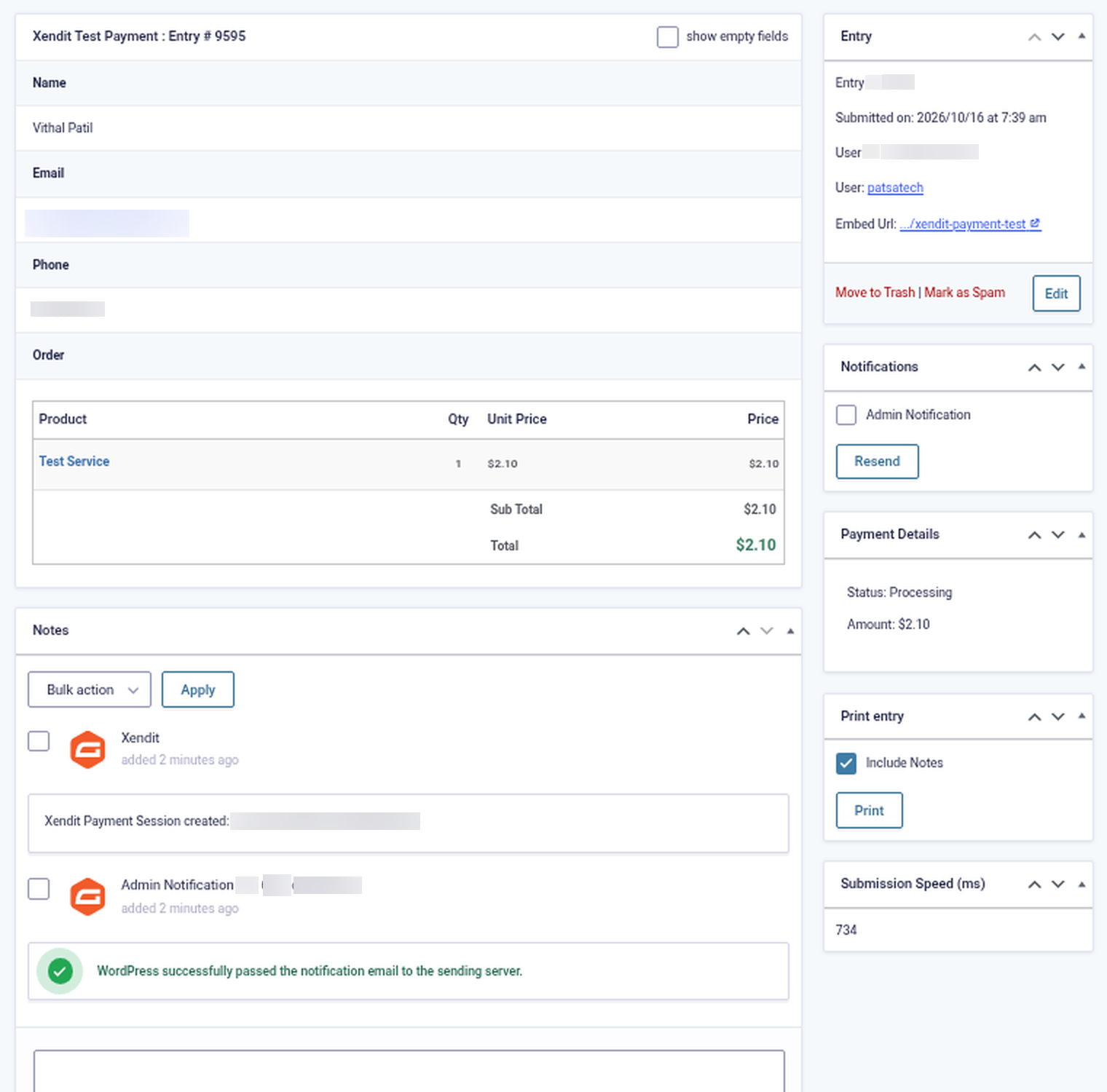
| Customer is on the Xendit page or left without paying | Processing | Xendit Payment Session created |
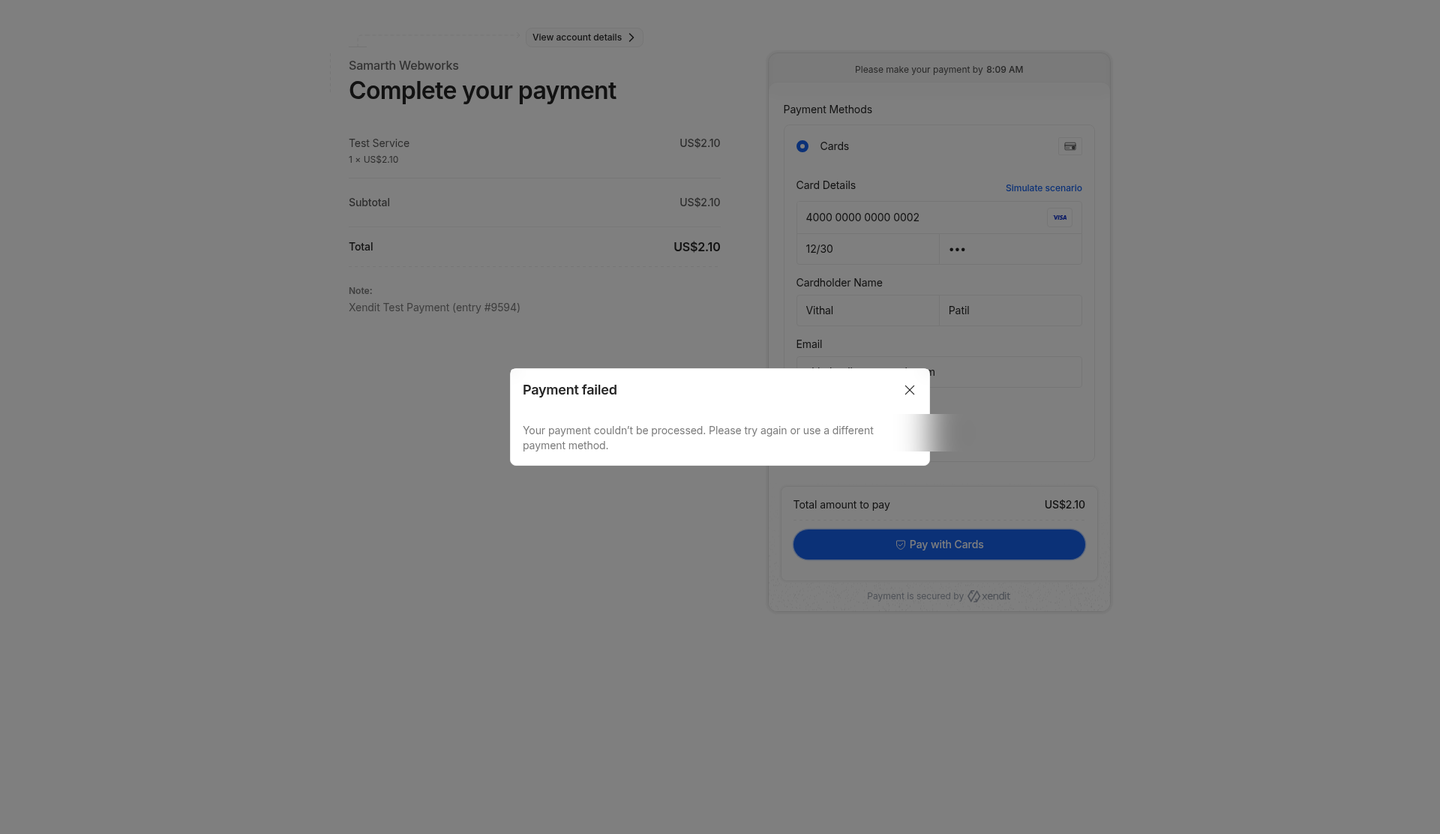
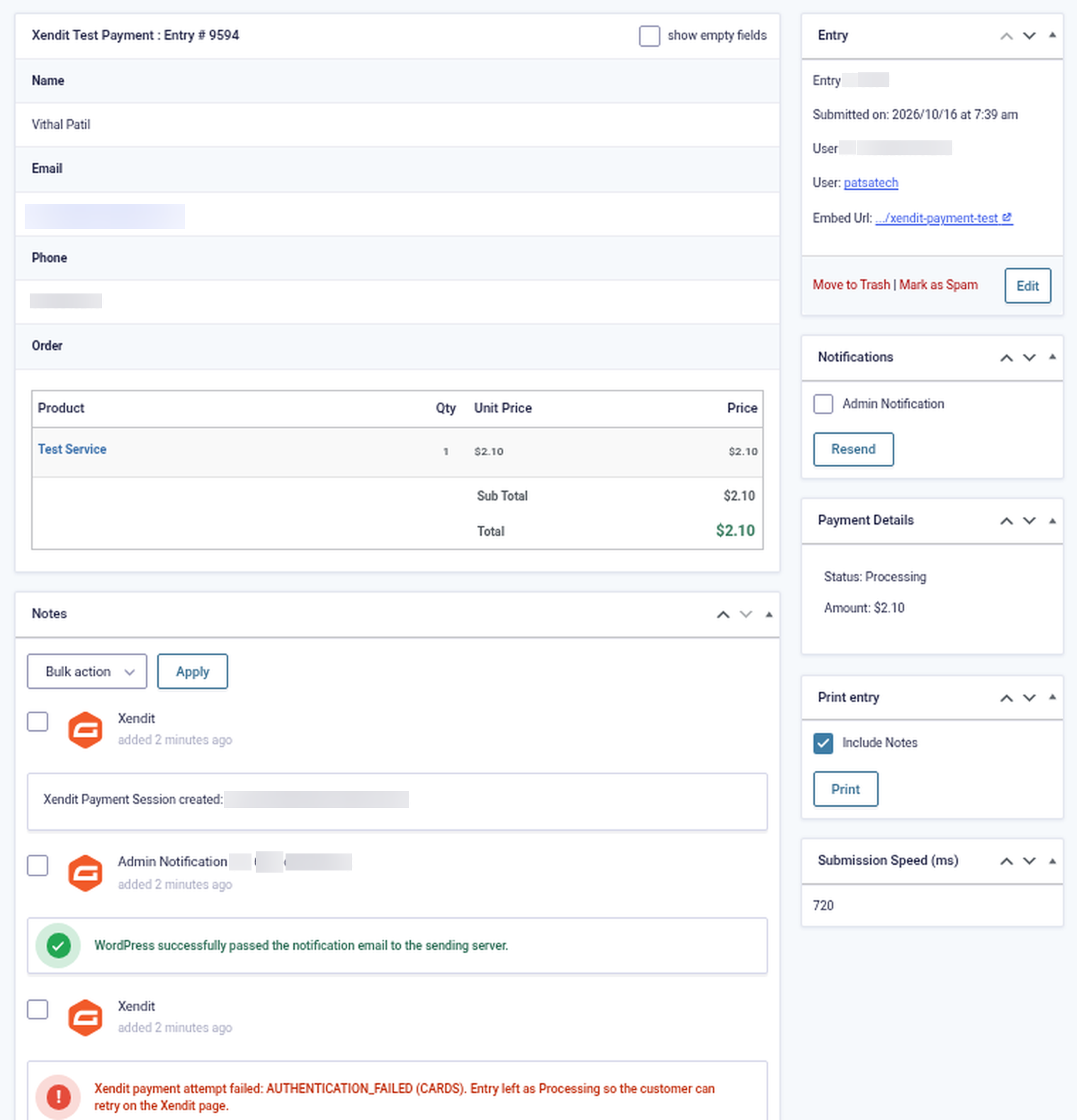
Card declined / attempt failed (payment.failure) | Stays Processing (the customer can retry on the same page) | Xendit payment attempt failed: <failure_code> (<channel>) |
Session expired (payment_session.expired) | Failed | Expired without payment (abandoned) / after N failed attempts |
| Customer clicked back / cancel on Xendit | Processing | Customer returned from Xendit without completing payment |
Paid and refunded entries are never changed by later failure or expiry events.
13. Payment channels & INVALID_PAYMENT_CHANNEL
Xendit only shows channels that are activated for your business country and currency. Activate them in Xendit Dashboard → Settings → Payment Channels.
If Xendit refuses to create a session with INVALID_PAYMENT_CHANNEL:
- the customer sees “Sorry, this payment method is not available right now. Please try again later or contact us.” instead of a technical error;
- the entry gets an error note and is marked Failed;
- administrators see a dismissible notice with a link to the Xendit Dashboard.
Developers can restrict channels with the gform_xendit_session_payload filter (for example, by adding allowed_payment_channels).
14. Notifications
In Form → Settings → Notifications, choose the event Payment Completed, Payment Failed or Payment Refunded. This way you only email the customer a receipt once Xendit has confirmed the payment.
You can also hold any existing form notification until payment: in the Xendit feed, tick Send notifications only when payment is received and choose the notifications to delay. In the same feed, Create post only when payment is received and Post Payment Actions delay post creation and other add-on feeds (Mailchimp, Zapier, User Registration…) until Xendit confirms the payment.
15. Debug logs
- Turn on Debug log in Forms → Settings → Xendit.
- Enable logging in Forms → Settings → Logging and select Xendit Gateway for Gravity Forms.
- View or download the log from the Logging page.
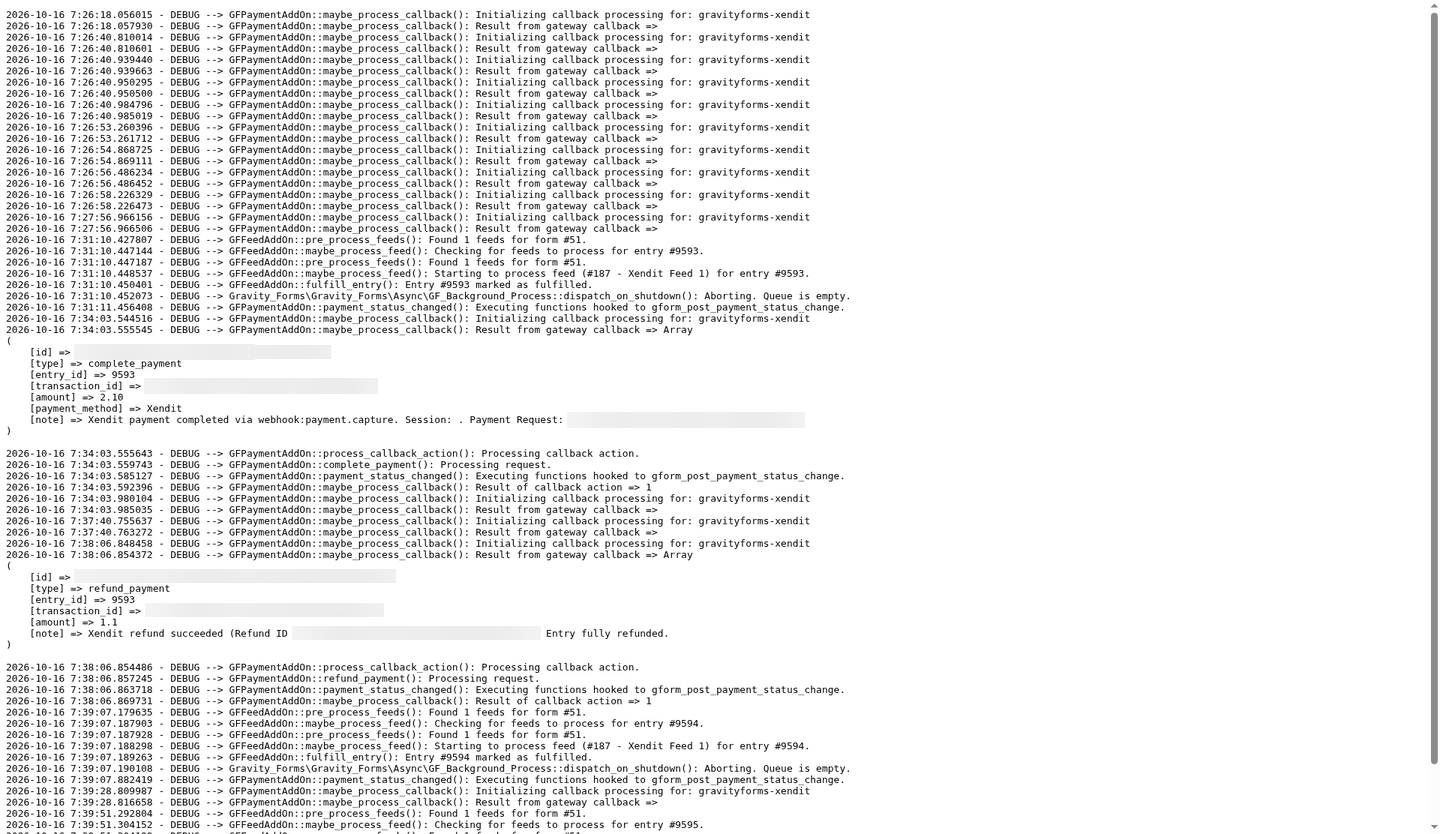
API calls, webhook events and test pings are logged as info and debug lines; errors are always logged. Secret keys and tokens are never written to the log.
16. Troubleshooting & FAQ
The Xendit feed can’t be created
Save a secret key for the current mode in Forms → Settings → Xendit first.
Entries stay Processing after payment
Check that the webhook URL is set for Payment Session Completed, that the token matches, and that Test and save returns 200. The return-URL check also completes the entry when the customer comes back.
Webhook returns 401
The Webhook Verification Token in Gravity Forms doesn’t match the one in Xendit.
“This payment method is not available right now”
Activate the payment channels in Xendit (see section 13).
Currency not supported
The Gravity Forms currency must match a currency enabled on your Xendit account (for example a USD form needs USD activated in Xendit). Set Forms → Settings → Currency to IDR, PHP, VND, THB, SGD, MYR or USD. IDR and VND are added to the list by the add-on.
Subscriptions?
Not supported. Xendit Payment Sessions are one-time payments.
17. Tested on
- Live Gravity Forms sandbox: gravityforms.patsatech.com (WordPress 7.1.3, Gravity Forms 2.10.3, Xendit Test mode, USD; PHP 7.4+ required, code checked on PHP 8.4)
- Paid card payment: entry Paid, transaction ID saved
- Partial refund: Refundable balance drops immediately and stays after a reload, entry stays Paid, shown in Xendit
- Refund larger than the Refundable balance: rejected with the admin error “Refund amount exceeds refundable balance”
- Full refund of the remainder: entry Refunded, shown in Xendit
- Declined card: “payment attempt failed: AUTHENTICATION_FAILED (CARDS)” note, entry stays Processing
- Abandoned checkout: entry stays Processing until the session expires
- All Xendit webhooks answered HTTP 200
18. Changelog
1.0.0 — 2026-10-16
- Initial release.
19. Support
PatSaTECH
Email: [email protected]
Web: https://www.patsatech.com
Please include your Gravity Forms and PHP versions, a screenshot of your Xendit webhook settings, and the relevant log lines (with secrets removed).