1. Overview
WooCommerce Omise Payment Gateway by PatSaTECH connects your WooCommerce store to Omise (Opn Payments), the payment gateway for businesses in Thailand, Singapore, Malaysia and Japan. After placing the order the customer pays in Omise’s secure payment window (Omise.js) on your order-pay page: card details are typed into Omise’s own form and never reach your server. The plugin then creates the charge with the Omise Charges API and sends the customer to 3-D Secure or the bank / wallet page when needed. PromptPay and PayNow show a QR code that moves on by itself once paid.
An order is marked paid only after the charge has been read back from the Omise API (on the pay page, on return and from webhooks); nothing in a redirect or webhook body is trusted. Refunds (full and partial) are made from the WooCommerce order screen.
This is an independent PatSaTECH plugin with its own gateway ID (patsatech_omise), classes and options, so it does not clash with the official Omise plugin.
2. Features
- Omise.js secure payment window
- Cards with 3-D Secure
- PromptPay / PayNow QR page
- TrueMoney, mobile banking, FPX, GrabPay…
- Classic & Blocks checkout
- HPOS compatible
- Test & Live keys, checked on save
- Signed webhooks (Omise-Signature)
- Every charge re-read from the API
- Amount & currency verification
- Per-order lock
- Duplicate payments refunded automatically
- Full & partial refunds
- Dashboard refunds noted
- Card brand & last 4 in the order note
- Minimum amount checked before the order
- Unpaid orders cancelled on a timer
- QR codes expire with the order
- Debug log (no secrets logged)
- Translation-ready (.pot)
3. Requirements
| Component | Minimum |
|---|---|
| WordPress | 6.0 (tested up to 7.1.3) |
| WooCommerce | 8.0 (tested up to 11.2.1) |
| PHP | 7.4 |
| SSL / HTTPS | Required for live payments and for webhooks (Omise delivers webhooks to public https:// URLs only). |
| Omise account | A free test account (testing) or a verified live account, its public and secret keys, and the webhook endpoint set to this store |
| Store currency | One Omise accepts for your account, see Currencies |
Tested on: WordPress 7.1.3, WooCommerce 11.2.1 (classic and Blocks checkout), PHP 8.1.34, Omise test mode (Thailand, THB). See Tested on.
4. Installation
- In WordPress admin go to Plugins → Add New → Upload Plugin.
- Choose
wooomise-1.0.0.zipand click Install Now. - Activate WooCommerce Omise Payment Gateway (PatSaTECH). WooCommerce must be active.
FTP: upload the wooomise folder to /wp-content/plugins/ and activate it.
Step-by-step setup with screenshots
- Card payment on the Blocks checkout, order Processing with “Method: Card (Visa ending 4242)” (order 6514)
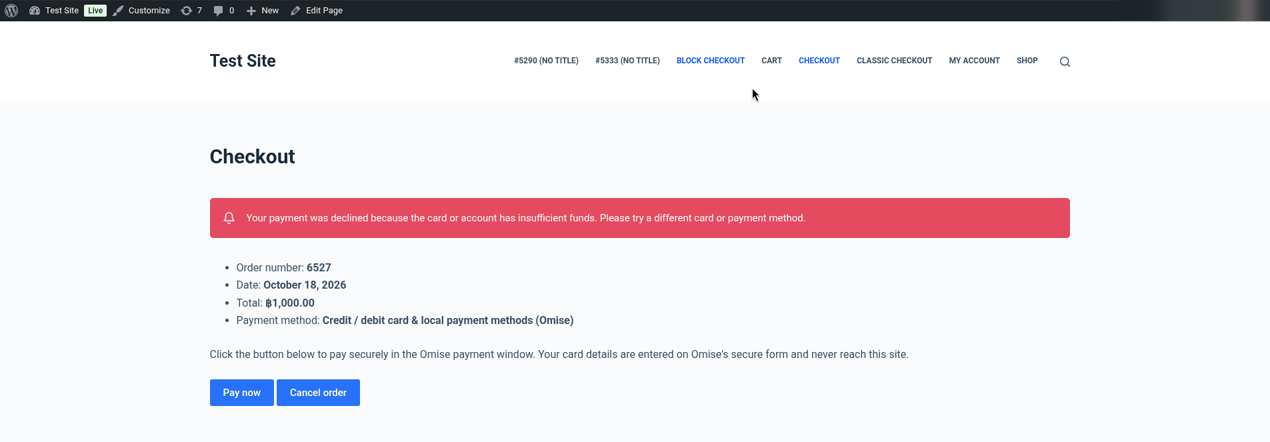
- Declined card (insufficient funds) on the classic checkout: one clear notice on the pay page, order Failed, paid straight after with another card (order 6515)
- Partial refund (100.00) and refund of the rest (400.00) from WooCommerce; a refund larger than the balance refused; a refund made in the Omise dashboard noted on the order
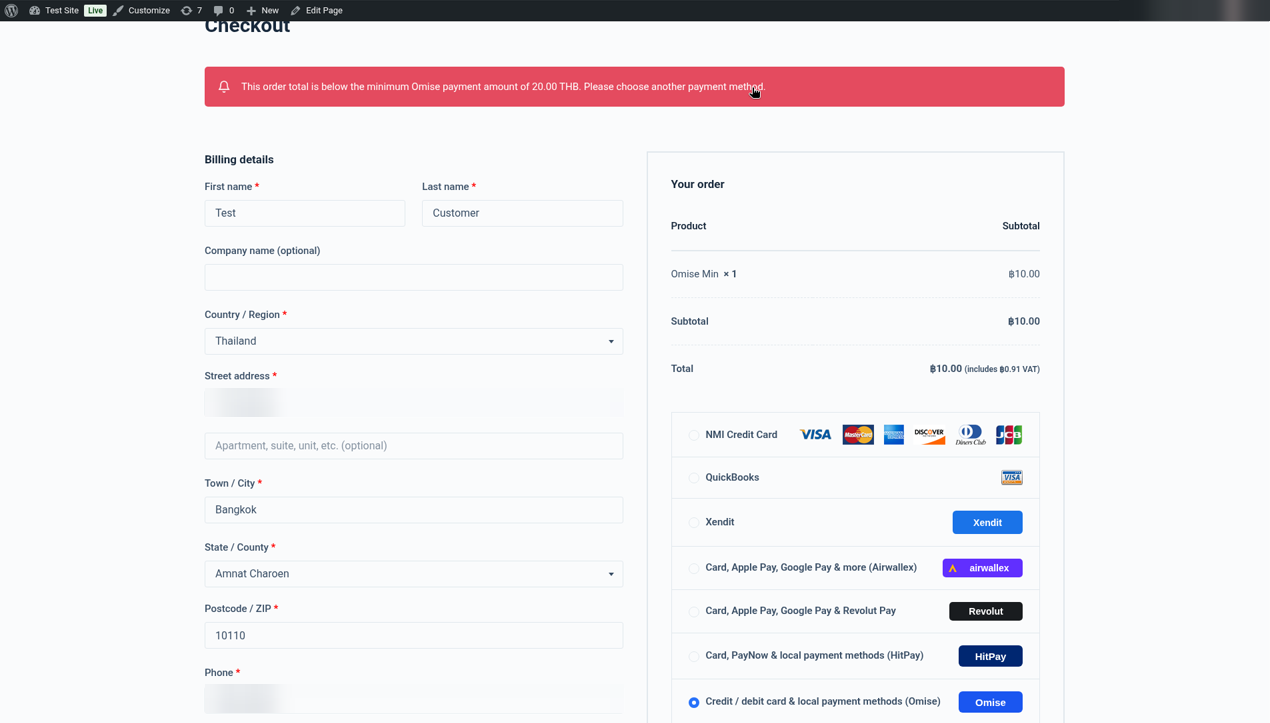
- PromptPay QR code paid with Omise’s test “Mark as paid”, duplicate-payment guard (order 6522), minimum amount (THB 10 order), unpaid order cancelled by the time limit (order 6523)
- Webhooks verified with the Omise-Signature header
Click any screenshot to open it full size. Keys, webhook secrets, Omise charge / refund IDs, email addresses, phone numbers and IP addresses are blurred or left out.
Part A: Omise dashboard
Copy your test keys
Sign in at
dashboard.omise.co(test mode is on for a new account), open Keys and copy the public key (pkey_test_…) and secret key (skey_test_…). Full details: Getting your Omise keys and webhook.Point the webhook to this store
Open Webhooks and set the endpoint to
https://your-store.com/wc-api/patsatech_omise_webhook/. If a webhook secret is shown, copy it too.
Part B: WordPress / WooCommerce
Upload and activate the plugin
Plugins → Add New → Upload Plugin, choose
wooomise-1.0.0.zip, install and activate.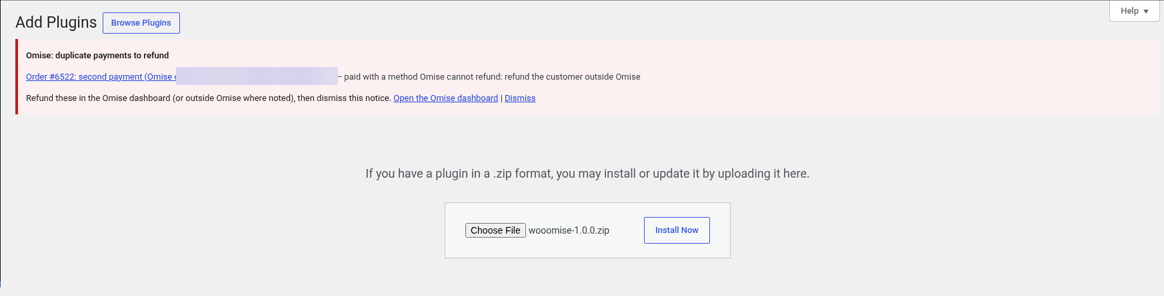
Plugins → Add New → Upload Plugin with wooomise-1.0.0.zip. 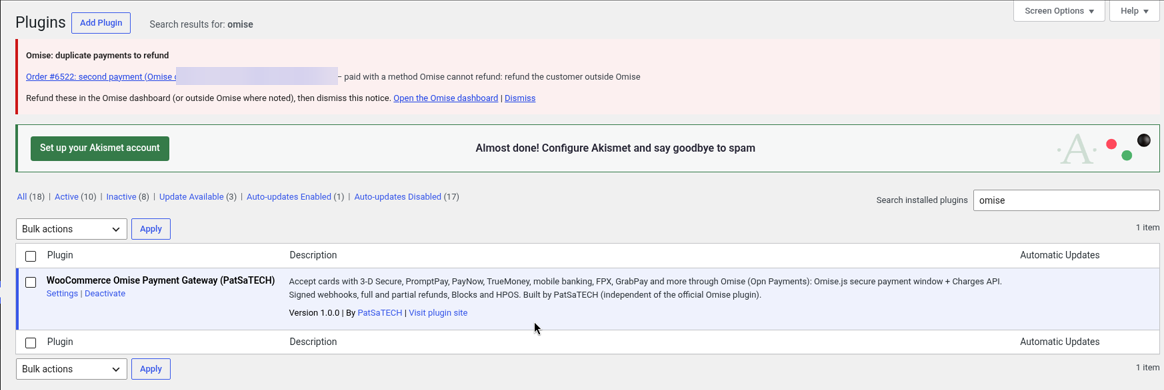
WooCommerce Omise Payment Gateway (PatSaTECH) 1.0.0 active. Paste the keys
Go to WooCommerce → Settings → Payments → Omise (PatSaTECH), tick Enable Omise, keep Test mode ticked, paste the Test public key, Test secret key and (if you have one) the Test webhook secret, and click Save changes. The plugin checks the keys: “Omise Test keys verified. Account country TH, funding currency THB.”
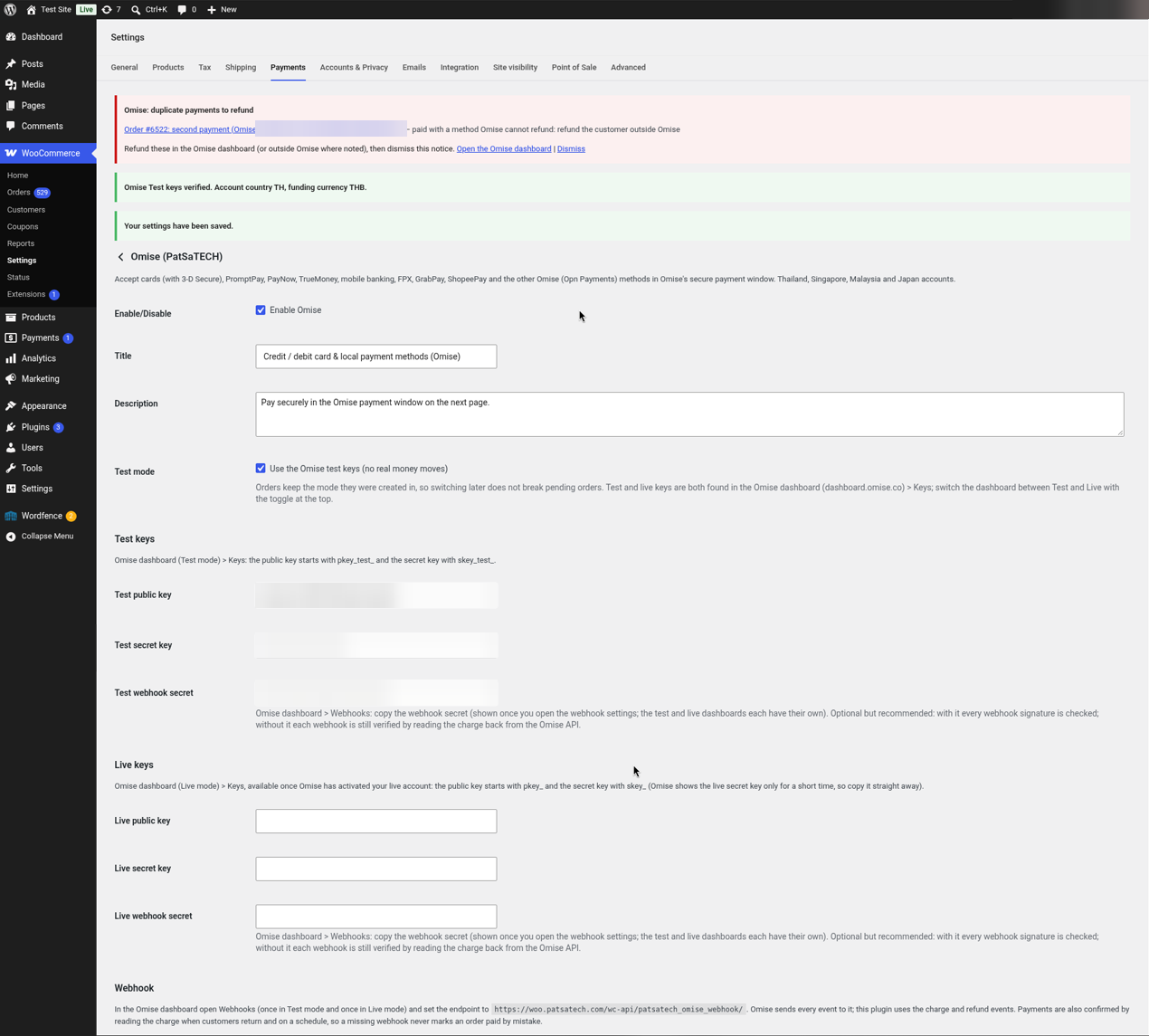
Enable, title, test mode, test and live keys (masked), and the webhook URL to set in the Omise dashboard. 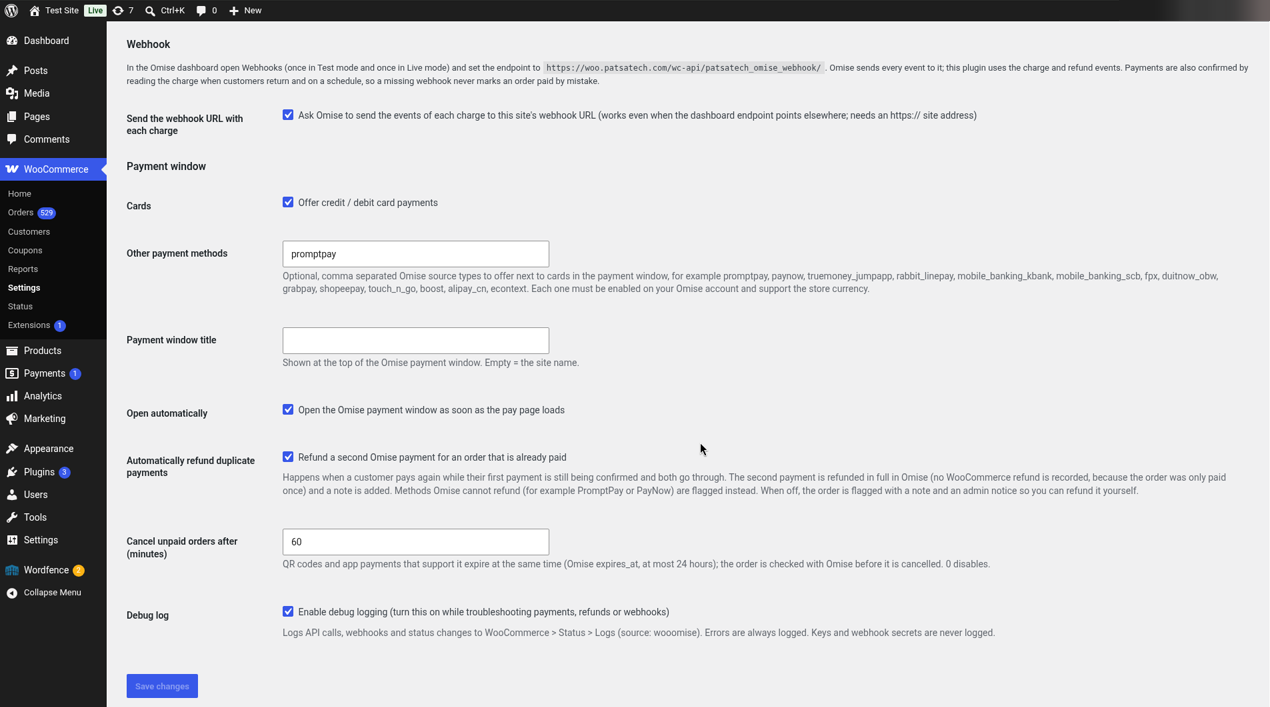
Cards, other payment methods (for example promptpay), payment window title, open automatically, duplicate refunds, the unpaid-order time limit and the debug log.
Part C: Test payment
Choose Omise at checkout
Add a product to the cart, choose Credit / debit card & local payment methods (Omise) on the classic or Blocks checkout and click Place order.
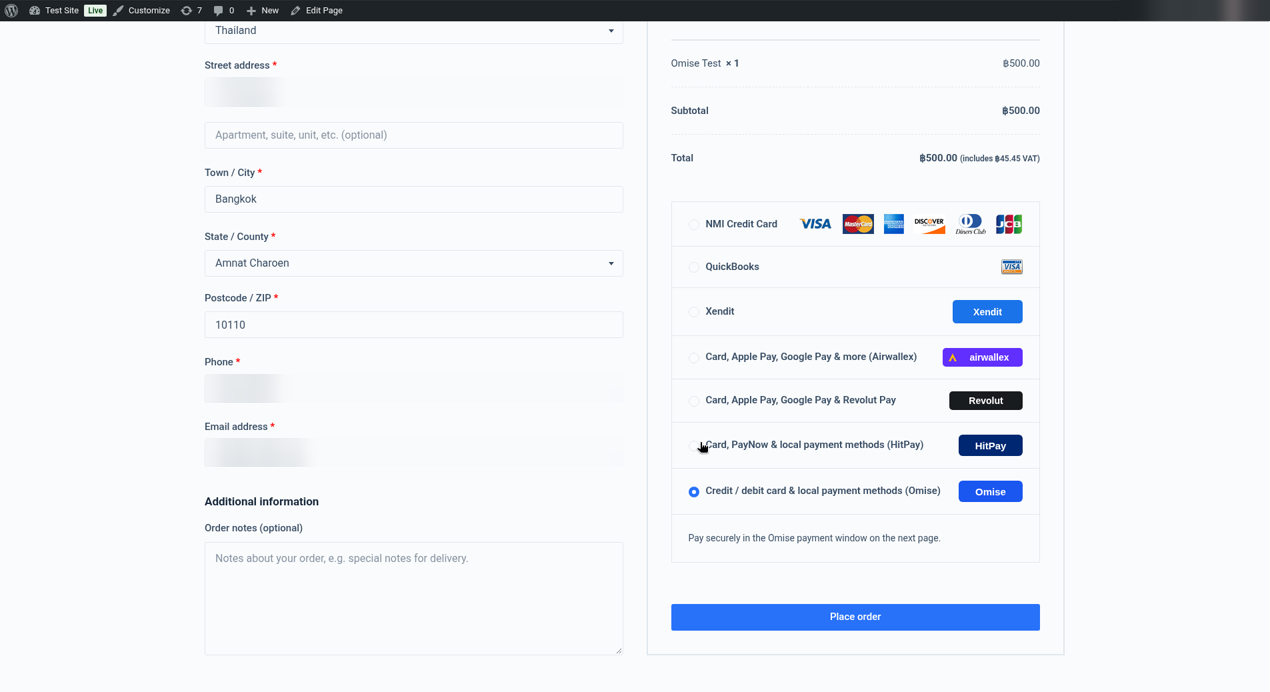
Classic checkout with the Omise option (customer address, phone and email blurred). 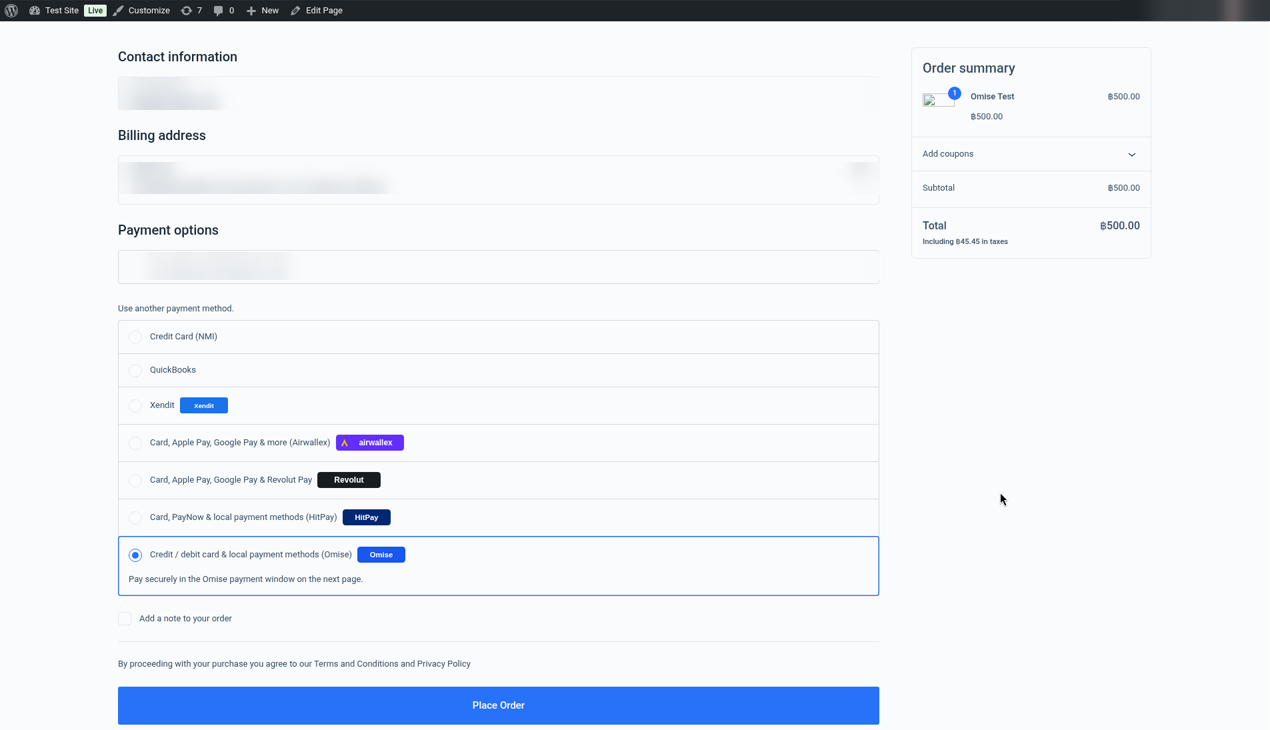
Blocks checkout with Omise selected (customer details and saved card blurred). Pay in the Omise payment window
The order-pay page opens Omise’s payment window by itself (or click Pay now). Enter test card
4242 4242 4242 4242, any name, any future expiry and any CVC, or choose PromptPay.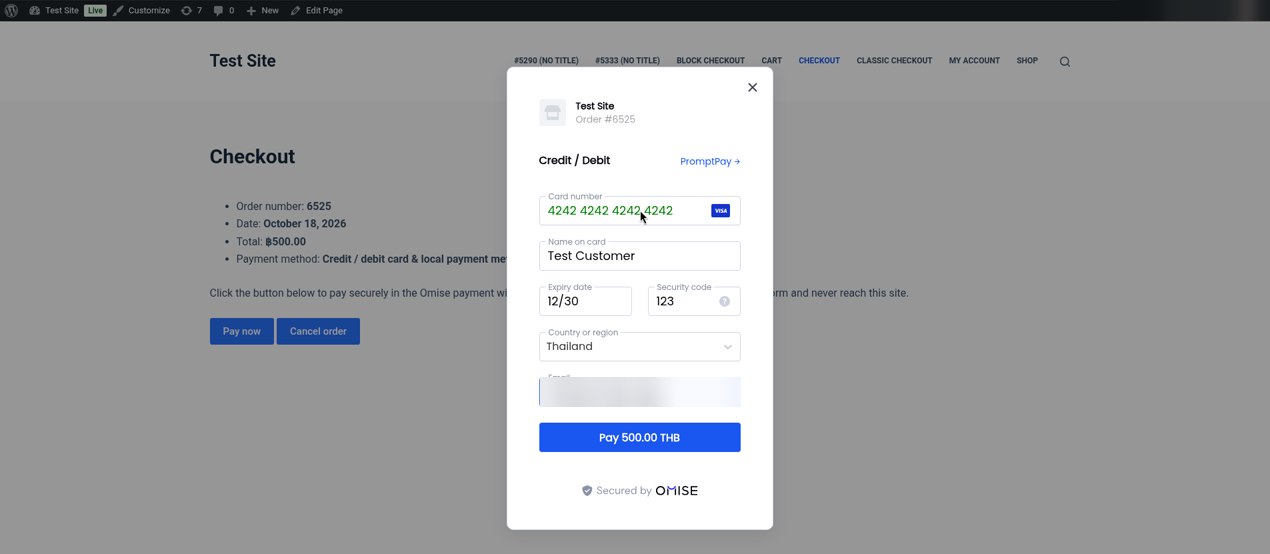
Omise payment window on the order-pay page for order #6525 (฿500.00) with the 4242 test card. 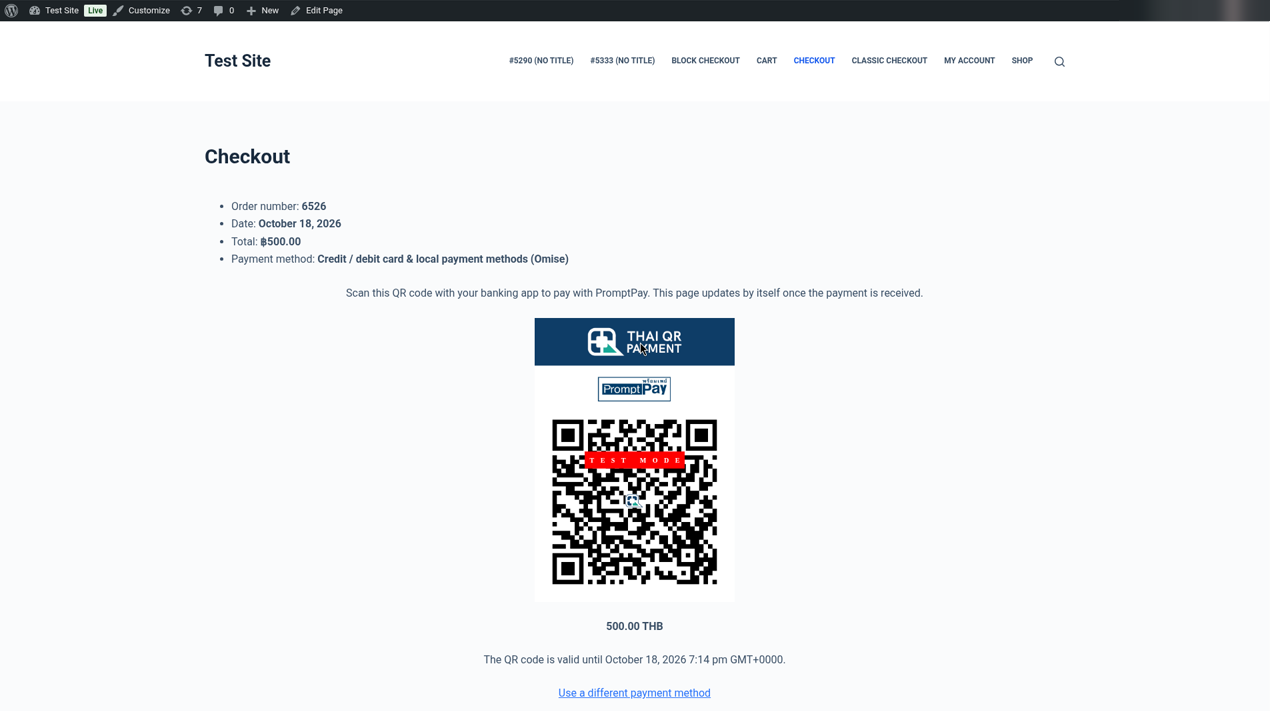
PromptPay on order #6526: QR code, amount and “The QR code is valid until …” (60 minutes, the time limit, shown in the site’s time zone, UTC on the test site). The page moves on by itself once paid. Order received
After a successful charge (and 3-D Secure if your account uses it) the customer lands on the order-received page.
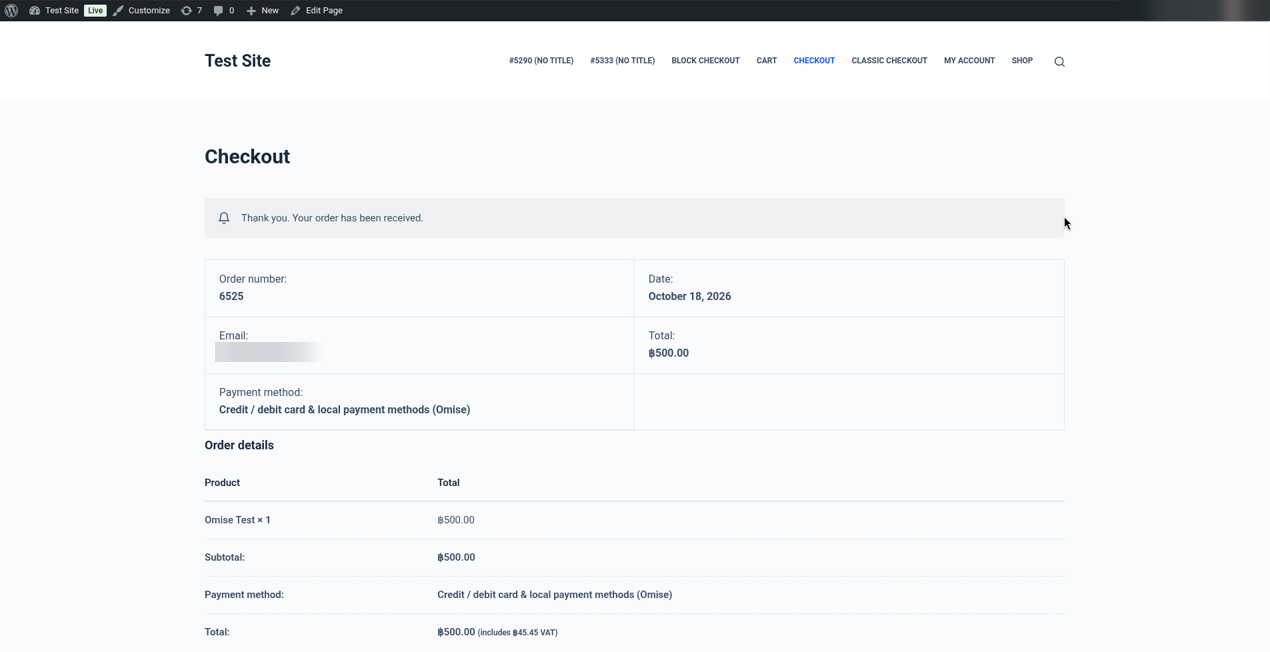
Order received page for order #6525 after an Omise card payment (email blurred). Order is Processing
The order becomes Processing. The Omise charge ID is the order’s transaction ID, and a note records the amount and the method, for example “Omise payment of 500.00 THB completed: confirmed with Omise, charge status “successful” (checked on …). Method: Card (Visa ending 4242).”
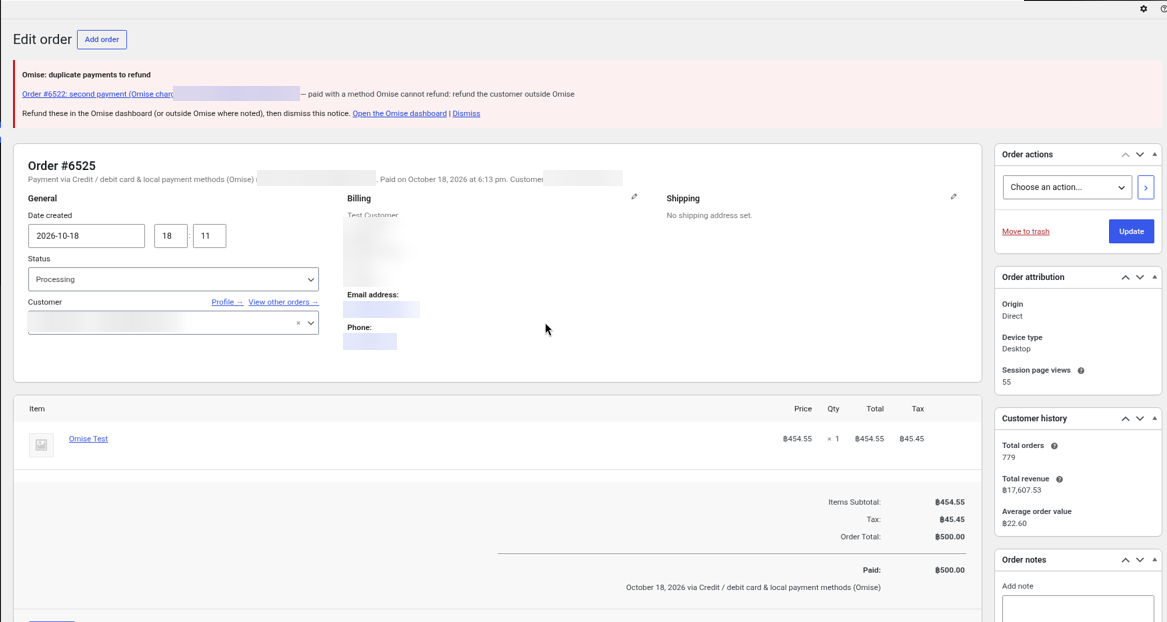
Order #6525 Processing, paid via Omise (transaction ID, IP and customer details blurred). 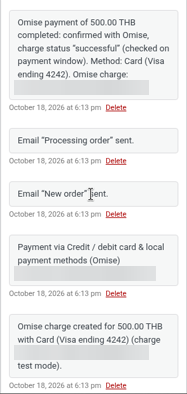
Order notes for #6525: “Omise payment of 500.00 THB completed … Method: Card (Visa ending 4242).” (charge ID blurred)
5. Getting your Omise keys and webhook
- Sign up / sign in at dashboard.omise.co. A new account starts in test mode: no real money moves and no verification is needed. The switch at the top of the dashboard toggles Test and Live; each mode has its own keys and webhook endpoint.
- Open Keys and copy the public key (
pkey_test_…) and the secret key (skey_test_…). Copy them straight into WooCommerce → Settings → Payments → Omise (PatSaTECH) (Test public key, Test secret key, Test webhook secret, or the live fields); don’t paste them into emails or chats. - Open Webhooks, set the endpoint to
https://your-store.com/wc-api/patsatech_omise_webhook/and save. If the page shows a webhook secret, copy it into the plugin’s webhook secret field: webhooks are then checked with theOmise-Signatureheader. Without a secret every event is confirmed by reading it back from the Omise API, which is just as safe. The plugin also sends this URL with every charge (setting Send the webhook URL with each charge, on by default), so events arrive even if the dashboard endpoint points to another site. - Save the plugin settings. The plugin checks the keys with Omise and shows, for example, “Omise Test keys verified. Account country TH, funding currency THB.”
- Optional: two-factor authentication for your dashboard login is under your Omise account settings. It is not needed for the keys.
- When Omise has verified your business, switch the dashboard to Live, copy the live keys (
pkey_…,skey_…), set the live webhook endpoint and fill in the live fields.
6. Plugin settings
WooCommerce → Settings → Payments → Omise (PatSaTECH)
| Setting | Description |
|---|---|
| Enable/Disable | Shows Omise at checkout. |
| Title / Description | What customers see at checkout. Default: “Credit / debit card & local payment methods (Omise)” and “Pay securely in the Omise payment window on the next page.” |
| Test mode | Ticked by default: uses the test keys (no real money moves). Orders keep the mode they were created in. |
| Test / Live public key, secret key | From the Omise dashboard → Keys (switch Test / Live at the top). Checked with Omise when you save, including that test keys are in the test fields. |
| Test / Live webhook secret | Optional. When set, webhooks are verified with the Omise-Signature header; when empty, each event is confirmed by reading it back from the Omise API. |
| Webhook | Shows the URL to set in the Omise dashboard (https://your-store.com/wc-api/patsatech_omise_webhook/). |
| Send the webhook URL with each charge | On by default: Omise sends each charge’s events to this store even if the dashboard endpoint points elsewhere (needs an https:// site address). |
| Cards | Offer card payments (on by default). |
| Other payment methods | Optional, comma-separated Omise source types, for example promptpay, truemoney_jumpapp, mobile_banking_scb. Each must be enabled on your Omise account. |
| Payment window title | Shown at the top of the Omise payment window. Empty = the site name. |
| Open automatically | Opens the payment window as soon as the pay page loads (on by default). |
| Automatically refund duplicate payments | On by default. See Double-payment protection. |
| Cancel unpaid orders after (minutes) | Default 60. QR codes and app payments expire at the same time; the order is checked with Omise once more before it is cancelled. 0 disables it. |
| Debug log | Logs API calls, webhooks and status changes to WooCommerce → Status → Logs (source wooomise). Errors, warnings and webhook receipts are always logged; keys and webhook secrets never are. |
7. Webhooks
Omise has one webhook endpoint per mode (Test / Live) under Webhooks in the dashboard. Set it to this store’s URL. The plugin also sends its URL with every charge, so a second site on the same Omise account still gets its own events.
Webhook URL: https://your-store.com/wc-api/patsatech_omise_webhook/
| Event | What the plugin does |
|---|---|
charge.create | A charge was created. For cards without 3-D Secure the charge is already successful or declined at this point, so this is often the only event (seen in the live test). The plugin reads the charge again from the API and applies the result. |
charge.complete | A pending charge finished: 3-D Secure, a bank / wallet page, or a PromptPay QR code that was paid or failed. Read again from the API and applied. |
charge.expire | A QR code / wallet charge expired unpaid. Noted; at the time limit the order / entry is closed. |
charge.reverse / charge.update | Any other change of the charge: read again and applied (a reversed charge is noted). |
refund.create | A refund was made, from this plugin or in the Omise dashboard. Refunds made outside the plugin are noted (amount and refund ID). |
Omise sends all events to the endpoint (there is nothing to tick). Events the plugin does not use (customer, dispute, transfer…) are acknowledged with HTTP 200 and logged.
Every webhook writes a log line saying how it was verified, for example Webhook charge.create for order #6514: charge chrg_test_… (test mode, signature verified). or (test mode, verified by event lookup (no Omise-Signature header)).
charge.create (no charge.complete). That is expected.8. Payment flow & order statuses
| Situation | Order status |
|---|---|
| Order placed, customer on the pay page / in the payment window | Pending payment |
| Charge successful (card, PromptPay paid, wallet completed) | Processing (or Completed for virtual/downloadable items, as WooCommerce decides) |
| 3-D Secure, bank or wallet page still open | Pending payment; the customer sees “Your payment is being confirmed” and follow-up checks run |
| Card declined or payment failed | Failed, with the reason, card brand and last 4 in the notes; the customer can pay again on the pay page |
| Time limit reached without a payment | Cancelled (open QR / wallet charges are closed where Omise allows it) |
| Amount or currency mismatch | On hold, with a note |
| Fully refunded | Refunded |
The cart is kept until the payment is confirmed. A customer who goes back to the cart sees the state of their payment once (never twice), and nothing is cancelled just because the cart was viewed in another tab.
9. Refunds
- Open the order and click Refund.
- Enter the amount (or line-item quantities), an optional reason, and click Refund … via Omise (PatSaTECH).
- The refund is sent to Omise straight away and notes record the request and its completion. When the whole amount is refunded the order becomes Refunded.
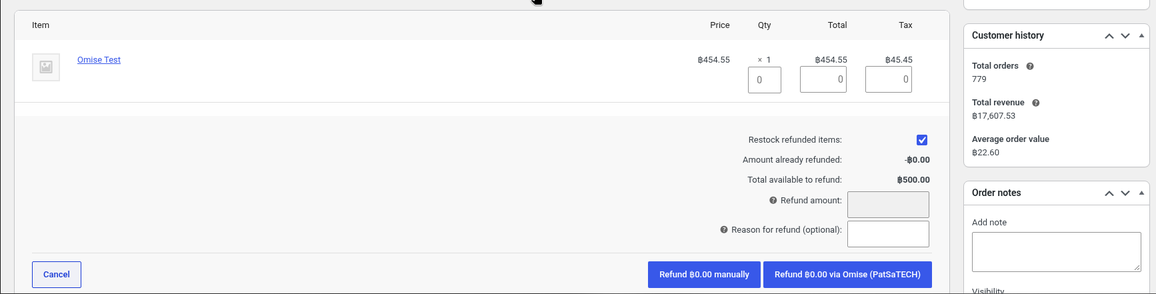
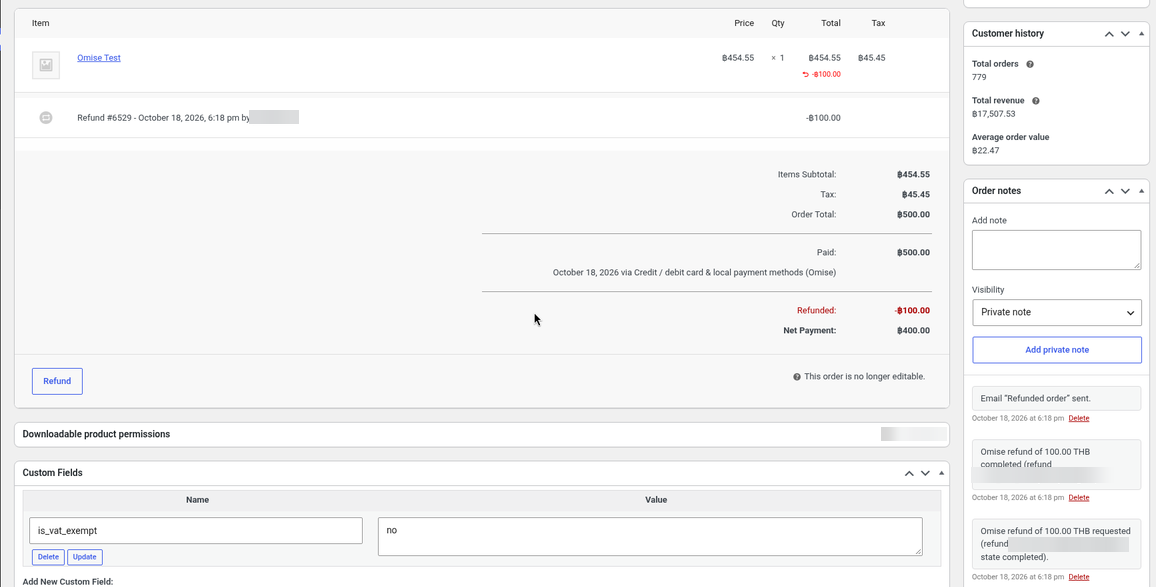
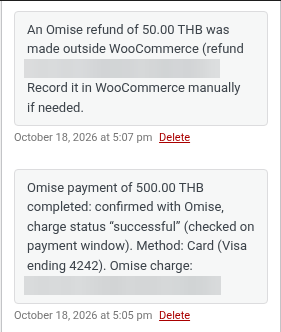
- Partial and full refunds both work, several times up to the amount paid. WooCommerce refuses a refund larger than the balance (tested: 450.00 against 400.00 left).
- Refunds made in the Omise dashboard are noted on the order through the
refund.createwebhook within about a minute; WooCommerce’s refund total is not changed automatically, so record it in WooCommerce too if you want the totals to match. - PromptPay and PayNow payments cannot be refunded or voided through Omise. The order screen says so instead of offering the button; refund those customers directly (for example by bank transfer) and record the refund manually.
- If WooCommerce taxes are on, the refund box shows read-only tax lines; enter the refund total as usual.
10. Omise behaviour to know (declines, QR codes, minimum amount, time limit)
Declined cards
A declined card returns the customer to the pay page with one clear message, for example “Your payment was declined because the card or account has insufficient funds. Please try a different card or payment method.” The order becomes Failed with the reason code, Omise’s message, the card brand and last 4 in the notes, and the customer can pay again straight away (order 6515). WooCommerce sends its “Failed order” emails once for that change (admin and, on recent WooCommerce versions, customer).
PromptPay and other QR codes
PromptPay shows a QR code on the pay page with the amount and the time it is valid until (the time limit, 60 minutes by default, shown in your site’s time zone). The page checks the payment every few seconds and moves to the order-received page once paid. Omise’s own default expiry for PromptPay is 24 hours; the plugin sets it to the time limit so an unpaid QR code expires with the order.
Minimum amount
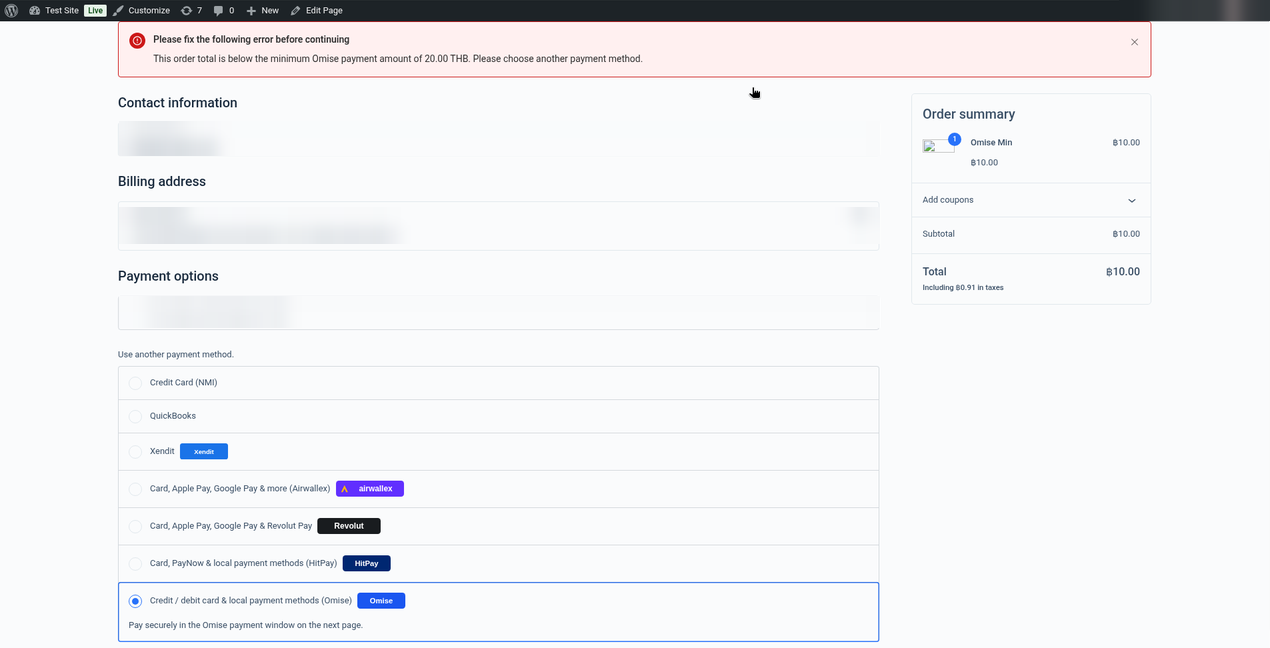
Omise’s minimum is THB 20, SGD 1, MYR 1 or JPY 100. For a smaller total the checkout shows “This order total is below the minimum Omise payment amount of 20.00 THB. Please choose another payment method.” before the order is created, on both the classic and the Blocks checkout, so no unpaid order is left behind.
Time limit
Unpaid orders are checked with Omise once more and cancelled after Cancel unpaid orders after (default 60 minutes), with the note “Omise payment was not completed in time; unpaid order cancelled.” (tested with a 5-minute limit, order 6523). An hourly check also cancels Omise orders that never reached a charge.
3-D Secure
When your Omise account uses 3-D Secure, the customer is sent to the bank’s page and back; the return page waits a few seconds for the result. New Omise test accounts charge test cards without 3-D Secure until Omise support enables it.
11. Double-payment protection
- A per-order lock means a webhook and the customer’s return can never complete the same order twice.
- While a payment is still being confirmed, a second payment is refused with “Your previous payment for this order is still being confirmed by Omise…”, with a link for customers who really closed that payment.
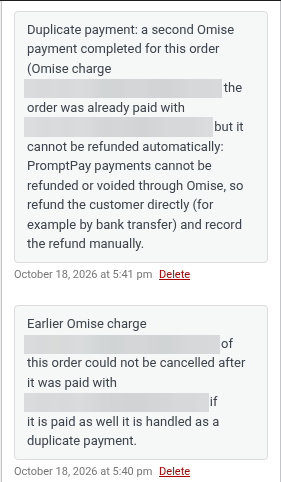
- If a second payment still goes through (for example a PromptPay QR code paid after the customer switched to a card), a card or wallet payment is refunded automatically in full and noted (setting on by default). A PromptPay / PayNow payment cannot be refunded through Omise, so the order gets a note and an admin notice listing it for you to refund directly (tested on order 6522).
12. Testing in Omise test mode (test cards)
Use any name, any future expiry date (for example 12/30) and any 3-digit CVC. Card numbers are from Omise’s test-card list.
| Scenario | Card | What happens |
|---|---|---|
| Success | Visa 4242 4242 4242 4242 (also Mastercard 5555 5555 5555 4444, JCB 3530 1113 3330 0000) | Paid straight away. Used for the successful test payments (order 6514). |
| Declined | 4111 1111 1114 0011 | Declined with insufficient funds. The customer is back on the pay page with “Your payment was declined because the card or account has insufficient funds. Please try a different card or payment method.” and can pay again at once (order 6515). |
- 3-D Secure is off on new Omise test accounts, so test cards are charged without a 3-D Secure page. Omise support can turn it on for your test account; the test 3-D Secure page then has Success / Fail buttons.
- PromptPay (Thailand) shows a QR code. In test mode open the charge in the Omise dashboard and use Actions → Mark as paid (or failed); the plugin’s QR page moves on by itself within a few seconds (tested: order 6522).
- Omise’s dashboard has no “send test webhook” button; a test payment is the way to see webhooks arrive.
13. Countries, currencies & payment methods
Who can use Omise. Omise (Opn Payments) serves businesses in Thailand, Singapore, Malaysia and Japan. Anyone can open a free test account at dashboard.omise.co (email and password, no phone number). Live payments need Omise’s business verification (KYC) for your country.
Currencies. The store currency must be one Omise accepts for your account; the funding currency of the test account used here was THB. Supported by the plugin: THB JPY SGD MYR USD EUR GBP AUD CAD CHF CNY DKK HKD (cards; Omise converts foreign currencies to your funding currency). Local methods only work in their own currency (PromptPay THB, PayNow SGD, FPX MYR…).
Amount limits. Omise’s minimum per charge is THB 20, SGD 1, MYR 1 or JPY 100 (maximum THB 150,000 / SGD 20,000 / MYR 100,000 / JPY 6,000,000 by default). Below the minimum the plugin shows a clear message before any payment is attempted (tested with a THB 10 order and form).
Payment methods. Cards are always offered (can be turned off). Add other methods in the Other payment methods setting, for example promptpay (TH), paynow (SG), fpx or duitnow_qr (MY), truemoney_jumpapp, mobile_banking_scb, rabbit_linepay, grabpay, shopeepay, touch_n_go, alipay_cn, econtext (JP convenience store)… Each method must be enabled on your Omise account; ask Omise support to activate the ones you need.
Finding the payment in Omise
In the Omise dashboard open Charges. Each charge shows the amount, status (Successful, Failed, Expired, Refunded / partially refunded), the method (for example Visa •••• 4242 or PromptPay) and, under Metadata, the order or entry it belongs to. Refunds made from the plugin show status Closed, Omise’s normal state for a completed refund. The WooCommerce order ID is in the charge metadata (wc_order_id) and the Omise charge ID is the order’s transaction ID.
14. Debug logs
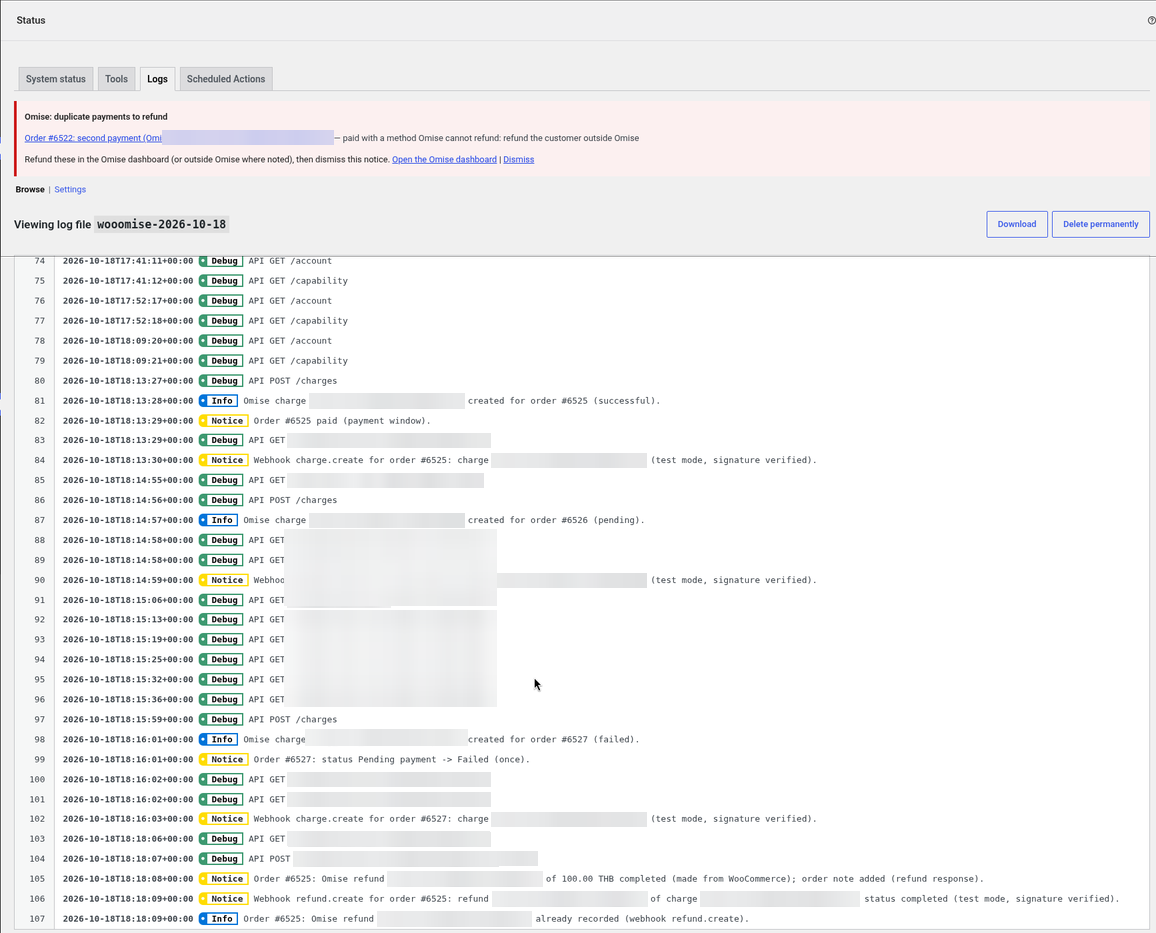
Tick Debug log in the settings, then open WooCommerce → Status → Logs and choose the wooomise source. Errors, warnings and webhook receipts (with how each was verified) are always logged; keys and webhook secrets are never logged.
15. Troubleshooting & FAQ
The keys were rejected
Test keys (pkey_test_, skey_test_) belong in the test fields with Test mode ticked; live keys in the live fields. The live secret key is shown only briefly in the Omise dashboard; roll a new one if you lost it.
Paid in Omise but the order is still Pending payment
Check the webhook endpoint (https://your-store.com/wc-api/patsatech_omise_webhook/) in the Omise dashboard for the mode you use, that the URL is reachable over https and that WP-Cron / Action Scheduler runs. The pay page, the return and scheduled checks also read the charge from Omise. See the wooomise log.
“Webhook rejected: invalid Omise-Signature”
The webhook secret in the plugin does not match the one in the Omise dashboard for that mode. Paste it again, or clear it to use event lookups instead.
“This order total is below the minimum Omise payment amount”
Omise’s minimum is THB 20 / SGD 1 / MYR 1 / JPY 100. Offer another payment method for very small orders.
A payment method does not appear in the window
List it in Other payment methods and make sure Omise has enabled it on your account and it matches the currency (PromptPay THB, PayNow SGD, FPX MYR…).
Does it work next to the official Omise plugin?
Yes. The IDs, classes, options and endpoints are all different. Do not enable both for the same checkout.
Subscriptions?
No. One-time payments only.
16. Tested on
- WordPress 7.1.3
- WooCommerce 11.2.1 (classic shortcode checkout and Cart/Checkout Blocks)
- PHP 8.1.34; PHP 7.4 or later required
- Omise test mode (Thailand account, THB). Live payments not yet tested.
- Scenarios: card payment with brand and last 4 in the note, signed webhooks, declined card and retry, PromptPay QR (Mark as paid), partial and full refunds, over-refund refused, dashboard refund noted, duplicate-payment guard, minimum amount before order creation, unpaid order cancelled by the time limit
17. Changelog
1.0.0 — 2026-10-18
- Initial release.
- Omise.js payment window and Omise Charges API: cards with 3-D Secure, PromptPay / PayNow QR page, and other Omise methods you list.
- HPOS compatible; classic and Blocks checkout.
- Test and live keys checked on save; webhooks verified with Omise-Signature or by event lookup; webhook URL sent with each charge.
- Every charge re-read from the API under a per-order lock; amount and currency verified.
- Full and partial refunds; dashboard refunds noted; duplicate payments refunded automatically.
- Minimum amount checked before the order is created; unpaid orders cancelled after a time limit; debug logging (no secrets).
18. Support
PatSaTECH · [email protected] · www.patsatech.com
Please include your WordPress, WooCommerce and PHP versions, the mode (test or live) and the relevant log lines (never send your keys or webhook secret).