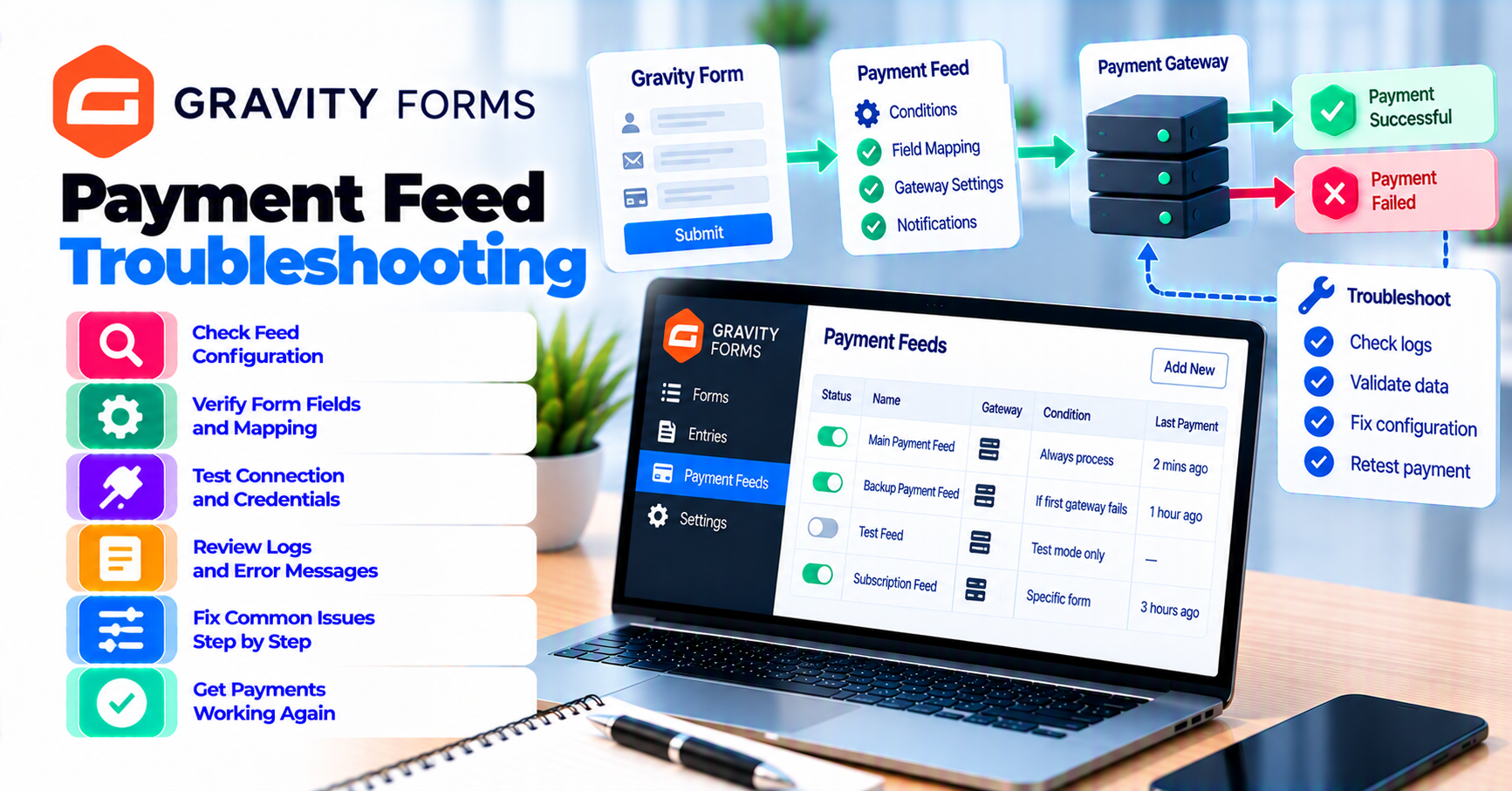
Quick answer
- Quick answer
- Map the payment-feed timeline
- Capture one evidence pack
- Confirm the entry and selected feed
- Check conditional logic and payment amount
- Read Gravity Forms logs
- Separate foreground from background processing
- Reconcile the gateway and callback
- Interpret the entry payment status
- Recover without creating a duplicate
- Run the regression matrix
- FAQ
- Sources
When a Gravity Forms payment feed is not processing, trace one submission in this order:
- Confirm the form created an entry.
- Confirm the intended payment add-on and feed are active.
- Confirm the submitted data satisfies feed conditional logic.
- Confirm payment or recurring amount fields produce the intended nonzero value.
- Enable Gravity Forms logging and reproduce once with safe test data.
- Determine whether the feed runs during submission or in the background.
- Check WP-Cron and scheduled feed processing if queued.
- Find the original provider payment or request.
- Check callback/webhook delivery.
- Compare provider state with the entry’s payment status, transaction ID, and notes.
- Reprocess only after proving the original attempt had no successful or unknown financial effect.
Do not keep resubmitting the form. A feed can create a provider payment and then fail before the entry is updated.
Do not edit the entry’s payment status to make the gateway appear paid. Status is evidence, not a substitute for provider reconciliation.
Map the payment-feed timeline
A Gravity Forms payment flow has several stages.
| Stage | Evidence |
|---|---|
| Form render | Correct form, add-on scripts, active feed |
| Submission | Validation result and entry creation |
| Feed selection | Active feed and submitted conditional logic |
| Feed dispatch | Foreground or queued/background |
| Provider request | Request ID, payment/order object, response |
| Redirect/authentication | Return/cancel state |
| Callback/webhook | Event ID, signature, delivery result |
| Entry update | Payment status, transaction ID, amount, notes |
| Post-payment work | Notifications, registrations, fulfillment, other feeds |
“Feed not processing” can mean:
- No entry was created.
- Entry was spam or rejected.
- Wrong feed was selected.
- Conditional logic skipped the feed.
- Amount was empty or zero.
- Foreground processing threw an error.
- Background feed remains queued.
- WP-Cron did not run.
- Provider rejected the request.
- Provider succeeded but callback failed.
- Entry status did not update.
- A delayed post-payment action is being mistaken for payment failure.
Classify the stage before changing settings.
If the issue is whether the chosen extension supports the required payment model at all, start with PatSaTECH’s Gravity Forms payment add-on selection guide.
Feed is not gateway
The feed tells an add-on how and when to act on an entry. The provider decides payment state. The entry records what Gravity Forms currently knows.
Keep those three sources separate.
Capture one evidence pack
Record:
- Form ID and title
- Entry ID
- Submission time and timezone
- Gravity Forms version
- Payment add-on and version
- Feed ID, name, status, and transaction type
- Submitted fields used by conditional logic
- Product, quantity, price, total, and recurring amount
- Currency
- Foreground/background mode
- Scheduled event or queue reference
- Gravity Forms log source and relevant lines
- Provider request and payment/transaction ID
- Provider result
- Callback event and delivery status
- Entry payment status
- Entry transaction ID, amount, and notes
- Notifications and post-payment actions
- Manual retries already attempted
Never place full card data, CVV, API secrets, webhook secrets, or unredacted provider payloads in the evidence pack.
Reproduce once
Use:
- Staging
- Add-on sandbox/test mode
- Provider-supplied test data
- Submitted values that intentionally match the feed
- Unique customer/email marker
- Known amount
One controlled reproduction is more useful than many shopper retries.
Confirm the entry and selected feed
Does the entry exist?
Open:
Forms → Entries → [Form]
If no entry exists, start before payment:
- Form validation
- JavaScript error
- Spam handling
- Cache/optimization
- Request/WAF
- Duplicate-submission control
- Server error
A feed cannot process an entry that was never created.
Inspect the entry
Gravity Forms Entry Detail documentation describes the entry detail page, notes, notifications, and stored submission information.
Verify:
- Correct form
- Correct entry
- Submitted field values
- Product and total values
- Payment section
- Entry notes
- Notifications
Is the intended feed present and active?
Check:
- Add-on active
- Feed enabled
- Correct form
- Correct transaction type
- Correct gateway account/environment
- Required settings complete
- No competing feed unintentionally matching
Do not delete and recreate the feed before saving its configuration and ID for comparison.
Multiple feeds
When multiple payment feeds exist:
- Document selection rules.
- Confirm whether one or many may run.
- Confirm priority or add-on behavior.
- Ensure two feeds cannot charge the same submission.
Test every intended branch.
Check conditional logic and payment amount
Gravity Forms’ payment-feed troubleshooting documentation specifically directs users to check updates, conditional logic, payment/recurring amount, and logging.
Evaluate submitted values
Conditional logic uses the stored submission, not the value you expected.
Check:
- Field ID
- Operator
- Comparison value
- Choice value versus label
- Hidden/calculated field
- Blank value
- Numeric formatting
- Multi-page state
- Dynamic population
- Conditional field visibility
Record the actual values and manually evaluate the rule.
Common condition mistakes
- Matching a display label after choice values changed
- Comparing text with different capitalization or whitespace
- Hidden field not populated
- Number formatted with currency symbols
- Condition references old field ID
- AND/OR group is misunderstood
- Feed intended for one-time payment receives recurring selection
- Test entry does not match the production branch
Payment amount
Confirm:
- Product fields exist.
- Quantity is expected.
- Total field is correct.
- Pricing calculation completed.
- Coupon/discount is applied as intended.
- Amount is not zero unless the add-on supports that flow.
- Recurring amount and setup fee are mapped correctly.
- Currency matches provider and add-on.
Do not change the amount solely to make the feed run. Fix the intended form model.
Conditional payments
For one-time and recurring branches, verify the correct feed and transaction type. The selected payment add-on’s documentation remains authoritative.
Read Gravity Forms logs
Gravity Forms Logging and Debugging documentation explains how to enable logging, choose log sources, view logs, and disable/delete them afterward.
Enable narrowly
Enable:
- Gravity Forms core logging
- Affected payment add-on
- Related background processor where available
Reproduce once and capture the timestamp.
Look for
- Feed found or skipped
- Conditional logic result
- Feed ID
- Amount/currency
- Request preparation
- Provider request/response category
- Exception or fatal error
- Queue creation
- Callback receipt
- Entry update
- Transaction ID
- Post-payment action
Redact
Before sharing:
- API credentials
- Webhook secrets
- Tokens
- Card data
- Customer PII beyond what support needs
- Raw request/response bodies
Logs can expand security and privacy risk. Disable verbose logging after the investigation and follow retention policy.
Fresh logs only
Old logs can describe a different feed version or customer branch. Include:
- Test marker
- Entry ID
- Exact timestamp
- Current plugin versions
Separate foreground from background processing
A feed can run:
- During form submission
- After submission in another request
- Through Gravity Forms background feed processing
- Through WP-Cron backup processing
- After provider callback
Gravity Forms background-feed documentation lists add-on support and notes that implementations and minimum versions differ.
Do not assume every payment add-on supports background processing.
Background queue
If the feed was queued:
- Confirm queue item exists.
- Confirm worker starts.
- Check attempts/errors.
- Check Site Health loopback.
- Check WP-Cron.
- Check firewall/basic auth.
- Check PHP memory/time.
- Check database locks.
Scheduled events
Gravity Forms Troubleshooting Scheduled Events documents Gravity Forms cron events, including background feed processor backup events.
Verify:
- WP-Cron is enabled or replaced correctly.
- A system cron calls WordPress when
DISABLE_WP_CRONis used. - Event exists and is due.
- Site traffic or real cron triggers processing.
- No security layer blocks loopback.
WordPress Cron documentation explains that WP-Cron checks scheduled tasks on page loads rather than running continuously.
Do not run the entire queue blindly
A queue can contain:
- Payment feeds
- CRM feeds
- Notifications
- Registrations
- Webhooks
Bulk processing can repeat side effects. Filter and recover the affected entry/feed under add-on guidance.
Reconcile the gateway and callback
Before resubmitting, determine whether the provider has an object.
Search by:
- Transaction/reference ID
- Request/correlation ID
- Timestamp
- Amount/currency
- Test customer marker
- Entry ID in metadata, when the integration sends it
Provider states
Classify:
- No request/object
- Created
- Requires action
- Processing
- Authorized
- Captured/succeeded
- Declined/failed
- Canceled
- Refunded
- Unknown
If provider succeeded
Do not submit again.
Check:
- Callback URL
- Signature
- WAF/firewall
- HTTP status
- Raw-body handling
- Event ID deduplication
- Entry lookup
- Payment status update
- Transaction ID
Use PatSaTECH’s webhook-monitoring guide for delivery evidence.
If provider explicitly failed
Record:
- Provider code
- Safe support category
- Entry/order state
- Whether a new attempt is allowed
Use the selected add-on and provider documentation for retry.
If outcome is unknown
Do not resubmit. Retrieve or escalate the original provider object. A network error after request submission can hide a successful payment.
Callback versus return URL
A customer browser return is not the same as a provider callback. Payment state should not depend only on the shopper returning.
Interpret the entry payment status
Gravity Forms Entry Payment Statuses documents statuses that Gravity Forms and payment add-ons may set.
Use the entry status as one source.
Compare:
- Entry payment status
- Transaction ID
- Payment amount
- Payment date
- Provider object
- Callback event
- Entry notes
Mismatch examples
| Entry | Provider | Likely next evidence |
|---|---|---|
| Processing | No object | Feed/request logs |
| Processing | Succeeded | Callback/update path |
| Failed | Succeeded | Lost response or callback mapping |
| Paid | No matching provider result | Wrong environment or manual edit |
| Empty payment fields | Provider object exists | Feed update failure |
Do not manually set Paid to close a ticket without provider evidence and a controlled correction procedure.
Post-payment actions
Some add-ons can delay notifications, registrations, or other feeds until payment. A delayed downstream action does not always mean payment feed failure.
Separate:
- Payment processing
- Entry payment update
- Post-payment feeds
- Notifications
- Fulfillment
Recover without creating a duplicate
Use a recovery gate.
Gate 1: One entry and one logical payment
Confirm:
- One form submission
- One entry
- One intended feed
- One provider attempt
- No duplicate browser submission
Gate 2: Provider outcome known
Do not recover through a new attempt when:
- Authorized
- Processing
- Succeeded
- Captured
- Unknown
Gate 3: Root cause fixed
Examples:
- Conditional logic corrected
- Amount field fixed
- Required setting restored
- Queue/cron restored
- Gateway credential corrected
- Callback reachability fixed
- Entry mapping corrected
Gate 4: Competing paths stopped
Check:
- Background queue item
- Customer retry
- Provider retry
- Manual dashboard action
- Duplicate entry
Gate 5: Supported recovery selected
Possible add-on-specific recovery:
- Process an existing queued feed
- Replay callback
- Refresh entry state
- Create a new customer attempt
- Refund duplicate
Follow official add-on and provider instructions. Do not edit Gravity Forms database rows directly.
Gate 6: Full verification
Confirm:
- One provider result
- Correct entry status
- Transaction ID
- Correct amount/currency
- One notification
- Correct post-payment actions
- No duplicate fulfillment
- Logs show recovery
For shopper recovery after a confirmed decline, use payment-failure recovery.
Run the regression matrix
Use staging and provider test mode.
Feed selection
- Condition true
- Condition false
- Boundary value
- One-time branch
- Recurring branch
- Multiple feeds
Amount
- Normal total
- Zero total
- Discounted total
- Quantity change
- Setup fee
- Recurring amount
- Currency
Processing
- Foreground success
- Foreground exception
- Background queued
- Background worker failure
- WP-Cron delayed
- Queue recovery
Provider
- Approval
- Decline
- Authentication
- Processing
- Timeout/unknown
- Refund
Callback
- Valid event
- Invalid signature
- Duplicate event
- Retry
- Delayed event
- Wrong environment
Entry
- Status
- Transaction ID
- Amount
- Date
- Notes
- Notifications
- Post-payment actions
Duplicate safety
- Double click
- Refresh
- Two tabs
- Background plus manual recovery
- Callback plus browser return
Use staging versus production payment testing for environment and test-data discipline.
FAQ
Why did Gravity Forms create an entry but not process payment?
The feed may be inactive, conditional logic may be false, the amount may be invalid, processing may be queued, or the feed may have thrown an error. Check fresh logs.
Does no transaction ID mean no payment occurred?
Not always. The provider can create or complete a payment before Gravity Forms stores the ID. Search provider-side evidence before resubmitting.
Can I run the feed again?
Only through the payment add-on’s supported recovery process after confirming the original provider outcome and stopping competing queue/customer/provider retries.
Why is the feed waiting for WP-Cron?
The add-on may support background feed processing with a scheduled backup. Check the exact add-on/version, queue, Site Health, WP-Cron, and real cron configuration.
Why is entry status Processing when the gateway is paid?
The callback may be delayed or blocked, signature validation may fail, or entry lookup/update may have failed. Reconcile the provider event and logs.
Can I change the entry to Paid manually?
Do not use a status edit as a substitute for reconciliation. Follow the add-on’s documented correction process and preserve provider evidence.
How do I test conditional logic?
Submit realistic test data, record the stored field values, manually evaluate each condition, and review the feed log for selected or skipped status.
Are notifications proof payment succeeded?
No. Notifications can run on submission or post-payment depending on configuration. Check provider state and entry payment fields.
Sources
Primary sources accessed September 20, 2026:
- Gravity Forms — Troubleshooting Payment Feeds Not Processing
- Gravity Forms — Debugging Feed Issues
- Gravity Forms — Entry Payment Statuses
- Gravity Forms — Logging and Debugging
- Gravity Forms — Background Feed Processing Add-On Support
- Gravity Forms — Troubleshooting Scheduled Events
- WordPress Plugin Handbook — Cron
This article provides add-on-neutral troubleshooting. Payment feeds, transaction types, callback paths, background processing, recovery actions, and statuses vary; follow the selected Gravity Forms payment add-on and provider documentation.